
Projectri documentation
Every screen in the product — what it is for, how to use it, and what it changes elsewhere. Written for three readers: the person doing the work, the admin who configures the workspace, and the client in the portal.
Start here
The five minutes that make the rest of this make sense.
Welcome to ProjectriWhat Projectri is, who each part of it is for, and how to find your way around this documentation.
Your first weekThe ten things worth doing in your first few days, in the order they matter.
Core conceptsWorkspace, project, task, client, time entry — the eight words the rest of the product assumes you already know.
Roles and permissionsThe four workspace roles, the permission keys behind them, and why two people in the same workspace see different screens.
GlossaryEvery Projectri word that means something specific, defined once, in alphabetical order.
The workspace
The daily app, screen by screen.
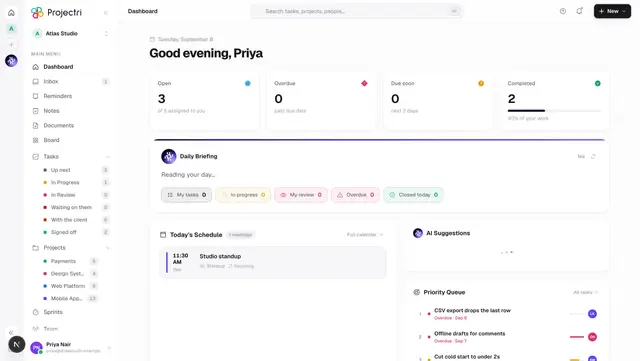
Your dashboardThe home screen — your own task counts, a briefing Nia writes from your work, today's meetings, the priority queue, the month, your sprint, team load and recent activity.

InboxEverything the workspace has told you — mentions, assignments, review requests and updates — in one list you can filter, mark read and clear.
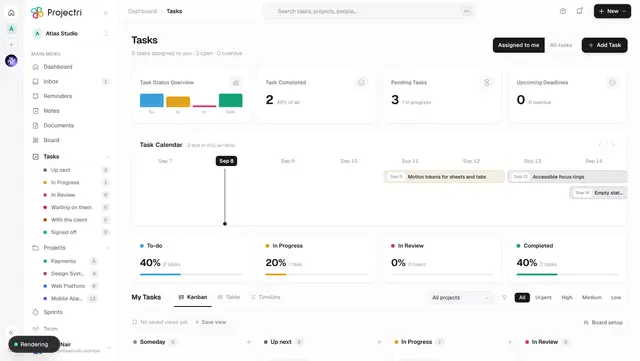
My TasksEvery task assigned to you — or the whole workspace — as a Kanban board, a table or a timeline, with counts, a due-date strip, saved views and board setup.
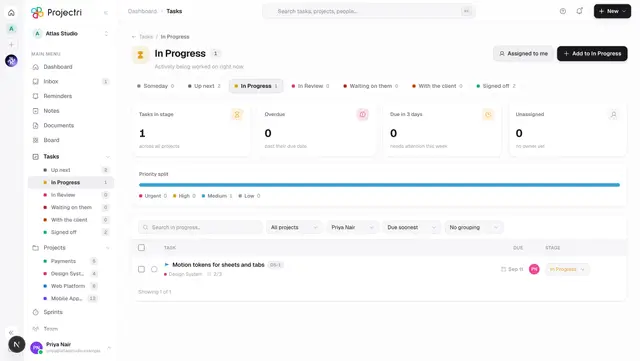
One task stageEverything sitting in a single stage — Backlog, To-do, In Progress, In Review, Completed or one your workspace invented — with grouping, sorting and bulk edits.
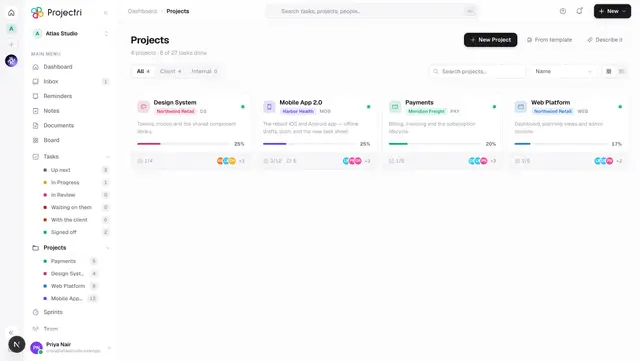
ProjectsThe project list and the project itself — its people, milestones and progress, its tasks as a table, board, timeline or roadmap, and its documents, boards and meetings.
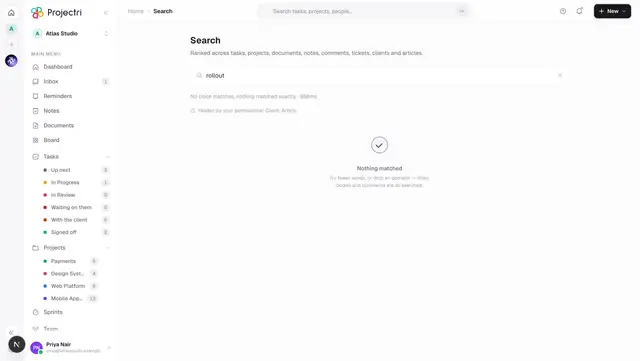
SearchRanked search across tasks, projects, documents, notes, comments, tickets, clients and knowledge-base articles, with operators, type tabs and paging.
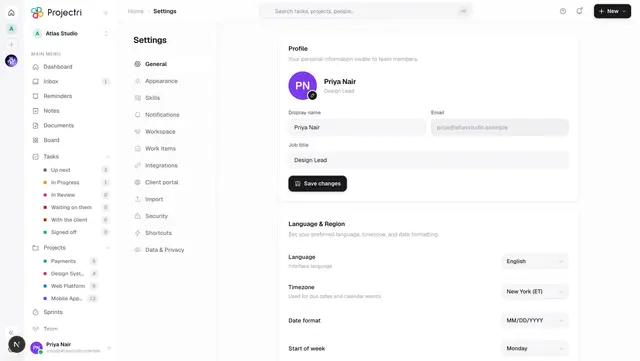
SettingsYour own settings — profile, language and region, appearance, skills, notifications, work items, integrations, import, security, shortcuts and your data.
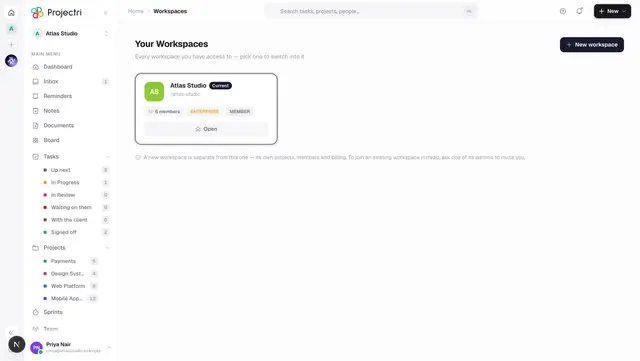
Your workspacesEvery workspace you belong to, which one you are in now, and how to switch between them or start one of your own.
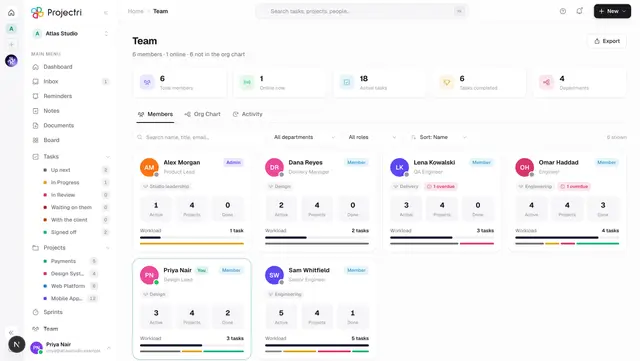
TeamThe workspace roster, the org chart with reporting lines, and a live activity timeline — with each person's department, branch, job role, workload and skills.
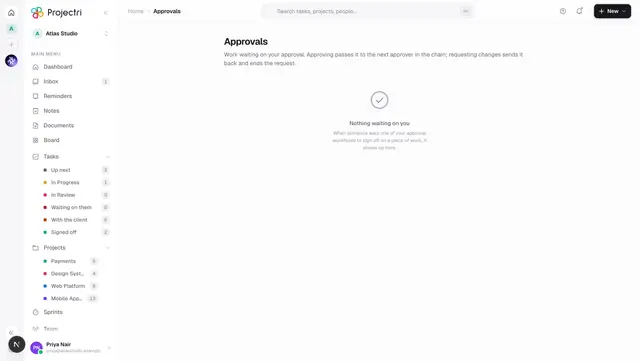
ApprovalsYour personal sign-off queue — the workflow steps waiting on you, and the agent actions paused until somebody who holds the permission says yes.
SupportThe internal ticket queue — raise, triage, reply to and resolve support tickets, with SLA state, escalations, work orders and a route into the knowledge base.
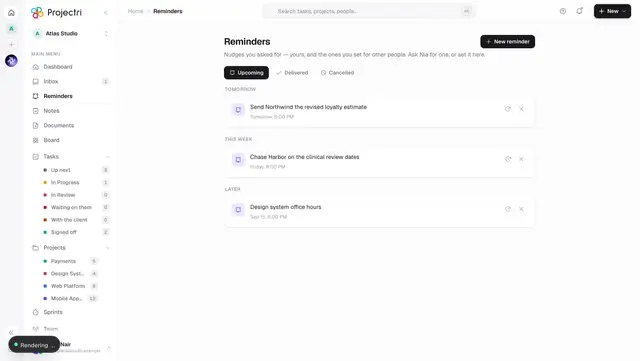
RemindersNudges you asked for — yours and the ones you set for colleagues — before they fire, with snooze, cancel and repeat.
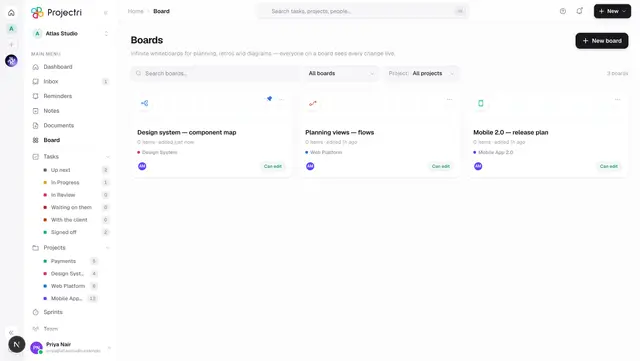
BoardsEvery whiteboard you can reach, with filters, a trash tab, card actions and a template-first create dialog.
Using a boardThe whiteboard canvas — sticky notes, shapes, connectors, drawings, tables with formulas, charts, images and embedded records, edited live by everybody at once.
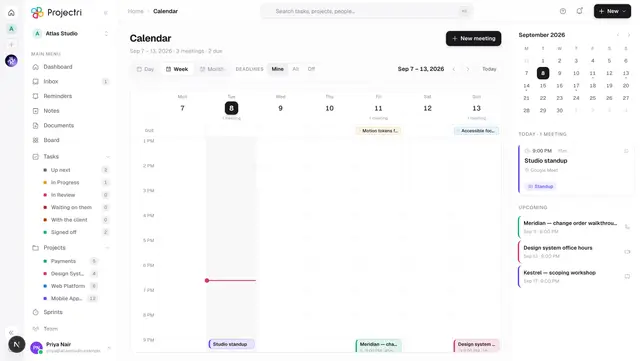
CalendarDay, week and month views of your meetings, with task deadlines and the busy time from any calendar you have connected drawn alongside them.
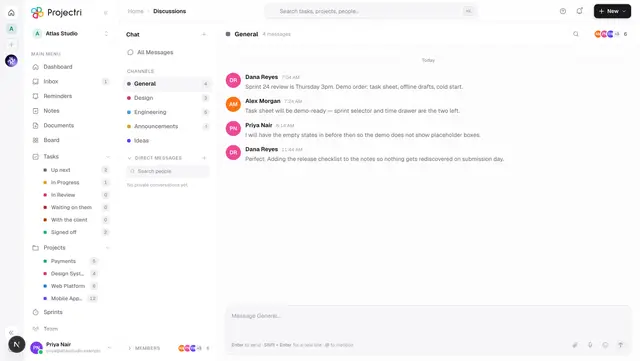
DiscussionsChannel chat for the workspace, with threads, reactions, pinned messages, files and voice notes, and optional end-to-end encryption per channel.
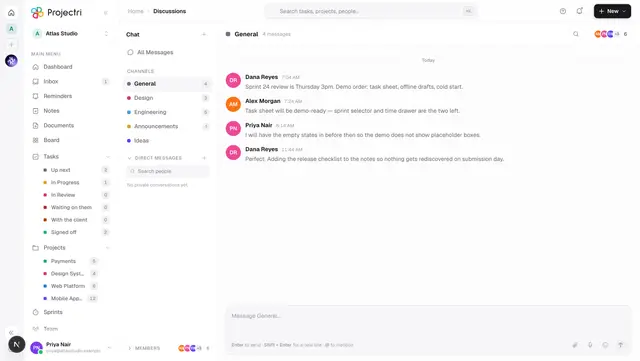
A single channelHow a channel is addressed by its key, what a pasted discussions link opens, and what happens when the key does not resolve.
Direct messagesPrivate one-to-one and group conversations, always end-to-end encrypted, living inside Discussions rather than on a page of their own.
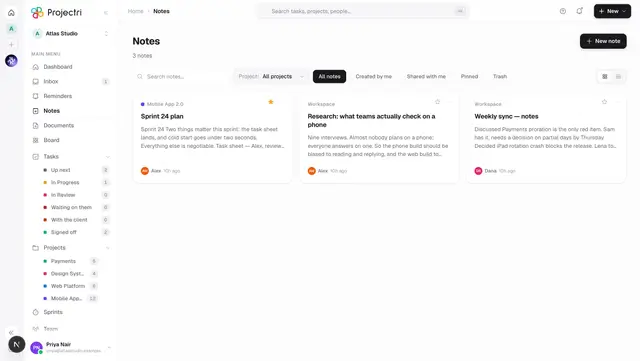
NotesEvery note you can reach — your own, ones shared with you and ones the workspace publishes — with filters, a trash tab and row actions for pinning, duplicating and sharing.
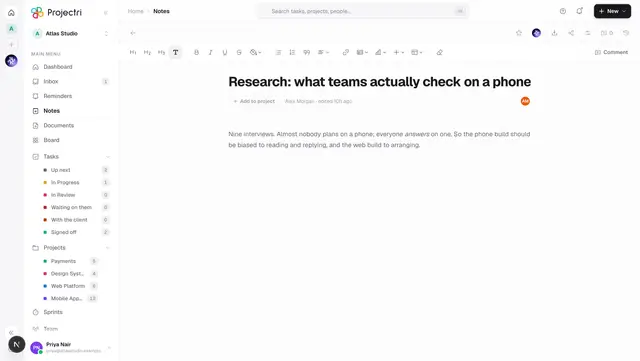
Writing a noteThe note editor — formatting, tables, charts, callouts and templates, with live co-editing, comments anchored to a selection, version history and sharing.
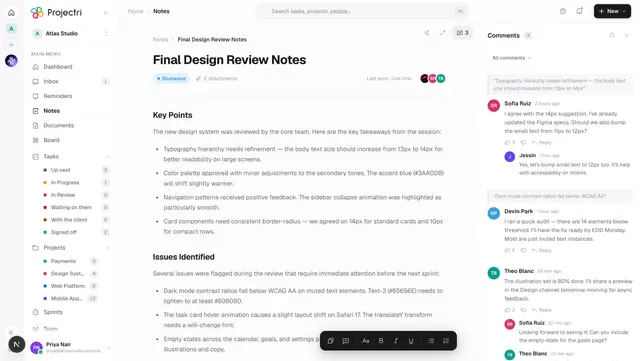
The note reading layoutA static design preview of a note laid out for reading with its comments beside it. It is not connected to your notes.
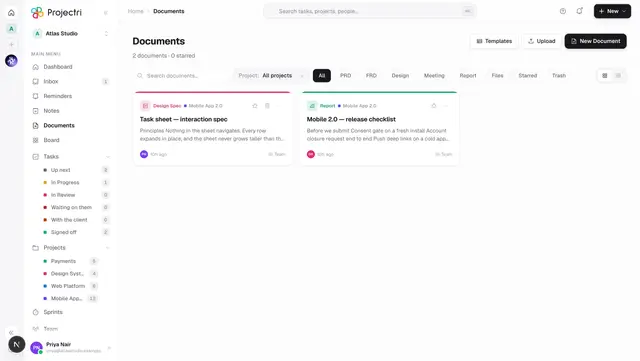
DocumentsWritten documents and uploaded files in one library, with type filters, drag-and-drop upload, templates and a trash tab.
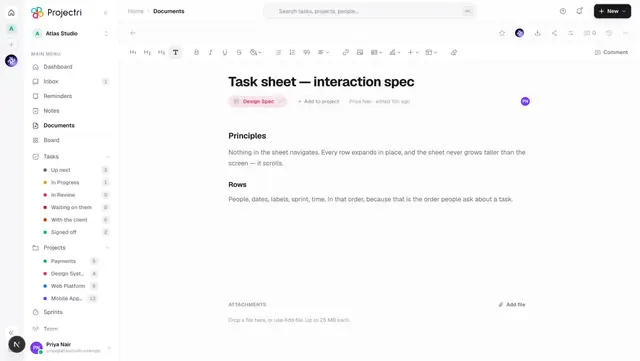
A documentOne document — the file preview or the written body, its attachments, comments, version history, sharing and export.
Knowledge baseThe workspace's written answers, searched by meaning rather than keywords, with a reader and a helpful/not-helpful vote.
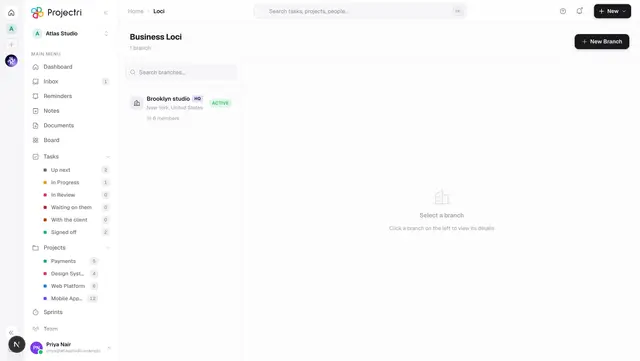
Business LociThe workspace's branches and the departments under each one — addresses, contact details and which office is headquarters.
Meeting notesThe transcript, summary and proposed decisions, actions and risks from one recorded meeting, and the review queue where you decide which of them become real rows.
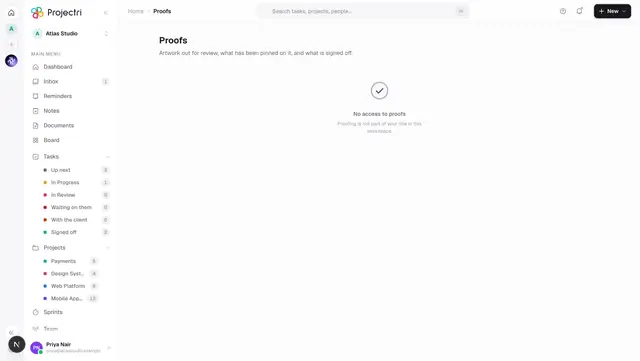
ProofsArtwork and PDFs sent for review, with comments pinned to a point on the page, a version history, and an approval recorded against the exact file it was given for.
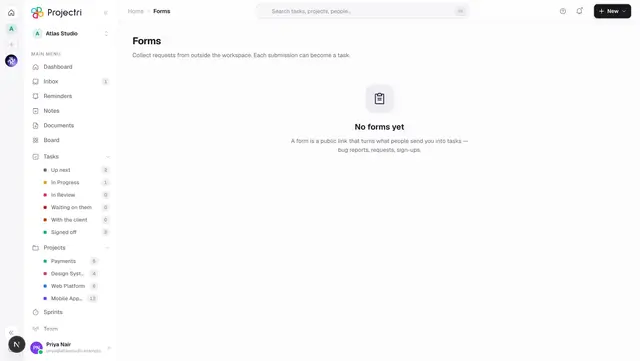
FormsBuild a public intake form, share its link, and turn what people send you into tasks in a project.
Form submissionsEverything that has come in through every form in the workspace, newest first, with the task each submission became.
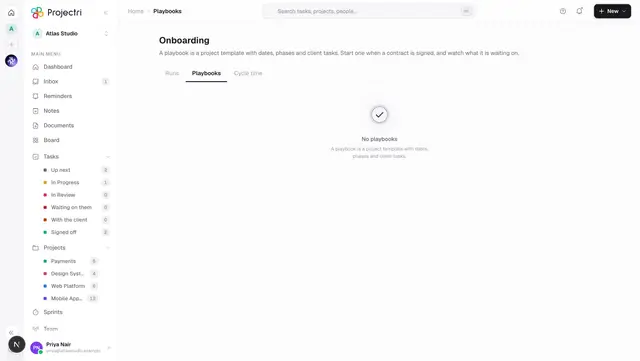
Onboarding playbooksProject templates with phases, dated tasks and the things you need from the client — start one when a contract is signed, then watch what each run is waiting on.
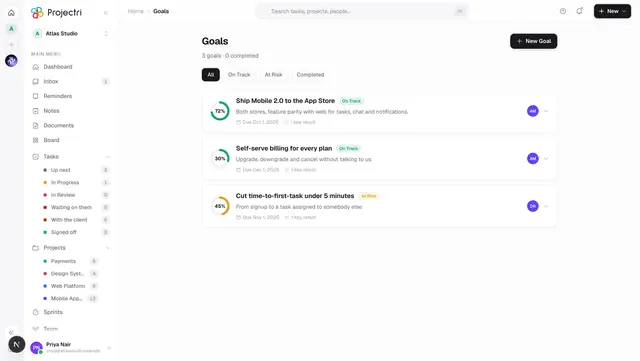
GoalsObjectives with key results — the numbers that would tell you the goal worked — and a check-in trail showing when each one moved and why.
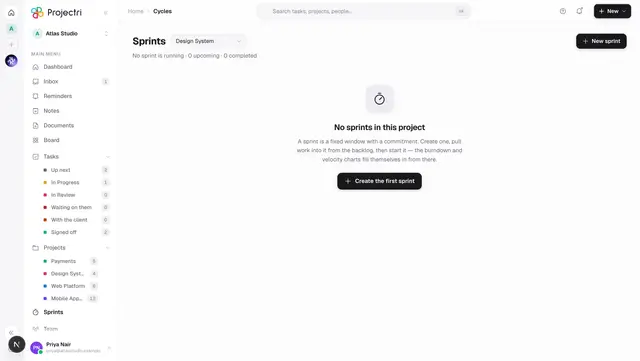
SprintsFixed windows of committed work inside a project, with a board, a backlog you pull from, and burndown, velocity and cumulative-flow charts.
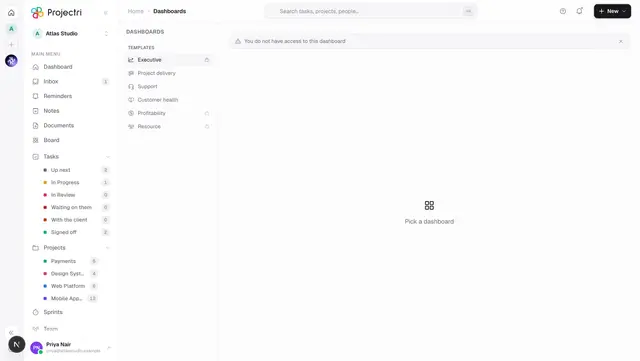
DashboardsBuild a board of charts from a catalogue of metrics and datasets, or copy one of the six shipped templates, and choose who can see it.

Client feedbackCSAT and NPS scores from clients, the low ones that still need somebody to pick them up, and the rules for who gets asked and how often.
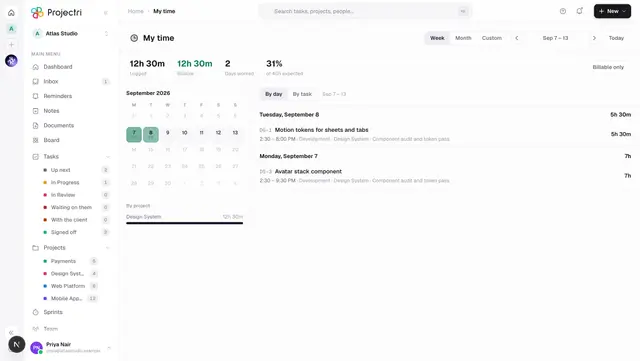
My TimeThe hours you logged, read back to you — a calendar of days with their totals, and the entries underneath, by day or by task.
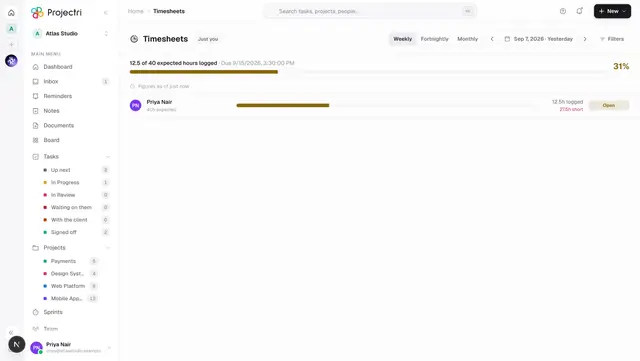
TimesheetsWho has filled their timesheet in for this period and who has not, plus the queue where submitted time is released for billing.
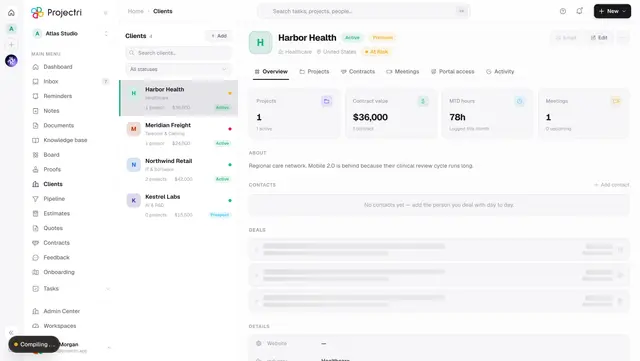
ClientsThe account record for every client and prospect — contacts, projects, contracts, meetings, portal logins and an activity trail, one client at a time.
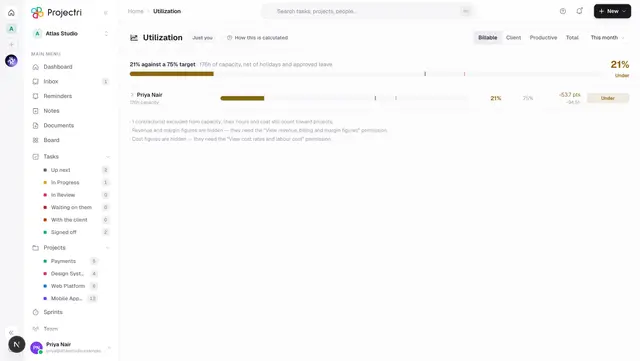
UtilizationLogged hours as a percentage of capacity, measured against the target for each person's role, with twelve periods of history behind every name.
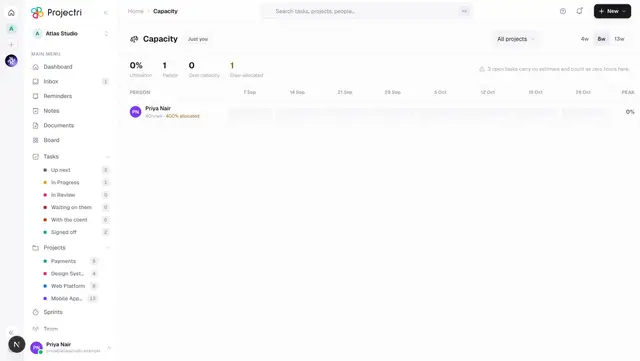
CapacityCommitted hours against contracted hours week by week, built from the estimates on dated tasks, so an overloaded week is visible before it arrives.
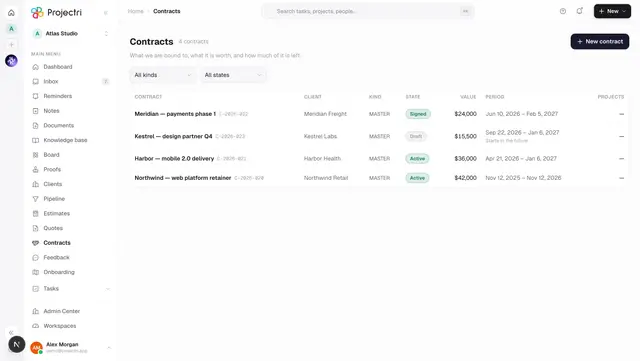
ContractsThe register of what the firm is bound to — every MSA, statement of work and order form, its lifecycle state, its value and whether it is still inside its period.
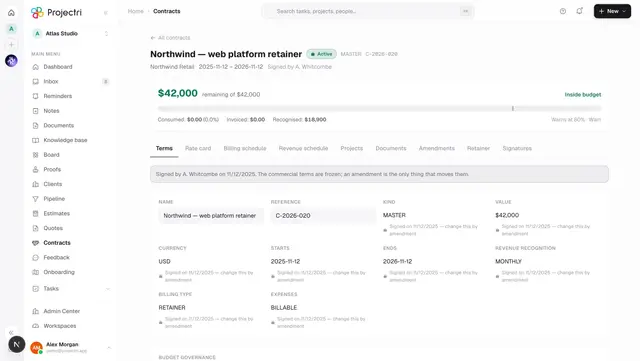
One contractA single agreement end to end — terms, rate card, burn, billing and revenue schedules, projects, documents, amendments, retainers and signatures.
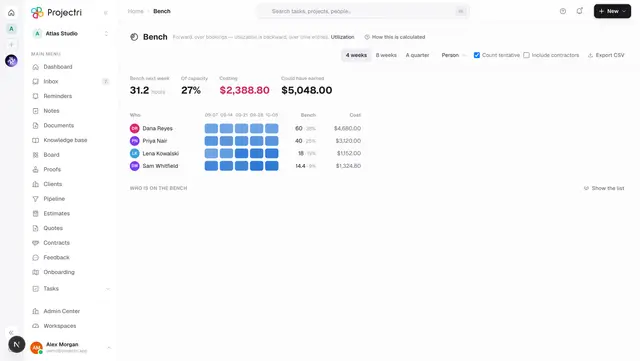
BenchHow much billable capacity is unbooked over the coming weeks, what it is costing, and which people are free.
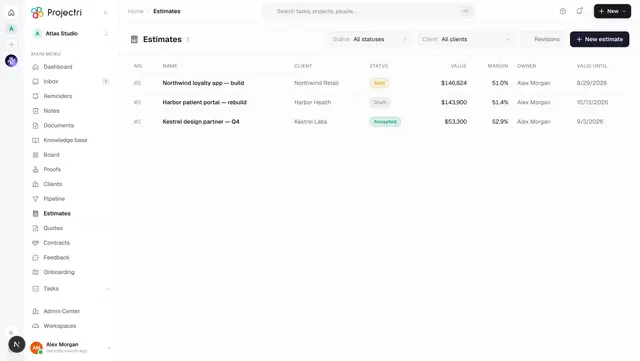
EstimatesThe list of priced work — every estimate with its client, status, value, margin and validity date, revisions folded away by default.
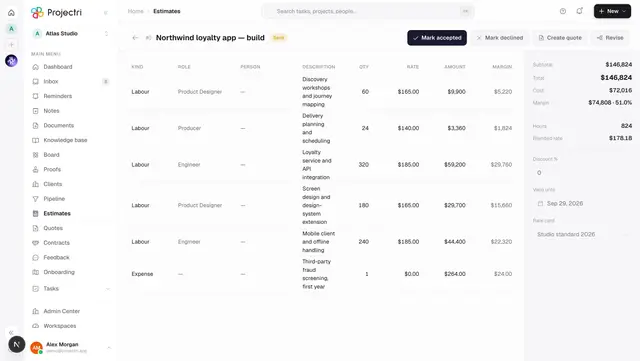
The estimate builderA spreadsheet-shaped grid for pricing work — sections, lines, resolved or pinned rates, discount, margin, and the buttons that send it, revise it, quote it or turn it into a project.
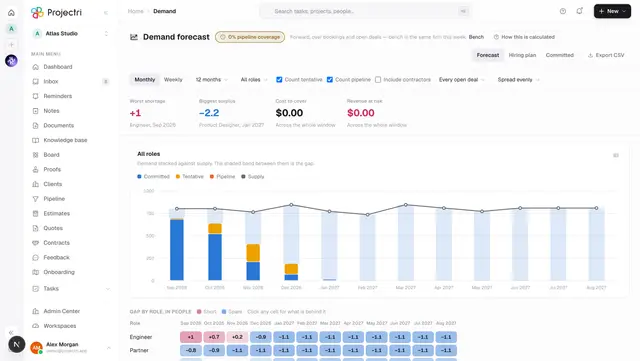
Demand forecastWhich roles the firm will be short of, in which months, and by how many people, from committed bookings and the open pipeline together.
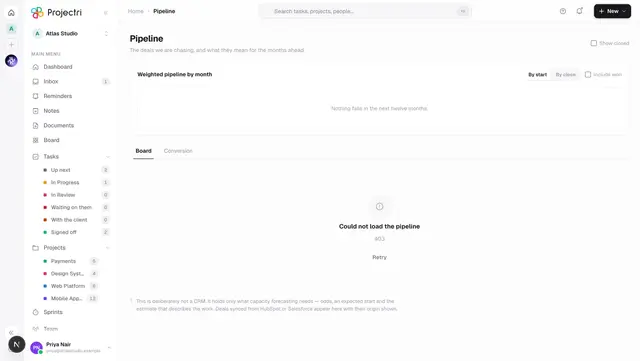
PipelineThe deals being chased, on a board of stages, with a weighted forecast by month and conversion rates behind a second tab.
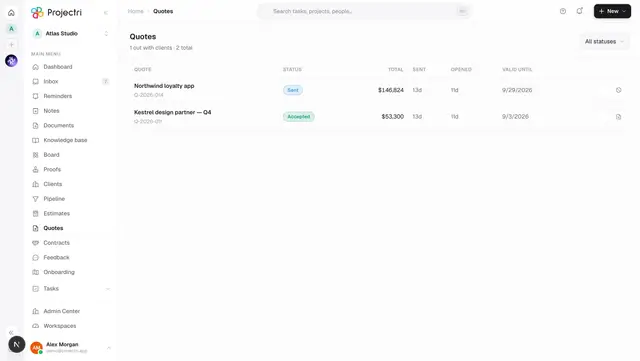
QuotesWhat is out with clients and what they did with it — send a quote on a private link, watch it be opened, and turn the accepted one into a statement of work.
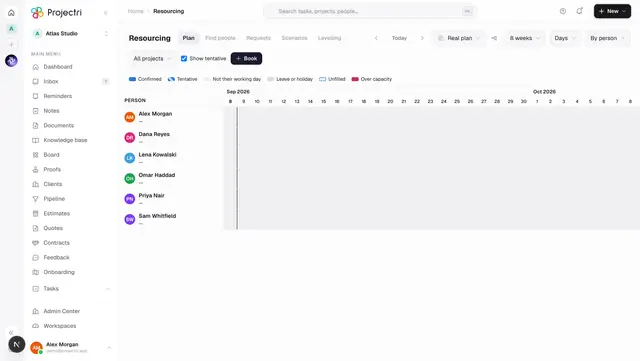
ResourcingThe staffing timeline — people down the side, days across the top, bookings as bars you can drag, resize and fill.
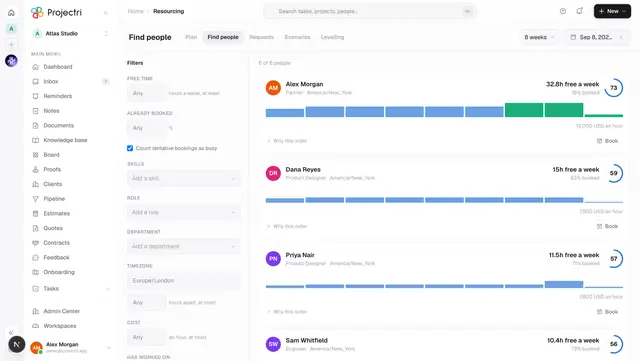
Find peopleA structured search for who could take a piece of work — by skill and level, free time, timezone overlap and cost — ranked with the reasons shown.
LevellingWhere an over-allocation becomes a decision — a run proposes moves that would clear it, and you accept the ones you agree with.
Staffing requestsAsk for a role rather than a person — a resource manager proposes candidates, the requester accepts one, and every declined ask is recorded as unmet demand.

ScenariosA private copy of the staffing plan for asking what October looks like if a deal lands, compared against the real plan and promoted only when you decide.
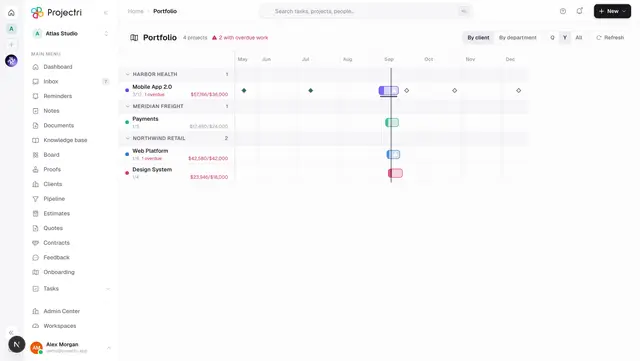
PortfolioEvery project on one timeline, in swimlanes by client or department, with milestones, active sprints and what is running late.
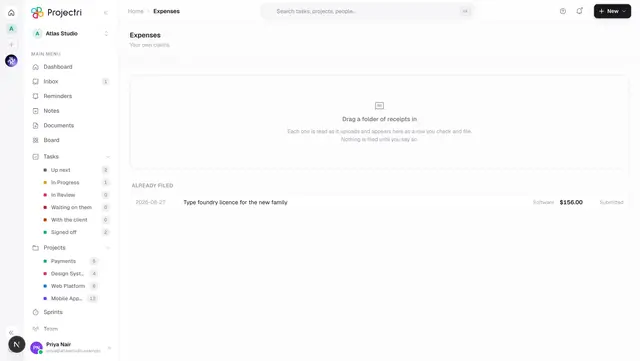
ExpensesFile a folder of receipts in one sitting, claim mileage and per diem at computed rates, and — if you approve — work the queue of submitted claims.
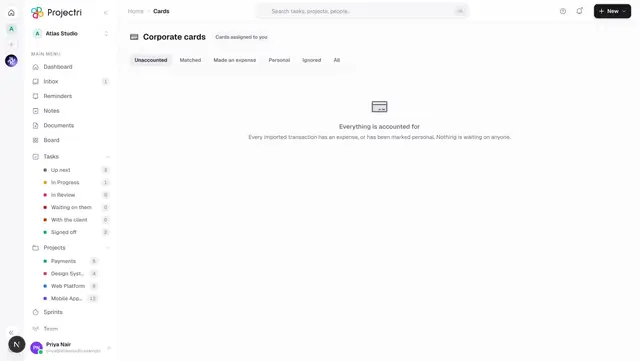
Corporate cardsEverything that was actually spent on company cards, and whether each transaction has an expense against it — the reconciliation queue, the import and the card list.

ReportsThe fixed report page — completion, throughput, burndown, team performance and the effort figures, for this week, this sprint, this month or all time.
Report builderBuild a report the fixed pages do not have — pick the data, group it, measure it, cross-tab it, save it, export it and put it on a schedule.
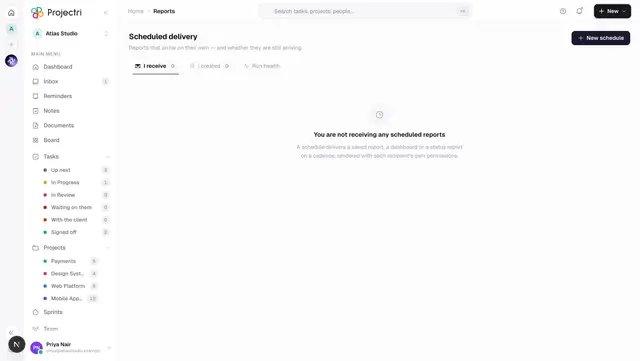
Scheduled deliveryReports that arrive on their own — the cadence, the recipients, and whether the ones you thought were arriving still are.
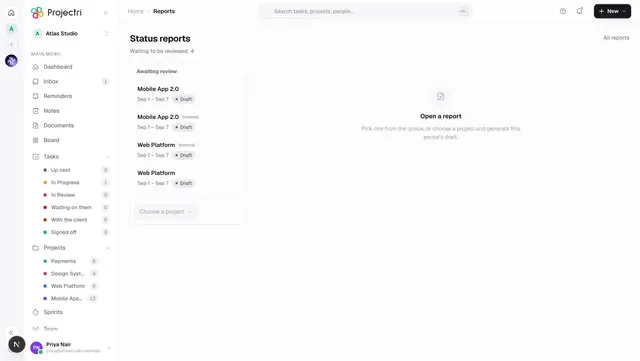
Status reportsGenerated client status reports — a review queue across every project, the draft, the edit, and the send that publishes it to the portal.
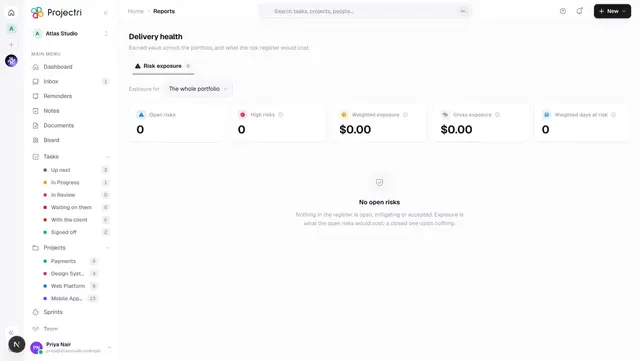
Delivery healthEarned value across the portfolio — cost and schedule performance per project, the S-curve behind one of them, and what the open risk register would cost.

RevenueWhat has been earned against each contract, and what was billed for the work behind it — recognition and realization on one screen.
Admin console
The console where a workspace is configured — people, permissions, money and security.

Admin consoleThe landing page of the admin console — the state of the whole company on one screen, and the map of every setting behind it.

CompanyThe workspace name, its mark and its URL slug, with the live subscription underneath — plan, cost, renewal and how much of it is in use.

AgentsThe directory of unattended actors in this workspace — what each one may do, who is accountable for it, and the button that stops it.

BranchesThe offices a company operates from — name, code, address, contact details, headquarters flag and an optional per-branch mark.

DepartmentsCompany-level master data — the departments teams and members are filed under, shared across every branch.

One agentA single agent — its configuration, a rehearsal that changes nothing, what starts it, what it has run, and the button that makes it act unattended.

Agent approvalsWhat this workspace's agents are asking permission to do, filtered to the requests you could carry out yourself.

SettingsBranding, region, locale, the working week and storage policy — the tenant preferences that every other screen in Projectri reads.

AI usage and modelsWhat this workspace spends on AI models, the monthly ceiling on it, the credit balance it spends past the plan, and which model each kind of work is sent to.

WorkspacesThe containers projects live in, and what kind of place each one is — the type sets what a new project inherits and whether customers may be let in at all.

MembersThe workspace roster and the pending invite list — invite people, change roles, suspend, remove, and do any of those to many people at once.

AutomationRules that react to what happens in this workspace — a trigger, optional conditions, and an ordered flow of actions, waits and branches.

TeamsGroups of people inside a department, with their own name, colour and roster.

RolesThe four company roles, how many people hold each, how far this workspace has moved from the platform default, and how to put a role back.

PermissionsThe role-by-permission grid and the per-member override table — what each role may do in this workspace, and how one person differs from their role.

WorkloadWho is carrying what and who has room — open tasks, overdue work and logged hours against each person's weekly capacity, with the capacity and skills editable in place.

Account closuresThe queue of members who have asked for their account to be closed, with a 30-day clock on each and a note back to the person when it is closed out.

EscalationLadders that decide who is told when a support SLA is missed, how long each rung gets before it climbs, and on which channels.

ReportsWorkspace-wide reporting over a rolling window — budget against spend, effort against capacity, and portfolio health worst first, each exportable as CSV.

FinancialsThe finance reports — a scorecard, utilisation, project profitability, WIP and ageing, the tax return, and the exceptions list that says what to do on Monday.

SandboxesA copy of this workspace that is safe to break — its own address, its own expiry, and an outbox that captures everything it would have sent.

SkillsThe skills taxonomy for this workspace — where coverage is thin, the curated list itself, proposals waiting, a people search, and the certification catalogue.

SLAsResponse and resolution targets per ticket severity, counted against the workspace's own working week or around the clock.

Customer statusWhat customers are told a ticket or a task is doing, mapped from the internal status your own team works in.

InvoicingAssemble a period's billing from approved time, expenses, fixed fees, milestones and retainer draws, review what it proposes per client, then issue it as invoices.

WorkflowThe stages work moves through, the levels of the work-item hierarchy, the approval chains that sign work off, and the sales pipeline stages.

ReceivablesWhat your clients owe, how late it is, what the dunning ladder is doing about it, and the credit notes, write-offs and refunds that change the balance.

PurchasingThe buy side — vendors and subcontractors, purchase orders and what they commit, supplier bills, and the switch that decides whether any of it reaches project margin.

BillingYour workspace's own subscription to Projectri — the plan, the seats and limits you are using, the invoices we send you, and the details we print on them.

Finance setupThe configuration every financial number divides by — rate cards, working calendars, exchange rates, targets, leave, timesheet and expense policy, overtime, tax, dunning, payments, cost centres, budget alerts and the month-end close.

ERPWhich system owns each kind of finance record — yours or your accounting system's — and the approved, unbilled work waiting for the ERP to pick up.

Meeting notesThe notetaker policy — what the room is told, what silence means, how long a transcript is kept — and every recording taken under it.

Knowledge baseWrite, file, publish and index this workspace's articles, and decide whether each one is internal, visible to customers, or public.

Notification channelsConnect this workspace's own WhatsApp, SMS and Teams accounts so notifications can reach people outside the app.

IntegrationsConnect this workspace to the tools you already use, see which connections are healthy, and find the third-party applications somebody has authorised.

MCP serversRegister outside MCP servers so this workspace's automations can call their tools, choose which tools are callable, and read what was sent.

WebhooksPush events out of Projectri to an address you own, signed, at least once, with a delivery history and automatic parking of a dead endpoint.

SecurityThe sign-in rules this workspace enforces, who is signed in, what machine credentials and outside applications can reach it, and the sign-in history.

IdentityConnect an OIDC identity provider so people sign in with their work account, and a SCIM connector so your directory creates and deactivates them.

Audit logEvery recorded action in this workspace, who did it and from where, with a bulk export and streaming to your own SIEM.

PrivacyThe data-subject request queue with its statutory clock, how long each category of data is kept, legal holds that suspend deletion, and where this workspace's data lives.

Warehouse exportA scheduled copy of this workspace into your own object storage, in a published and versioned schema, with run history, watermarks and a dry run.
Client portal
What a client sees, and how they use it.
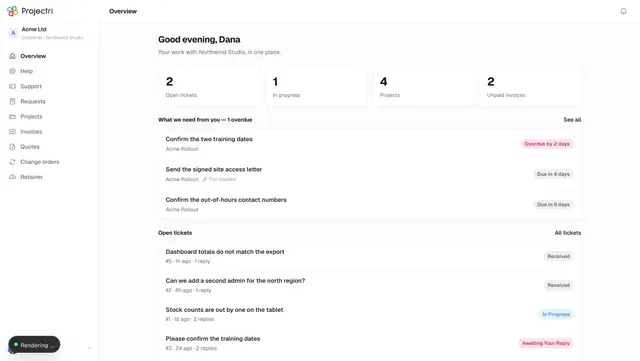
The client portalYour own view of the work your agency is doing for you — projects, requests, support tickets, quotes and invoices, in one place with your own login.
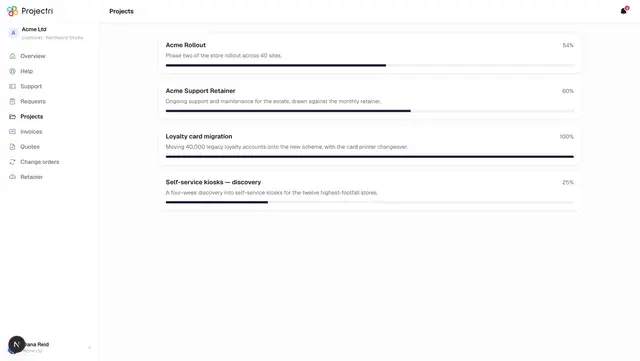
ProjectsThe projects your team has shared with you, each with a progress bar, and a badge when a milestone is waiting on your sign-off.
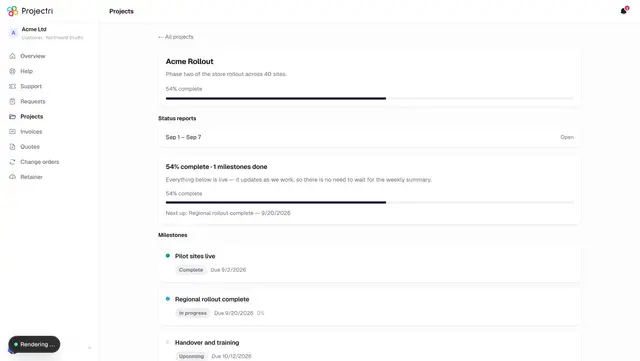
A projectOne project's published timeline, its milestones and sign-offs, the charts your supplier chose to share, and the archive of status reports.
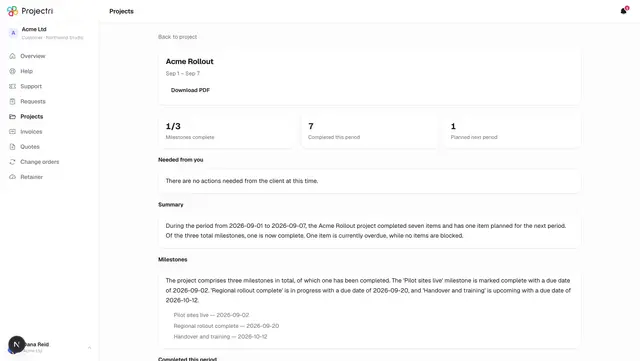
A status reportOne period's status report as your supplier sent it — what you are asked to do, what happened, what is planned — with a PDF download.
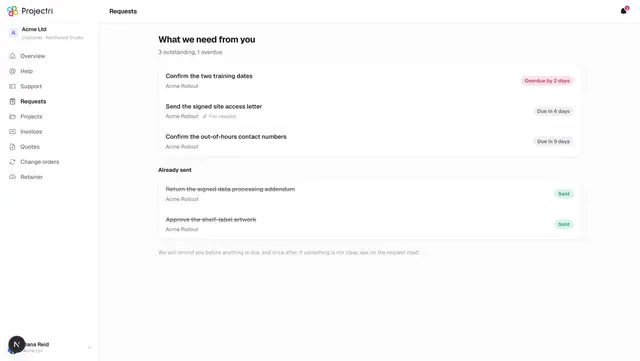
RequestsThe things your supplier needs from you — a document, an approval, an answer — with due dates, and a list of what you have already sent.
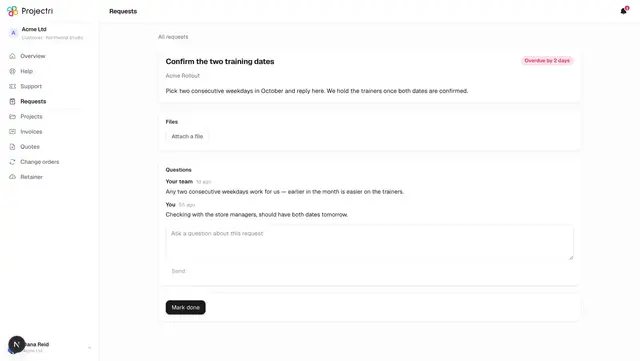
A requestOne thing the team needs from you — the instructions, the files you send, a place to ask a question, and the button that marks it done.
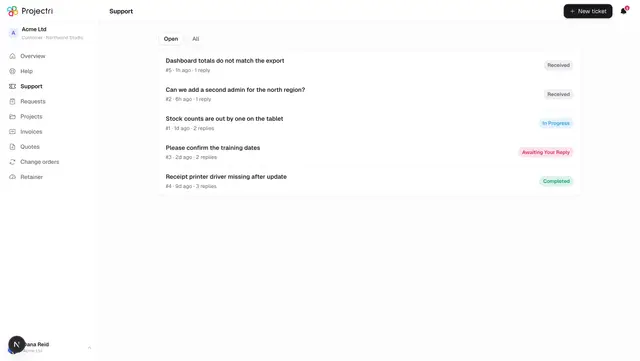
Support ticketsRaise a support ticket with screenshots or a recording, and follow every ticket your company has open with this supplier.
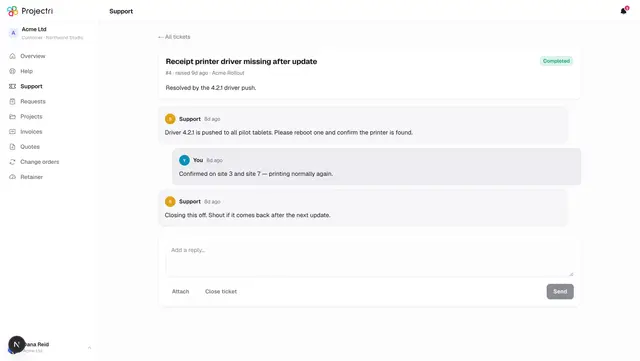
A ticketOne support ticket — the thread, its attachments, whether the team is waiting on you, and the buttons that close or reopen it.
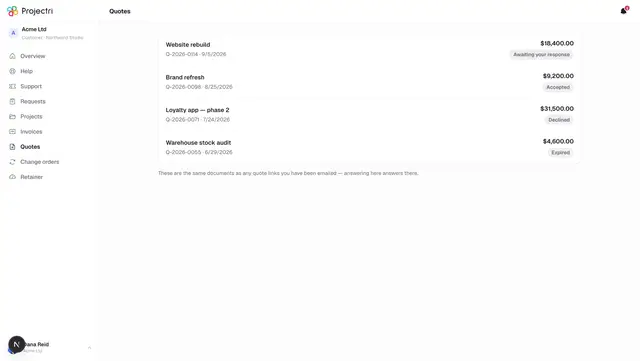
QuotesEvery quote your supplier has sent you, with its reference, version, date and total — the same documents as the emailed links.
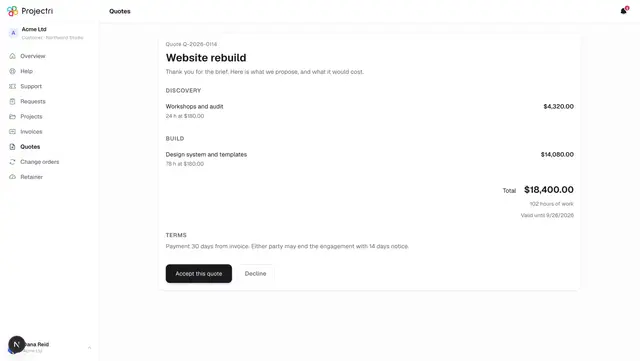
A quote, and signing itOne quote in full — the line items, the totals, the terms — and the block where the primary contact accepts or declines it.
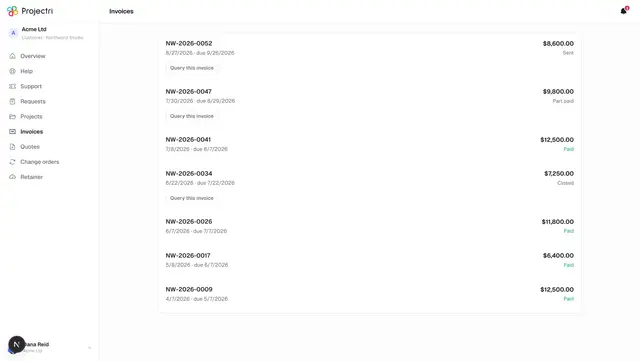
InvoicesYour invoices with what is still outstanding, any credit notes applied, payments received, a pay button where card payment is available, and a way to query one.
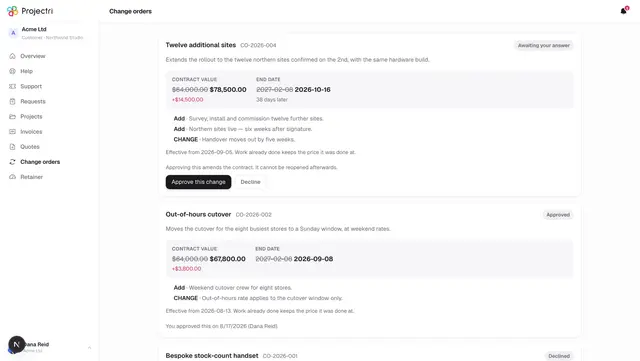
Change ordersChanges to work already agreed — what the contract value and end date go from and to, what is being added or removed, and your approval.
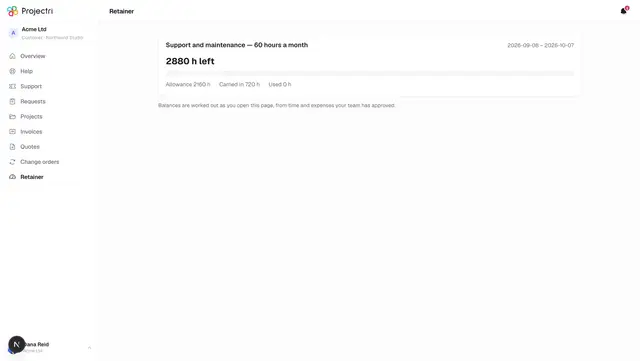
RetainerHow much of this period's retainer is left, what it started with, what has been carried in, and what has been used.
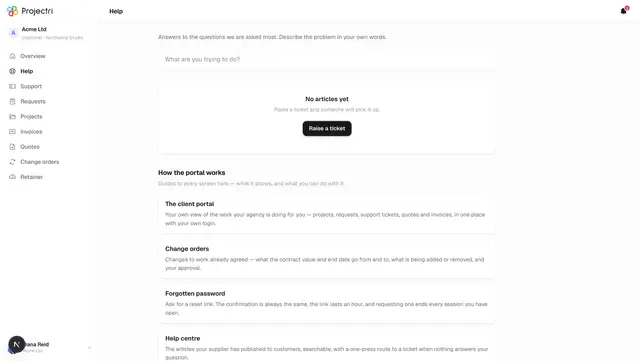
Help centreThe articles your supplier has published to customers, searchable, with a one-press route to a ticket when nothing answers your question.
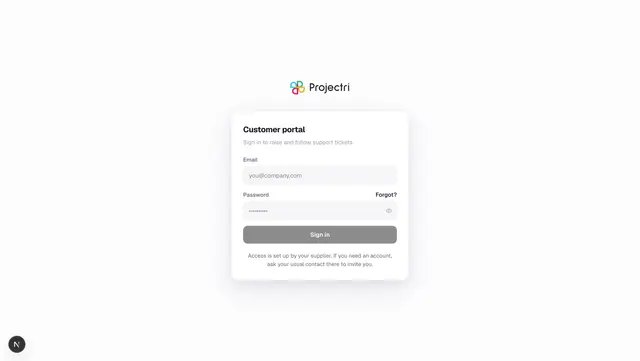
Signing inThe portal sign-in screen — a separate login from your supplier's workspace, with its own password and its own session.
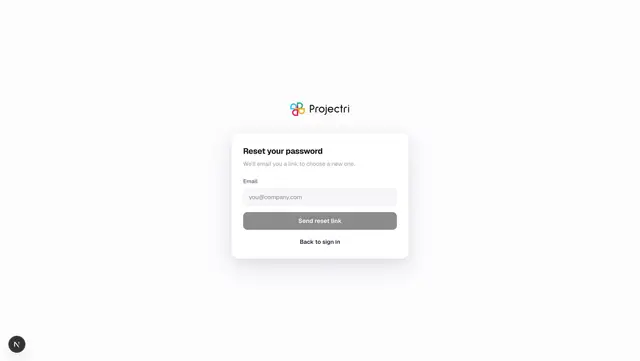
Forgotten passwordAsk for a reset link. The confirmation is always the same, the link lasts an hour, and requesting one ends every session you have open.
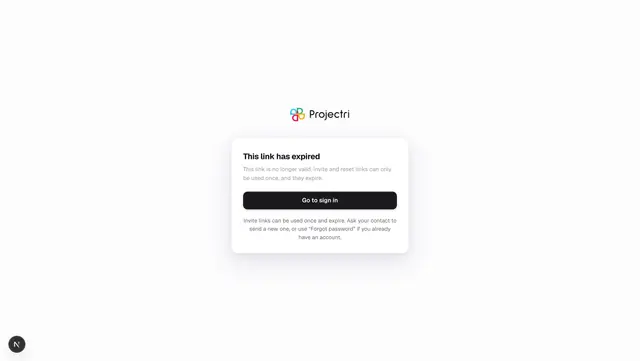
Setting your passwordThe screen an invitation or reset link opens — choose a password, and you are signed into the portal.
Your account
Signing in, your profile, security, and the app on your phone.
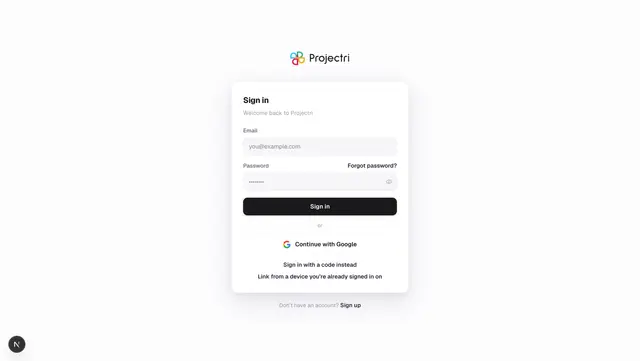
Signing inEvery way into Projectri — password, emailed code, Google, single sign-on and linking from a device you already trust — and what each refusal means.
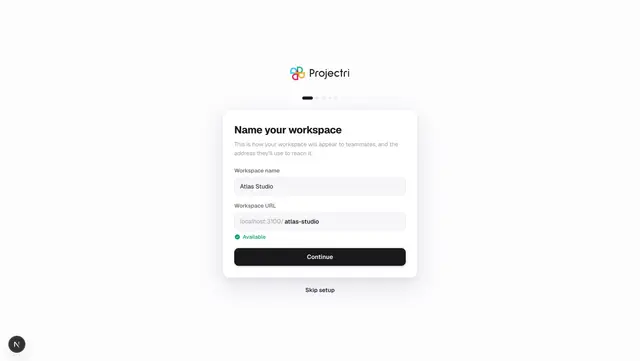
Setting up your workspaceThe five-step setup a new workspace runs once — name and URL, country and currency, your role, and a starting template.

Accepting an invitationWhat the join link does, why it insists on the address it was sent to, and what happens the moment you accept.
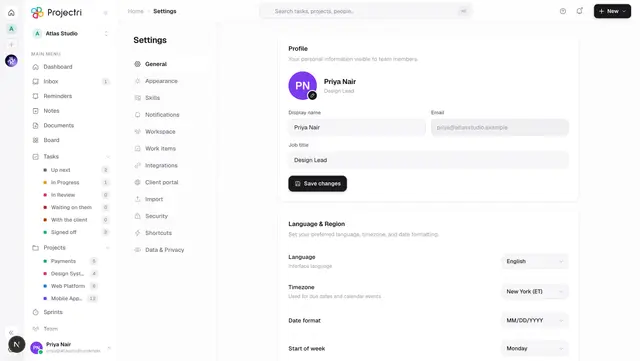
Your profile and preferencesThe settings screen that belongs to you — name, avatar, language and timezone, theme, pinned projects, notification delivery, skills, shortcuts and your data.
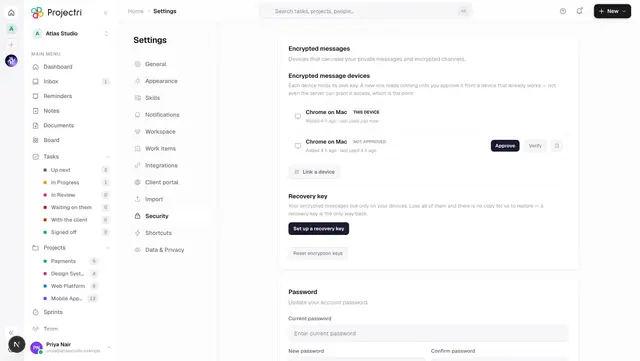
Two-factor authenticationEnrolling an authenticator, recovery codes, what a workspace can require, and how to get back in when the phone is gone.
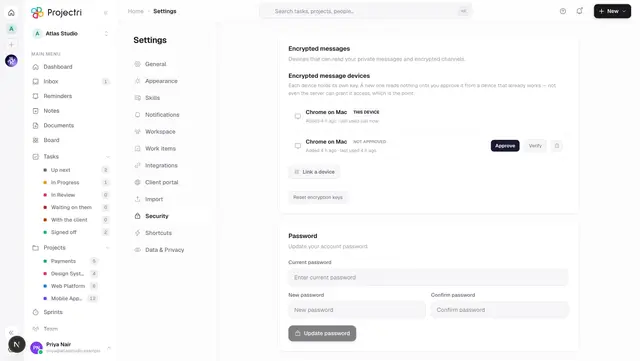
Linked devices and encryption keysHow a new device is trusted to read encrypted messages, how to sign in by scanning a code instead of typing a password, and what unlinking actually removes.
The mobile appWhat the iOS and Android apps do, how to sign in, App Lock, push notifications, and what still works with no signal.
How things work
The things that cross several screens, told end to end.
Nia, the assistantWhat Nia can read, what she can do, how she works by voice, with files, in a document or on a board, and the things she deliberately cannot see.
How permissions workThe three tiers Projectri decides "may this person do this" with, how a role default becomes one person's answer, and the two traps that catch every new key.
Plans and entitlementsWhat each plan includes, what happens when you hit a limit, and why losing a feature never loses the data behind it.
NotificationsWhat Projectri tells you about, on which of the five channels, what you can turn off, and the difference between a channel and a subscription.
AutomationRules that watch for something happening and then act — the triggers, the conditions, the actions, and the guards that stop a rule running away.
ApprovalsThe two things in Projectri that wait for a person to say yes — an approval chain on a task, and an AI agent asking permission before it changes anything.
Messaging and encryptionHow end-to-end encrypted channels and direct messages work, what device approval is for, and exactly what is lost and cannot be recovered.
Exports and downloadsWhat you can take out of Projectri, in which formats, who is allowed to, and what a download deliberately leaves behind.
IntegrationsThe tools Projectri can connect to, what each connection actually does, how credentials are stored, and what a readiness badge means.
The API, MCP and connected appsThree ways software reaches a Projectri workspace — the REST API, the MCP server for coding agents, and third-party apps a member authorises.
The mobile appWhat the iOS and Android app covers, what it deliberately leaves to the web, and the two things it does that the browser cannot.
Data and privacyWhere a workspace's data lives, how long it is kept, how a person gets a copy or has it erased, and why closing an account is not the same as erasure.
Languages, dates and the working weekThe eight locales Projectri formats in, the two it speaks, right-to-left layout, and the one setting that decides which days of the week count as work.
Keyboard shortcutsEvery keyboard shortcut in the web app, what each one needs to work, and where to find the list inside the product.
SearchOne box over eight kinds of thing, how the ranking works, the operators you can type, and the one thing search can never find.