Signing in
Every way into Projectri — password, emailed code, Google, single sign-on and linking from a device you already trust — and what each refusal means.
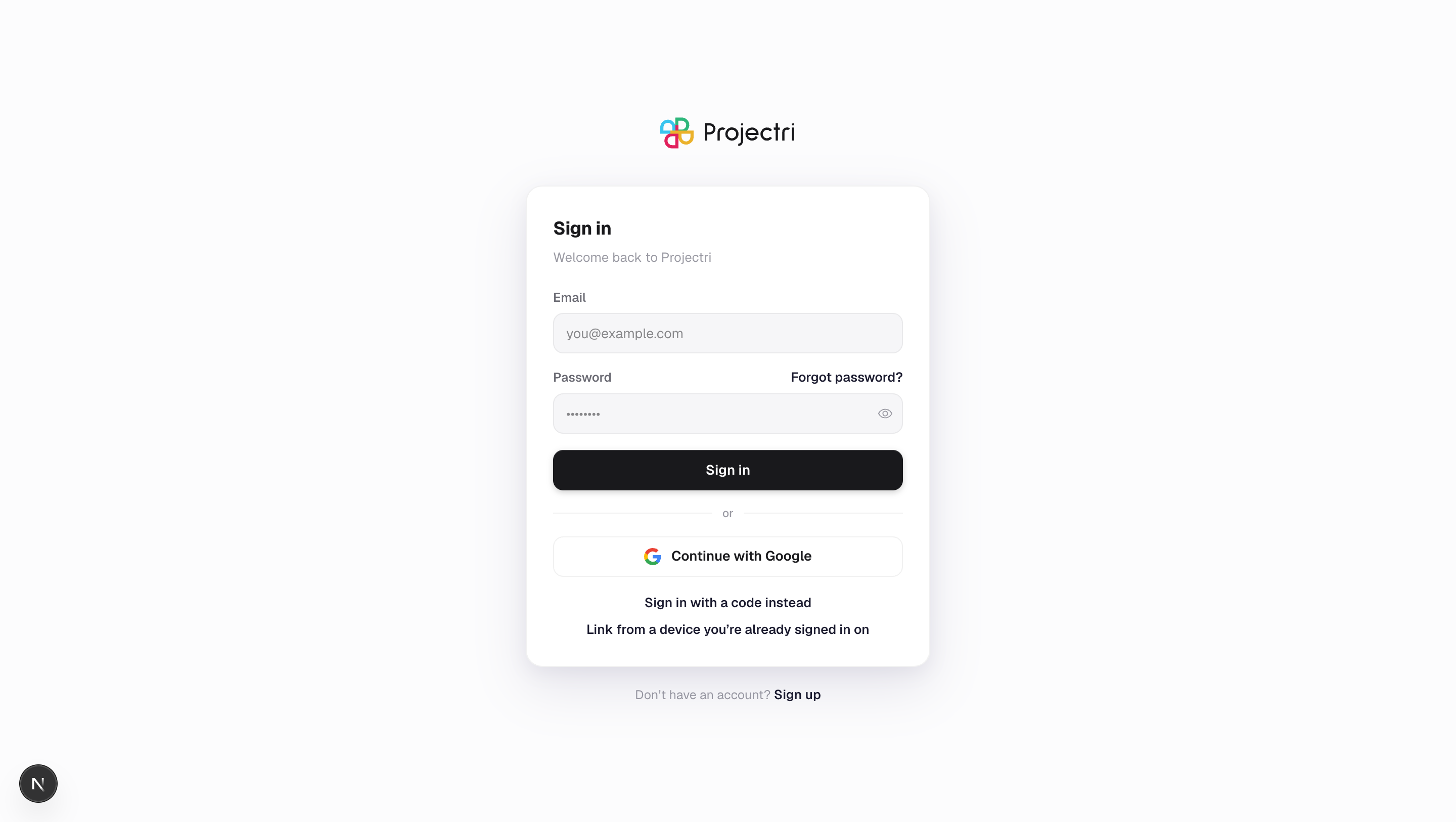
What it is
/login is the one door into the workspace. It handles signing in, creating an account, answering a two-factor challenge, choosing between workspaces and linking a new device — all on the same card, one pane at a time.
How to get there
Go to /login. Anything in the app you open without a session sends you here with a next parameter, and you are returned to that exact page afterwards. No permission or plan is involved.
How to use it
Sign in with a password
- Type your email address. Wait a moment before reaching for the password box — once the address looks complete, Projectri asks whether your workspace uses single sign-on, and a Continue with … button appears if it does.
- Type your password and press Sign in.
- If your workspace requires single sign-on, the password box disappears after the first attempt and only the SSO button remains. The credential was not wrong; the workspace does not accept it.
Sign in with a code instead
- Choose Sign in with a code under the divider.
- Enter your email and press Send code. A six-digit code is emailed and is good for 10 minutes.
- Type it in. Resend is available after a 60-second cooldown.
Sign in with Google
Press Continue with Google. Your Google account's email must be verified, and it has to match an account that already exists here.
Link from a device you already trust
- Choose Link from a device you're already signed in on.
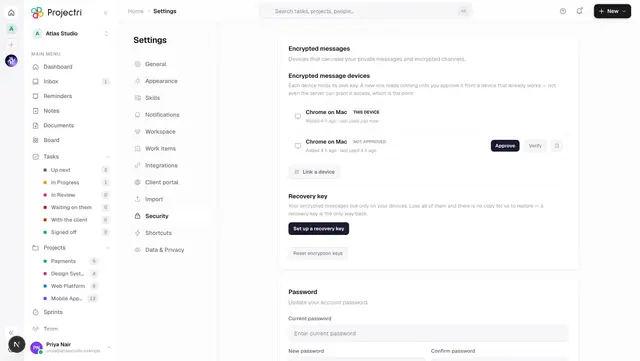
- This browser draws a QR code and an eight-character code. Scan or type it on a phone that is already signed in and already approved for encrypted messages.
- You are signed in with no password typed, and this browser holds every conversation key. The code dies after two minutes and when you leave the screen. See Linked devices.
Answer a two-factor challenge
- If your account holds an authenticator, the six-digit box appears after the password is accepted. Nothing is signed in yet at this point.
- Enter the code from your authenticator app, or choose **Use a recovery code** if that option is offered — it only appears when you have codes left to spend.
- Leaving this pane cancels the sign-in and returns you to the password box. The challenge itself lives for five minutes and allows five wrong answers before it dies.
Choose a workspace
If you belong to more than one workspace, a list appears after your identity is proven. Each row shows the workspace name and your role in it. Sandboxes are never listed here — a sandbox is entered deliberately from inside its parent workspace.
Create an account
- Press Sign up.
- Give a name, email and password. The minimum is eight characters, or your workspace's own rule if you already have a pending invitation to one.
- A six-digit code is emailed. Enter it, and you are taken to onboarding.
What it affects
- Signing in creates a session row, which appears in **Settings → Security → Active sessions** on every one of your devices, with its label, its platform and when it was last used.
- One session per platform. One browser, one iPhone, one Android. Signing in when one of them is already taken produces a dialog naming the other device and when it was last used, and continuing signs that one out. Linked devices are counted separately and never conflict with an ordinary sign-in.
- Ending a session never touches encryption keys. A device that is signed out keeps every key it held, and gets them back on the next sign-in.
- Every attempt is recorded, successful or not, and appears on the workspace's Security Centre. That record is also what the lock-out counter reads.
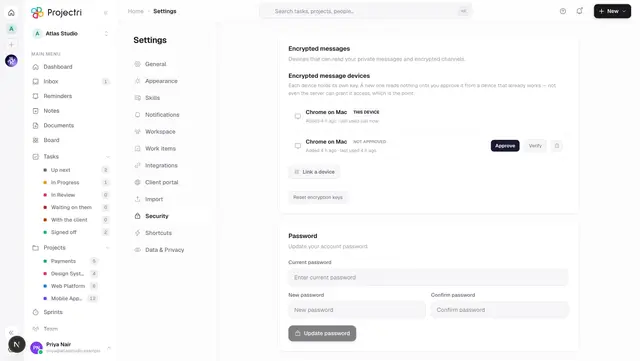
- Changing your password ends your other sessions. The toast says how many.
On mobile
The Expo app's sign-in screen takes an email and a password, and offers the same emailed-code path and the same link this device path. A two-factor challenge and the workspace picker are their own screens. Google sign-in and single sign-on are not offered in the app.
Limits and gotchas
- Too many failed attempts locks the address, not the account. By default it is 10 failures within 15 minutes, and both numbers are set per workspace on the Security Centre. The refusal says how many minutes are left. It is keyed on the email address, so guessing addresses is throttled too.
- "This device was signed out. Sign in again to continue." means the session was revoked from somewhere else — another device, or an administrator. It is not a crash.
- "Please verify your email" moves you to the verification step rather than refusing. The code is the same six-digit kind and lasts 10 minutes.
- "This account has been locked" is a platform-level lock and names the reason your administrator gave. No password will get past it.
- A wrong password and an address that does not exist give the same answer, on purpose. Neither tells you which.
- If you hold an authenticator but your workspace has just started requiring one and your grace period has ended, sign-in is refused with a message saying so — enrol from a device that is still signed in, or ask an administrator.
Related
- Two-factor authentication — enrolling, recovery codes, and what a workspace can require.
- Linked devices — signing in by scanning a code.
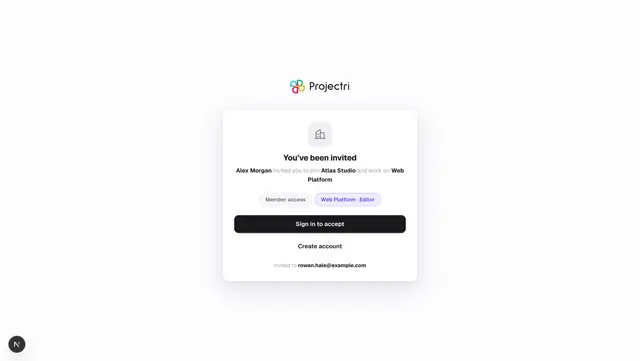
- Accepting an invitation — arriving from an emailed link.
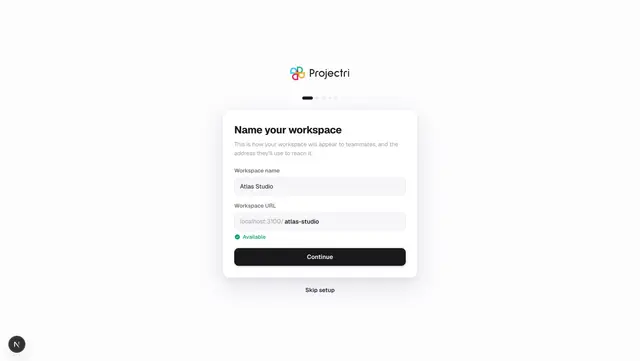
- Setting up your workspace — what happens after a new account is verified.