Team
The workspace roster, the org chart with reporting lines, and a live activity timeline — with each person's department, branch, job role, workload and skills.
What it is
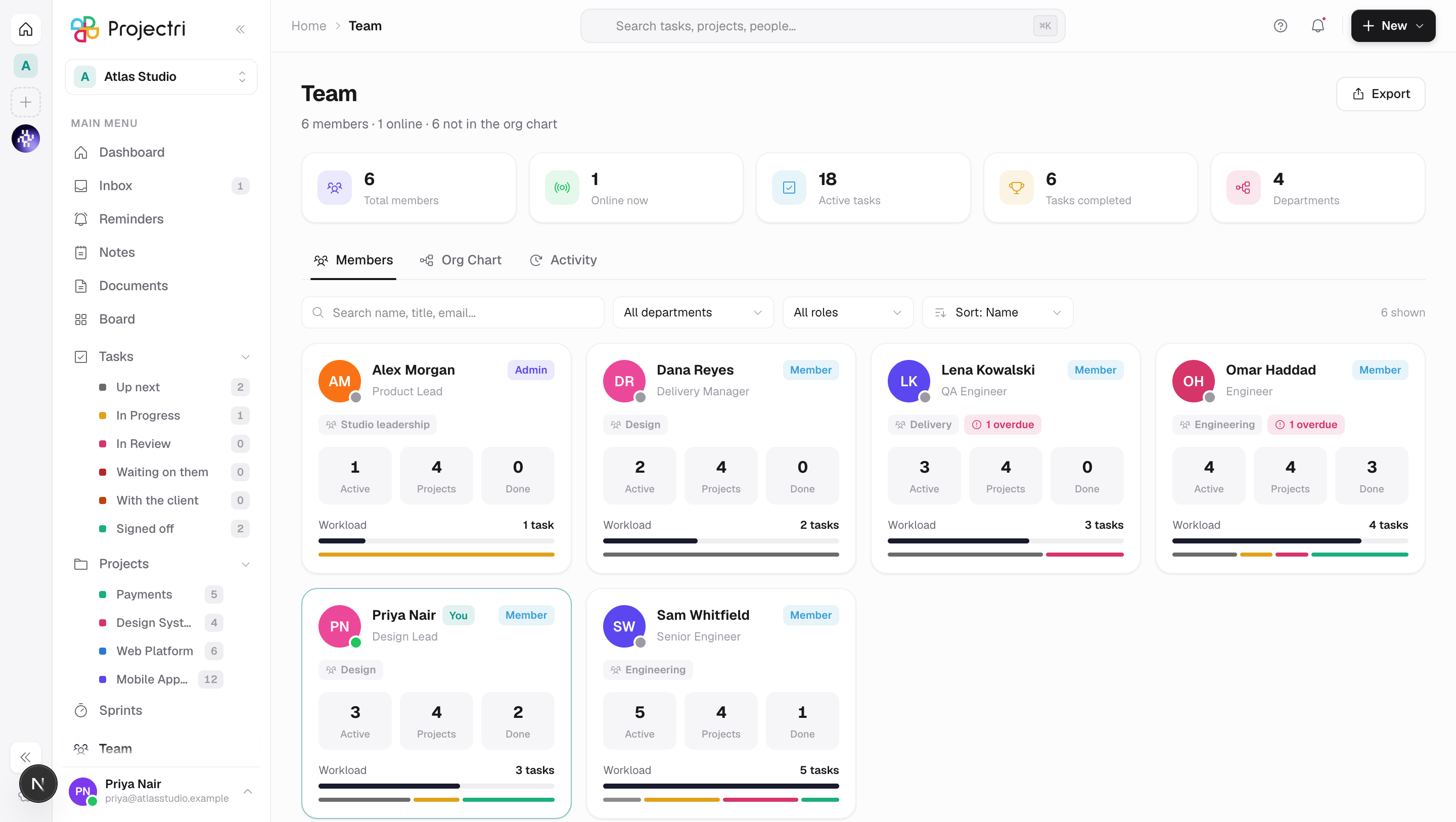
Team is who is in the workspace: their titles, departments, branches, job roles, who they report to, how much work they are carrying, and what they can do. It is also where the org chart is drawn and, for people who may, edited.
How to get there
Team in the main navigation. The whole screen needs team.view, checked on the page itself — without it the URL redirects to your dashboard rather than half-loading.
Beyond that:
- Invite member needs
user.invite. - Changing a reporting line, department, branch or job role needs
user.update. Without it the chart is read-only and says so. - Creating a job role from inside its picker needs
team.manage. - Rating or validating somebody else's skills needs
skill.manageandskill.validate; neither applies to your own sheet.
How to use it
Read the roster
- The Members tab lists everybody, with search over name, title and email, and filters by department and by role.
- Sort by name, workload, number of direct reports, or role.
- Selecting a person opens their detail: email, department, branch, job role, who they report to, when they joined, and their active, project, completed and overdue counts.
Read and edit the org chart
- The Org Chart tab draws reporting lines. Hierarchy is the tree; By department groups instead.
- Search finds somebody in the chart; Expand all and Collapse all open and close the branches; the zoom controls and fit to screen are in the corner.
- Anybody with no manager set appears in a tray under the chart rather than being hidden.
- With
user.update, a node offers Set manager and a way to detach one.
Watch the workspace
The Activity tab is a timeline of what has been done across the workspace — by people, by Nia acting for somebody, and by agents. It updates live while the tab is open, and Load more pages further back without collapsing what you have already opened.
Invite somebody
Invite member in the header opens the same dialog the admin console uses. Sending an invitation does not add a member — nothing on this page changes until it is accepted.
Export
Export downloads team.csv: name, email, title, role, department, branch, who they report to, direct reports, and the active, completed, overdue and project counts.
What it affects
- A reporting line is not decoration. It is what the org chart, the department view and approval routing read.
- Department, branch and job role are shared taxonomies. Job roles in particular are what rate cards, utilisation targets and the demand forecast are keyed by, which is why creating one is a heavier permission than placing somebody in one.
- Skills feed resourcing. What a person is rated on is what the find-people and staffing screens rank against.
- The presence dot comes from a personal setting. Anybody who has turned Activity status off in their own settings will not show as online.
- Workload counts come from tasks, so they move as work is assigned and closed anywhere in the product.
On mobile
The Team screen in the phone app is the roster, and it leads with presence: whether somebody is around right now is the question you ask from a phone, so lastSeenAt becomes a dot rather than a column.
Limits and gotchas
- The header count of departments is every department, including empty ones. The department filter lists only departments somebody is in, plus a "no department" bucket, so the two numbers legitimately differ.
- The activity feed is workspace-wide, not yours. It shows what colleagues did, which is the point of the tab.
- Suspending, removing or changing somebody's role is not done here — it is in the admin console under Members.
- The chart is drawn from managers. Somebody with no manager is unplaced, not a root.
Related
- Members — inviting, suspending, removing and changing roles.
- Departments — the taxonomy behind the department filter.
- Roles — what each role may do.
- Capacity — the workload picture at the level of a plan.