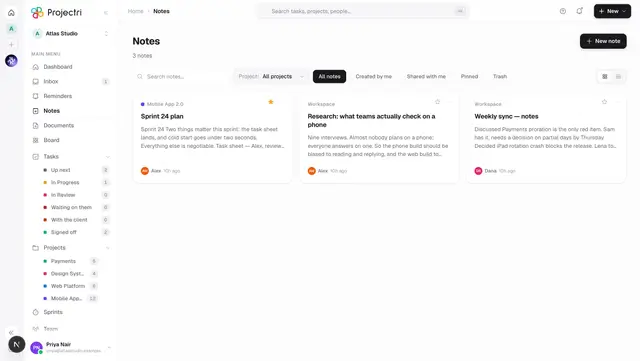
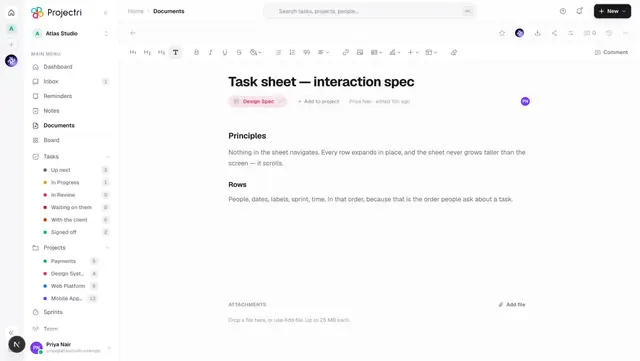
Writing a note
The note editor — formatting, tables, charts, callouts and templates, with live co-editing, comments anchored to a selection, version history and sharing.
What it is
The note editor is one writing surface with three panels beside it: comments, properties and version history. Several people can type in the same note at the same time, and what each of them writes merges character by character rather than one overwriting the other. The same editor opens a document; only the module differs.
How to get there
Open a note from the Notes list, from a project's notes tab, or from a link somebody sent you. Reading needs note.view and access to that particular note. Writing needs note.update and edit access on the row — either alone leaves you with a page you can read but not change. Sharing needs note.share and being the note's owner.
If you have no access at all the page says "You don't have access to this note. Ask the owner to share it with you."
How to use it
Write
- Type in the body. Enter makes a new paragraph; the title is the field at the top.
- The toolbar's first group sets Title, Heading, Subheading and Body text.
- Bold (⌘B), Italic (⌘I), Underline (⌘U) and Strikethrough are next, followed by a popover for Text colour and Highlight.
- Then Bullet list, Numbered list, Quote, and an Alignment popover carrying Align left, Align centre, Align right, Justify, Indent and Outdent.
- Add link takes a URL and offers Remove link when the caret is already in one. A bare hostname gets
https://added. Clicking a link opens it; Alt-click puts the caret inside it instead. - Clear formatting strips styling from the selection.
Pasted content always arrives as plain text. Tab and Shift+Tab move between table cells, and indent or outdent inside a list.
Insert something other than prose
- Table — hover the grid to pick a size up to 6 × 7, with a header row on by default. Once the caret is inside one, Insert offers Row above, **Row below, Column left, Column right, Toggle header row, Delete row, Delete column and Delete table**.
- Chart — pick Column, Bar, Area, Pie or Donut, give it a title, type label-and-value rows, and press Insert chart.
- Insert — Code block, Checklist, Divider, Two columns, five callout tones (Note, Success, Warning, Danger, Neutral), and Subscript / Superscript.
- Templates — Meeting notes, Project brief, Weekly status, Product spec, Retrospective and Report.
Click the left edge of a checklist item to tick it off.
Comment on a passage
- Select the text and press Comment in the toolbar. The selection appears above the composer as a quote; Remove quote drops it.
- Type and press Enter to send. Shift+Enter makes a newline.
- A thread can be replied to, resolved and reopened. You can edit and delete your own comments; the note's owner can delete anybody's.
- The panel filters between Open and All.
Look at the history
- Open Version history.
- Each entry shows its number or name, who saved it, when, and a badge — Saved for one you cut by hand, Restored and Replaced around a restore.
- View previews a version. Restore this version puts it back.
- Name a version to keep it for ever; unnamed ones are pruned.
- Save a version now cuts one deliberately.
Share it
- Press Share.
- Add people by name or email and give each Can view, Can comment or Can edit.
- Everyone in the workspace switches the note between Workspace and Private.
- Public link → Create link produces a read-only address at
/share/note/<id>that works without signing in. Turn off revokes it.
Ask Nia
Ask Nia binds the open note to the assistant. She can read it, draft it, add a section, rewrite part of it, insert a chart, apply a template or set the title. While she works, a skeleton shows the shape of what is arriving — headings, list rows, a table — rather than fake text. On a note you can only view, she can read but not change it, and says so.
What it affects
- Saving. The editor saves 900 milliseconds after you stop typing, and the indicator reads Unsaved changes, Saving…, All changes saved or Could not save. A pending save is flushed if you close the tab.
- Everyone else sees it as you type. While a co-editing session is live the body is owned by the merge layer, not by the autosave, so two people typing in the same paragraph both keep their words. The avatars above the body show who else is in the note, ringed brightly while they are editing. Nothing is shown when you are alone.
- A restore never destroys anything. Restoring saves the current state as a version first, so a restore can itself be undone.
- Sharing notifies. Granting somebody access sends a bell entry, a push and an email.
- A public link is not indexed and exposes only the title, the body, the author's name and the workspace name. No comments, no attachments, no history.
- Comments notify widely. A new comment reaches the owner, everyone the note is shared with and everyone already in the thread. An
@mention notifies that person as a mention rather than as a general update. - The properties panel counts words, characters, reading minutes, headings, tables, charts, images, links and checklist progress, and reports the owner, dates, share count and whether the link is public.
On mobile
The phone opens the same note read-only. It renders the stored body, the file if the row is one, attachments and export — and it watches co-editing live, so a colleague's sentence appears as they type and the roster above says who is in the room. Writing, renaming and deleting stay on the web.
Limits and gotchas
- Image insertion is documents-only. The image button is not offered on a note, because notes have no attachment endpoint behind it.
- There is no slash menu and no Markdown shortcuts. Blocks come from the toolbar popovers.
- Comment threads are one level deep — a reply to a reply is folded onto the parent. A quote is capped at 400 characters and a comment at 5,000.
- Version content over 512 KB is not stored, only its size. Such a version previews as "This version's content is no longer stored."
- Versions are kept in full for 7 days, then one a day for 90 days. Naming one keeps it for ever, and the newest version always survives.
- Can view cannot comment; Can comment can. Both see a read-only body and no toolbar.
- Icon, tags and status are stored on a note but no screen exposes them for editing.
- Projects are changed from the chip in the meta row, not from the properties panel, which shows them read-only on purpose.
Related
- Notes — the list, and the row actions.
- A document — the same editor, plus files and attachments.
- Nia — what she can do inside a document.
- Exports — PDF, Word, Markdown and plain text.