Scheduled delivery
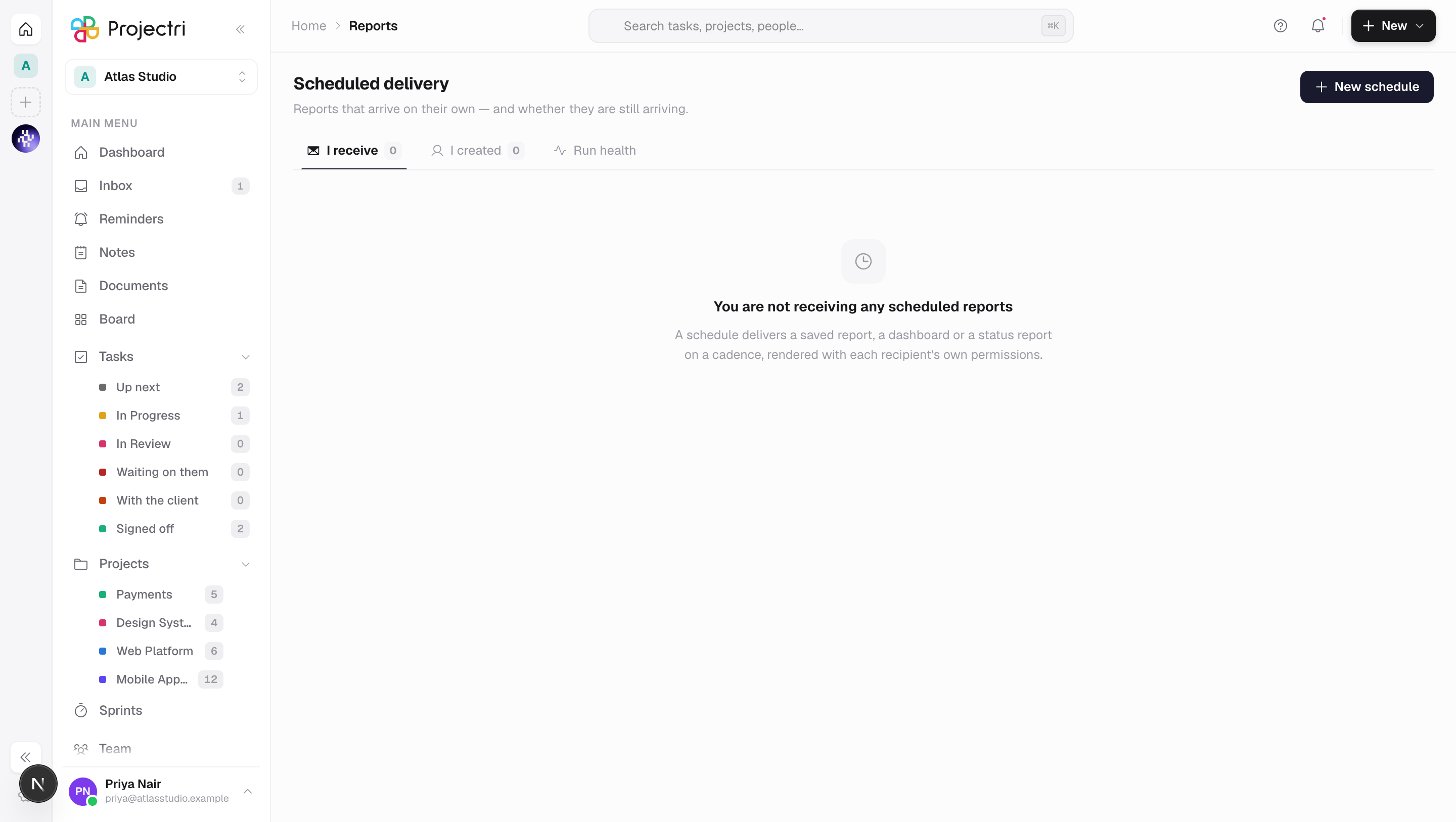
Reports that arrive on their own — the cadence, the recipients, and whether the ones you thought were arriving still are.
What it is
Scheduled delivery sends a saved report, a dashboard, a built-in report or a project status report to people on a cadence. Each recipient's copy is rendered with their own permissions, so one schedule can serve a team without anybody seeing a column they are not entitled to. The screen is also where you find the schedule that has been failing quietly for six weeks.
How to get there
Scheduled delivery sits under Reports in the main navigation. The row and the lists need report.view — receiving a report on a Monday morning is not a privileged act. Creating, editing, testing and deleting a schedule is gated on the reporting.scheduled entitlement, a Pro-tier feature.
Two narrower keys change what you see:
report.schedule— needed to name anybody other than yourself as a recipient. Without it you can still subscribe yourself to anything you can open.report.schedule.admin— adds the Workspace tab, every schedule in the workspace, and the right to edit or switch off one you did not create.
The Run health tab needs settings.view and is absent otherwise rather than leading to a refusal.
How to use it
Find what stopped arriving
- The screen normally opens on I receive. When anything in the workspace scope is failing or has been switched off, it opens on Workspace instead — that is somebody not getting a report they believe they are getting, and it is worth interrupting for.
- Every row carries a health pill. On, Paused, Failing, **Switched off and Not yet run** are five different states and only two of them are a problem.
- Failing means it is still switched on and losing. The row shows how many attempts remain before the system switches it off; the limit is five consecutive failures.
- Switched off is the system's own doing after those five failures, and it says so. A schedule someone paused deliberately reads Paused instead.
- Resume works on both. Resuming clears the failure count and starts again from the next slot.
Create a schedule
- Press New schedule.
- What to send — Saved report, Built-in report, Dashboard or Status report.
- Which one — a picker of the things you may actually send. Saved reports are the ones visible to you; dashboards are the ones you own or that are shared; status reports are listed by project, including projects that have never produced one, since arranging delivery before the first report exists is the normal order. The built-in reports are Delivery performance, Risk exposure, Revenue recognition and Realization.
- Name it — this is what appears in the list and in the email.
- How often — Every day, Every working day, Weekly, Every other week, Monthly or Quarterly. Weekly and fortnightly ask for a day of the week; monthly and quarterly ask for a day of the month or a First working day / Last working day rule instead.
- Hour, Minute and Time zone. The zone list is every zone the runtime accepts, which is exactly what the server validates against.
- Period — the window the report covers, moving with each delivery. A report sent in October covering Last month finds September, not the month it was saved in. The options run from Today and Yesterday through the week, month, quarter and year variants to Last 7 days and Last 30 days.
- Formats — PDF, CSV, XLSX or Inline. See the gotcha below about what is actually attached.
- Do not send when there is nothing to report suppresses an empty run rather than mailing an empty table.
- Recipients default to just you. Adding a colleague needs
report.schedule; without it the form says so and the member picker is not loaded. - An external address — anyone with no account here — requires you to tick the acknowledgement first. Their copy is rendered with your permissions, because an address has none of its own.
- Create. The form checks everything the server checks, before the press, and names the one thing that is wrong.
Test it before trusting it
Press Send test on a schedule you own. It renders and delivers immediately and reports how many rows came back. A test that fails reports the render error rather than a generic failure.
Subscribe yourself, or stop
Subscribe and Unsubscribe are on every row, whoever created it. No permission is needed: your copy is rendered with your own permissions, so it delivers exactly what opening the report would.
Watch what the reports are costing
- Open Run health.
- Choose a window — up to 90 days — and optionally Slow runs only.
- By report groups executions and ranks them by total time spent, because one four-second report ten times a day costs more than one nine-second report weekly. An average is withheld below three runs, since one run is a sample.
- Each run reads OK, Slow, Cut short or Failed. Cut short outranks slow: a truncated run's row count is the cap and not a count.
- Rows for a preview have no report to open — a preview is somebody composing in the builder and has no saved report behind it.
Pause, edit or delete
Pause, Edit and Delete are available to the schedule's creator and to anyone with report.schedule.admin. Deleting stops delivery for everyone who receives it and cannot be undone; the screen asks first.
What it affects
- Each recipient gets their own render. Recipients are grouped by what they are permitted to read, so a forty-person list is two or three renders and two people in the same group are entitled to exactly the same columns by construction.
- A retried run does not send twice. A log row is claimed before the send, keyed on the schedule, the recipient and the slot, so a cron retry or a deploy landing mid-run sends nothing extra.
- In-app delivery becomes a notification with a link to the thing that was sent — the builder for a saved report, the dashboard, the relevant reporting page for a built-in report, and status reports for a project's.
- Five consecutive failures switch a schedule off and tell its owner.
- The cron runs every quarter hour, and the slot it fires for is the schedule's stored next-run time rather than the wall clock of the tick. A report set for 09:00 is logged against 09:00 and lands within fifteen minutes of it.
- Run health reads the builder's telemetry, so previews composed in the report builder appear here too.
On mobile
Report schedules in the app reads all three scopes and can pause, resume, subscribe, unsubscribe and fire a test send. It draws the same five health states from the same shared rule, so the phone opens on the same tab the web does. Composing a schedule — a subject, a cadence, a time zone, a recipient list and an external acknowledgement — stays on the web.
Limits and gotchas
- What a schedule sends cannot be changed. The subject is fixed at creation; point it somewhere else by deleting it and making a new one.
- PDF and XLSX arrive as CSV. Attachments are produced from the result set without a layout pass, so a schedule asking for PDF or a spreadsheet receives the data as CSV and the email says so. The real PDF export is available from the report itself.
- Slack and Teams are not wired. Both are offered as channels and both fail loudly on delivery rather than reporting a send that never happened.
- Prose travels as its own file. A status report is mostly sentences, so the narrative goes as a text attachment rather than being wedged into a column.
- An empty table is dropped from the email body, and the template says "no results for this period" instead — for a "no overdue invoices this week" report, that answer is the whole point.
- An address is validated here, not by the server. The form rejects anything that is not an email address, because the server would accept it and the failure would surface days later as a bounce in a log nobody reads.
- A subscriber with an account reads it in their own language. An address with no account behind it gets English.
- Only 200 schedules are listed per scope, and a single cron tick claims at most 50 due schedules; the rest wait for the next tick.
Related
- Report builder — where a saved report comes from.
- Status reports — the other thing a schedule can send.
- Notifications — where an in-app delivery lands.
- Exports — the download formats the app really produces.