Proofs
Artwork and PDFs sent for review, with comments pinned to a point on the page, a version history, and an approval recorded against the exact file it was given for.
What it is
Proofs is where a file goes to be looked at. Somebody uploads an image or a PDF, people pin comments on the exact spot they mean, a new version supersedes the old one, and an approval is recorded against the version that was approved — not against the proof in general. A proof can also be shared with the client, who pins their own comments from the portal.
How to get there
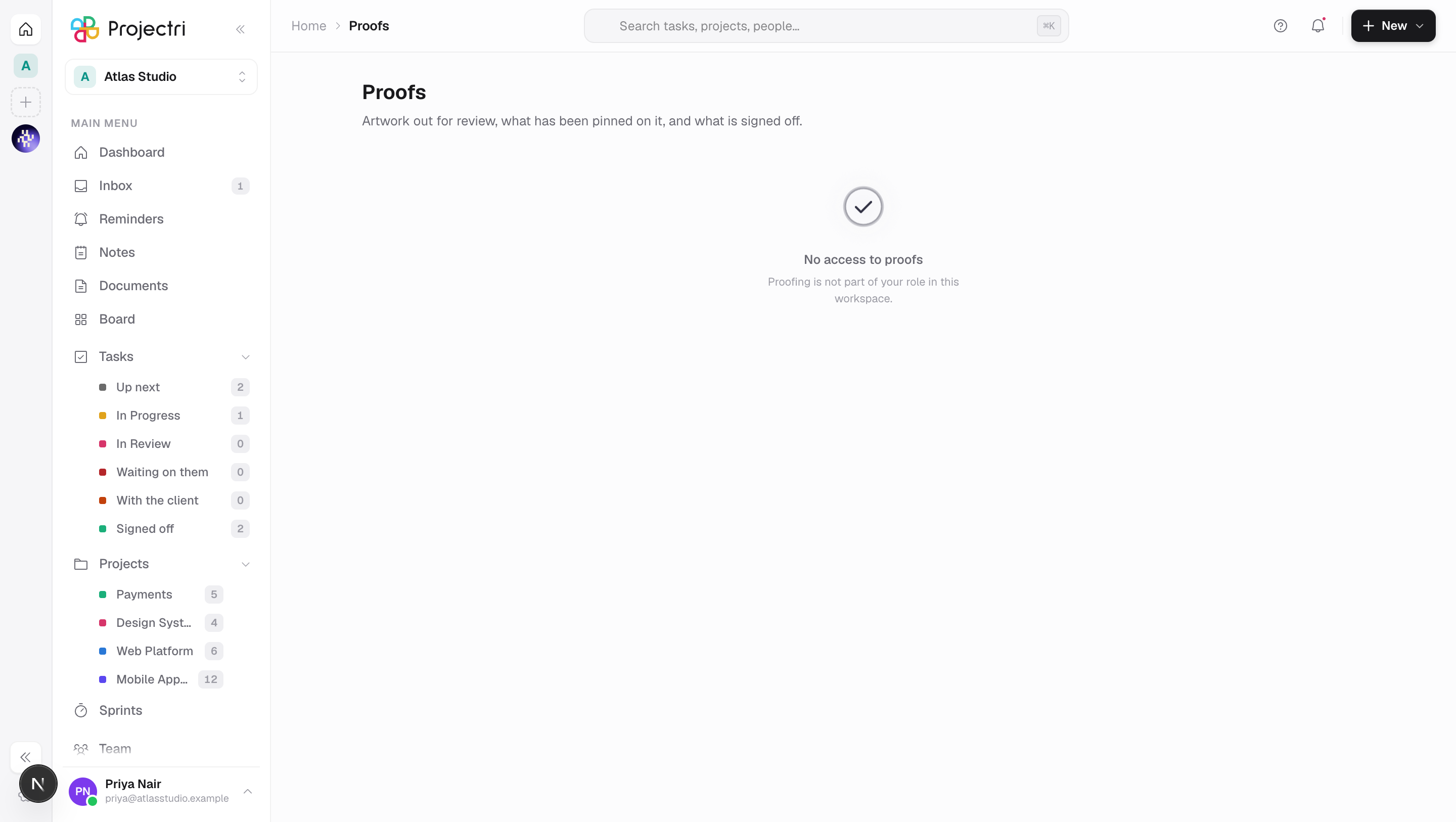
Proofs is in the main navigation, under Board, and in the ⌘K page search. The row and everything on the page need proof.view; without it the page shows "Proofing is not part of your role in this workspace."
Two more keys split the work:
proof.manage— create a proof, upload a version, send it for review, archive and restore it. The New proof button only appears with this key.proof.approve— approve a proof, request changes on it, or reopen an approved one.
The split is deliberate: the person who uploads the file is often not the person who decides it is finished. proof.view is not granted to viewers by default — an admin grants it.
There is no plan gate, but uploaded files count against the workspace's storage allowance and an upload that would take you over it is refused.
How to use it
Find what is waiting on somebody
- The page opens on Live, which is In review plus Changes requested — the two states somebody can still do something about. The tab carries a count.
- Drafts, Approved, Archived and All are the other tabs.
- The project picker beside the tabs narrows the list to one project.
- Each row shows the version number, how many comments are open, how many came from the client, a Shared badge if the client can see it, and the status.
Start a proof
- Press New proof.
- Choose what it is for — Task, Document or Ticket — and search for it by name or reference. A ticket can be found by typing its number, with or without the
#. The picker only offers rows you can already reach. - Picking one fills in the name; you can overwrite it. The name is capped at 200 characters.
- Choose a file now, or leave it and upload later. Only PNG, JPEG, GIF, WebP, SVG and PDF are accepted — video is not proofable.
- Tick Let the client see this proof in their portal if that is what you mean. It is off by default and both directions are written to the audit log.
- The proof and the file are two separate writes. If the upload fails the proof still exists, and the dialog offers Try the file again or **Open the proof**.
Pin a comment
- Open the proof from the list.
- Press Pin a comment; the button becomes "Tap the artwork". Click the place on the page you mean.
- Type the comment and Add comment. Positions are stored as a fraction of the page, so a pin placed on a large screen lands in the same place on a phone.
- Reply to a pin to start a thread. Threading is one level deep — a reply to a reply belongs to the same pin, and a reply cannot carry its own position.
- Resolve a pin when it is dealt with; resolve the pin, not a reply. Deleting a pin deletes its replies and asks first.
Upload a new version
- Press New version in the viewer and choose a file.
- The version number is assigned by the server, so two uploads a second apart cannot both claim v2.
- A new version starts with a clean surface. Pins stay on the version they were placed on — they are not carried forward, because a comment at a point on v2 means nothing on v3 where the layout moved. Use the version selector to read the older ones.
- If the proof was approved, a second version drops it back to In review and clears the approver's name.
Move it through review
The buttons offered are computed from the status, your permissions and whether a file exists — a button that would only ever return an error is not drawn.
- Send for review on a draft. A proof with no file cannot be sent; the route refuses it.
- Approve or Request changes on one in review. Approving with comments still open asks you to confirm rather than blocking you — that is a real and common outcome.
- Reopen an approved proof, Archive anything, Restore an archived one back to draft.
Share it with the client
- Tick Visible to the client in the portal in the viewer, or set it when creating the proof.
- Only comments marked for the client audience reach them; internal notes on a client-visible proof stay internal.
- Archived proofs never appear in the portal, whatever the flag says.
What it affects
- The client portal. A proof with the client-visible flag on, on a project the contact can reach, appears in their portal with its latest version. They can pin comments — those are always recorded as client comments, whatever the request says — and they can approve. A client's approval records their name and no internal user id.
- The audit log. Creating a proof, uploading a version, and every status change are written to the audit log. So is turning client visibility on and off, because "who made this visible to the client and when" is the question asked after the wrong file reaches somebody.
- Storage and billing. Each version's file counts against the workspace's
storagemeter, the same one the billing page reports. - The task, document or ticket it hangs off. A proof is always about one of those, and the same New proof action is on the task panel. The project is taken from the target rather than from what the browser sent, which is what keeps a proof out of the wrong project's filter.
- Approvals do not travel. An approval names the version it approved. When a later version lands, the viewer says *"The approval on file was for an earlier version"* rather than showing a green tick that reads as current.
On mobile
The Proofs screen in the Expo app lists the same rows with the same Live default, and opening one shows the artwork with its pins. Tapping the image places a pin, so a client or a reviewer can comment from a phone — that is the case the whole feature was built around.
Two things the phone does not offer: Archive and Restore, because they hide work from everybody and a thumb near a destructive control is how they get pressed by accident. A PDF version shows its existing pins but sends you to a bigger screen to place a new one — there is no reliable way to measure a tap against a PDF page on the device.
Limits and gotchas
- Images and PDFs only. Anything else is refused with the file type named. Video is out of scope.
- An empty proof can be created and then does nothing. A draft with no file cannot be sent for review or approved — both refuse with
no_version— so the create dialog offers the file as one step rather than a second trip. - Approval is not permanent.
Approved → In reviewis a legal move, and a new version makes it automatically. A proof approved at v2 says nothing about v3, and treating it otherwise is how the wrong artwork gets printed. - A comment is 8,000 characters at most, and a pin's page must exist in the file.
- You can delete your own comments. Deleting somebody else's needs
proof.manage. Deletion is soft, so a thread keeps its shape. - The list loads at most 100 proofs at a time.
Related
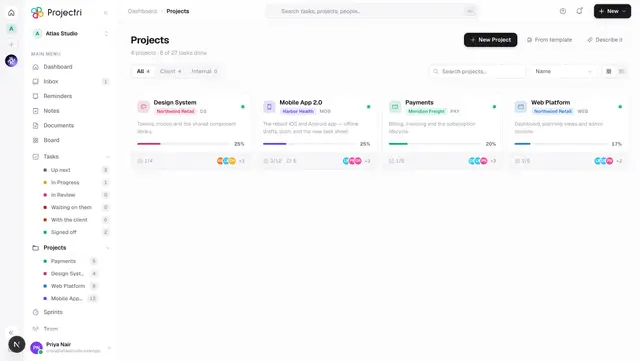
- Projects — where a proof's project comes from.
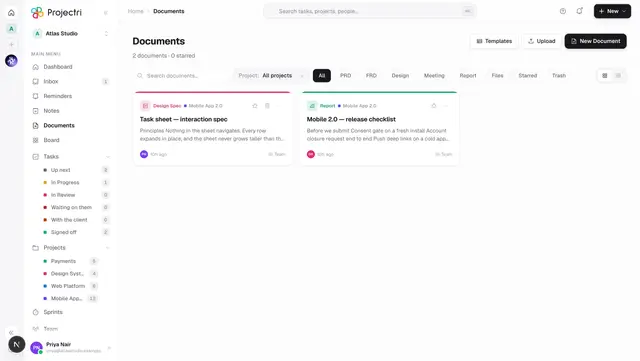
- Documents — one of the three things a proof can be raised against.
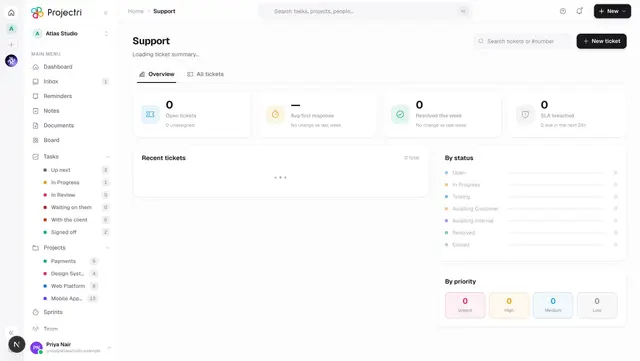
- Support — tickets are another.
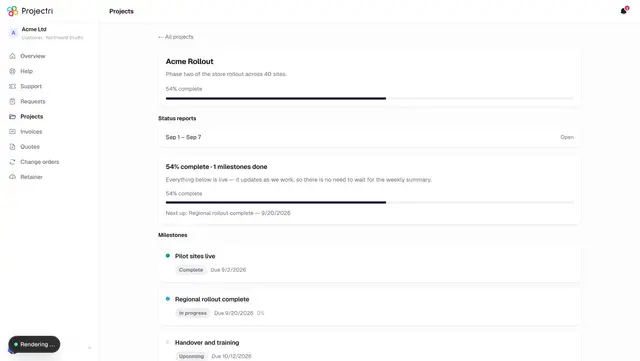
- A project in the portal — what a client sees when a proof is shared.
- Approvals — how sign-off works elsewhere in the product.