My Time
The hours you logged, read back to you — a calendar of days with their totals, and the entries underneath, by day or by task.
What it is
My time answers one question: what did you work on, and for how long. A month of days sits on the left with the hours drawn on each one, and the entries behind them sit on the right, grouped by day or rolled up by task.
Every other reading of the same hours in the product is a management question asked of a population — how fully the firm is booked, who has not filled their timesheet in. This one is the person the hours belong to asking about themselves.
It is a reading, not a place to write. Hours are logged on the task, where the task's context is; every row here opens that task instead.
How to get there
My time in the main navigation, above Timesheets and the three management readings. The whole screen needs time.view — the key described in the catalogue as "View your own logged time", which every member who tracks time holds.
Unlike Timesheets beside it, My time is not hidden in a workspace that has never configured a timesheet policy. A policy is something a workspace either set up or did not; these are the hours you yourself logged, which exist either way.
The screen always shows your own hours. The route behind it can return somebody else's, and that needs time.view_all — asking for another person without it is refused outright rather than quietly handing back your own numbers under their name. There is no plan gate.
How to use it
Read a week or a month
- The three buttons in the header are Week, Month and Custom. The screen opens on Week.
- The carets step one period at a time, in the stride shown. Today returns to the period containing today.
- The label between the carets names both ends of the period, so a week that runs across a month boundary does not have to be counted forward.
- The range either side of the one you are reading is fetched while you read it, and ranges you have already visited are held for the length of the visit — which is why stepping back and forth repaints rather than reloads.
Pick your own range
- Press Custom. Two date fields appear — From and To — beside a Quick range menu.
- The quick ranges are Last 7 days, Last 30 days, Last 90 days and This year, each anchored on today and including it.
- The calendar on the left becomes the range control: click the first day, then the last. The order does not matter, and a third click starts again. The caption under it says which half of the choice you are on.
- A range can be at most 400 days long. The days a longer range would reach are greyed out in the picker, and a range typed past the limit is refused with a sentence rather than a failed request.
- In Custom mode the carets page the calendar you are picking in; they do not move the figures.
Narrow to a single day
- Click a day inside the range. The list on the right narrows to that day and the header above it names the day.
- Click the same day again, or Clear the selected day, to go back to the whole range.
- Clicking a day outside the range moves the range there instead of filtering to a day with no figures behind it.
- Days outside the range are drawn faintly and carry no figure — an empty cell inside the range means you logged nothing, and an empty cell outside it means nobody asked.
Filter to a project, or to billable work
- The project menu appears once the range covers more than one project.
- Billable only drops every non-billable entry from the list.
- Both are applied to the entries already loaded, so they take effect on the click rather than after a round trip.
- Under any filter — a day, a project, or billable-only — the figures above recount over what is left, and the expected-hours tile disappears. The target belongs to the whole range, and printing 3h against a 40h week because you clicked Tuesday is a number that means nothing.
Read it by task instead of by day
- The By day / By task tabs sit above the list.
- By day groups entries under each day with the day's total, and merges entries that would have read identically — same task, same activity, same billable and overtime treatment — into one line, with each sitting's clock times and note kept underneath. At most six of those are printed; the rest are counted.
- By task rolls the whole selection up to one line per task, longest first, with a bar comparing it against the biggest and how many days it was spread over.
- Both tabs are cut from the same entries the day filter and the project filter narrow, so the two tabs and the filters always describe one set of rows.
Log time against a task
Nothing on this screen writes an hour. Every row opens its task, and the Tracking section of the task detail panel is where hours are recorded. Logging there needs time.log.
- Start timer starts a clock on that task. The timer lives on the server, not in the tab, so closing the laptop or moving to the phone does not lose it, and a reload finds it still counting.
- Only one timer runs at a time. Starting one elsewhere stops the one already going, and the panel says which task that is before you press it.
- Press the button again to stop. The elapsed seconds are the server's, never the device's. Anything under a minute is discarded as a mis-click.
- To enter a block by hand, pick the day, then either From/To or Hours, add an optional note, and press Log. In From/To mode the end of one block becomes the start of the next.
- Time in the future is refused — planned work is a booking, not a timesheet entry.
Correct an entry
- Open the task from the row here, and work in the same Tracking list.
- An entry is removed with the small close button on its row. There is no in-place edit, so a wrong block is deleted and logged again.
- A block that overlaps one you already have is refused, naming the entry it collides with. The refusal is overridable — Log it anyway — because two blocks genuinely can share a clock; what it stops is that happening by accident.
- After a timer stops, the split panel opens on the block that just landed, so the part of it that was waiting rather than working can be recorded. The time is already saved by then; Save split or Leave as logged only decides how it is described.
What it affects
- Nothing. It is a read. No control on this screen writes a row. That is deliberate: a second write path for the same fact is how two screens start disagreeing about what a person did.
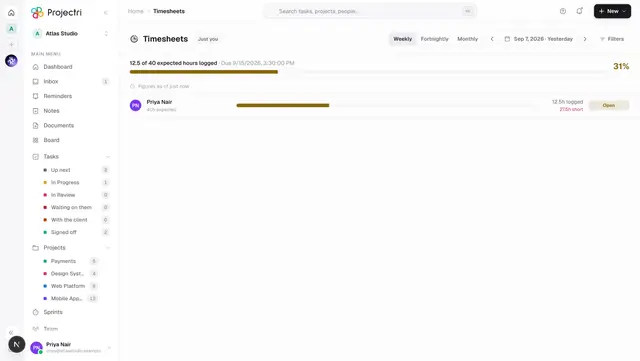
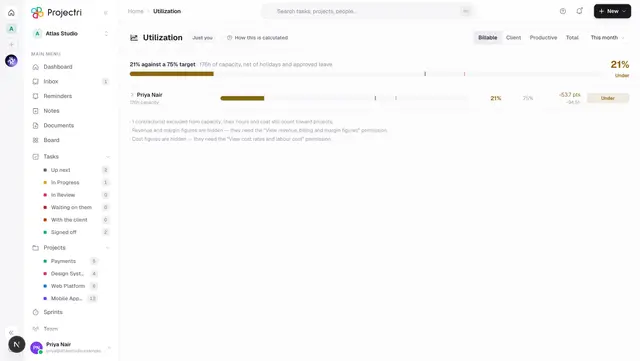
- The hours it reads do drive the rest. The same entries are what Timesheets measures completeness against, what Utilization divides by capacity, and what a billing run turns into revenue once an approver releases it.
- Stopping a timer prices the block. A running timer has no rates on it — there is nothing to price until it stops. Rates are stamped at that moment and frozen there.
- Logging or deleting recomputes the task's total. The task's logged figure is summed from its entries rather than incremented, so it cannot drift away from the rows that justify it.
- The expected-hours tile is the capacity model. It is the same calculation the compliance dashboard divides by — contracted weekly hours spread across the working days of the week, net of public holidays and approved leave — so the figure here and the figure Timesheets shows for the same range should agree.
On mobile
The Expo app has the same screen at My time, built from the same route: the same calendar, the same Week / Month / Custom modes, the same quick ranges, and the same by-day and by-task lists. It is read-only there too, and tapping a row opens the task. The phone is arguably the more important of the two surfaces — hours are logged on a phone at the end of a day, and until this screen existed the only way to read them back was to open each task one at a time.
Limits and gotchas
- A running timer is not logged work. It appears in no total and in no list here until it is stopped. "The screen is empty but I have been working all morning" is almost always a timer still counting.
- Days are UTC calendar days, because the capacity model the expected-hours figure comes from buckets in UTC too. An entry is composed from the clock on the device that typed it, so a block logged at half past eleven at night in a zone ahead of UTC lands on the previous day's cell here.
- A day with nothing on it is absent, not a zero. A weekend, a public holiday and a day you genuinely logged nothing are three different facts, and only the calendar knows which is which.
- The expected figure inherits the working week. Weekly hours are divided across the working days of the workspace's holiday calendar, which is seeded from the country the workspace was created with. A Gulf workspace left on a Monday-to-Friday week has a wrong divisor, and every percentage on this screen is wrong with it.
- No target is better than a wrong one. Anybody the capacity model does not cover — a contractor is the case that exists today — gets no expected-hours tile rather than a target of zero.
- The entry list is capped and the totals are not. At most 2000 entries come back for a range; the figures above them are computed over the whole range regardless. When the cap bites, the list header says *"Showing n of m entries"*, because otherwise a day cell reading 7h would sit above a list adding up to 4h with nothing accounting for the gap.
- A range longer than 400 days is refused, so the query stays indexed.
- No money appears anywhere on this screen. Billable here is a duration, not an amount. Rates and bill amounts exist on the row and are deliberately never selected.
- A day can total more hours than the day is long if two blocks were logged over the same clock before overlaps were guarded. Old rows are untouched; new ones are refused unless you override the warning.
Related
- Timesheets — the same hours as a completeness question, and the queue that releases them for billing.
- Utilization — the firm-wide reading these hours feed.
- My Tasks — the tasks the entries are logged against.
- Roles and permissions — the difference between
time.view,time.logandtime.view_all.