Onboarding playbooks
Project templates with phases, dated tasks and the things you need from the client — start one when a contract is signed, then watch what each run is waiting on.
What it is
A playbook is a project template with dates in it: phases, tasks that start on a given working day, and the items you need from the client named as their tasks rather than chased over email. Starting one creates a real project with real milestones and tasks; the run then tells you what it is waiting on and how long it took compared with the last one.
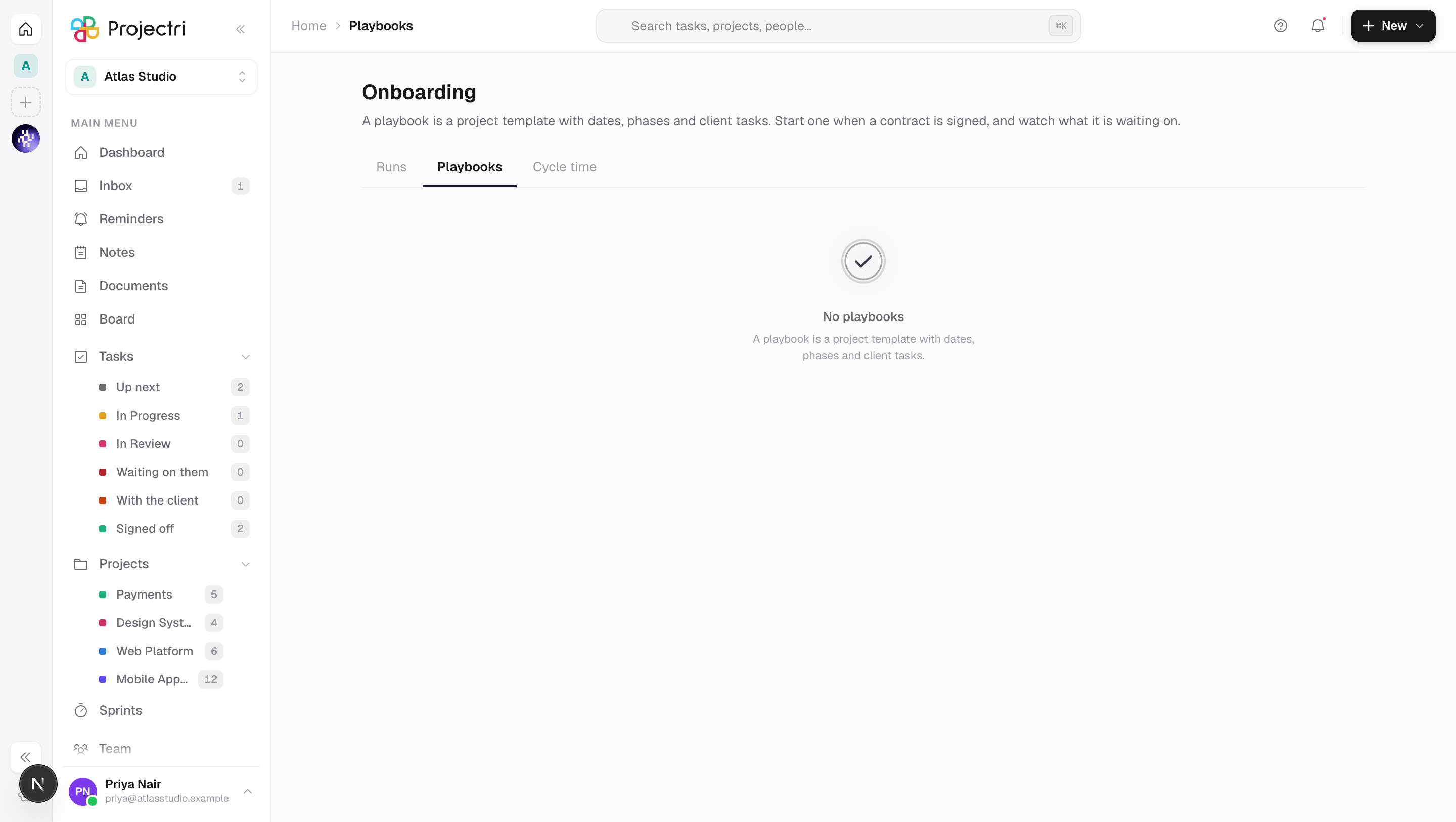
The screen has three tabs — Runs, Playbooks and Cycle time.
How to get there
Onboarding is in the main navigation, at the end of the client run (Pipeline, Estimates, Quotes, Contracts, Feedback, Onboarding), and in the ⌘K page search. The row and all three tabs need playbook.view.
Two other keys decide what you can do:
- Editing a playbook — creating, changing or deleting one — needs
project.template. Managing a playbook is managing a template; there is no separate key. - Starting one needs both
project.createandtask.assign. The second is not ceremony: starting a playbook hands named work to people outside the company, and a role trusted to spin up internal projects must not acquire that by going through this door.
When you cannot start one, the button is disabled with the reason beside it rather than refusing after the press.
How to use it
Read a run
- The Runs tab opens first when anything is in flight; the count is on the tab.
- Each row is Client — Playbook, with the project key, the planned window, the day it is on, and a health word: In flight, Past target or Finished.
- Click a row to open its plan. The panel shows progress, the version of the playbook it was built from, and one Next up — the earliest open item, not the most overdue, because a late item behind a late item is a symptom rather than the cause.
- Waiting on the client for N names the client tasks that are still open. This is the sentence the screen exists for.
- Each item shows its planned date and how it landed: Not done yet, *On the day, Nd early or Nd late*. An open item is never shown as zero days late.
Start an onboarding
- Go to the Playbooks tab and press Start on a card. A draft or an empty playbook cannot be started, and the card says which.
- Choose the Client.
- Type a Project key — 2 to 10 letters or digits, starting with a letter. It becomes the prefix on every task identifier.
- Set the Start date. Everything else is derived from it.
- Optionally set a Project name. Left blank, the project is named Client — Playbook.
- Who at the client does what: map every role the playbook asks for to one of that client's active contacts. A playbook stores a role, never a contact, so the same onboarding cannot be assigned to the last client's finance manager.
- What this would produce shows the window, the number of working days, and each phase's date — computed on the same calendar the start will use, and it names which calendar that is.
- If any role is mapped, a warning asks you to confirm that starting this gives those named people access to the new project. You cannot start without ticking it.
- Press Start the onboarding. You land on the new project.
Write or change a playbook
- On the Playbooks tab press New playbook, or Edit on a card.
- Give it a Name and say What this onboarding is for.
- Add phase for each stage. A phase has a name, a working-day offset from the start, The client can see this phase, and **Reaching it asks the client to sign off**.
- Add task for each piece of work. A task has a title, a phase, a priority, a working day it starts on and how many working days it lasts.
- Tick The client does this one to make it a client task. It then needs a role — Which client role, e.g. IT contact — and can carry **What to tell them and They must attach a file**.
- Turn on Published — offer this in the gallery. An unpublished playbook is a draft and cannot be started.
- Save. The editor refuses a playbook with no name, with no phases and no tasks, with an unnamed phase, with an untitled task, or with a client task that names no role.
Deleting a playbook keeps the onboardings already run from it, along with the version they were built from.
Compare how long onboardings take
- The Cycle time tab lists each playbook and version with the median days its finished runs took.
- A version with fewer than three finished runs shows how many have finished instead of a median. The median is over finished runs only, so the count beside it is the finished count — showing
runsnext to a median drawn from one of them is the standard way this chart lies.
What it affects
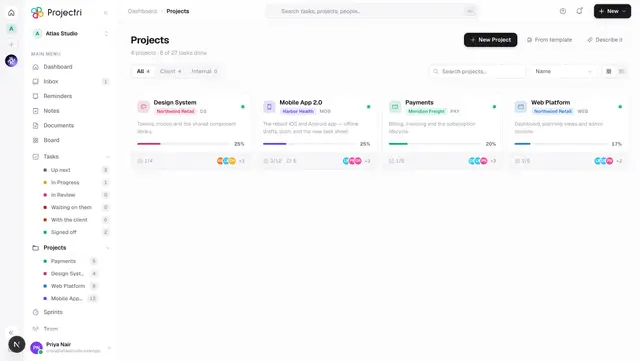
- A new project. Starting a run creates a project with the key, name, colour, icon and methodology from the playbook, attached to the client.
- Milestones and tasks. Each phase becomes a milestone; each task becomes a task in the project, joined to its phase's milestone and dated on the client's working calendar.
- Portal access. Every mapped contact is granted access to the new project. Starting a playbook that names contacts into an internal-only workspace is refused before anything is written.
- The client's portal view. The playbook's client-view defaults are applied to the project — the intro text, whether tasks, dates, progress and the team are shown, and the sign-off reminder interval. Budget burn is off in all three built-in playbooks; publishing it is a commercial decision, not a default.
- The client gets told. Every client task raises a portal notification to the contact it is assigned to, with its due date, linking to the task in the portal. That happens after the response, so starting a playbook is not a two-minute spinner.
- Dates follow the client's calendar. Offsets are working days on the calendar resolved for that client: the calendar set on the client record, else a company calendar matching the client's country, else the company default, else Monday to Friday with no holidays. A Gulf week is Sunday to Thursday, and a plan built on the wrong week is silently three days out at every milestone.
- Cycle time. A run completes when every item it created is done — derived from the run's own items, not the project's task list, so an onboarding does not sit open forever because somebody filed a support ticket in the project.
On mobile
The Playbooks screen in the Expo app is the runs list: which onboardings are in flight, and which are stuck waiting on the client. Tapping one opens its plan.
Editing a playbook is there too — a wording change or a date offset is the sort of thing thought about away from a desk. Starting one is not: it creates a project, maps named contacts to roles and can publish that project to people outside the firm, which is three decisions with the plan in front of you rather than one mis-tap on a list row.
Limits and gotchas
- Three playbooks ship with every workspace — Software implementation, Agency creative onboarding and Managed service transition. They are marked Built in. Improving one of them here updates every workspace's copy *unless that workspace has edited it*; once you edit one, it is yours and is never overwritten.
- A playbook holds at most 50 phases and 300 tasks, and an offset may range from −365 to 3,650 working days. A negative offset is normal — *"send the welcome pack"* is two days before kickoff.
- A contact mapped to a role must be an active contact of that client. An inactive one is refused before anything is written.
- A run keeps the playbook's version number. Editing the playbook afterwards does not change a run already under way.
- Items deleted from the project after the run started are shown struck through and counted as "N items no longer exist", rather than being silently dropped from the progress figure.
Related
- Projects — what a run creates.
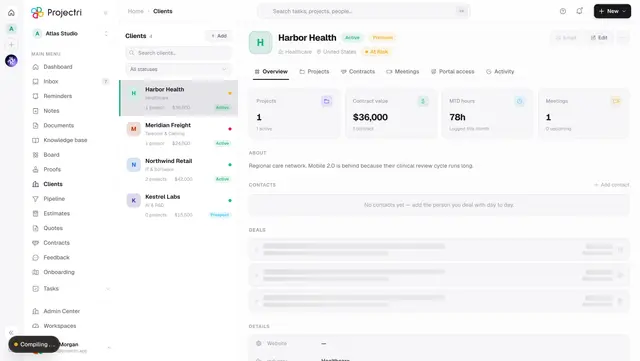
- Clients — where contacts and their calendar come from.
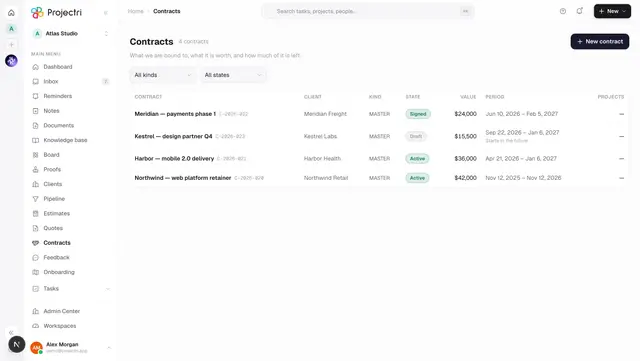
- Contracts — the signature that usually starts one.
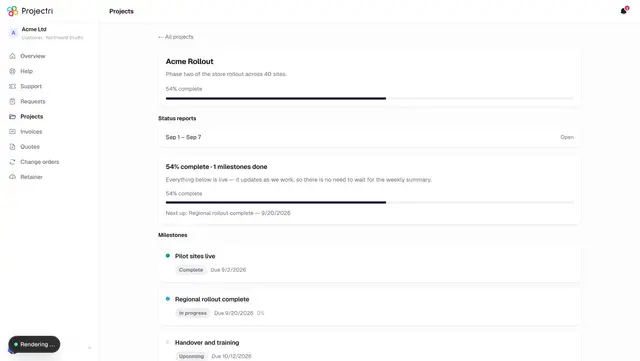
- A project in the portal — what the client sees afterwards.
- Calendar — working days and holidays.