Status reports
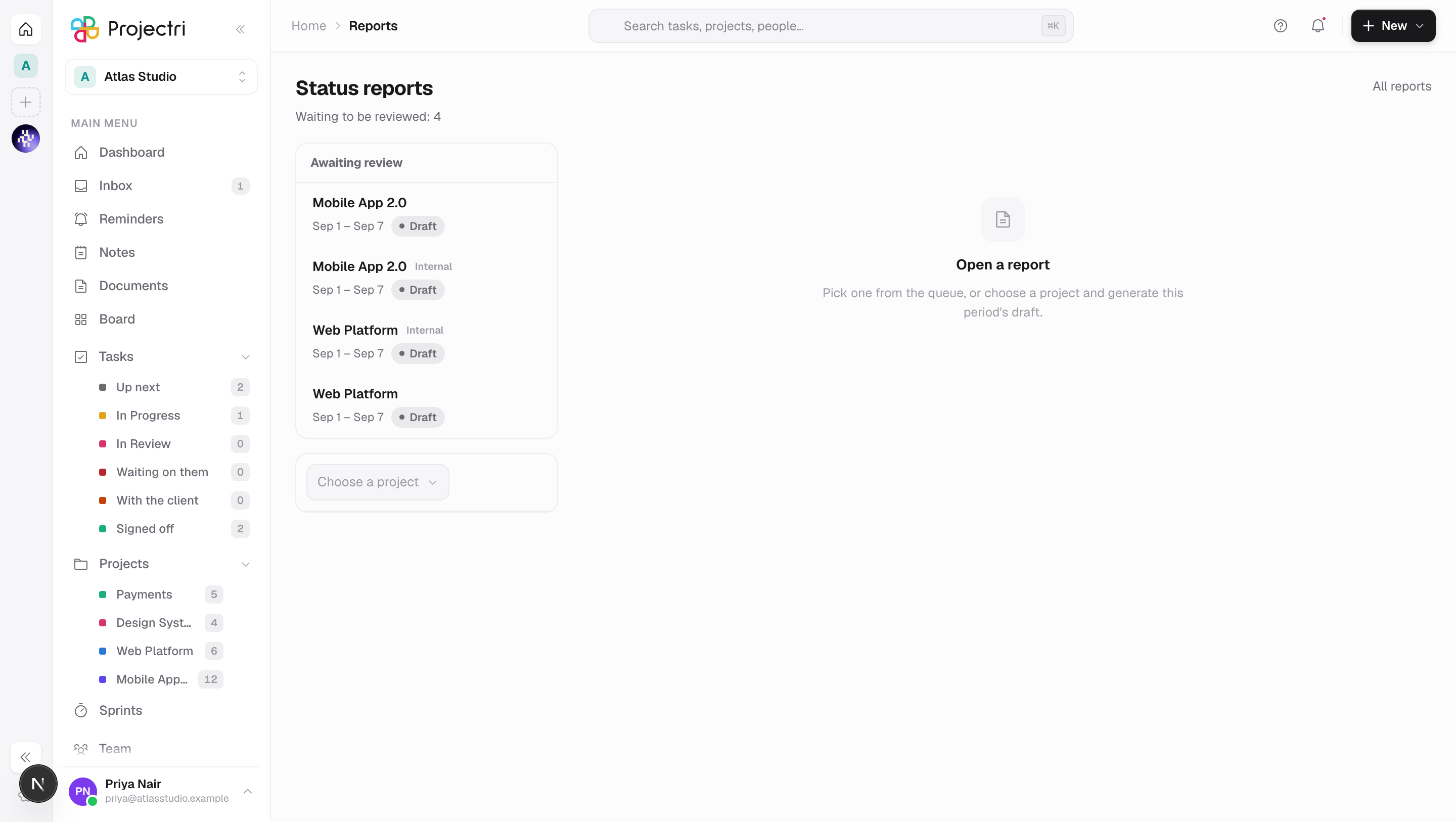
Generated client status reports — a review queue across every project, the draft, the edit, and the send that publishes it to the portal.
What it is
A status report is the period write-up a client receives — what was completed, what is planned, where the milestones are, what the risks are and what is needed from them. Projectri assembles the figures from the project itself and writes the sentences around them, and you review and send. The page is a queue across every project rather than a tab inside one, because the person this exists for has twelve of these to read on a Friday afternoon.
How to get there
Status reports sits under Reports in the main navigation and needs report.view for the row. Reading the queue and opening a report needs project.view. Generating, editing a paragraph, sending, skipping a period and changing a project's settings all need project.update — generating calls a model and costs money, and sending is the moment a document leaves the building with your firm's name on it, so neither is something a read-only role can do.
Two query parameters open the screen at a specific place: ?report= opens one draft, and ?project= selects a project. Those are the links notifications use.
How to use it
Work the review queue
- The left rail lists every report awaiting review across all projects — drafts and reviewed reports, newest period first, up to a hundred.
- Click one to open it in place. The subtitle at the top of the page counts what is waiting.
- The queue loads immediately; a report's full contents are fetched only when you open it.
Generate a draft
- Choose a project in the picker below the queue. Its history appears under it.
- Press Generate for client, or Internal copy for the version that carries hours and is never sent to a client.
- If the generator wrote a paragraph containing a number the project data cannot account for, that paragraph is discarded and replaced with a plain sentence built from the figures — and the screen tells you how many were replaced. That is the difference between a plainer report and a silently degraded one.
- Regenerate on an open draft rebuilds it for the same audience.
Read and edit it
- The facts strip at the top shows Work complete, Milestones complete, Completed this period, Planned next period, Overdue, Blocked and, where the section is on, Budget used.
- Since the last report lists what changed, tagged as a risk, an issue, overdue, blocked, slipped, a sign-off, a milestone added or completed, a date moved or a new risk.
- Each section can be edited in place. An edited paragraph is marked Edited, and Restore generated puts the original back.
- Editing changes the prose only. The figures come from the project, not from the box — a number you type into a paragraph is not checked against anything.
Send it
- Press Send now and confirm.
- The report becomes visible in the client portal and every client contact on the project is notified. There is no un-send.
- Where the project keeps a stakeholder register, the contacts marked Informed on it decide the audience. Where there is none, every contact with a grant on the project receives it.
- If a contact is marked Informed but has no access to the project, the screen says how many — silently omitting them would leave somebody believing they are on the distribution when they are not.
- Internal stakeholders named on the register are notified separately that the report went out.
Skip a period
Press Skip and give a reason. No report goes out, and the reason is kept, so that later it reads as a decision rather than as a failed job.
Download it
PDF renders the report as a document on demand, so it always matches the prose currently on screen rather than a copy stored at generation time.
Change how a project reports
Press Settings with a project selected.
- Generate automatically prepares a draft on the cadence below. Nothing is sent unless you send it.
- Cadence — Weekly, Every two weeks or Monthly.
- Send day, Send time and Timezone. The timezone is the client's, not yours.
- Draft ahead by — hours between the draft being prepared and the send window, so there is time to read it. The default is 24 and it can be set from 0 to 168.
- Send without review is off by default. The first report that goes out with a wrong number costs more than this saves.
- Tone — Professional, Concise or Detailed.
- Sections — Summary, Milestones, Completed this period, Planned next period, Risks and blockers, Budget, and Needed from you. The set is fixed so that twelve reports read the same way; switch off what a particular client should not see. Budget is off by default, because burn against a budget a fixed-price client never agreed to reads as an overrun they are about to be billed for.
What it affects
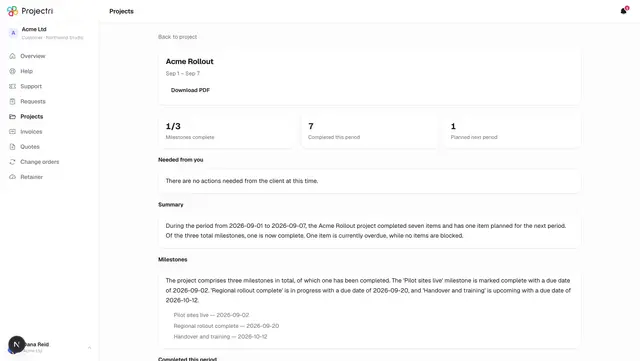
- Sending publishes to the client portal. The report appears at the client's project and every notified contact gets a link straight to it.
- A sent report is frozen. It cannot be edited afterwards; generate the next period instead.
- The stakeholder register narrows the audience. A RACI describing who should be told, next to a mailer that tells everybody, is two sources of truth and the document is the one that loses.
- A cron does two things on the same pass — it generates the draft the configured number of hours before the send window, and it sends at the window only for projects with Send without review on. Everything else sits in the queue.
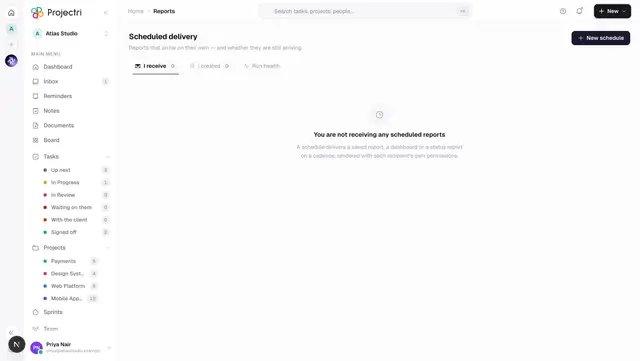
- A status report is schedulable. In scheduled delivery, Status report is one of the four things you can send, and the subject is the project.
- The figures come from the project. Milestones, task completion, overdue and blocked work, budget burn and the client timeline are read at generation time, so a report is a snapshot of the project as it stood then.
On mobile
Status reports in the app is built for the Friday-afternoon review away from a desk. It reads the queue, opens a report, and lets you edit a paragraph, send and skip. It does not compose the configuration and it does not generate — a cadence, a timezone and seven section toggles are desk work, and generating calls a model and costs money, which is too easy to trigger from a list row by accident.
Limits and gotchas
- **Numbers come from the data, sentences from the model, and never the other way round.** Every numeral in generated prose is checked against the figures before it is stored; one that cannot be accounted for takes its whole paragraph out and replaces it with a deterministic sentence.
- An internal copy is never sent to a client. Trying to send one is refused; it carries hours and exists for your own file.
- A report that has been sent or skipped cannot be sent again, and a project with no client cannot send at all.
- Every section switched off leaves nothing to show, and the screen says so rather than rendering an empty document.
- The history list shows the last 50 reports for the selected project.
Related
- Reports — the internal figures behind the write-up.
- Scheduled delivery — sending a project's report on a cadence.
- A report in the portal — what the client actually sees.
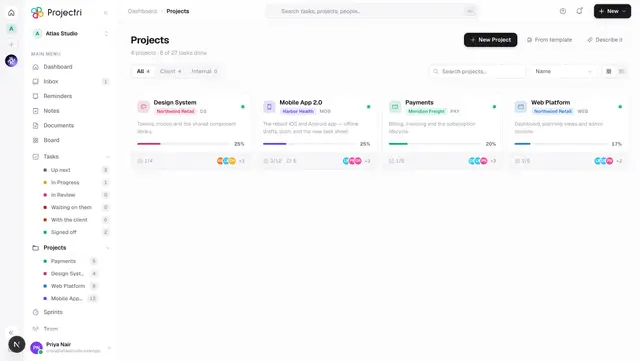
- Projects — where the milestones and budget being reported come from.