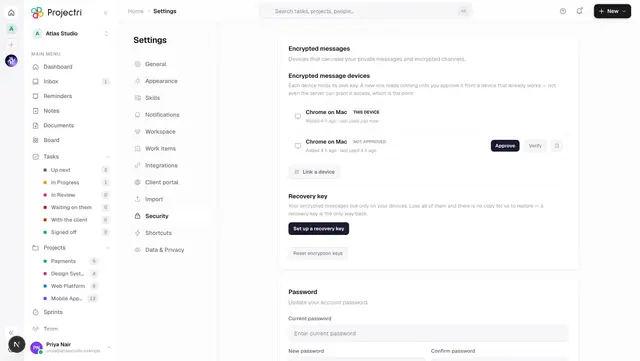
Security
The sign-in rules this workspace enforces, who is signed in, what machine credentials and outside applications can reach it, and the sign-in history.

What it is
Security is one screen with nine tabs, because an administrator arrives here for exactly one of them. It holds the password and sign-in policy, the IP allow-list, every member's session and second-factor posture, the API tokens this workspace has minted, the outside applications somebody has authorised, the phones registered for notifications, who may not reach an AI model, and the log of sign-in attempts.
How to get there
Security → Security in the admin console rail. The console itself is ADMIN-only, with one deliberate exception: a custom role holding security.view may open /admin/security and its sub-pages without being made a full administrator. That key also gates the whole payload the page reads, so without it the tabs come back empty.
What each action needs:
| Action | Permission |
|---|---|
| Read the page | security.view |
| Save the policy, the allow-list, reset someone's 2FA, AI access | security.policy |
| Sign a member out, unregister a device | security.session |
| Mint or revoke an API token, disconnect an application | integration.api_token |
| See the connected applications list | integration.view |
There is no plan gate on this screen.
How to use it
Set the password and sign-in policy
- Open the Policy tab. If the page says these are the platform defaults, they are already in force — saving records them as this workspace's own so a later change to the defaults cannot move them underneath you.
- Set minimum length (6–64 characters), and whether an uppercase letter, a number and a symbol are required.
- Expire passwords takes a number of days from 1 to 3650. Leave it blank for passwords that never expire.
- Under Sign in, set the session timeout in minutes (5 to 525600; the default is 10080, which is seven days), how many failed attempts lock an account, and how long the lockout lasts.
- Press Save policy. The bar at the bottom only appears once something has changed, and Reset puts the form back.
Require two-factor authentication
- On the Policy tab, turn on Require two-factor authentication.
- A Grace period before enforcement field appears — 0 to 365 days. Existing members keep signing in until it runs out.
- Save. The Members tab then shows each person's posture: enrolled, due by a date, overdue, or unfinished. Somebody past the grace period cannot sign in at all until they enrol.
Restrict which addresses may reach the workspace
- Open the Network tab.
- Add your ranges first. The box takes an IPv4 or IPv6 address, or a CIDR range such as
203.0.113.0/24; a bare address is treated as a single host. A label like "Office VPN" is optional. - Only then turn on Enable IP allow-list, and save it from the Policy tab — the switch lives there.
- While the allow-list is enforced, adding a range that would exclude your own address is refused.
Limit which email domains can be invited
On the Policy tab, add domains under Allowed email domains. Both @acme.com and me@acme.com are read as acme.com. Empty means no restriction.
Sign somebody out, or everybody
- Open the Members tab.
- Sign out beside a person revokes every live session they have.
- Sign out everyone does it for the whole workspace, including you — your own session ends shortly after.
Clear a member's second factor
- On Members, press Reset 2FA beside somebody who is enrolled.
- Confirm. Their authenticator and every unused recovery code are removed, and they sign in on a password alone until they enrol again. Do this only when you have confirmed who you are speaking to by some means other than this product. It writes an audit line whether or not anything was found to remove.
Mint an API token
- Open API tokens → New token.
- Give it a name, choose an expiry of 30, 90 or 365 days, or Never.
- Tick the scopes. They are the same permission keys the rest of the product uses, fetched from the catalogue so the picker cannot offer one the server would reject. A token with no scopes can authenticate and do nothing.
- The token's plaintext is shown once. Only its hash is stored, so it can never be shown again. Copy it before closing the dialog.
- Revoke on a live token stops anything using it immediately.
Connect an editor or agent over MCP
- Open the Connect IDE tab.
- Pick your client — Claude Code, Nia IDE, Cursor or Codex — and one of three scope presets: Read-only, Read and write, or **Everything, including financials**.
- Each preset is narrowed server-side to the scopes you hold, and names the ones it had to drop rather than counting them.
- The configuration blocks render before a token exists, with a placeholder. Generating a token substitutes it in place — and again, it is shown once and dies with the page.
- The endpoint is this deployment's own
/api/mcp, taken from the address your browser actually reached.
Review and disconnect third-party applications
- Open Connected apps. These are applications an outside vendor registered and somebody in this workspace authorised — not connectors Projectri wrote.
- Each row states whether Projectri has reviewed the application, who authorised it, when it was last used, how many live tokens it holds, and which scopes it was granted.
- Disconnect revokes everything it holds at once. Anyone with
integration.api_tokencan do this, including when the person who authorised it has left.
Switch AI off for a named person
- Open AI access. The list shows only the people who are blocked, so an empty list means nobody is — it is an answer, not an unconfigured feature.
- Switch AI off, then find the person.
- What this buys, stated on the card: a blocked person cannot cause an AI call in this workspace, including through an agent they own. Their name can still appear in other people's prompts, because a colleague's briefing legitimately mentions who they are waiting on.
Read the sign-in log
The Sign-in log tab lists the most recent attempts against this workspace with the address, the method and — for a failure — the reason: wrong password, no account, unverified, locked, suspended, blocked by the IP allow-list, expired code, or bad code.
What it affects
- Every password set anywhere. The policy is applied at sign-up, at reset and at change, not only on this screen.
- How long a session lives.
sessionTimeoutMinis the real expiry on the token minted at login. Raising it lengthens sessions across the whole product. - Sign-in itself. Failed attempts, lockouts, the allow-list, the MFA requirement and enforced SSO are all read by the login path, and each refusal lands as a row on the Sign-in log tab with a stable reason.
- The audit log. Saving the policy, revoking sessions and clearing a second factor all write audit rows, readable on Audit log.
- Integrations. The API tokens tab and Connected apps are two views of the same credential table. Revoking here stops the integration, the agent or the editor immediately.
- Identity. Require single sign-on on the Policy tab is only meaningful once a provider is connected and its domains verify — see Identity.
On mobile
/admin/security in the Expo app carries the half that happens away from a desk: the sign-in history, the registered devices, member sessions and the ability to end one now. The password policy, the IP allow-list, token minting and the Connect IDE wizard stay on the web, because they are settle-in-and-think work and because a token shown once has to be pasted into a config file on the machine you did not bring.
Limits and gotchas
- A device is not a session. The Devices tab lists push registrations. Removing one stops notifications reaching that phone and signs nobody out — force sign-out is a separate action on the Members tab.
- A token's plaintext is shown once and never again. Only its hash was ever stored. The same is true of the token the Connect IDE wizard mints; navigating away from that tab destroys it.
- One session per platform. A second sign-in on the same platform evicts the first, so a member can be signed in on a browser, an iPhone and an Android device at once but not on two browsers. Devices linked by scanning a pairing code are counted separately.
- Enrolled with no recovery codes left is the next lock-out, and it arrives without warning. The Members tab flags it in amber.
- An SSO only badge on a member means they have no password at all. If you disconnect the identity provider they cannot sign in until they reset one.
- Copying a token fails outside a secure context — the screen says so rather than pretending it worked.
Related
- Identity — OIDC single sign-on and directory provisioning.
- Audit log — what was changed here, and streaming it to a SIEM.
- Members — suspending, removing and re-inviting people.
- Integrations — the connectors, and where third-party apps come from.
- Two-factor authentication — what a member does when the policy requires one.
- MCP and the API — what a token can actually reach.