Your first week
The ten things worth doing in your first few days, in the order they matter.
Projectri is a large product and almost none of it is urgent on day one. This is the short list — what to do first, and what each step unlocks. Ten steps, about half an hour in total.
1. Understand the address bar
Every screen inside a workspace lives under two segments: the workspace slug and your own handle. /acme/anwar/my-tasks is Anwar's task list inside the Acme workspace. Your handle is generated from your name the first time it is needed — "Anwar Bakr" becomes anwar, and a number is only added once every name-shaped option is taken.
The handle in a link is the sender's, and the app rewrites it to yours when you open it. That is why a colleague can paste a link to a shared screen and you both land somewhere that makes sense.
2. Finish your profile
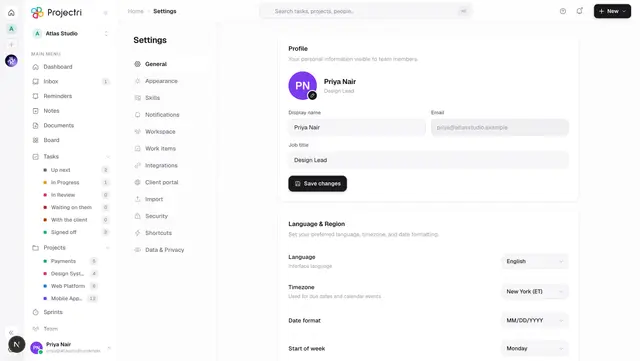
Go to Settings → General. Set your display name and job title, then set the four things underneath them that quietly govern the rest of the product: interface language, timezone, date format and start of week. One Save changes button covers the whole page.
Your email address is shown but cannot be edited here. See Your profile and preferences.
3. Learn the left rail
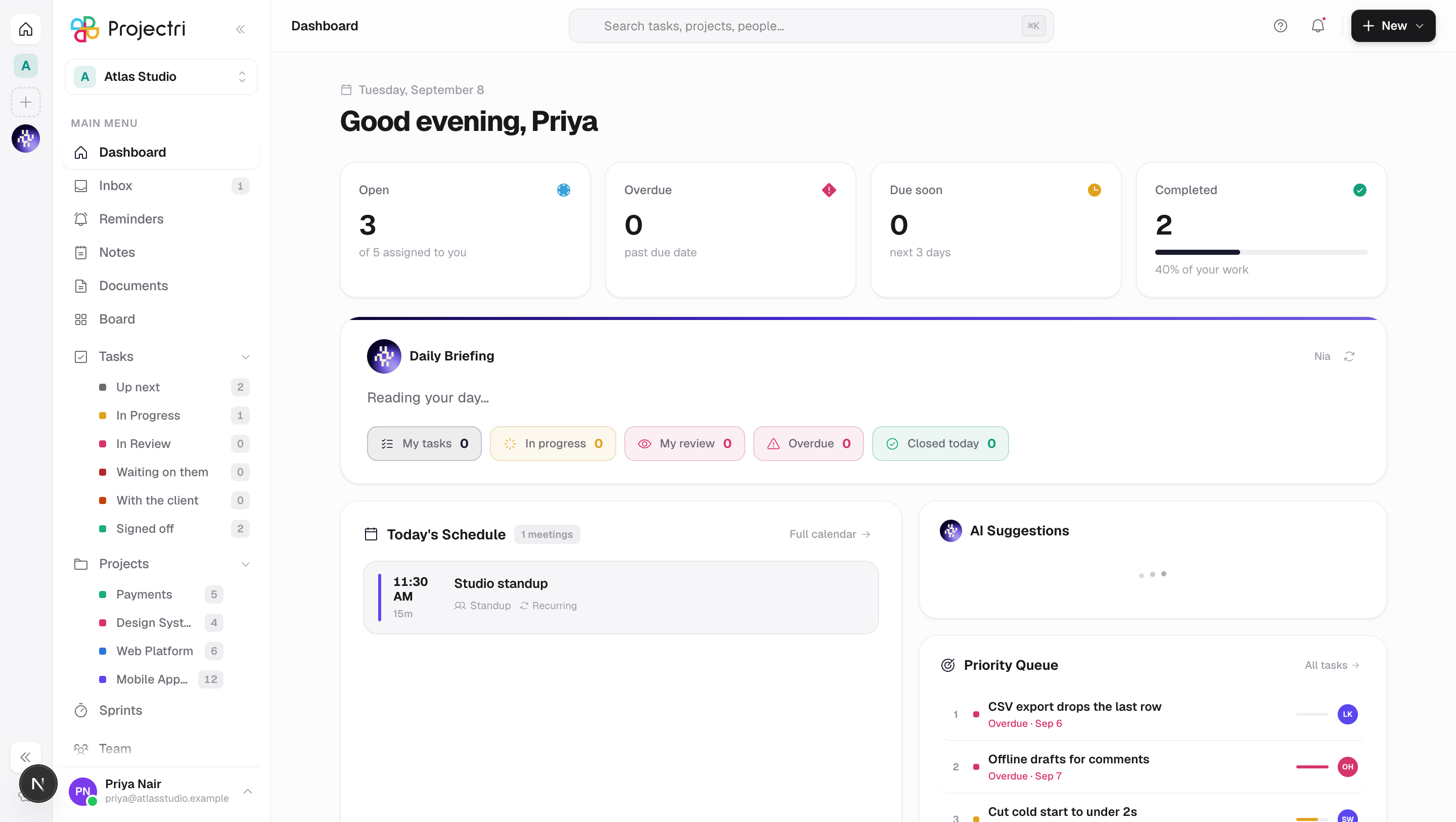
The rail is the whole navigation. What is in it depends on what you are allowed to do — a row whose destination you could not open is hidden rather than shown and refused, so two people in the same workspace genuinely see different rails. Rows you are likely to have on your first day: Inbox, My Tasks, Projects, Board, Notes, Documents, Discussions, Calendar and Team.
If you belong to more than one workspace, the Workspaces row is the switcher.
4. Read your Inbox
The Inbox is where notifications land: mentions, assignments, approvals, comments and anything a colleague sent you directly. The rail badge counts what is unread. Start here rather than in Projects — most of a working day arrives rather than being looked for.
5. Open My Tasks
Everything assigned to you across every project, in one list. Tasks are numbered from their project's key, so APO-42 stays APO-42 however it is renamed or moved — see Core concepts.
6. Look at one project properly
Open Projects and pick the one you were brought in for. Its board, list, timeline and calendar are four views of the same tasks. Projects are either client projects or internal ones, and that choice — made when the project was created — decides whether it can ever be published to a client portal.
7. Log some time
If your role includes time.log, record hours against the tasks you worked on before the week ends rather than after it. Approved time is what utilisation, capacity, budget burn and invoicing are all built from; time still in draft is not counted by any of them. See Timesheets.
8. Say hello in Discussions
Channels, threads, reactions and files. @ a person to reach them directly — they get a notification and a link to the exact message, on the web and on their phone. See Discussions.
9. Ask Nia something
Nia is in the right-hand dock. She can read what you can read, act within the permissions you hold, and answer product questions from this documentation. "How do I fix a rejected time entry" is a fair question to put to her. See Nia, the assistant.
10. Secure the account, then install the app
Two things, in this order:
- Turn on two-factor authentication at Settings → Security. It takes about a minute and it is the single largest difference to how safe your workspace is. See Two-factor authentication.
- Install the iOS or Android app and sign in — or link it from the browser you are already signed in on, without typing a password. See The mobile app.
Keyboard shortcuts worth learning now
| Keys | What it does |
|---|---|
Cmd/Ctrl + K | Command palette |
Cmd/Ctrl + 1 | Dashboard |
Cmd/Ctrl + 2 | My Tasks |
Cmd/Ctrl + 3 | Projects |
Cmd/Ctrl + 4 | Inbox |
N | New task |
Cmd/Ctrl + , | Settings |
? | The full list |
The complete catalogue is at Settings → Shortcuts, and every row in it is a key something actually listens for.
What to leave until later
Reports, resourcing, the finance screens and the admin console are all real and all documented, and none of them need you in week one. When you do need them, the page for each one says who can open it and what it changes.
Related
- Welcome — what Projectri is, and who each part is for.
- Core concepts — the eight words the product assumes.
- Roles and permissions — why your rail differs from a colleague's.
- Your profile and preferences — everything on the settings screen.