
Welcome to Projectri
What Projectri is, who each part of it is for, and how to find your way around this documentation.
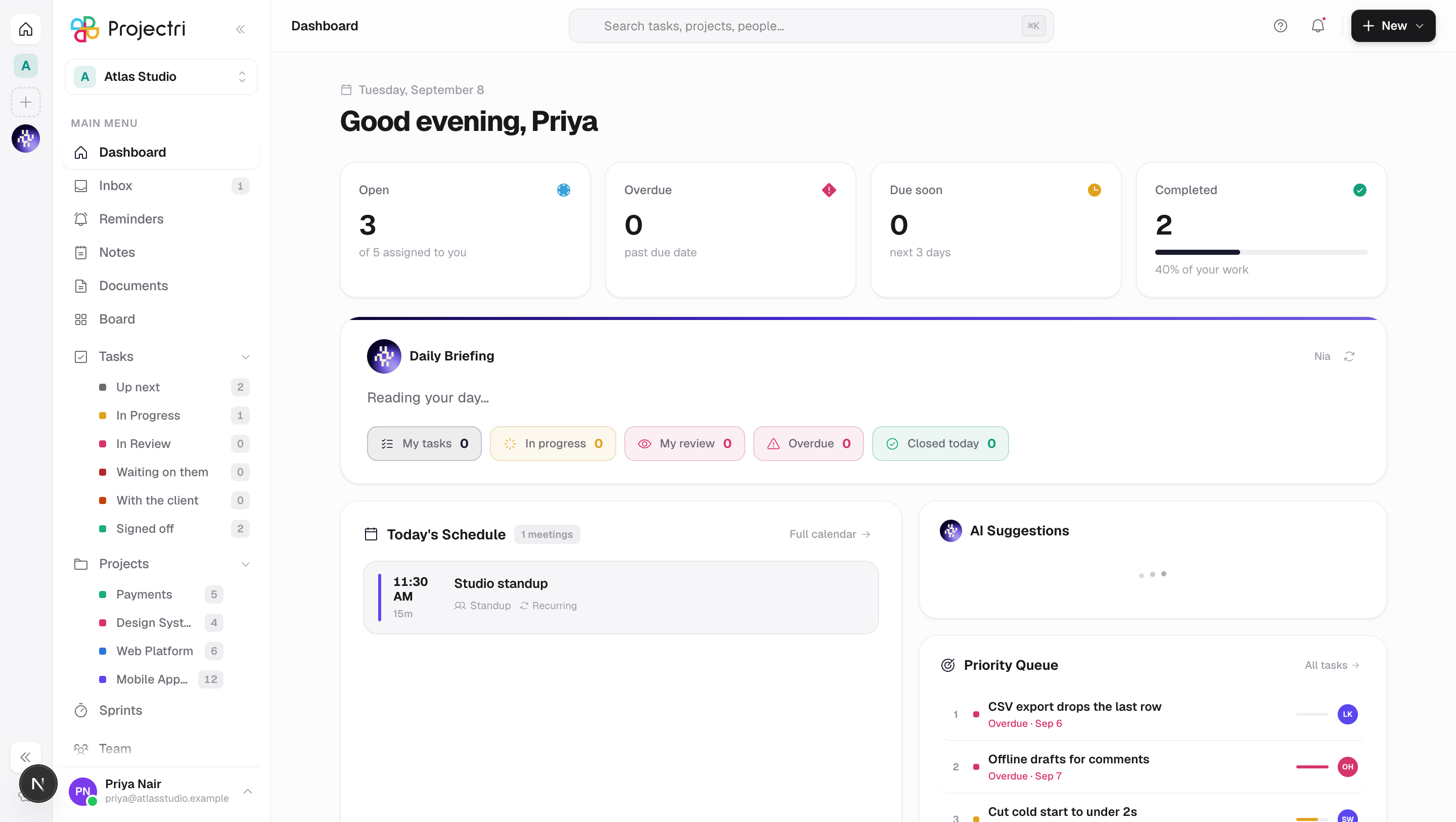
Projectri is one place to run client work: the projects and tasks, the people and their time, the money the work is worth, and the client's own view of it. It is a single system rather than four, which is the point — a timesheet entry approved on Monday changes a utilisation figure, a project's remaining budget and an invoice draft without anybody re-typing it anywhere.
This documentation covers every screen in the product. It is written for three different people, and each page says at the top which one it is for.
Who each part is for
Everybody in the workspace. The daily app — your tasks, projects, boards, calendar, discussions, time, notes and documents. If you were invited to Projectri to do work, this is the part you live in. Start at The workspace.
Workspace admins. The admin console at /admin — members and roles, permissions, workflow, automation, integrations, billing, security and the finance setup that everything else reads from. Everything here changes the rules for everyone else in the workspace. Start at Admin console.
Your clients. The client portal is a separate, branded surface where the people you do the work for can see progress, approve quotes, read invoices and raise tickets — without an account in your workspace and without seeing anything you have not published to them. Start at Client portal.
How a page is written
Every screen page follows the same shape, so you can skim to the part you need:
- What it is — two or three sentences.
- How to get there — the nav path, and who can see it.
- How to use it — the tasks people actually come to the screen to do.
- What it affects — where the change shows up elsewhere. This is the section people never find on their own, and it is the one that stops a surprise.
- On mobile — how the same job is done in the phone app, if it can be.
- Limits and gotchas — the real ones.
Nia knows all of this
Nia is the assistant built into Projectri, and this documentation is part of what she reads. You can ask her "how do I fix a rejected time entry" in the app and get the answer with a link back to the page here, rather than being told to search. On this site, the Ask Nia button on any page opens her with that page already in hand.
She answers with what is written here and says so when something is not covered — see Nia, the assistant.
If you are new
Read Your first week — it is the ten things that matter, in the order they matter — then Core concepts for the vocabulary the rest of the product assumes you know.