One contract
A single agreement end to end — terms, rate card, burn, billing and revenue schedules, projects, documents, amendments, retainers and signatures.
What it is
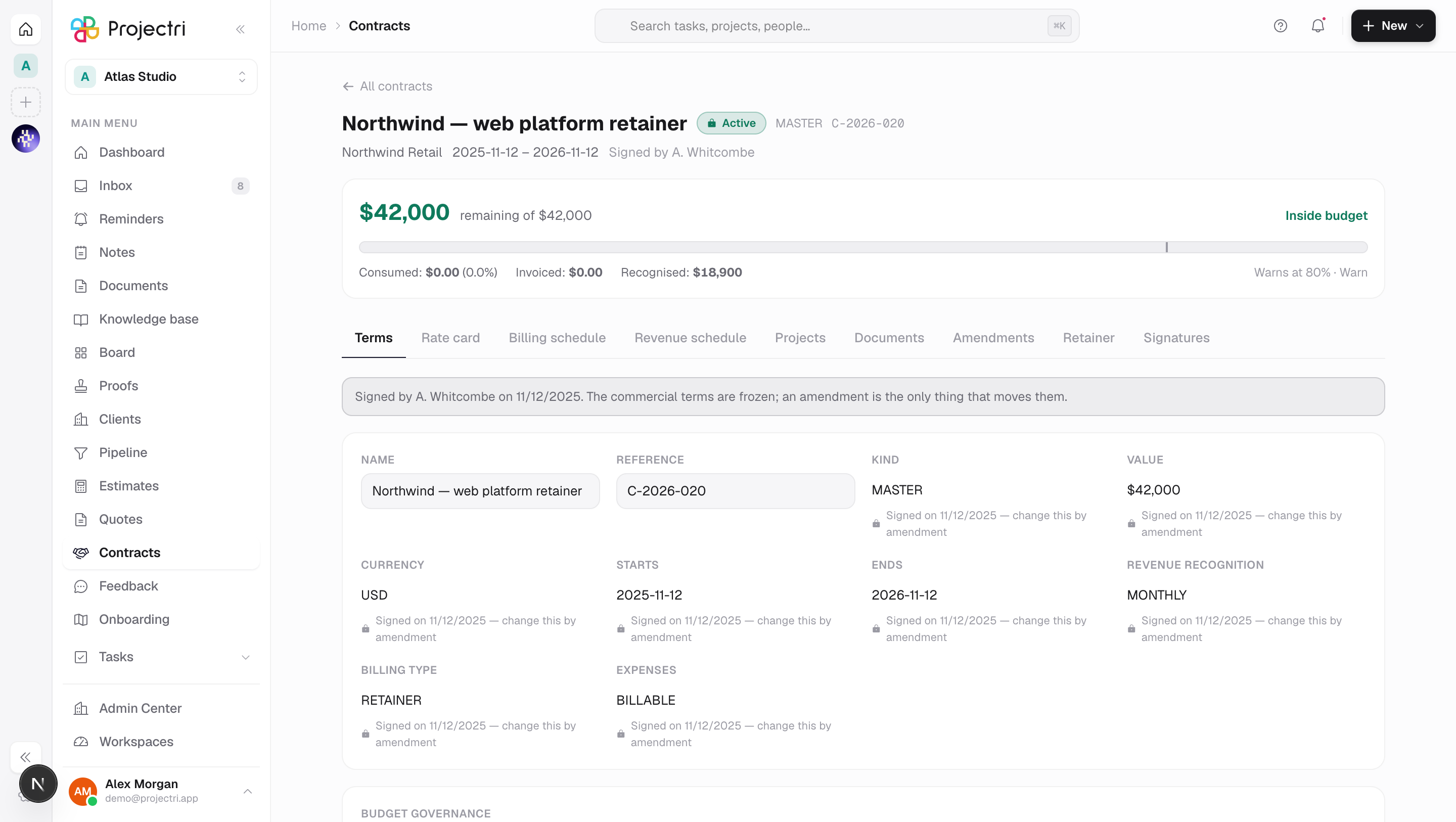
One contract, with everything that governs the work under it. The header states what it is and whether it is signed, a burn bar above the tabs answers how much of this is left, and the tabs hold the terms, the rate card binding, the two schedules, the projects it funds, the files, the amendments, any retainer and the signature trail.
How to get there
Open a row on Contracts. Reading the page needs contract.view.
Which tabs exist depends on who is reading:
| Tab | Needs |
|---|---|
| Terms, Rate card, Projects, Documents, Signatures | contract.view |
| Billing schedule, Amendments | contract.burn.view |
| Revenue schedule | report.financial |
| Retainer | finance.retainer.view |
The money tabs are absent, not empty, for a reader without the key. A revenue schedule rendered as a column of em-dashes still tells you how long the engagement is and how it is phased, which is most of what the figure would have said.
Editing anything needs client.contract. Signing needs contract.sign. Raising a signature request additionally needs the client.esign plan feature; schedule and revenue writes need commercial.billing_runs; retainer writes need commercial.retainers.
How to use it
Read the burn bar
- The bar sits above the tabs and is the one figure on the page that moves without anybody editing anything.
- Consumed is approved, billable time and expense at bill rates, plus each expense's markup. Submitted-but-unapproved hours are not counted — a burn number that moved when a manager was slow would stop being trusted. Invoiced is the schedule rows a billing run has invoiced.
- The headline says Inside budget, Approaching the value or *Over the contract value*. Over budget, it also states the overrun in money and per cent, and says that a change order is the instrument that raises it.
- The figures are in the reporting currency, not necessarily the contract's. When the two differ the bar says so: each row is converted at the rate frozen when it was written, so the figures do not move when the rate does.
Edit the terms
- Open Terms. Name, reference, kind, value, currency, dates, billing type and revenue-recognition rule live here, along with budget governance.
- When the value is spent is the budget policy. Warn tells everyone and stops nobody; Block new time refuses new time once the value is spent; No budget governance records the value and never checks it. Warn at is in basis points — 8000 is 80%.
- Press Save changes.
Bind a rate card
- Open Rate card.
- Bind a card and every hour on a project under this contract is priced from it whatever the project or company default says, as long as the work is dated inside the contract period.
- Leave it unbound and hours fall through to the project's card, then to the company default effective on the date of the work.
Attach the projects it funds
- Open Projects and press Attach a project.
- Set each project's share of the value. Split evenly does it for you.
- The allocation must total 100% before the contract can be signed. A contract with no projects attached at all is a valid pre-signature state.
Build the billing schedule
- Open Billing schedule and press Add a row.
- A row is triggered On a milestone, On a cadence, On acceptance or On percent complete, and carries an amount and a due date.
- Mark ready to bill moves a Pending row to Ready. Only Pending rows can be marked ready by hand — Invoiced belongs to a billing run, never to a person.
- The screen warns when the schedule bills more than the contract is worth, or less: the shortfall is money nobody is scheduled to ask for. Neither is refused — a partly entered schedule is ordinary.
Generate and record revenue
- Open Revenue schedule and press Generate schedule.
- It writes straight-line monthly rows across the contract period, with the rounding remainder on the last month so the rows sum to the value exactly. It is safe to run twice: existing rows are never overwritten and a closed month is never touched. Afterwards the button reads Fill missing months.
- Recognise records the recognised figure for one period. It is refused on two independent grounds — the row's own lock, and the company's period close.
Sign it
- Press Sign in the header. The button is absent, not disabled, when the state forbids it.
- The dialog states the consequence before it asks anything: after this, the value, currency, dates, rate card and revenue-recognition rule are frozen, and an amendment is the only instrument that moves them. The exchange rate is frozen at the same moment, so this contract's reported value will not move when the rate does.
- Type who signed it, on the client's side, and the date. A signature without a name is not evidence, which is the entire reason finance asks for the file.
- Press Sign and freeze. The signature is refused if the project allocation does not total 100%, and the dialog tells you that before you get there.
Amend a signed contract
- Open Amendments and press Raise a change order. It is blocked on an unsigned contract — edit the contract itself — and on a closed one.
- Give it a title, a change in value, a change in days or a new end date, an Effective from date and the lines that describe what changes. Work logged before the effective date keeps the price it was logged at; an amendment never reprices the past.
- Send for internal review, then Approve internally, then **Send to the client, then Record the client's answer**. Those are four separate permissions on purpose.
- Approving the client's answer writes an amendment contract for the value, rebuilds the affected baselines and moves what the contract is worth. It cannot be reopened.
Put the paperwork on file
- Open Documents and press Attach a file, choosing its kind — accepted quote, counter-signed, amendment or other.
- Each upload records a SHA-256 of its bytes, so the question is not whether a file exists but whether it is the one that was signed.
Send it out for e-signature
- Open Signatures and press Request a signature.
- Name the parties — each with a name, an address and a role of Signs, Approves or Copied in — and choose whether they sign in order and whether their email address is verified with a code. At least one party has to actually sign.
- Press Send for signature and pick the document. The file is hashed as it is sent and nothing can change it afterwards. Sending a corrected version means withdrawing the request and raising a new one.
- Each party gets a link to a signing page at
/s/<token>that needs no Projectri account. The trail records every step — sent, opened, read, code sent, email verified, signed, declined, expired, withdrawn — and an **Audit certificate** when it completes. - Withdraw stops every outstanding link immediately. There can only be one open request against a contract at a time.
What it affects
- Every hour logged under it. The bound rate card prices the work; the budget policy decides whether more work may be logged once the value is spent.
- The reported burn. Approving somebody's timesheet moves this contract's consumed figure. Nothing else does.
- Billing runs. A Ready schedule row is the instruction a billing run acts on. Marking one ready is the moment somebody asserts the client has accepted the work.
- Revenue reports. Recognised rows are what the revenue reports sum, month by month.
- The client record. The contract's value counts towards the client's Contract value figure, converted into the reporting currency.
- Baselines. An approved change order rebuilds the affected project baselines as well as moving the value.
- Audit. Signing, converting from a quote, uploading a document and every signature-request step are written to the audit log.
On mobile
The Expo app opens the same contract at the burn bar, at the size of a headline, with what governs the work underneath it. The billing schedule is present and read-only — knowing three milestones are ready to bill is worth having on the move, and marking one ready is a judgement about whether a client has accepted work. The revenue schedule is absent entirely. A signed contract states who signed it and when, and says in words that the terms move only by amendment.
Limits and gotchas
- Notes stay editable after signature. The seal covers what was agreed, not how it is administered.
- Saving a sealed field returns a conflict whose message names the fields and says an amendment is the instrument. That message is the server's own and is shown verbatim.
- The burn bar clamps at 100% of the value. An overrun is drawn as its own marked segment and stated in words, so "we are 40% over" is said rather than implied by a bar that ran off the end.
- An unsigned contract in another currency is converted at today's rate, so its burn moves when the rate does. A signed one froze its own base value.
- The reporting currency the burn is stated in cannot be changed once any time, expense or invoice row has been written in it. The refusal explains that switching would reinterpret every historical figure rather than convert it.
- Configuring a retainer and posting a manual draw against one are separate permissions. A draw moves a balance a client is billed from with no time entry behind it, so its note is required.
- The signature trail is readable on any plan.
client.esigngates raising a new request, and that write answers a payment-required error without it — evidence a tenant already has does not disappear on a downgrade.
Related
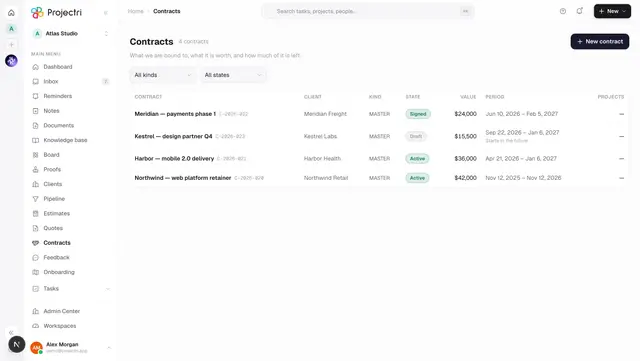
- Contracts — the register this page opens from.
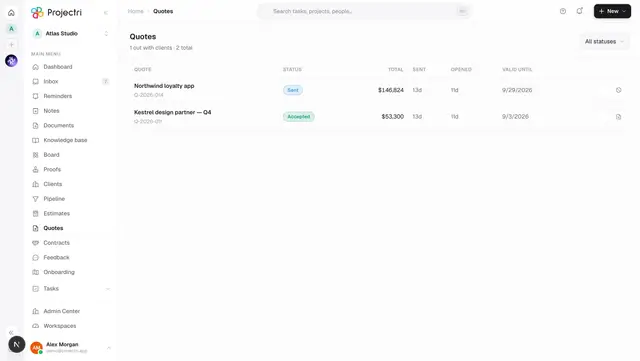
- Quotes — where a draft SOW usually comes from.
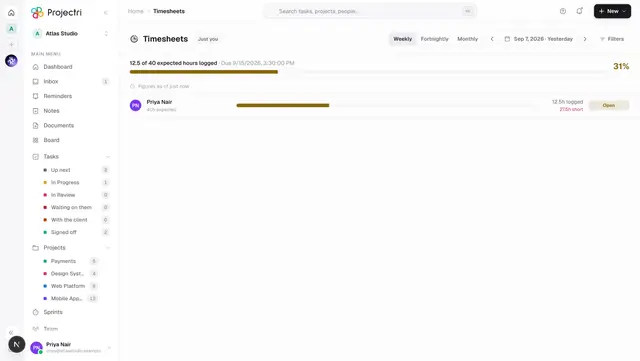
- Timesheets — the approvals that move the burn.
- Billing runs — what a Ready schedule row feeds.