Teams
Groups of people inside a department, with their own name, colour and roster.

What it is
A team is a named group of people that belongs to a department. Teams give the workspace a second axis to the org chart: a department is the structural unit that rarely changes, and a team is the working group that can change between two meetings.
How to get there
Admin → People → Teams. The console needs the ADMIN role. Reading teams and departments is team.view; creating, editing, deleting a team and changing its roster are all team.manage.
How to use it
Create a team
- Press New team.
- Give it a Name (required) and an optional one-line Description.
- Pick a Department — required, and the list is the departments this workspace already has.
- Pick a Colour from the eight swatches. It is what the team's tile is drawn in.
- Create team.
Add and remove people
- Click a team row. The detail panel opens beside the list, or as a sheet on a narrow screen.
- Use the picker at the bottom of the panel to add somebody. The list is the workspace roster minus the people already on this team.
- The row appears at once, then settles when the server confirms. If the add is refused — they are already on the team, or no longer a member of the workspace — the row is taken back out and the reason is shown.
- Remove somebody with the control on their row.
Rename, recolour or re-file a team
- Open the team, then press the pencil in the panel header.
- The same form as creation opens with the current values. Changing the department moves the whole team under it.
Delete a team
- Open the team and use the delete control in the panel.
- The confirmation says what survives: *"Its members keep their workspace access and their work."*
What it affects
- Adding somebody to a team notifies them. It is the same event whichever screen it was done from.
- Workload lists each person's teams alongside their department, and reads them through the team's department — so a team whose department has been deleted stops being listed there.
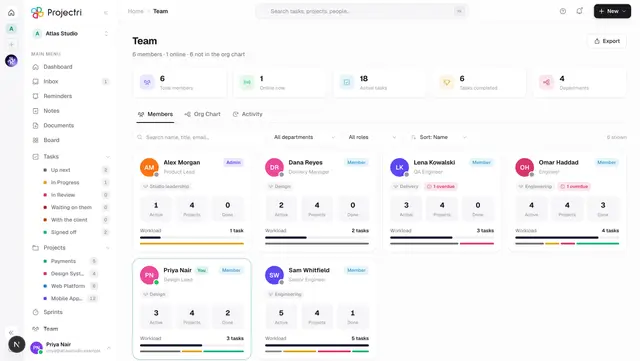
- The workspace directory. The Team screen in the main app is the same people, read from the member's point of view.
- Deleting a team removes only the grouping. Nobody loses workspace access, project membership, or any work they did.
On mobile
The Teams screen in the app's Admin hub lists the teams, and tapping one opens its roster, its edit form and its delete in a sheet. Rosters are fetched when a team is actually opened rather than up front.
Departments stay on the web, so a workspace with no departments cannot create a team on the phone — the screen says so rather than offering a form that would be refused.
Limits and gotchas
- A team cannot exist without a department. The department is what scopes a team to a workspace, so the create form requires one and refuses to submit without it. Create the department first on Departments.
- A team whose department has been deleted is hidden from this list. Its edit form falls back to an empty department rather than pre-selecting an id the dropdown cannot show.
- Only members of this workspace can be added. Somebody removed from the workspace cannot be added to a team.
- Deleting a team is immediate and has no undo. Deleting a department does offer one — see Departments.
Related
- Departments — the container a team must belong to.
- Members — the roster teams are built from.
- Workload — where a person's team and department are read.
- Team directory — the same people, from a member's side.