A project
One project's published timeline, its milestones and sign-offs, the charts your supplier chose to share, and the archive of status reports.
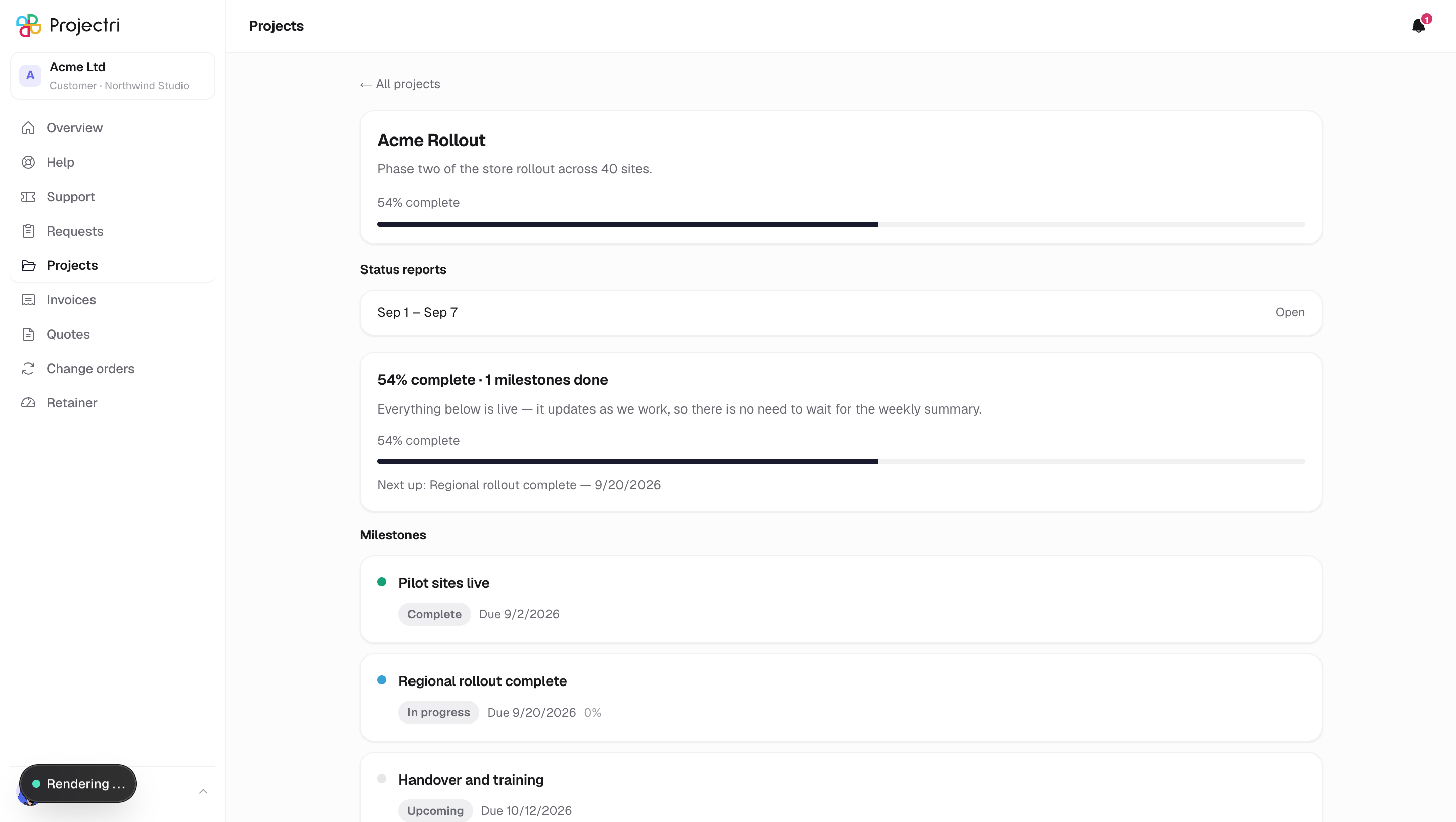
What it is
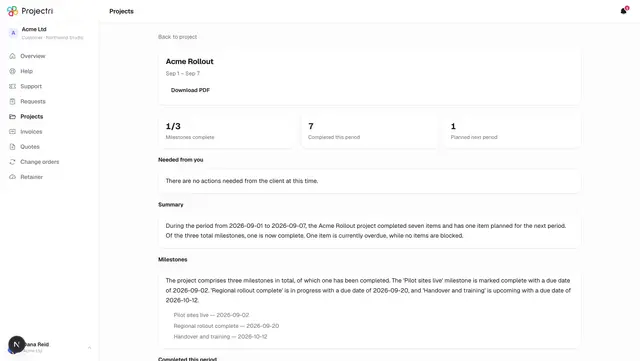
The client view of one project. At its fullest it has four parts: a headline that says where things stand, a set of charts, an archive of status reports, and the milestone timeline — where you approve work or ask for changes.
Most of it is optional. Your project team decides whether this project publishes a timeline at all, which charts appear, and whether dates, progress, the team list, the task lists and the budget burn are shown. A project that publishes nothing still shows its name, its progress bar and any client-facing milestones.
How to get there
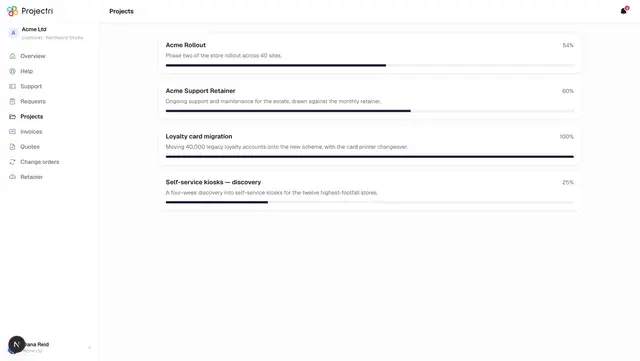
Projects in the sidebar, then the project. Every contact can open a project that has been shared with them, including view-only contacts — but only a contact who can write may approve a milestone or request changes.
How to use it
Read where things stand
- The first card is one sentence. When something is waiting on you, that wins the slot; otherwise it summarises progress.
- Under it, the introduction your team wrote for you (when there is one), the percentage complete, and what is next up with its date.
Approve a milestone
- A milestone waiting on you is marked with a coloured edge and reads awaiting your sign-off, with how many days ago you were asked.
- Press Approve.
- Approving is final. The record keeps your name, the date, and a snapshot of exactly what was on screen when you signed — the milestone's name, summary, status, date, progress and its task list — so a later disagreement is settled against what you actually saw.
- Pressing Approve twice is safe. The second press is told the same thing as the first rather than treated as an error.
Ask for changes instead
- Press Request changes.
- Type what needs to change. The reason is required — a change request with no reason tells the team they are blocked but not what to do about it.
- Press Send. The request goes back to the delivery team along with your comment, and the milestone stops being yours to answer until they hand it back.
- Your comment is echoed on the milestone so you can see what you asked for. It is not a conversation thread; there are no replies here.
Read the charts
- When your supplier publishes them, a section of charts sits under the header.
- They can include progress over time, hours by workstream, budget burn in hours, milestone status, and ticket volume with median first response.
- There is no chart builder and no field picker. What appears is chosen on the other side of the portal.
Open a status report
- When reports have been sent for this project, they are listed by period.
- Click one to read it, or use Download on the report itself for a PDF.
What it affects
- Approving closes the gate. The delivery team is notified with your name; requesting changes notifies them with your comment in the body of the message.
- The count on the Projects list. The badge that says a project needs you is computed from the same rules as this page, so a badge saying "1" always has a milestone behind it.
- A moved date is announced, not silently replaced. If a date you were shown before has changed, the milestone says so next to the new date, with the old one. A milestone you have never been shown reports no change on the first view.
- Budget burn is percentages, never amounts. When it is switched on you see how much of the budget is used against how much work is complete, and the currency code — never the money. Over 100% is shown as over, in words as well as colour, rather than a bar quietly pinned at full.
On mobile
The same screen exists in the phone app, reached from the Projects tab. The timeline, the charts, and approving or requesting changes all work there.
Limits and gotchas
- A milestone must have been handed to you before you can answer it. One that is still being worked on shows its state and no buttons.
- Empty milestone lists are normal. Only milestones your team classified as client-facing or as a release ever reach you, and any milestone marked private is excluded regardless of its type.
- The task list under a milestone, when it is shown, gives names, a tick, and a status word your supplier chose. It never names who is doing the work or how long it was estimated at.
- A view-only contact sees the whole timeline and no Approve button.
Related
- Projects — the list, and how access is granted.
- A status report — what is in one, and the PDF.
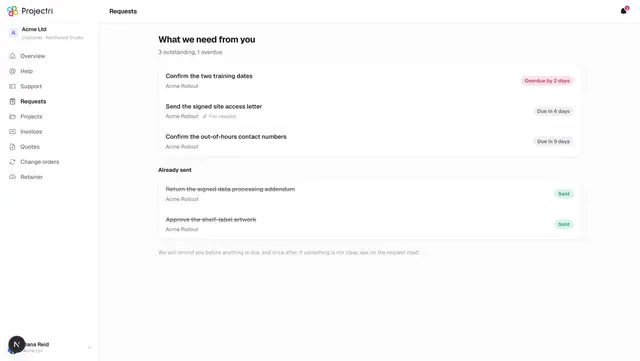
- Requests — the other place the team asks you for something.