Two-factor authentication
Enrolling an authenticator, recovery codes, what a workspace can require, and how to get back in when the phone is gone.
What it is
A second factor is a six-digit code from an authenticator app, asked for after your password is accepted. Projectri supports time-based codes (TOTP) from any standard authenticator, plus ten single-use recovery codes for the day the phone is not available. It is available on every plan.
How to get there
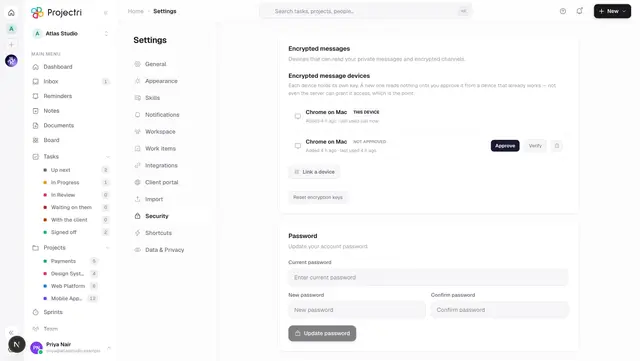
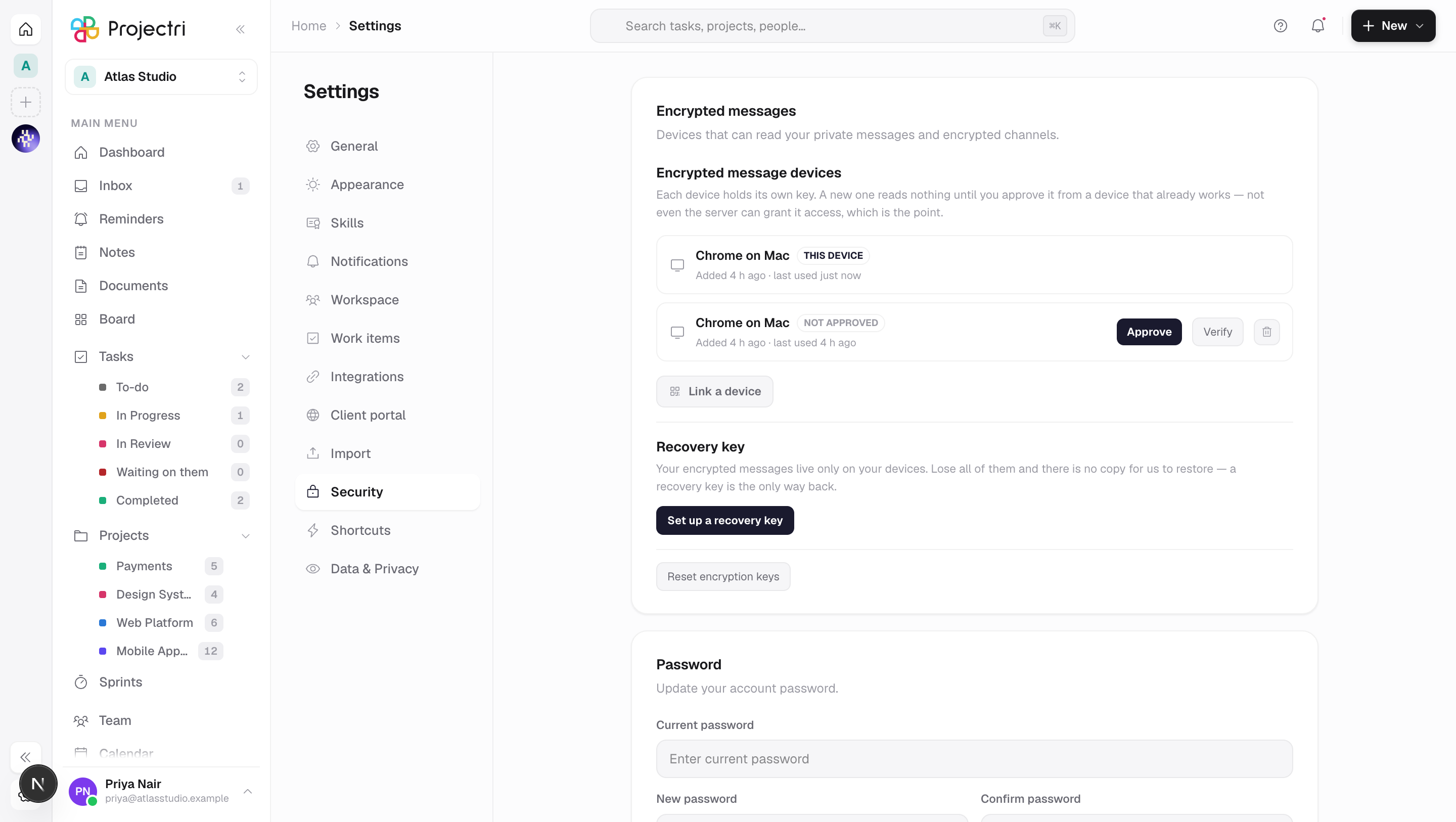
Settings → Security → Two-factor authentication, on the web. On the phone app it is Settings → Account security. Setting up your own factor needs no permission. Clearing somebody else's factor needs security.policy, and requiring two-factor for the workspace is set on the Security Centre.
How to use it
Turn it on
- Press Set up two-factor.
- Scan the QR with your authenticator app, or type in the key shown beside it — it is grouped in fours so you can keep your place.
- Enter the six digits your app produces and press Turn on.
- Ten recovery codes appear. Copy or write them down, tick **I've saved them, then press Done**. This is the only time they are shown.
Add a second authenticator
Press Add another on the same card and repeat the enrolment. More than one factor can be active at once, and any of them satisfies a challenge.
Get new recovery codes
- Type your account password into the box beside New recovery codes.
- Press it. A fresh set of ten replaces the old one — every unused code from the previous set stops working immediately.
Remove an authenticator
- Press Remove on the row.
- Type your account password and confirm. A live session on its own is not enough authority to dismantle the protection over it.
- If your workspace requires two-factor, the confirmation warns you that you no longer have one.
Sign in when you have lost the phone
- At the six-digit box, choose Use a recovery code. The link only appears if you have codes left to spend.
- Enter one recovery code. It is retired the moment it is used.
- If you have no codes either, an administrator holding
security.policycan clear your factors from the Security Centre, and you enrol again.
What it affects
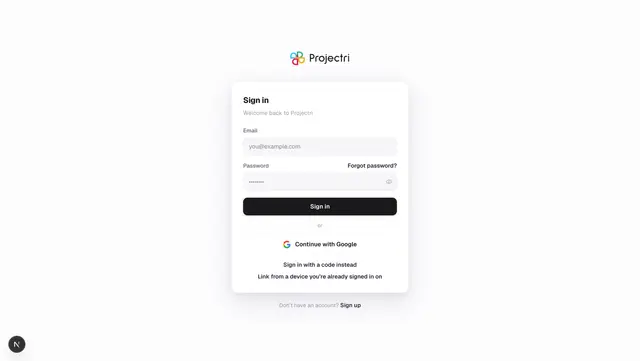
- Every door that can create a session asks. Password sign-in, the emailed one-time code, Google, and the password reset — the last one especially, because a second factor exists precisely for the case where somebody else can read your email.
- The workspace's Security Centre can require it, with a grace period (seven days by default). While the grace period is running, the panel shows the date rather than a number of days. After it ends, sign-in is refused until you enrol.
- A member's posture is visible to administrators — enrolled, in grace, overdue, or not required.
- Removing the last active factor clears your recovery codes with it. Codes that outlive every factor are a second credential nobody remembers holding.
- An administrator clearing somebody's factor is audited, naming both people and what was removed, whether or not anything was found.
On mobile
Settings → Account security does the whole of it: set up two-factor with a QR or Open my authenticator app, enter the six digits, save the recovery codes on their own screen, generate new codes, and remove a factor with your password. Answering a challenge at sign-in has its own screen.
Limits and gotchas
- A code is single-use. Entering the same six digits twice in the same 30-second window fails the second time, by design. Wait for the next one.
- The clock matters. Codes are valid for one 30-second step either side of now, so a phone whose clock has drifted more than about half a minute will produce codes that are refused.
- A challenge lives for five minutes and allows five wrong answers. After five it is dead and you start the sign-in again with your password. A request that dies mid-flight still costs an attempt.
- The secret is shown once. Reloading the page mid-enrolment means starting over — an abandoned enrolment leaves an inactive factor that satisfies nothing.
- The recovery codes are shown once. There is no screen anywhere that re-displays them; the only way to get a set you can read is to generate a new one, which invalidates the old.
- If you were already signed in on another device, answering a challenge can still produce the one-session-per-platform question. Confirming re-sends the same code, so you are not made to wait for your authenticator to roll over.
Related
- Signing in — where the challenge appears.
- Security Centre — requiring two-factor, grace periods and clearing a member's factor.
- Linked devices — the other thing on the Security tab.
- Your profile and preferences — the rest of the settings screen.