Scenarios
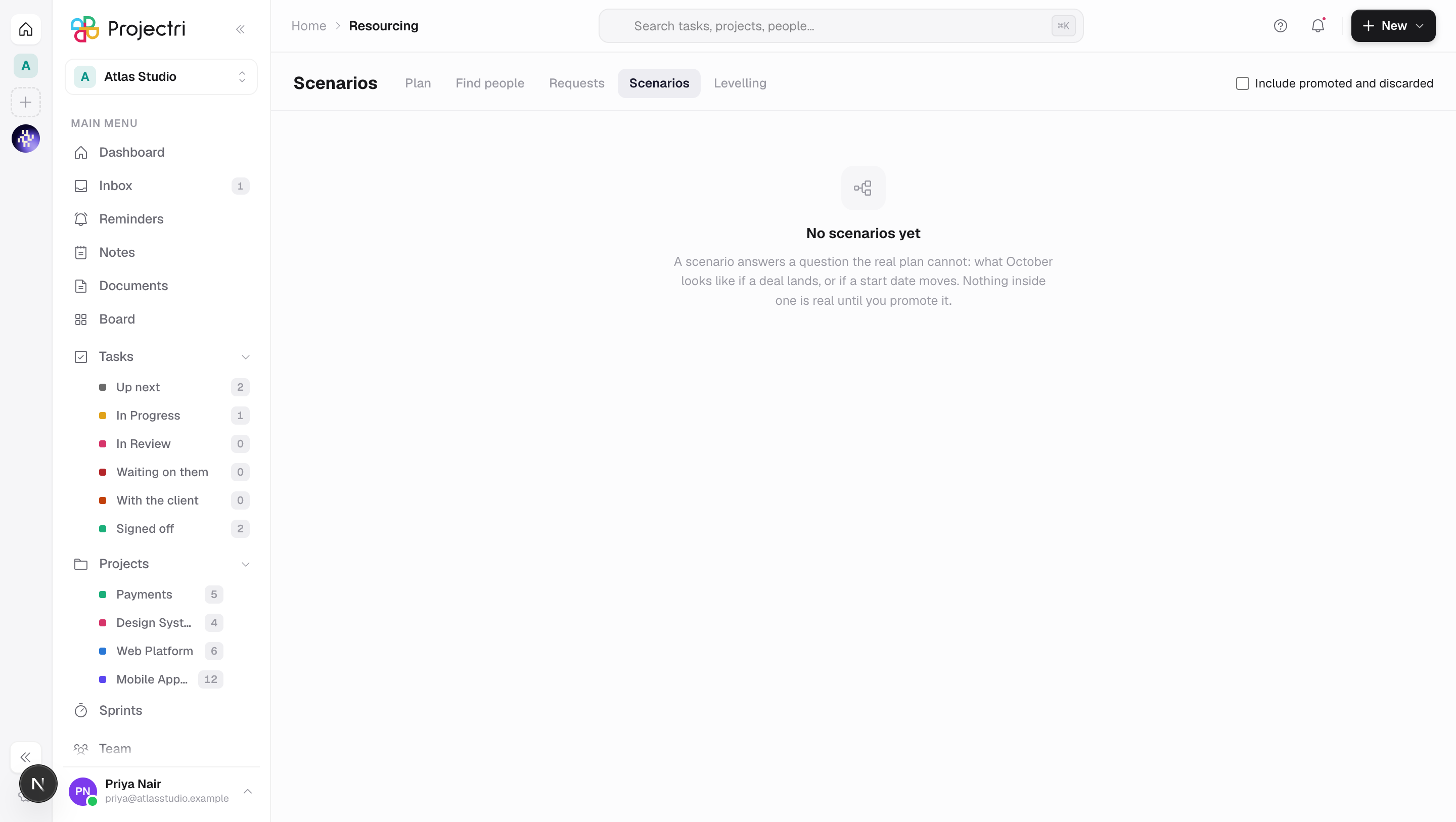
A private copy of the staffing plan for asking what October looks like if a deal lands, compared against the real plan and promoted only when you decide.
What it is
A scenario is the staffing plan asked as a question — what does October look like if we win Acme, or if the start date moves three weeks. You fork the plan, change bookings inside the copy, and read what it did to bench and capacity against the real thing. Nothing inside a scenario is real until it is promoted.
How to get there
Scenarios is in the main navigation and in the resourcing strip. It is gated on scenario.view, which is a narrower audience than the staffing grid — a scenario is the staffing plan plus the deals the firm thinks it might win, which is two of the most sensitive lists in the workspace in one place.
scenario.managecreates scenarios and changes bookings inside them.scenario.promoteapplies one to the real plan. It is separate and granted sparingly, for the reason a countersignature exists: building a what-if costs nothing and should be encouraged; promoting one rewrites the staffing plan for everybody.report.costadds the cost-of-bench figures to the comparison. Without it they are absent, so somebody can compare staffing shape without being shown what the team is paid.
Scenarios need the **resourcing.scenarios** entitlement.
How to use it
Create a scenario
- Press Create scenario.
- Give it a name — the placeholder is If we win Acme — and, usefully, a sentence saying what question it answers.
- A window can be set. That is the period the comparison is computed over, so pick the period the decision is about.
Read the comparison
- Selecting a scenario lands on its comparison against the real plan, not on a form. The comparison is the product; the fork is not.
- Bench hours, bench percentage, booked hours and capacity appear side by side, grouped by person, role or department, with the biggest moves called out.
- Compare against can point at another scenario instead of the real plan.
- Both sides are computed by the same engine with a different scenario, so the two can never disagree for a reason unrelated to the scenario.
- Where a scenario changes nothing in the window, it says so rather than drawing two identical tables.
Assume a deal is won
- Under the comparison, Assume a win picks an open deal.
- The deal's estimated demand is materialised as bookings **inside this scenario only**.
- Inside a scenario the deal counts at 100%. The forecast weights a deal by its probability, which is how you plan; the question here is whether the firm could staff it if it lands.
- Adding a deal needs
opportunity.viewas well.
Change the plan inside it
- Open in the timeline takes you to Resourcing with the scenario active. Drag, resize, add and remove all behave identically there.
- A striped mode bar names the scenario and counts what has changed, so the mode cannot be forgotten after an hour on the screen.
- Editing is not offered here. Re-implementing a booking editor on this page would give the workspace two grids that must agree forever.
Promote or discard
- Promote applies every change to the real staffing plan in one step. The dialog lists them first.
- Bookings removed inside the scenario are cancelled rather than deleted, so their history survives, and the whole set applies together or not at all.
- A promoted scenario is frozen. It becomes the record of the decision and can no longer be changed, and the timeline leaves scenario mode.
- Discard throws it away. The real plan was never written, so there is nothing to undo; the scenario is kept as a record of what was considered.
What it affects
- Nothing, until promotion. Scenario bookings never appear on the live timeline, in Bench, in Demand or on anybody's diary. Staffing somebody inside a scenario tells them nothing.
- On promotion, everything. The changes become real bookings, and the people affected are notified in the ordinary way.
- The overlay is live. A scenario is not a frozen copy — bookings made in the real plan after the fork appear inside it. The header says when the fork happened and how many real bookings have changed since, because this is the single most confusing thing about the feature.
On mobile
The Expo app has Scenarios for reading one and closing it — the comparison, the assumed wins, and the two decisions, promote and discard. Building the plan stays on the web, where the timeline is. The answer, though, is usually wanted in the meeting where the question was asked.
Limits and gotchas
- A scenario nobody has opened for 90 days is archived by a sweep. The list prints when each was last opened, so one going quiet is visible before it goes.
- Include promoted and discarded in the header widens the list past the live ones.
- Promoting is all-or-nothing. To apply part of a scenario, change the scenario first.
- The comparison is only as wide as the window on the scenario. A decision about Q4 read over a two-week window will look like nothing happened.
Related
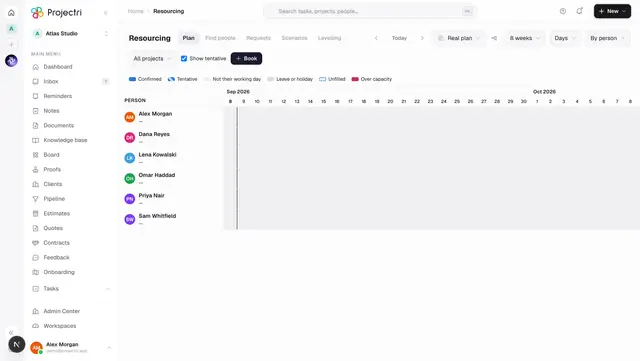
- Resourcing — where a scenario is actually edited.
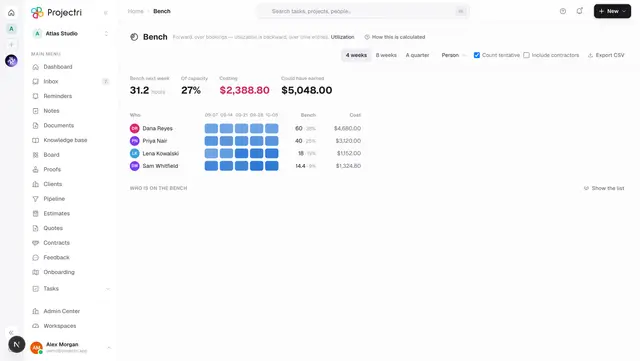
- Bench — the measure the comparison is expressed in.
- Pipeline — the deals an assumed win is chosen from.
- Plans and entitlements — what
resourcing.scenariosis on.