Client portal
Setting your password
The screen an invitation or reset link opens — choose a password, and you are signed into the portal.
What it is
One screen for two situations: redeeming the invitation that gave you portal access, and finishing a password reset. Both are the same operation — a single-use link that ends in a password you chose and a live session.
How to get there
Follow the link in the email. It is the only way to reach this screen; there is nothing to type.
How to use it
Choose a password
- The heading names the supplier whose portal the link is for and the address it was sent to. If you hold logins with more than one supplier, that is how you tell which this is.
- Enter a password of at least 10 characters. There is no requirement for symbols or digits — a longer passphrase is better than a short password with punctuation in it.
- Enter it again to confirm. The button stays disabled until the two match and the length is met.
- Press Set password and continue. You land on the portal, signed in.
If the link is dead
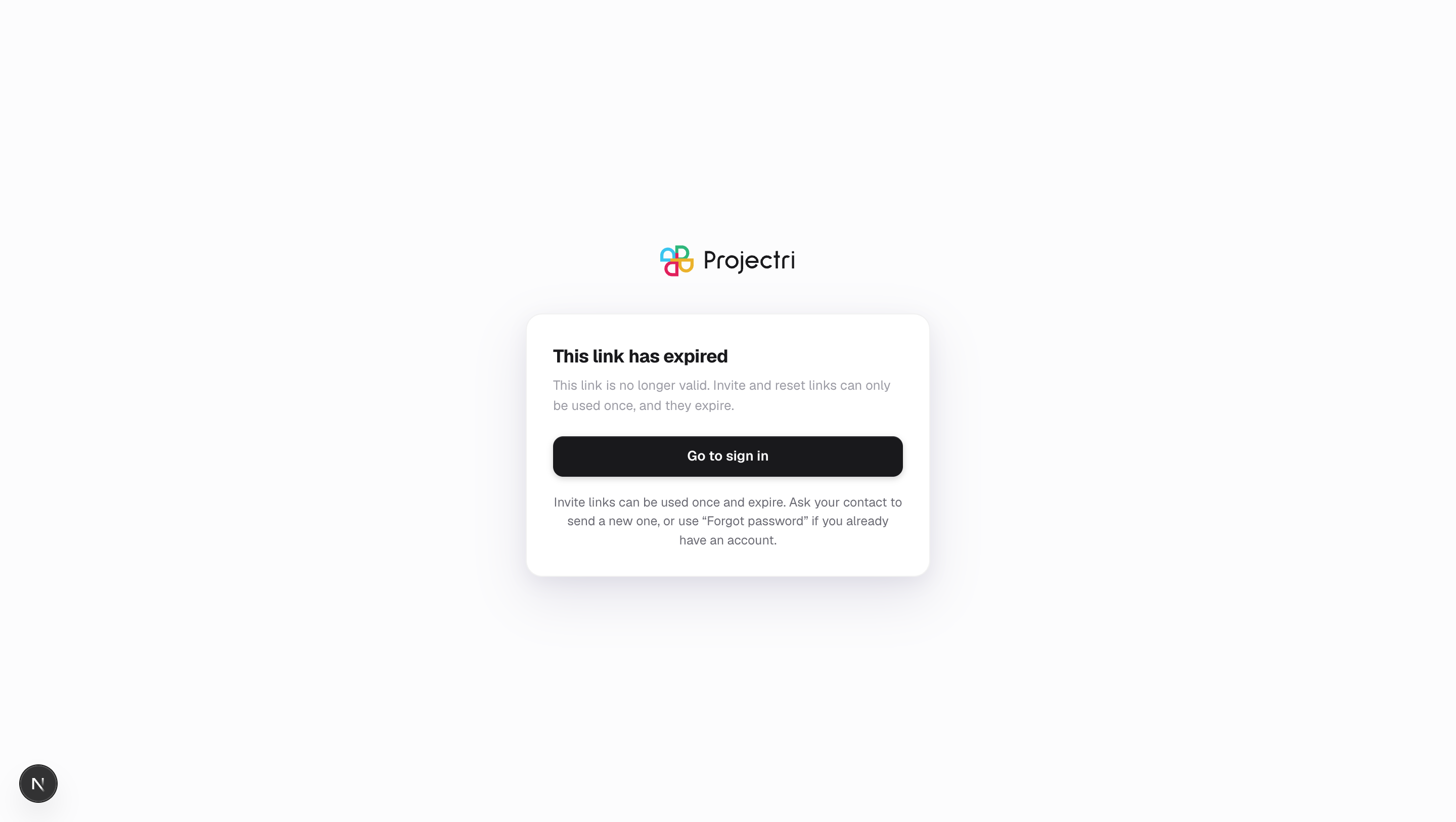
- You are told the link has expired and offered Go to sign in.
- The same message covers a link that was never issued, one that has already been used, and one that has genuinely expired. Which of the three it was is not stated, because the person holding a forwarded email should not learn whether the account exists or whether somebody beat them to it.
- An invitation lasts seven days; a reset link lasts one hour. Both work once.
- If yours has expired, ask for a new one with Forgotten password, or ask your contact at the supplier to send a fresh invitation.
What it affects
- Your account becomes active when you set the password. Until then you cannot sign in, and a sign-in attempt gives the same message as a wrong password.
- You are signed in immediately — there is no second sign-in step.
- The identity comes from the link, not from anything you type. A forwarded email proves somebody received the mail, not who they are, so the address the password is set for is fixed by the invitation.
- Opening the link twice, or in two tabs, cannot leave one person's password overwritten by the other's.
On mobile
The phone app has the same screen. An invitation link opened on a phone with the app installed lands there rather than leaving you without a way in.
Limits and gotchas
- There is no username here and no profile to fill in. Your name comes from the invitation.
- The password rules are the same on the web and in the app, so a password one accepts the other will not refuse.
Related
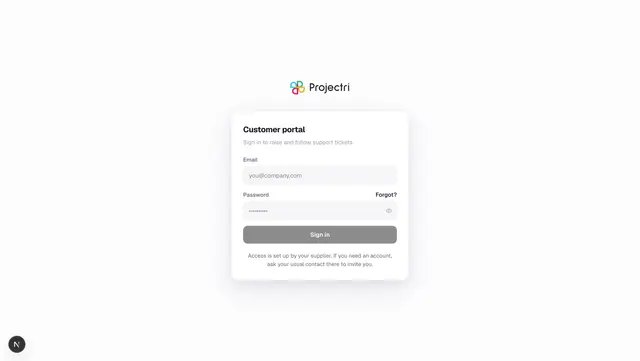
- Signing in — where to go once the password is set.
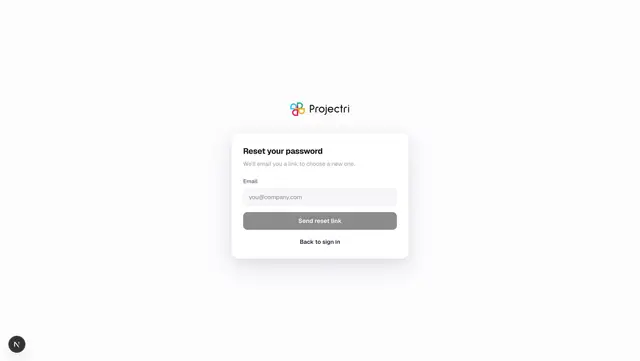
- Forgotten password — getting a fresh link.
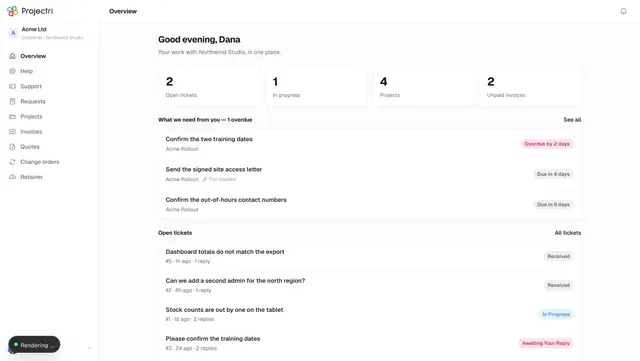
- The client portal — what is behind the login.