Client portal
Support tickets
Raise a support ticket with screenshots or a recording, and follow every ticket your company has open with this supplier.
What it is
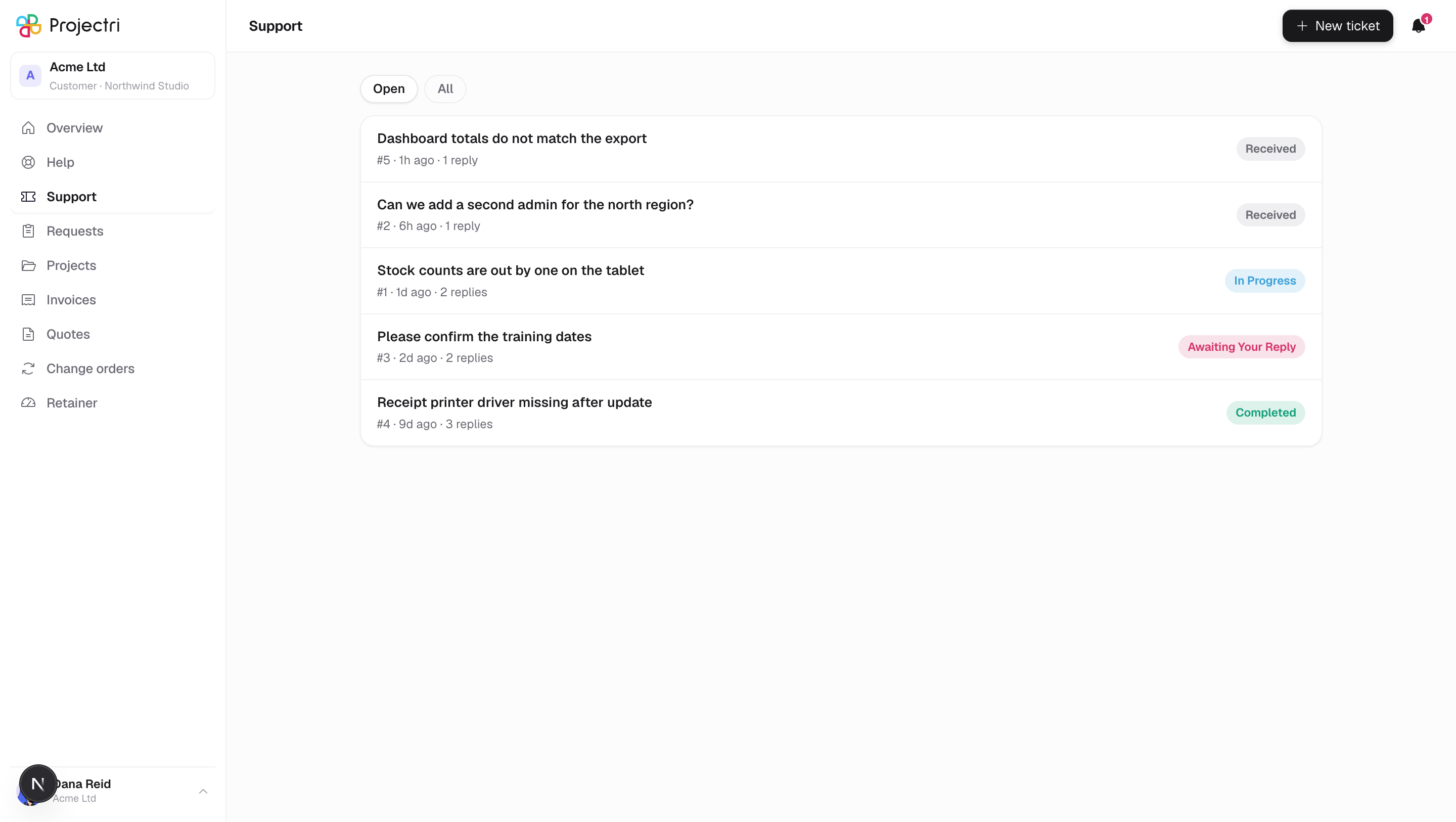
The support queue, from your side. A list of your company's tickets with their reference, when they were last touched, how many replies they have, and a status pill — plus the button that raises a new one.
How to get there
Support in the sidebar. Help sits above it on purpose: an answer found in the help centre is a ticket nobody has to raise.
Every contact can read the list. A view-only contact gets no New ticket button.
How to use it
Find a ticket
- The two toggles above the list are Open and All. Open is the default.
- Rows are newest first, up to 100.
- Click one to read it and reply.
Raise a ticket
- Press New ticket.
- What is happening — a short summary.
- Tell us more — what you were doing, and what happened.
- How urgent is it — Critical (work has stopped), High (a major function is broken), Medium (something is wrong but we can work), or Low (minor, or a question). Medium is preselected.
- Which project is optional and only lists projects shared with you. Naming one helps route the ticket.
- Screenshots, recordings or files — press Add files. Up to 10 files, each up to 100 MB, of the same kinds a request accepts.
- Press Send. You land on the new ticket.
What it affects
- Every active contact at your company is notified, not only you. A ticket belongs to the company, so a colleague can pick it up while you are away. Nobody is notified about their own action.
- Your urgency choice drives the clock. Severity is yours to set and it is what the response deadline is calculated from. Priority — the order your supplier works in — is theirs, and is not something the portal lets you set.
- The project you name puts the ticket on that project's board on your supplier's side, which is why only projects shared with you can be chosen.
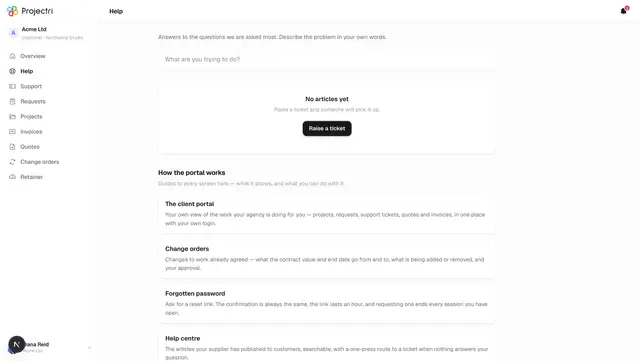
- The help centre feeds this screen. "Still stuck?" and the no-results card in Help both open the new-ticket form directly.
On mobile
The Support tab in the phone app is the same list, and the centre button on the tab bar raises a ticket. The button is absent for a view-only contact.
Limits and gotchas
- If a file is rejected while the ticket is being sent, the ticket is still raised — you can add the file from the ticket screen afterwards. Losing the whole report because one attachment was refused would be the wrong trade.
- The status you see is the wording your supplier chose for customers, not their internal state. Two suppliers can use different words for the same thing.
- You cannot edit a ticket's title, description or urgency after sending. A correction goes in a reply.
Related
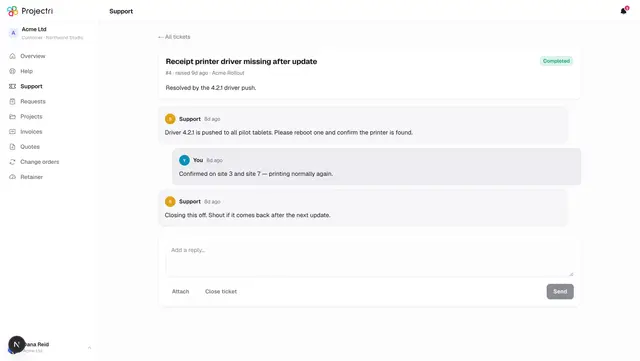
- A ticket — replying, attaching, closing and reopening.
- Help centre — the articles published to you.
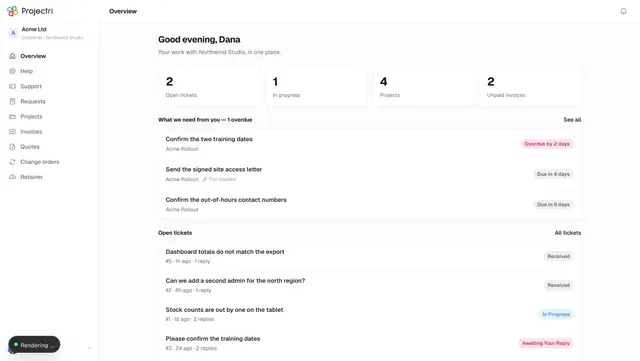
- Overview — open tickets on the front page.