Requests
The things your supplier needs from you — a document, an approval, an answer — with due dates, and a list of what you have already sent.
What it is
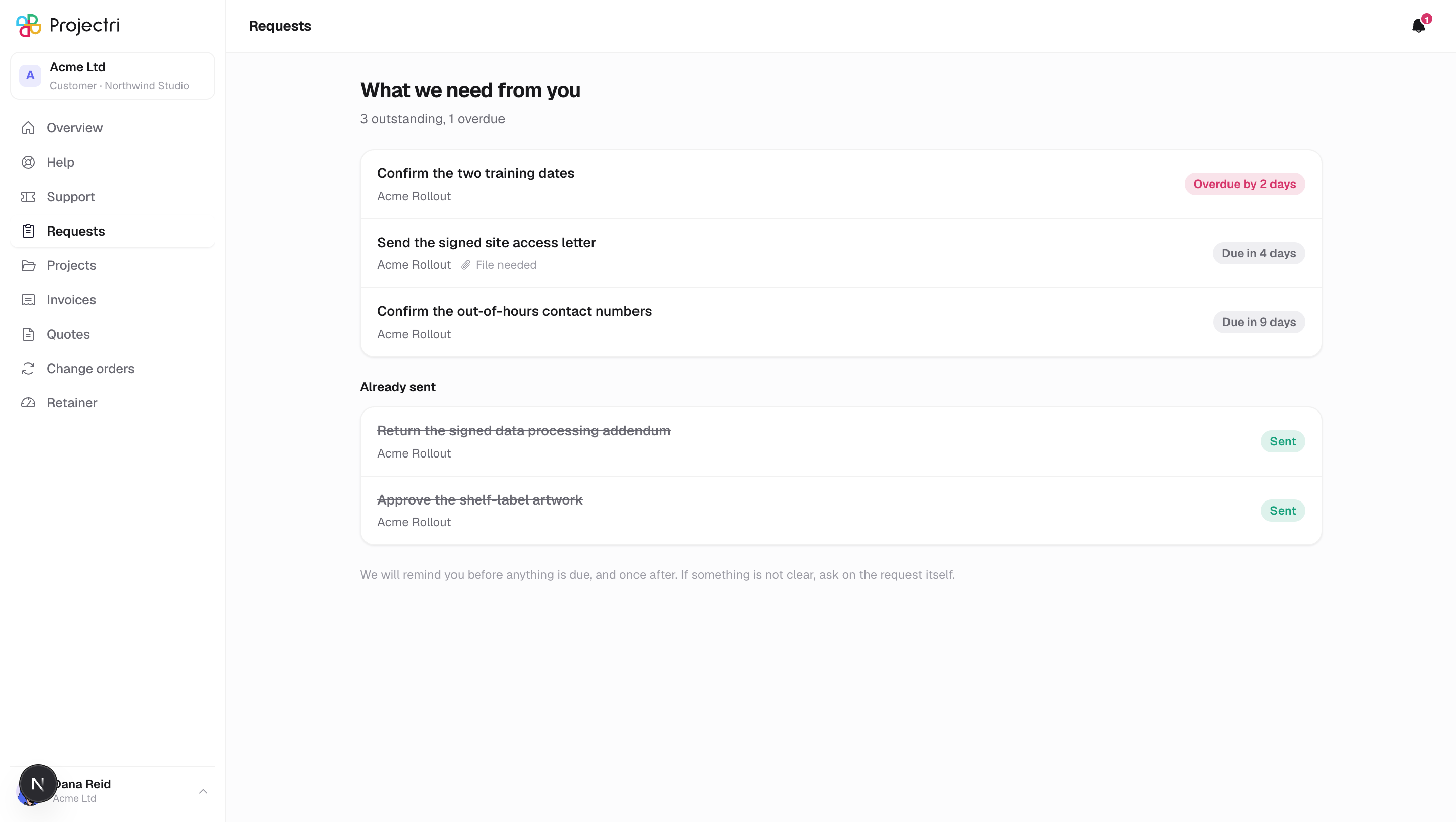
The one list in the portal of things you owe, rather than things being reported to you. Each request has a title, the project it belongs to, a due date said in words, and sometimes a note that a file is needed.
How to get there
Requests in the sidebar. It is also the first section on the Overview screen, above your tickets, whenever anything is outstanding.
Every contact can see it. A request is addressed to one person: it appears on your list because it was assigned to you specifically, not because it was sent to your company. A colleague's requests are not on your list and yours are not on theirs.
How to use it
Work through the list
- Outstanding requests come first, overdue ones at the top of those, then by date.
- The heading under the title counts what is outstanding, and names how many are overdue when any are.
- Already sent at the bottom lists what you have completed. Completed items are kept rather than dropped, so you can check that something arrived instead of sending it twice.
Read a due date
- The pill on the right says the date in words — overdue by so many days, due today, due soon — rather than as a date you have to work out.
- Hover it for the actual date.
Answer one
- Click the row to open the request.
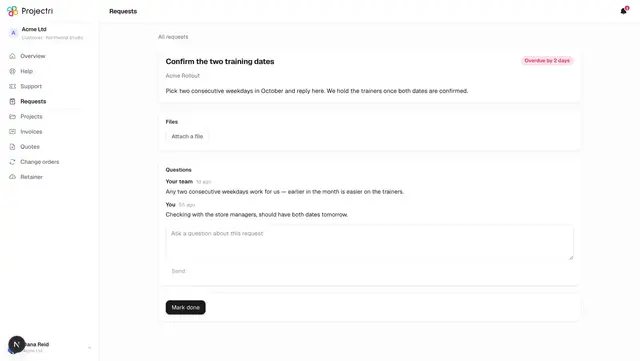
- Send whatever was asked for, then mark it done. See A request for the detail.
What it affects
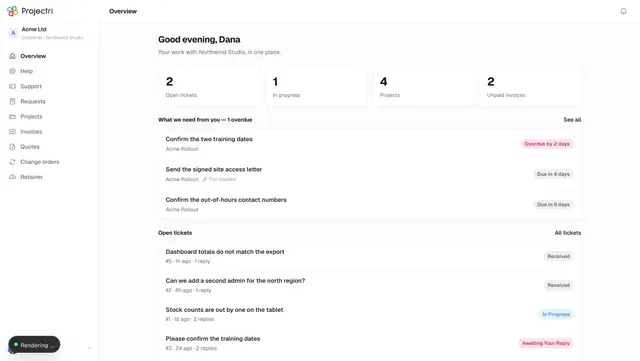
- The Overview screen. The same list appears there, capped at five open items, with a See all link back here.
- Reminders. An outstanding request nudges you two days before it is due, on the day, and once three days after — once, not daily. Several outstanding requests arrive as one message, not one per request.
- After a week overdue the chasing stops coming to you and goes to your account manager instead.
- The delivery team sees the other half. Internally, a request that is sitting with you is shown as blocked on the client with a day count. Nothing of that phrasing appears on your side.
On mobile
The phone app has the same list, reached from the card on the Overview tab. There is no Requests tab of its own.
Limits and gotchas
- A view-only contact can read requests but cannot upload, comment or mark anything done.
- The list holds up to 200 requests.
- A request belongs to a project you have access to. Losing access to the project removes the request from the list.