Notes
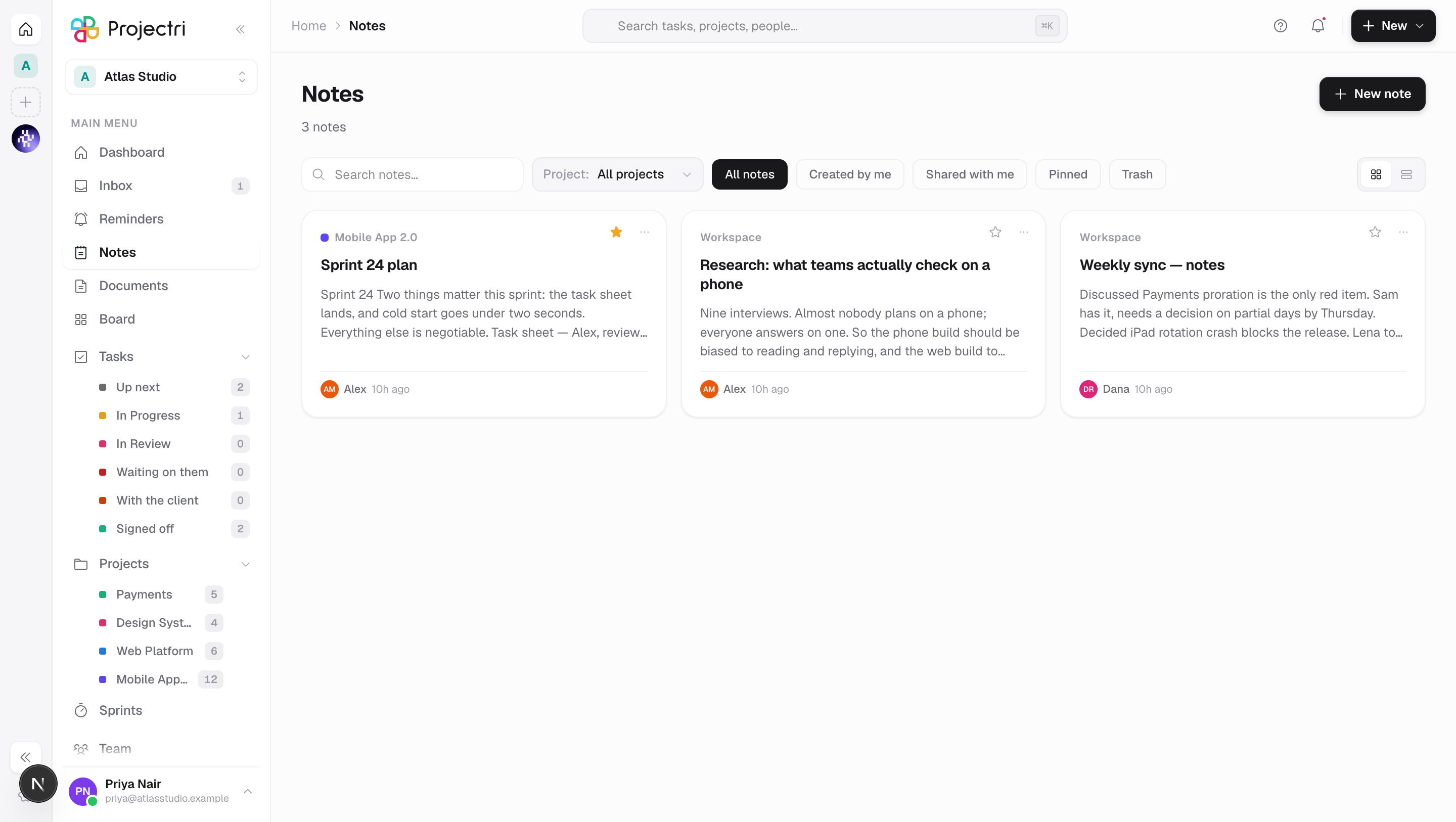
Every note you can reach — your own, ones shared with you and ones the workspace publishes — with filters, a trash tab and row actions for pinning, duplicating and sharing.
What it is
Notes are written documents that live in the workspace rather than in a file. This screen lists every one you can reach and is where you create, find, pin, duplicate, share and trash them. Notes and Documents are the same rows in the same table split by which module owns them, so everything here behaves the same way on the Documents screen.
How to get there
Notes is in the main navigation. The list needs note.view. New note only appears if you hold note.create. Editing needs note.update, trashing and permanently deleting need note.delete, and sharing needs note.share. There is no plan gate.
Row actions mirror what the API allows, so a button you can see is a button that will work.
How to use it
Find a note
- The search box filters on title, the note's preview text, project names and tags. It filters what is already loaded rather than querying the server.
- The filter buttons are All notes, Created by me, Shared with me, Pinned and Trash. Only Trash reloads from the server; the rest are instant.
- Project narrows the list to notes filed under one project.
- The pair of buttons on the right switches between the card grid and the compact list.
Create a note
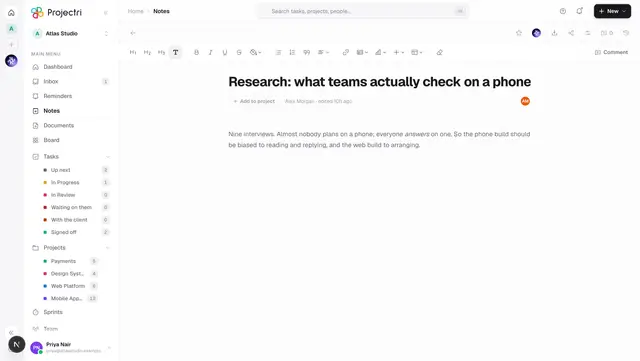
- Press New note. A note titled Untitled is created and opens immediately.
- If a project was selected in the filter when you pressed it, the note is filed under that project — the editor's chip shows the filing rather than an empty Add to project you have to remember to fill in.
Act on a row
Right-click a card, or use the … button, for the menu:
- Open
- Rename… and Star / Remove star — need edit access. A starred note is pinned to the top of the list.
- Duplicate — always offered.
- Share… — needs share access; opens the same dialog the editor uses.
- Copy link — copies the in-app address and flashes Link copied.
- Download file — only on rows that are an uploaded file.
- Move to trash — owner only, and asks first.
The star, trash and … buttons are also on the card itself.
Trash and restore
- Switch the filter to Trash.
- Restore puts the note back. Delete forever asks *"Delete "…" permanently? This cannot be undone."* and then removes it.
- Both are owner-only. Nothing purges the trash on a schedule — a trashed note stays restorable until somebody deletes it.
What it affects
- Duplicating copies content, not access. A copy carries the title with (copy) appended, the body, icon, cover image, status, visibility, type, tags and project filing. It does not carry shares, the public link, comments, version history, attachments or the pinned state, and you become its owner.
- Filing under a project makes the note appear on that project's notes tab. A note can be filed under several projects; the first is the primary and is the one the card names, with
+Nfor the rest. - Sharing sends a notification — a bell entry, a push and an email — to the person you shared with.
- A public link makes the note readable without an account at
/share/note/<id>, read-only, and marked not to be indexed by search engines. - Search and Nia. Note bodies are stored in readable form, so global search indexes them and Nia can read and write in the one you have open.
On mobile
The phone has a Notes list and a reader. Notes are created and written on the web app only, so there is no compose button — the empty state says where to start one rather than offering a control the app does not have. The reader shows the stored body, the file if the row is one, its attachments, and an export option, and it watches co-editing live: a colleague's sentence appears as they type it, with the roster above it.
Limits and gotchas
- A note title is trimmed to 200 characters; an empty one saves as Untitled. A note carries at most 20 tags.
- Created by me and Shared with me split the list by who created the row, not by whether it was explicitly shared with you.
- The list search only reads what has already been loaded. Global search is the one that reads bodies.
- Pressing New note twice quickly creates one note, not two — the button is guarded, as are duplicate and the row mutations.
- Every row action is applied on screen before the server answers, and rolled back if it is refused. A star that flicks back means the request failed.
Related
- Writing a note — the editor, comments, history and sharing.
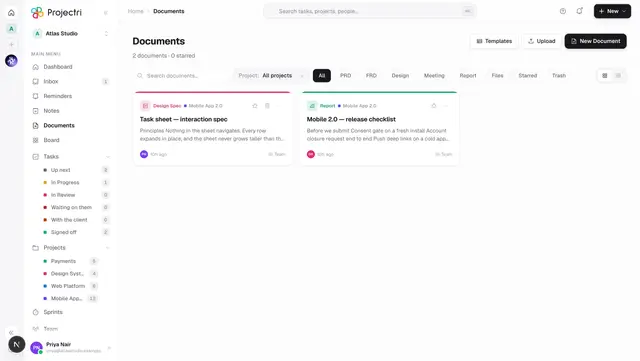
- Documents — the same rows, for uploaded files.
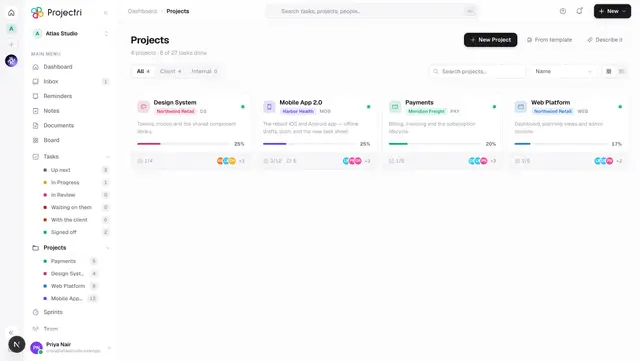
- Projects — where a filed note also shows up.
- Search — the search that reads note bodies.