Members
The workspace roster and the pending invite list — invite people, change roles, suspend, remove, and do any of those to many people at once.

What it is
Members is the roster of everybody in this workspace, plus a second tab for invitations that have been sent and not yet accepted. It is where somebody enters the workspace, where their role changes, and where they leave it.
Presence is shown per row from when the person was last seen, so the list also tells you who is around right now and who is locked out.
How to get there
Admin → People → Members. The console needs the ADMIN role to reach at all. Within it, each action spends its own permission key:
| Action | Key |
|---|---|
| See the list | user.view |
| Invite somebody new | user.invite |
| Edit a member's row (team, department, employee code, reporting line) | user.update |
| Change a role | user.role |
| Suspend or restore | user.deactivate |
| Remove from the workspace | user.remove |
A button whose key you do not hold is not rendered, so nothing on screen leads to a refusal. Listing pending invites additionally requires the ADMIN role, not just user.invite.
How to use it
Invite somebody
- Press Invite at the top right.
- Enter the email address. A name is optional; the workspace Role defaults to Member.
- Optionally pick a project under Add to project, and a project role (Admin, Editor, Commenter or Viewer). Accepting then puts them in the workspace and on that project in one step, instead of landing them on an empty home screen.
- The invite email carries a join link that expires after 7 days.
- Sending a second invite to the same address cancels the first one.
If the address already belongs to a member of this workspace, the same form becomes an "add to project" instead — no new join link is sent, because a link asking somebody to join a workspace they are already in is a dead end. That case does not need user.invite; a project admin can do it with project.member_manage on that project.
Manage a pending invite
- Open the Pending Invites tab. The badge on it is the count.
- Each row shows the address, the role, the expiry date, who sent it, and the project it also grants if there is one.
- Resend cancels the old invite and issues a fresh link with a new 7-day clock. The project attached to the original is carried over.
- Cancel kills the link immediately.
Change one person
- Press the … button at the end of their row.
- Change role picks one of Admin, Member, Viewer, Guest.
- Suspend locks them out; Unsuspend restores them.
- Remove asks first, then takes them out of the workspace.
You cannot change your own role, suspend yourself, or remove yourself — the server refuses all three, and your own checkbox is disabled for the same reason.
Do it to many people at once
- Tick the checkbox on each row, or hold Shift and click to select a whole run at once.
- Select all beside the search box selects the filtered set — if you have narrowed to Viewers, that is what it takes. Your own row is never included.
- The bulk bar appears over the list with Suspend, Restore, **Change role and Remove**. Suspend and Remove ask for confirmation first.
- When it finishes, the bar reports what happened: *"4 applied · 2 skipped (yourself, last administrator)"*. Rows that applied leave the selection; rows the server refused stay ticked, because those are the ones you still have to deal with.
A batch is applied one row at a time and is deliberately not a transaction. One refusable row does not discard nine legitimate suspensions. A selection is capped at 200 people per action.
Fix a "last administrator" skip
Suspending the last admin, demoting the last admin, and removing the last admin are the same lock-out arriving through three doors, and all three are refused. A workspace with no administrator cannot be administered back into having one. Promote somebody else to Admin first, then repeat the action.
What it affects
- Seats. Accepting an invitation consumes a seat, and the acceptance is refused when the workspace is at its plan ceiling — the message names the figure, e.g. "This workspace is using 5 of its 5 seats". A suspended member still holds their seat; a removed one does not. That is the difference between the two actions when a seat cap is in play.
- Suspension ends sessions. Every session pointed at this workspace is killed, so the person's open tabs and phone stop working immediately rather than at their next sign-in. Sessions pointed at their other workspaces are untouched.
- A role change moves the whole permission set at once, and the person's open tab is told to re-read it. Somebody demoted from Admin loses the console in place rather than keeping it until their token expires.
- Removal closes four doors together. The membership is soft-deleted, their project memberships are dropped, any pending invite for the address is cancelled so a forwarded link cannot let them back in, and their sessions for this workspace are ended. Any unattended agents they owned are paused.
- Their work stays. Removing somebody does not delete their tasks, comments or time entries — the confirmation says so.
- Only this workspace. Their account, their other workspaces and the sessions pointed at those are untouched, which is the whole point of a person being able to belong to several.
- The allowed-domain list is enforced here. If Security Center → Policy restricts membership to named domains, an invite to an address outside them is refused at send time rather than at acceptance, so the admin finds out now instead of weeks later from the person who cannot get in.
- Branch, department, job role and reporting line set on a member feed Teams, Workload, the demand forecast, Bench and every resourcing report. All four are looked up inside this workspace, so an id from another tenant is refused rather than written.
On mobile
The Members and invites screen in the app's Admin hub carries the same roster and the same pending-invite section. The row is a tap target and the edits move into a sheet, which gives the destructive actions somewhere to sit that is not beside a scroll gesture. Bulk selection and its skipped-rows report are available there too.
Limits and gotchas
- Your own row is shown but never selectable. Ticking it could only ever produce a skip.
- Suspend and Remove are not the same thing for billing. Suspend keeps the seat, so that un-suspending later cannot fail because somebody else took it in the meantime.
- Roles are a fixed set of four. There is no "create role" — the way to say "a Member who may also see billing" is a per-member override on Permissions.
- A skip reason of no change is not reported in the summary sentence — asking to suspend somebody already suspended is a no-op, not a failure.
- Presence is derived from when someone was last seen. A grey dot means idle or offline, and a red one means suspended; the row says which in words as well.
Related
- Roles — what each of the four roles grants.
- Permissions — changing a role, or one person inside it.
- Teams — grouping members under a department.
- Account closures — the queue that ends in a removal here.
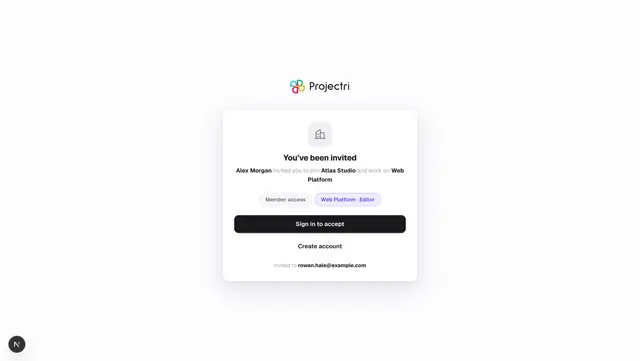
- Invitations — what the person on the other end sees.