Projects
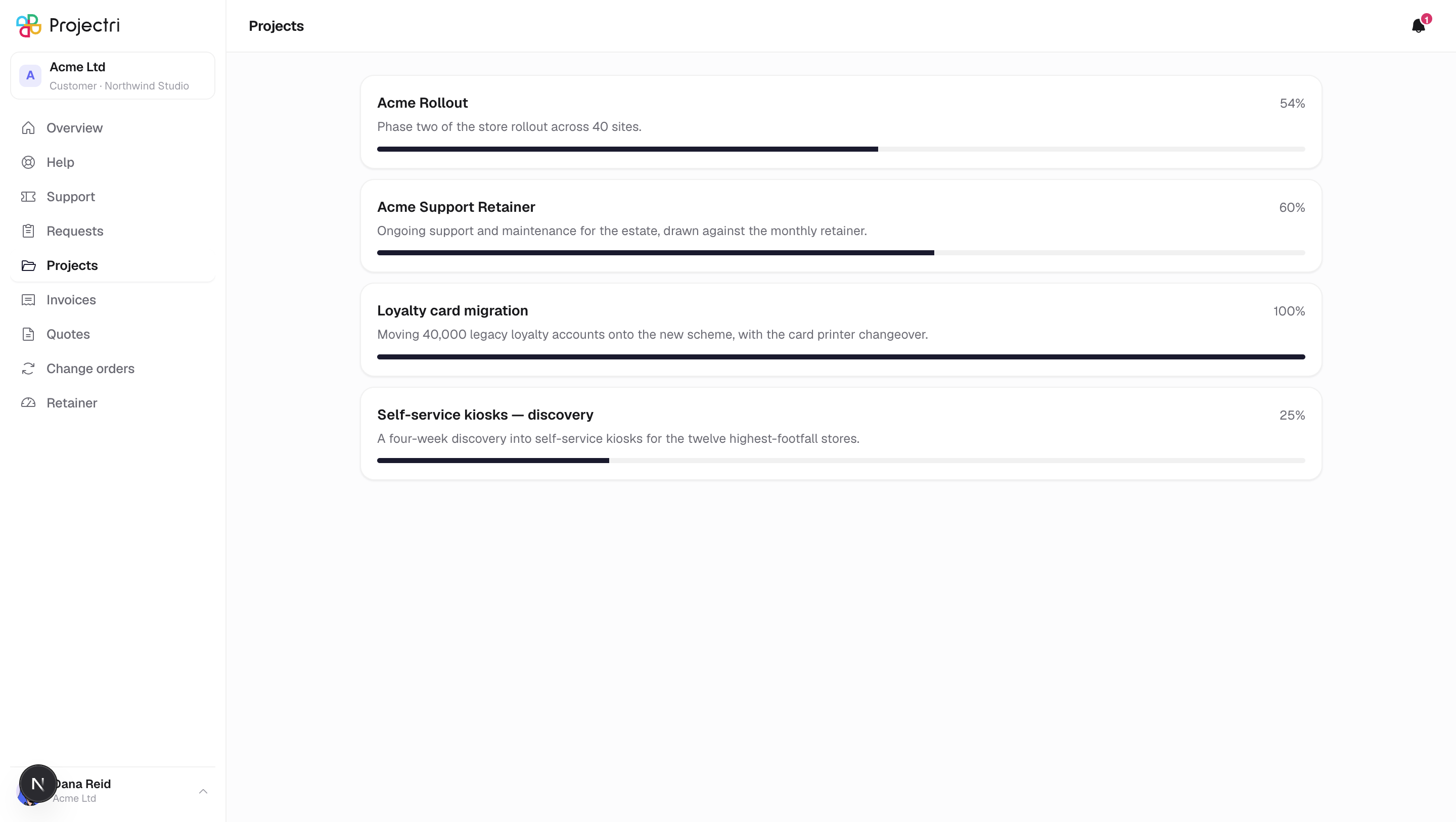
The projects your team has shared with you, each with a progress bar, and a badge when a milestone is waiting on your sign-off.
What it is
A list of the projects your supplier has given you access to. Each row shows the project's name, an optional description, and how far through it is as a percentage of completed work.
How to get there
Projects in the sidebar. Every contact can see this screen, including view-only contacts.
Access is granted one project at a time. Two things must both be true for a project to appear: it belongs to your company, and somebody has explicitly shared it with you. A contact with no shares sees "No projects have been shared" — that is the default state, not an error.
How to use it
Open a project
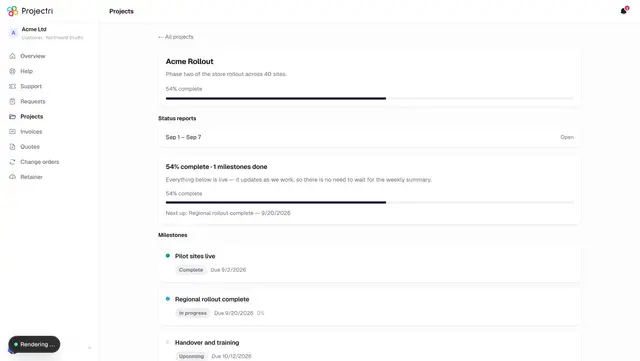
- Click a row. The project screen shows its timeline, any analytics your supplier publishes, and the status reports you have been sent.
- Use the All projects link at the top of a project to come back.
Read the progress figure
- The percentage is the share of the project's tasks that are finished.
- It is not a schedule. A project can be 80% complete and still late; the dates live on the milestones inside it.
What it affects
- Raising a ticket. When you raise a support ticket, the project picker only offers projects on this list. Naming one helps your supplier route the ticket; it is optional.
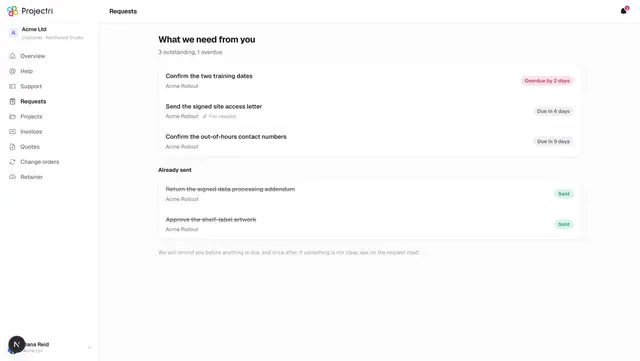
- Requests. A request the team sends you is always attached to a project you have access to. If access is withdrawn, the request goes with it.
- Status reports. Only reports sent to you, for a project on this list, are readable — and only ones your team has actually sent, never a draft.
On mobile
The Projects tab in the phone app is the same list and opens the same project screen.
Limits and gotchas
- If a project you expect is missing, it has not been shared with your login specifically. Sharing it with a colleague does not share it with you.
- The list is sorted by name, not by activity.