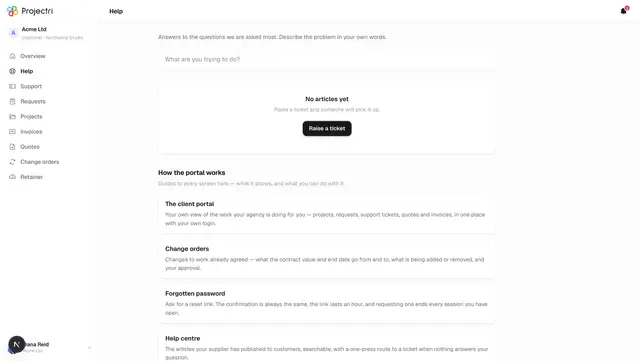
The client portal
Your own view of the work your agency is doing for you — projects, requests, support tickets, quotes and invoices, in one place with your own login.
What it is
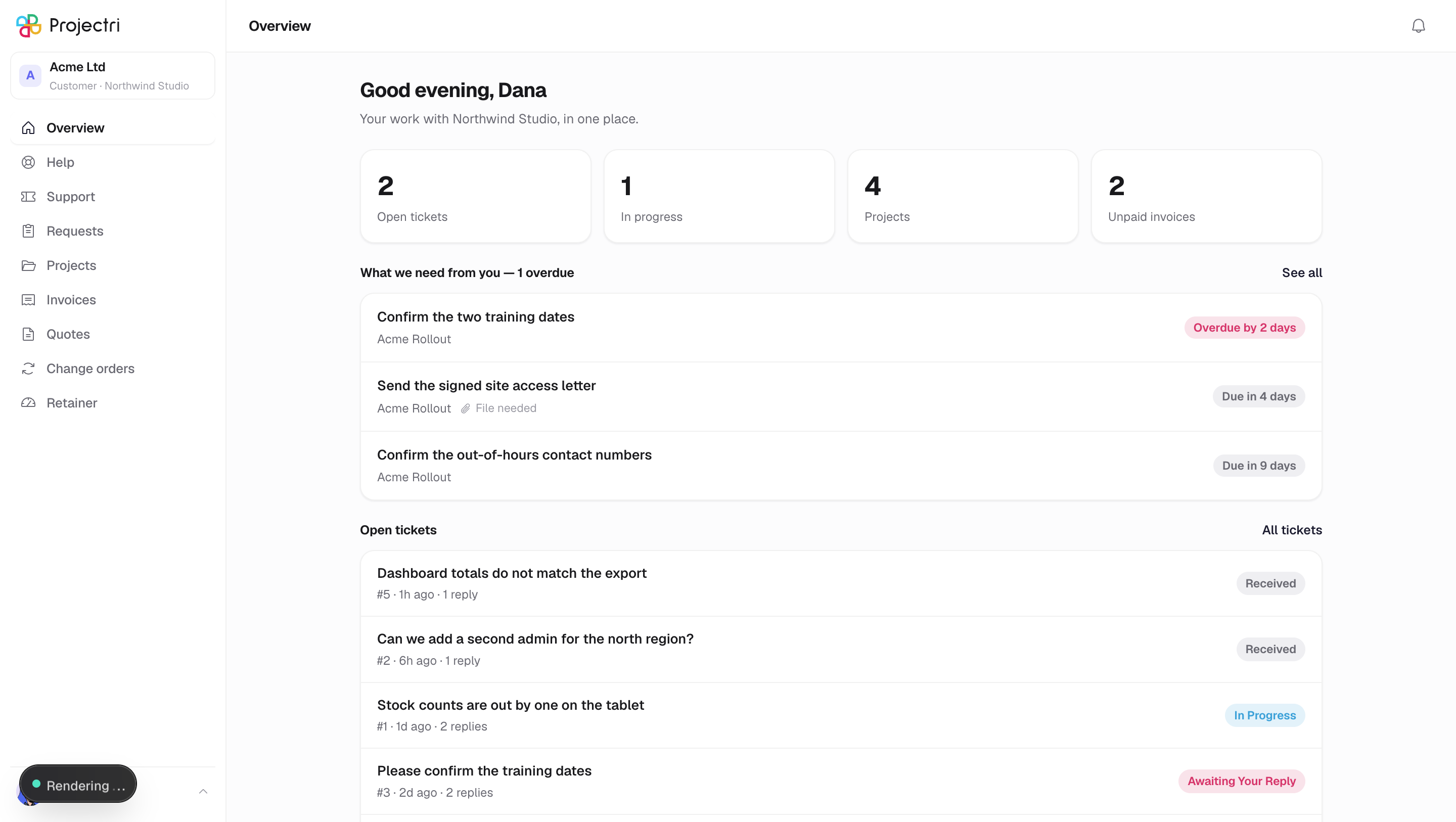
The client portal is where you see the work being done for you, without an account in your supplier's workspace and without seeing anything they have not published to you. The Overview screen is its front page: a greeting, a row of counts, anything the team is waiting on you for, your open tickets, and the milestones coming up next.
How to get there
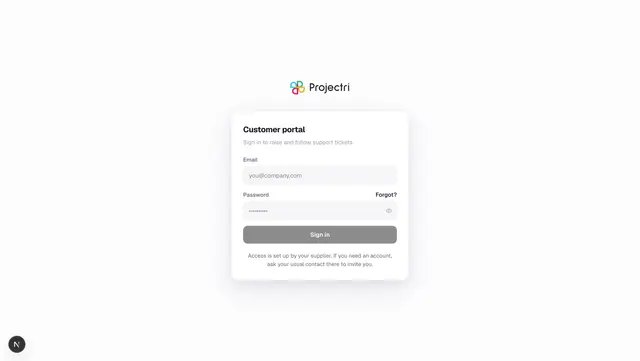
Sign in at /portal/login. If your supplier has set up their own domain for the portal, the address will be theirs — something like portal.theiragency.com — and the portal is served at the root of it. On that domain nothing but the portal exists; any other address returns "Not found".
What you can see depends on which kind of contact you are. Your role is shown under your name at the bottom of the sidebar:
- Primary contact — everything below, and the only role that can accept or decline a quote or a change order.
- Billing contact — everything a primary contact sees, except signing a quote.
- Technical contact — projects, requests and support. No invoices, quotes, change orders or retainer balance.
- View only — the same screens as a technical contact, but read-only. You cannot raise a ticket, reply, upload a file, or approve anything.
The money screens are not hidden with a message; they are absent from the sidebar entirely. Your project team decides which contact each person is.
How to use it
Read the overview
- Sign in. The page opens on Overview.
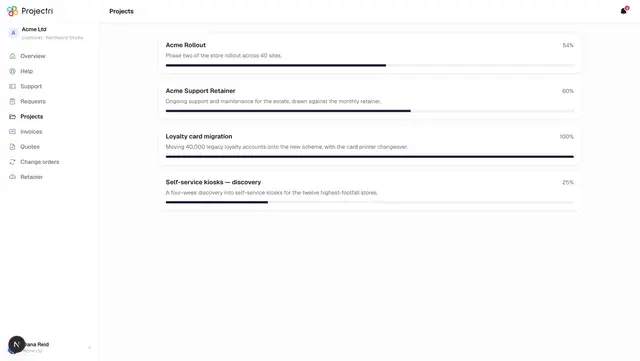
- The counts at the top are open tickets, tickets in progress, and how many projects have been shared with you. A fourth count, unpaid invoices, appears only if your role includes invoices.
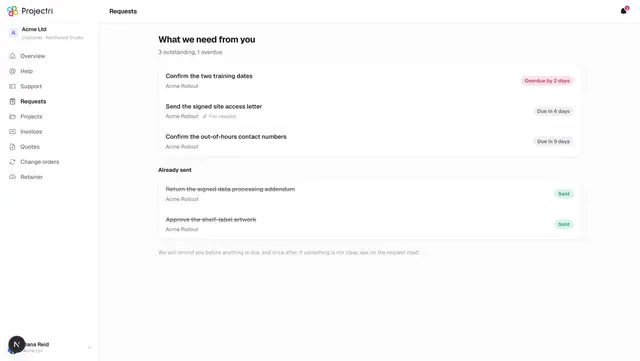
- Anything the team needs from you sits above everything else, under a heading that names how many are overdue. See all opens the full list.
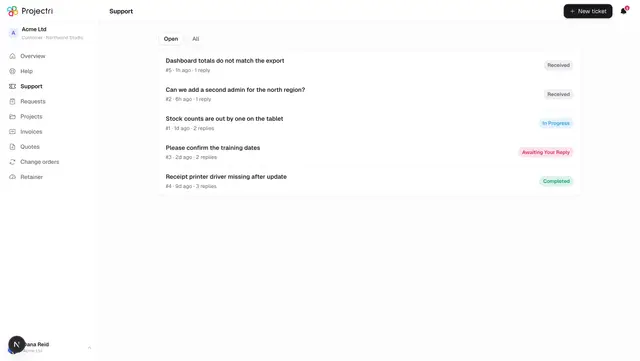
- Under that, your five most recently updated open tickets, then up to five upcoming milestones with their dates.
Move around
- The sidebar is the whole portal: Overview, Help, Support, Requests, Projects, and — when your role includes them — Invoices, Quotes, Change orders and Retainer.
- The block at the top of the sidebar names the company whose portal this is. If you are also signed in to a workspace in the same browser, clicking it offers a way across.
- The menu on your name at the bottom holds the light/dark switch and **Sign out**.
Turn on notifications
- Open the menu on your name at the bottom of the sidebar.
- Choose Turn on notifications and accept your browser's prompt.
- The row only appears while it can still work. Once you have accepted, or once you have refused in the browser, it disappears — a refusal cannot be asked again from the page, only reset in your browser's own site settings.
Read the bell
- The bell in the header holds replies to your tickets, status changes, and new invoices where your role includes them.
- It refreshes about once a minute, and immediately when you come back to the tab. It pauses while the tab is hidden.
- Each notification carries a link to the thing it is about.
What it affects
- Signing out here signs you out of the portal only. If you also have a workspace login in the same browser, that session is untouched. The two are independent by design.
- Signing out unregisters this browser from notifications, so a shared machine stops receiving replies to your tickets.
- What the bell tells you is scoped the same way the screens are. You are never notified about an invoice you cannot open — a contact without invoice access is left out of that fan-out entirely, because the notification carries the amount. Ticket notifications go to every active contact at your company, not only the person who raised the ticket, so a colleague can pick one up while you are away.
- Your session lasts seven days. Asking for a password reset ends every live session immediately, before the email is even opened.
On mobile
There is a phone app, and the portal is one of the two things it can be. Sign in with your portal address and password on the app's ordinary sign-in screen — it tries a workspace account first and falls through to the portal — and you land on a six-tab bar: Overview, Support, Inbox, Projects, Invoices and Account, with a New ticket button in the centre. Invoices only appears if your role includes it, and the centre button is absent if you are view-only.
The portal on the web is also usable on a phone browser. Below about 880 pixels wide the sidebar collapses behind a menu button in the header.
Limits and gotchas
- The portal is deliberately not indexed by search engines, and a custom domain serves nothing but the portal.
- Each contact login is separate. If you are a contact for more than one client of the same supplier, there is no way to hop between them without signing in again.
- Notification history and the bell are the same records the phone push comes from, so the two never disagree — but they are only written for events that happen after your account becomes active.
Related
- Signing in — the login screen, and what happens when it refuses you.
- Requests — the things the team needs from you.
- Support tickets — raising and following an issue.
- Help centre — the articles your supplier has published to you.