A document
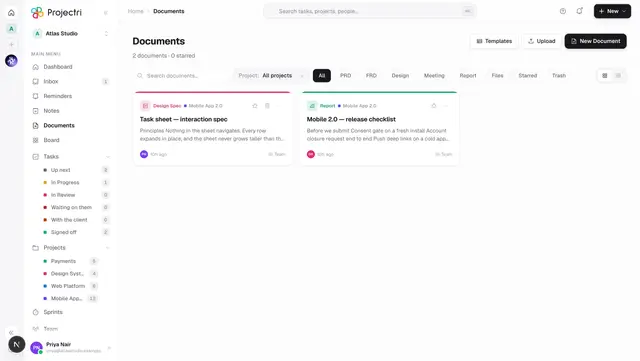
One document — the file preview or the written body, its attachments, comments, version history, sharing and export.
What it is
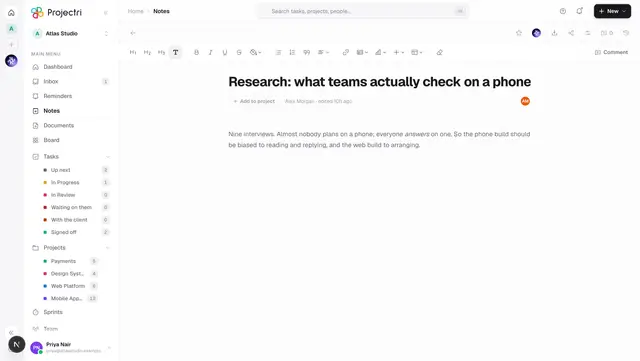
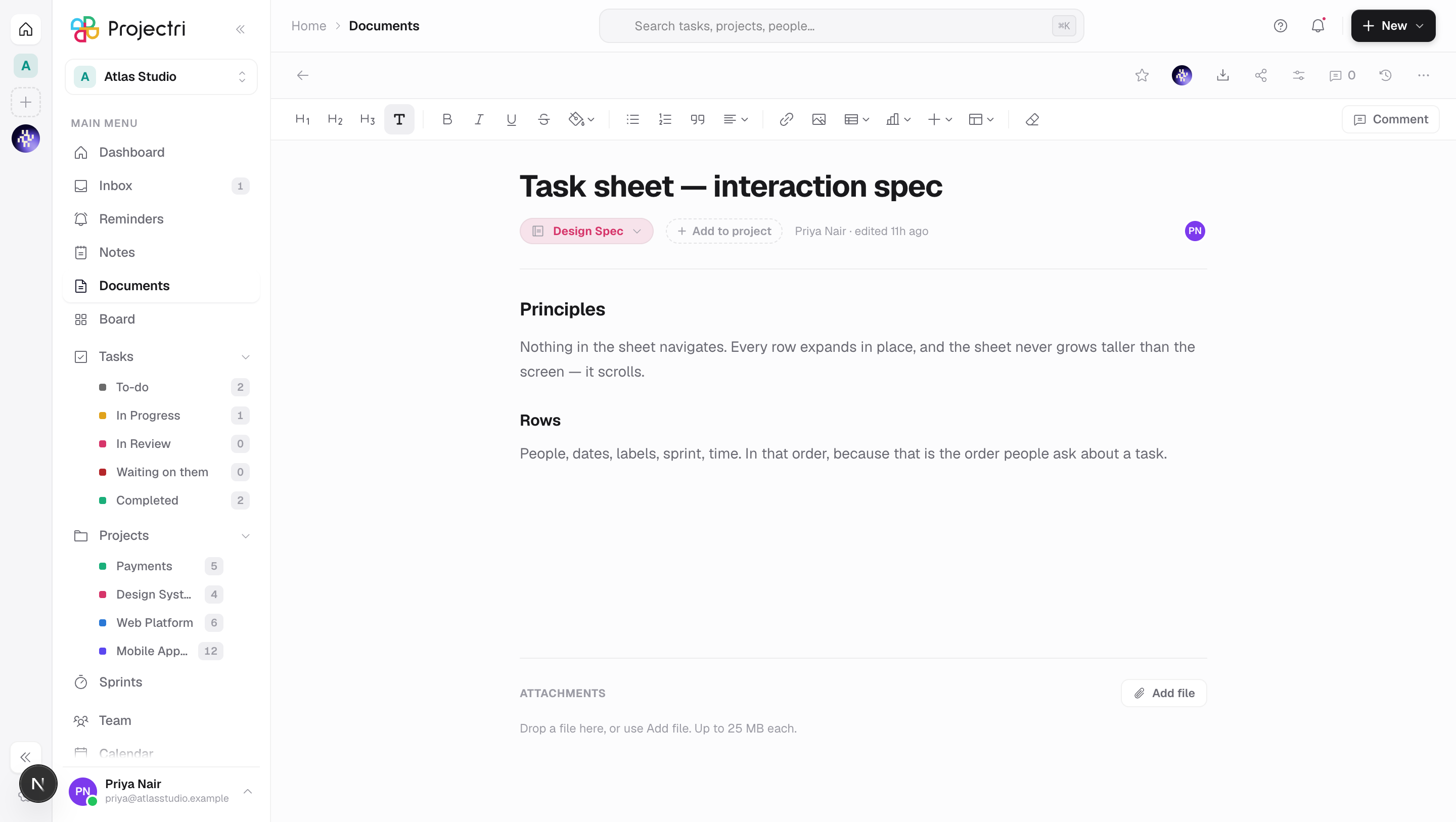
A document page is the same editor a note uses, with two things a note does not have: an uploaded file it can be, and an attachments rail underneath. If the row was created by upload, the body is not editable and the file is shown instead.
How to get there
Open it from the Documents list, from a project's documents tab, or from a link. Reading needs document.view and access to the row. Editing, attaching and restoring from trash need document.upload plus edit access. Deleting needs document.delete and being the owner.
How to use it
Read an uploaded file
- Images and PDFs are shown inline on the page.
- Anything else — and any image or PDF the browser cannot render — falls back to a card showing the icon, the filename and its size with *"Click to open"*, which opens the file in a new tab.
- Under an inline preview, Open does the same.
There is no preview for Word, Excel or PowerPoint files; those open in whatever your machine uses for them.
Write one
If the document is written rather than uploaded, everything in Writing a note applies — the formatting toolbar, tables, charts, callouts, templates, comments anchored to a selection, and live co-editing. Documents additionally have the Insert image button, because they have somewhere to store the image.
Set the kind with the type picker in the meta row: PRD, FRD, Design Spec, Meeting Notes, Report or Document. File is not offered — it is set by uploading and never chosen. On an uploaded document the picker is read-only.
Attach files
- Scroll to the Attachments rail under the body.
- Press Add file, or drop files onto the rail. The empty state reads *"Drop a file here, or use Add file. Up to 25 MB each."*
- Same rules as an upload: 25 MB per file, 10 at a time, the same accepted types.
- Remove attachment asks *"Remove "name"? It comes off this document. The file itself is deleted."* Only the person who uploaded it or the document's owner can remove it.
Images dropped into the body are stored separately and stay out of the rail.
Versions
- Open Version history. A version is cut automatically before a content edit, at most one every five minutes, and never when nothing changed.
- Save a version now cuts one deliberately; Name it to keep it for ever.
- View previews one, Restore this version puts it back — and saves the current state first, so history is never rewritten.
Export
The export menu offers PDF (branded, print-ready), Word (.docx, fully editable), Markdown (.md for docs and repos) and Plain text (.txt, no formatting).
Share
The share dialog is the same as a note's: per-person Can view / Can comment / Can edit, a Workspace or Private switch, and a public link at /share/document/<id> that reads without signing in.
What it affects
- Storage. The file, the attachments, embedded images and every stored version all count against the workspace storage meter.
- Restoring reseeds live co-editing and reindexes search immediately, so a colleague watching the document sees the restore land.
- Trashing. Moving to trash is reversible from the list. Deleting permanently also purges the stored file.
- Sharing sends a bell entry, a push and an email to the person you shared with.
- A public link is not indexed and exposes the title, the body, the author's name and the workspace name — no comments, no attachments, no history.
On mobile
The phone opens the same reader for both notes and documents: the stored body, the file, its attachments and export, plus live presence. Writing, renaming and deleting stay on the web.
Limits and gotchas
- Version content over 512 KB is not kept, only its size. Such a version reads "This version's content is no longer stored."
- Versions are kept in full for 7 days, then one a day for 90 days. A named version is kept for ever, and the newest one always survives.
- An old version can be viewed and restored, but not downloaded on its own.
- Starring or tagging a document does not cut a version; only a content edit does.
- The Ask Nia button is hidden on a document that is an uploaded file.
- Sharing and commenting are governed by the note permissions rather than the document ones — see the note on Documents.
Related
- Documents — the list, uploads and templates.
- Writing a note — the editor in detail.
- Exports — what each format produces.
- Data and privacy — retention and deletion.