Your workspaces
Every workspace you belong to, which one you are in now, and how to switch between them or start one of your own.
What it is
A workspace is a whole separate organisation in Projectri: its own projects, people, billing and data. This screen lists the ones you belong to, marks the one you are in, and switches you between them.
How to get there
Workspaces in the navigation. There is no permission on it and no admin gate — belonging to two organisations is not an administrative privilege, and this is the only screen that moves you between them.
How to use it
Switch workspace
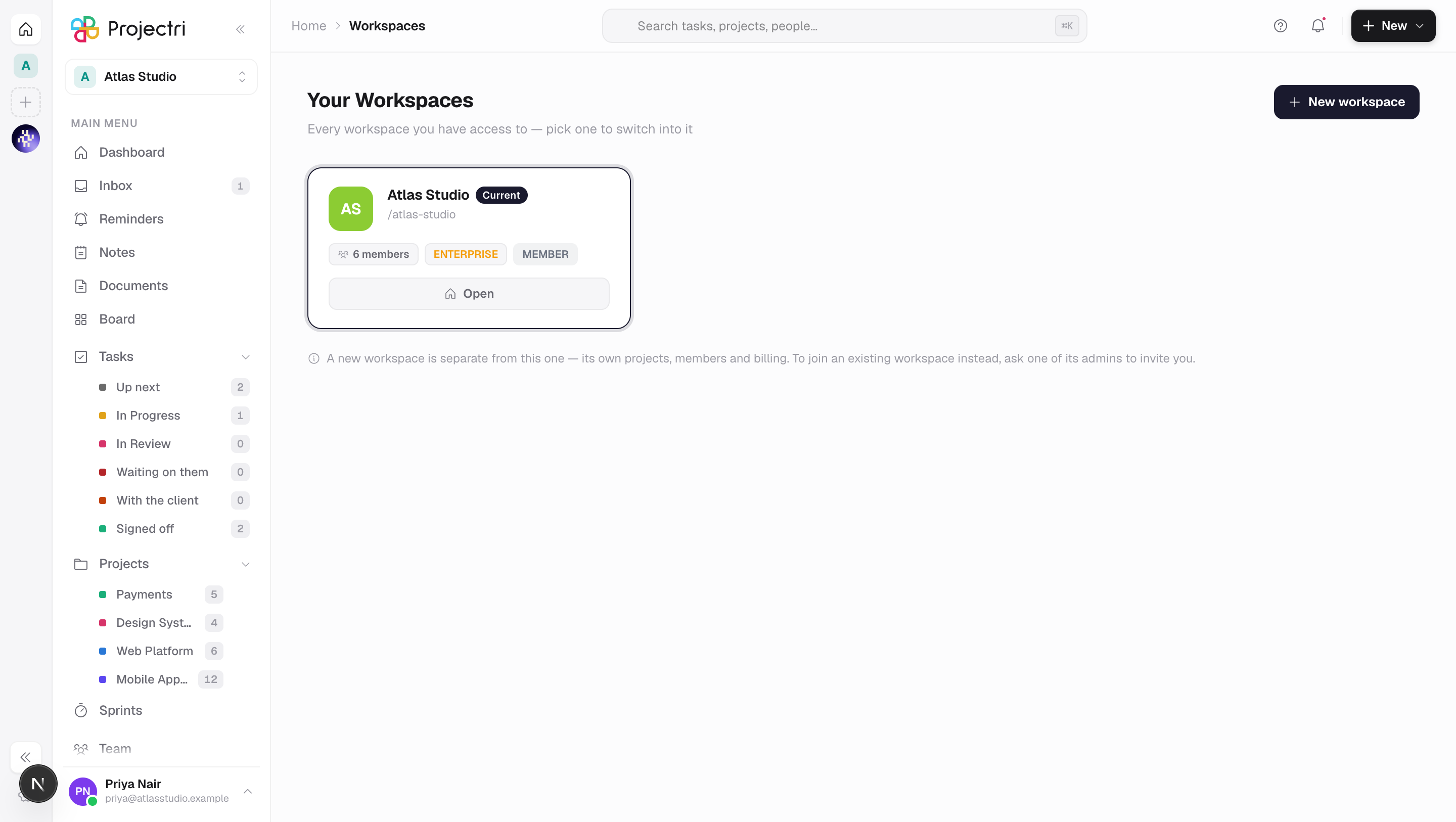
- Each card shows the workspace name, its URL, the number of members, its plan and your role in it.
- The card you are in now is marked Current.
- Clicking another card — or its Switch button — moves you. Your session moves first, then the address; it is not a sign-out and you will not be asked for a password.
- On the workspace you are already in, the button reads Manage for an administrator, which opens the admin console, and Open for everybody else, which goes to your dashboard there.
Start a workspace
- New workspace in the header, or the same button in the empty state.
- Give it a name; the URL is derived from it and can be edited. That URL is the first segment of every link shared from the workspace.
- You become its administrator, and its only member.
- Creating it does not move you into it — the switch is a second, deliberate step.
Join someone else's
There is no self-join. Ask an administrator of that workspace to invite you; the note at the bottom of this page says the same.
What it affects
- Switching changes everything below it. Every screen, every list and every API call after the switch reads the new workspace's data. Your role, your permissions and your plan are all that workspace's, not the old one's.
- A new workspace is genuinely separate. Nothing in the one you are standing in reaches into it, and creating it grants you nothing here. Work does not move between workspaces.
- The workspace URL becomes every link. It can only be changed later while you are still the only member.
- A new workspace is provisioned from a detected country, which sets its working week and currency defaults. Correct them in the admin console if the guess is wrong.
On mobile
The Workspaces screen in the phone app is the same switcher and behaves the same way — switching does not sign you out or clear the keychain. Its twin at sign-in, shown when your account belongs to more than one workspace, is a different screen because no session exists yet at that point.
Limits and gotchas
- A suspended membership shows the workspace but will not open it. The card is dimmed, the button reads Unavailable, and the server refuses the switch even if the URL is typed by hand.
- Typing another workspace's URL without switching does not work as a shortcut: the address would change while your session still named the old workspace. Always switch from here.
- The workspaces on this page are organisations. They are not the same thing as the workspaces a project is filed under inside one organisation — see Core concepts.
Related
- Core concepts — workspace, company, project and the words around them.
- Company settings — renaming a workspace and its identity.
- Members — inviting somebody into a workspace.
- Signing in — what happens when your account belongs to more than one.