Timesheets
Who has filled their timesheet in for this period and who has not, plus the queue where submitted time is released for billing.
What it is
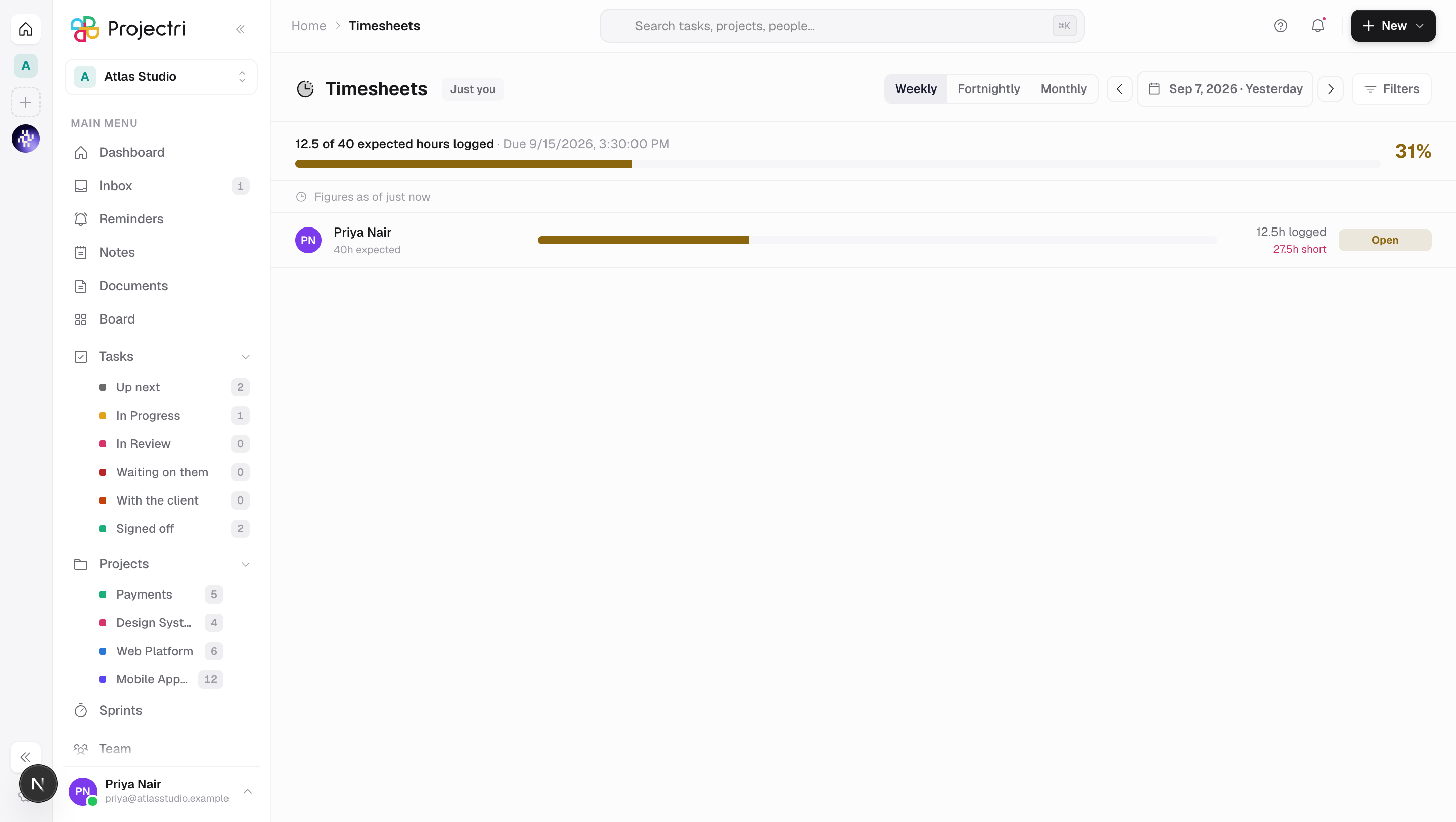
Timesheets answers one question — has everyone written down their hours for this period. Each row is a person and a period, with the hours they were expected to log, the hours they actually logged, and a state. A second tab, for people who can approve time, is the queue that turns logged hours into billable ones.
How to get there
Timesheets is in the main navigation. The row needs time.view, the key every person who logs hours holds, and it is hidden entirely in a workspace that has never configured a timesheet policy — the compliance pass only visits tenants that hold one, so the screen would be permanently empty. Somebody with finance.time.approve still sees the row, because the approval queue lives here and nowhere else.
How much you see is decided by the server, not by a control on the page. The badge next to the title says which of the three you have:
- Just you — one row, your own. Nobody needs a permission to see how they are doing.
- Your team — you plus your direct reports, with
time.compliance.view. - Whole firm — every member, with
time.compliance.view.all.
The Approvals tab appears only with finance.time.approve. Seeing your reports' compliance and releasing their time to billing are deliberately different keys.
There is no plan gate on this screen.
How to use it
Read your own completeness
- Open Timesheets. Your own bar is at the top, found by who you are rather than by position in the list.
- It reads logged of expected, with the deadline beside it when the policy sets one, and a percentage on the right.
- Expected hours are capacity net of public holidays and approved leave, so somebody on leave Monday to Wednesday owes 16 hours and not 40. The deducted hours are printed on the row so the number can be argued with.
Change the period
- The stride buttons pick Weekly, Biweekly or Monthly. Until you pick one, the page uses the period your own policy sets.
- The carets step one period at a time, in the stride shown — a monthly back-office team steps by a month, not by seven days.
- The date field jumps to the period containing a chosen day, not to the day. A compliance row is stored against a period start, so "the fortnight ending the 14th" exists and "the 3rd to the 19th" does not.
- This period returns to today.
Narrow the list
- Press Filters.
- Search by name, filter by state, by team, or by department, and tick the owing-only box to keep just the people who still owe hours.
- The counts in the state and team menus are computed over the unfiltered period, so picking Approved does not rewrite the Incomplete count to zero.
- Filtering happens on the server, so the rows, the percentage under them and the exported file always describe the same people. The Filters button is tinted while anything is on, so a filtered list cannot be mistaken for an empty period.
Chase the people who are behind
- Tick the people you want to remind. Only rows in Incomplete or Open can be ticked — the server refuses the rest, so the others are greyed out rather than silently doing nothing.
- A bar appears at the bottom with the count. Press Remind.
- The reminder goes to the people you picked for the period on screen.
Export
- Export is available on the team and firm-wide scopes.
- The file is the same query the list was built from, plus two columns the screen cannot show — leave hours and holiday hours split apart, which is what the argument about an expected figure is always about.
Approve submitted time
- Switch to the Approvals tab.
- The queue is aggregated by person and week, not by individual entry, and sorted by how long each week has been waiting.
- Weeks that nobody has submitted appear in a separate group that cannot be selected. There is nothing an approver can do about them; the way to act is to go back to the compliance tab and chase.
- The confirmation counts what the server actually approved. Your own entries and anything a billing run has locked are dropped by the write, so a selection of twelve can legitimately approve nine.
What it affects
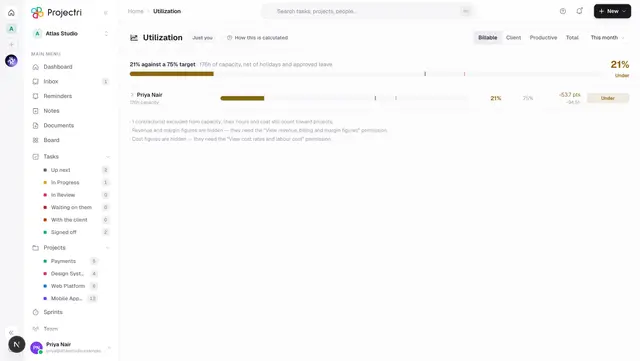
- Utilisation. The compliance percentage is the confidence figure printed beside the firm's utilisation number. 78% utilisation computed over 82% compliance is not the same claim as 78% over 100%, and Utilization says which one you have.
- Billing. Approving a week is what makes those hours available to a billing run. Unapproved time is revenue standing still.
- Freshness. Reading the page recomputes any stale or missing period inside the scope you can see, then says when the numbers were worked out. A period too large to refresh on a page load says so instead of presenting an old figure as a current one.
- Reminders. Chasing sends a notification to each person picked; it does not change their row until they log the hours.
On mobile
The Expo app has the same screen at Timesheets. Most timesheets are filled in on the way home and so is most of the chasing, so the phone carries the period stride, your own row, the team list and the reminder action. The scope badge is printed there too, for the same reason.
Limits and gotchas
- The screen is a reading of hours, not a place to log them. Hours are recorded on the task, in the tracking section of the task detail panel on the web and the timer sheet on the phone.
- A workspace with no timesheet policy has no rows here and no way to get any. An administrator configures one under Admin → Finance → Timesheets, which needs
time.compliance.configure. - Expected hours divide the contracted week across the workspace's **working days**, which come from the country the workspace was created with. If that is wrong, every expected figure on this page is wrong with it.
- Recompute is offered only on the firm-wide scope.
- Export is not offered on the self scope — there is one row, and it is on screen.
Related
- Utilization — the number this page qualifies.
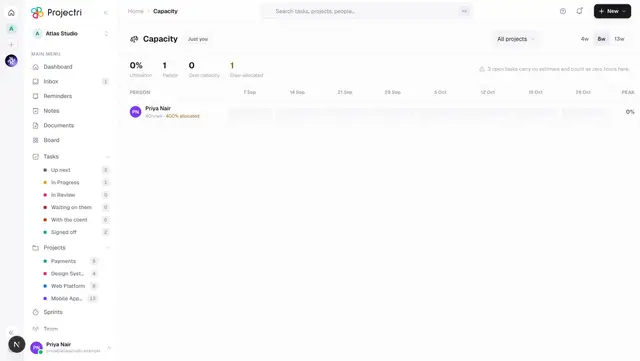
- Capacity — the same people looking forward instead of back.
- Roles and permissions — what the three compliance keys each open.