Forms
Build a public intake form, share its link, and turn what people send you into tasks in a project.
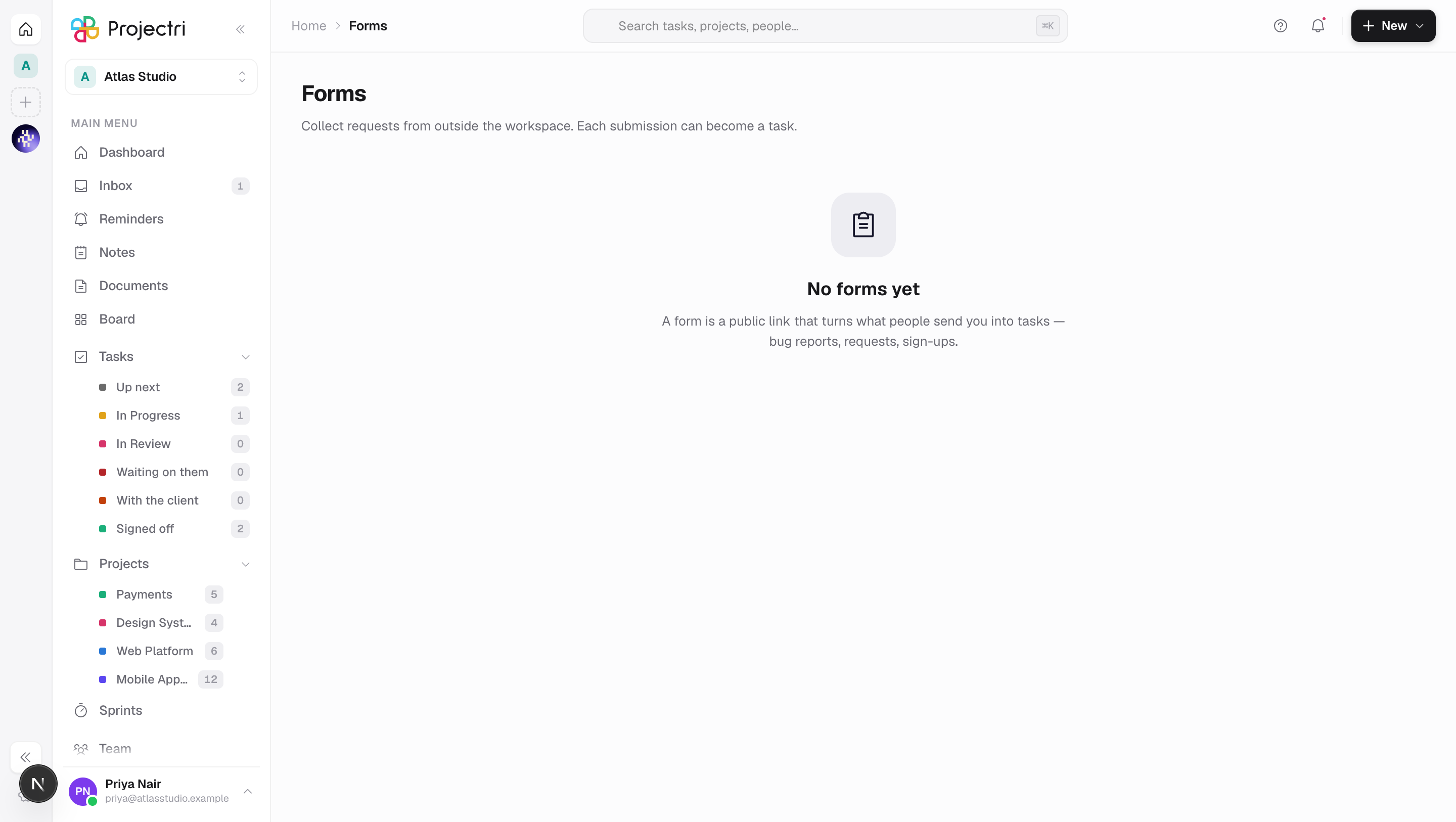
What it is
A form is a public link that collects requests from outside the workspace — bug reports, briefs, sign-ups — and turns each submission into a task in a project you choose. The builder, a live preview of what a visitor sees, and that form's submissions are all on this one screen.
How to get there
Forms is in the main navigation, beside Support, and in the ⌘K page search. The row and the list need form.view.
- Creating, editing, publishing and deleting a form needs
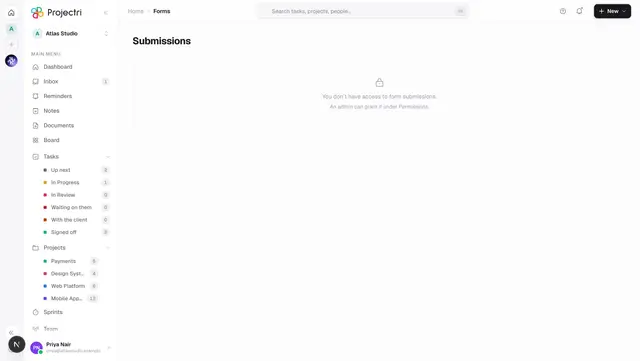
form.manage. Without it there is no New form button. - The Submissions row under the Forms caret, and the Submissions tab inside a form, need
form.submission. Without that key the row is not drawn at all.
There is no plan gate.
How to use it
Create a form
- Press New form. It is created immediately, named Untitled form with one question, and selected in the rail.
- Give it a Name and a Description — both are shown to the visitor.
- After submitting, say is the thank-you line. Left blank it reads *"Thanks — your submission has been received."*
- Press Save. Nothing on this screen saves as you type; the whole form is written in one request.
Add questions
- In the Questions panel, press Add question.
- Pick a type: short text, long text, number, date, select, multi-select, checkbox, email, URL or file.
- Type the question label. More settings opens the placeholder, the help text shown under the label, and — for select and multi-select — the Options, separated by commas.
- Mark it Required if it must be answered. A required checkbox means it has to be ticked, not merely present.
- Reorder with Move up / Move down. The order you see is the order the visitor sees.
- A form holds at most 60 questions, and a choice field at most **50 options**.
Saving is refused if a select or multi-select field has no options — an empty dropdown on a page a stranger is looking at is not something they can work around.
Publish it
- Turn on Accept public submissions. The hint under the switch becomes the public URL, which is
/f/<slug>on your workspace's domain. - Set Status to Active.
- Press Copy link. The button only appears when the form is both public and Active.
- The slug is a readable stem plus a random suffix, so renaming the form does not change the link and one workspace's forms cannot be guessed from another's.
Decide what a submission becomes
In the What a submission becomes panel:
- Create a task for each submission — on by default.
- Project — pick one. With no project nothing is created, and the panel says so; the toggle alone does nothing.
- Title comes from — a question's answer, or the form's name. Left on the form's name, the task is titled "Form name — submitter", which stops a queue of identically named rows.
- Body comes from — one question's answer, or Every answer, which renders the whole submission labelled and in order.
- Assign to — a member. They also get the notification when something arrives.
The submitter's name and email, if they gave them, are appended to the task description under a rule.
Pause or retire a form
- Status: Paused — the link says the form is not available until you set it back to Active. This is the way to close intake without losing anything.
- The bin icon asks a different question depending on what the form holds. A form with no submissions is deleted for good and its link stops working immediately. A form that has collected anything is archived instead — public submissions are turned off and the record of what people asked for is kept.
- An archived form can be set back to Active from the Status picker, and its original link works again once public submissions are back on.
Read what came in
- The Submissions tab inside a form shows that form's submissions with each answer labelled, and the task it became.
- For everything across every form at once, use Submissions.
What it affects
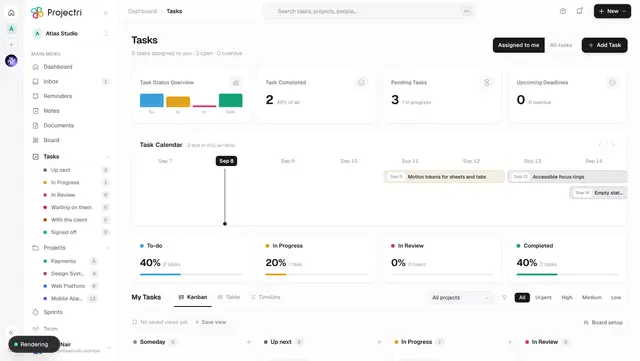
- A project's task list. Each submission creates one task in the chosen project, status To do, with the form's default priority and default assignee. It takes the next identifier in that project's sequence, like any other task.
- The notification bell. The default assignee gets a New submission notification, linking to the task if one was made.
- Nothing else in the workspace is public. The submit endpoint is the only unauthenticated write in the product that creates a task, which is why it is narrow: reachable only by the opaque slug, only while the form is both public and Active, and validated field by field against the form's own definition.
- Deleting a form does not delete its tasks. Work already in somebody's queue survives an intake form being retired; the submission's link to the task is a pointer, not a cascade.
On mobile
This screen is web only. Forms are built and read on the web; the tasks they create appear on the phone like any other task.
Limits and gotchas
- The public page is rate limited to 10 submissions per minute per form per IP address. Over that it answers *"Too many submissions — try again in a minute."*
- A form that is not public, or not Active, returns a plain *"This form isn't available"* — it never says whether the slug exists.
- Answers to questions the form does not declare are dropped rather than rejected, so a stray field cannot make the form unusable for everyone.
- URL answers must be
httporhttps. Short text is capped at 2,000 characters and long text at 20,000. - If the task cannot be created — the project was archived, say — the submission is still saved. The visitor was promised the submission; the task is the workspace's convenience.
- The public form page is marked
noindexand blocked inrobots.txt.
Related
- Submissions — everything that has come in, across every form.
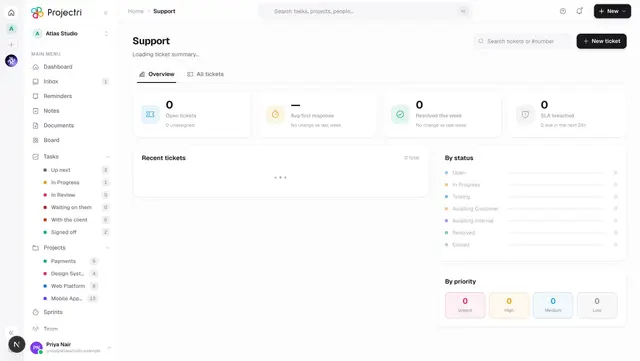
- Support — the other way work arrives from outside.
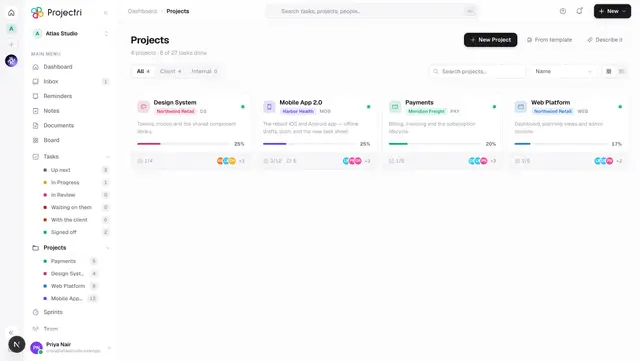
- Projects — where a submission's task lands.
- Notifications — who is told when something arrives.