Goals
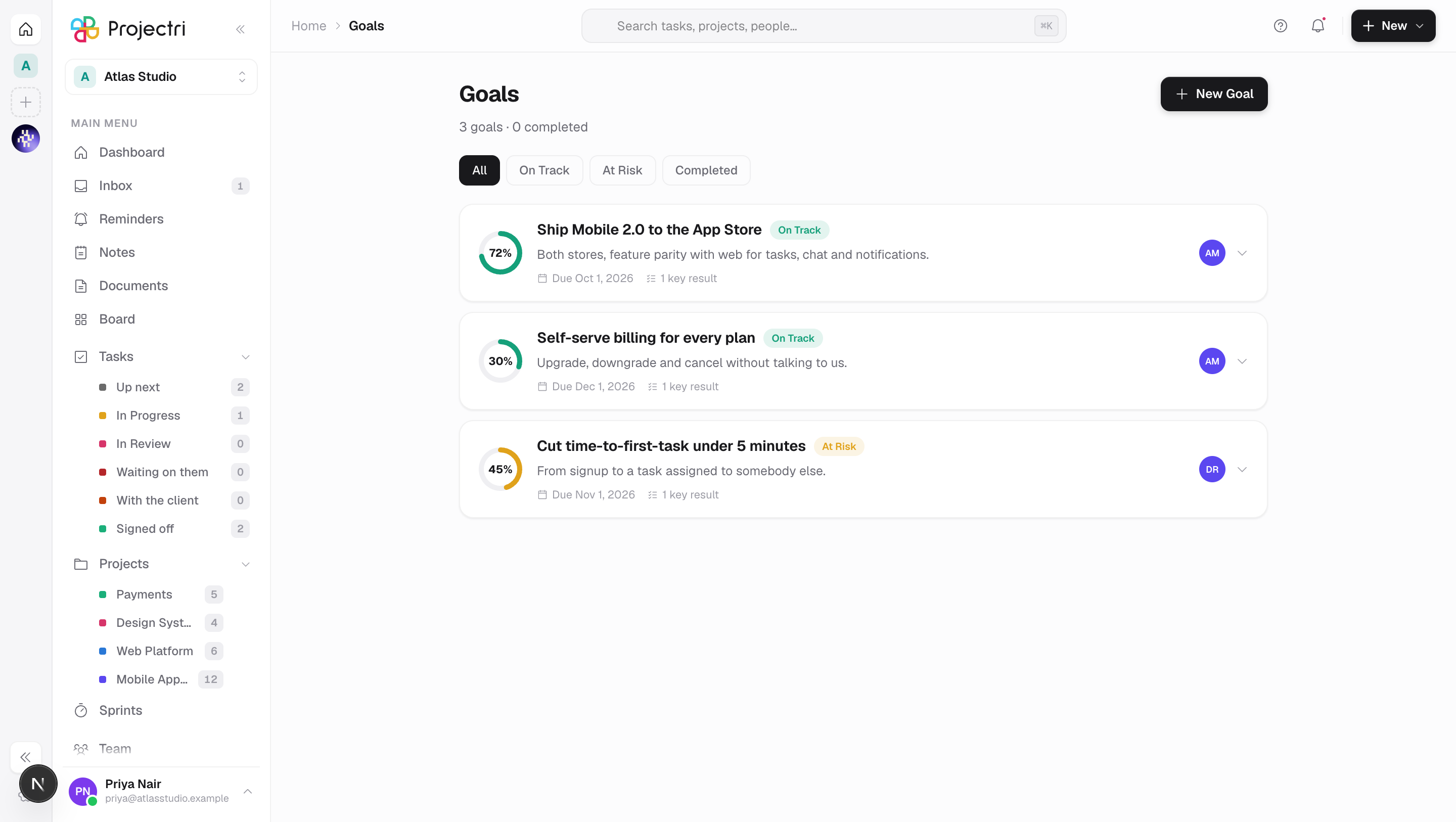
Objectives with key results — the numbers that would tell you the goal worked — and a check-in trail showing when each one moved and why.
What it is
A goal is an objective with a target date, an owner and a set of key results — the numbers that would tell you it worked. The goal's progress ring is the average of its key results, so the summary and the bars under it cannot disagree. Each movement of a key result is recorded as a check-in with a note, so an OKR review can look at the trend rather than only the outcome.
How to get there
Goals has no row in the left rail. Reach it by:
- Pressing ⌘K (or Ctrl-K) and typing "goals" — the page search lists it.
- The New menu in the header, under Work, which has a Goal row.
Both are gated: the page search row needs goal.view and the New menu row needs goal.create.
goal.view— see goals and key results.goal.create— create a goal, and add key results to one.goal.update— edit a goal, edit a key result, and check in against one.goal.delete— remove a key result or a goal.
Members hold view, create and update by default; delete is a grant. There is no plan gate.
How to use it
Create a goal
- Press New Goal beside the title, or Create goal in the empty state.
- Give it a Goal Name — "Increase customer retention by 20%" is the shape.
- Description answers "What does success look like?" and is optional.
- Pick a Target Date. Both the name and the date are required; the button stays disabled without them.
- Press Create Goal. It appears at the top of the list.
Add key results
- Click a goal card to expand it. The Key Results panel is inside.
- Press Add, then give the key result a title, a Target and a Unit.
- The target must be a positive number. Zero or a negative one is refused rather than accepted, because "60% of the way there" would then mean nothing.
- A goal with no key results reads *"No key results yet. A goal without them is an intention — add the numbers that would tell you it worked."*
Check in on a number
- Press the check-in button on a key result — Record a movement.
- Type the New value, and optionally What changed?.
- Press Check in, or Enter.
- The bar and the goal's ring both move immediately. The last few check-ins are kept on the key result so you can see when it moved and what was said.
A check-in records the previous value as it stood at the moment you clicked, so the delta stays true even if a check-in is later deleted.
Filter the list
- The chips under the title are All, On Track, At Risk and Completed.
- The line above them counts every goal and how many are completed.
Status
A goal carries one of On Track, At Risk, Off Track, Completed or Cancelled, and the status colours the progress ring and the pill on the card.
What it affects
- The goal's own progress figure. Adding, editing, deleting or checking in on a key result recomputes the goal's progress and writes it back. The average is unweighted, and each key result is capped at 100% before averaging — otherwise one key result at 300% carries two that never started and the goal reads as complete.
- A goal with no key results keeps its progress. Deleting the last key result does not zero the number; a figure entered by hand is left alone.
- Nothing else. Goals do not move tasks, do not feed sprint burndown, and are not wired to billing. They are read here and on the phone.
On mobile
The Goals screen in the Expo app shows one card per goal with its progress bar, owner, target date and key results nested underneath — the same hierarchy the web page shows in an expandable row. The same status chips filter the list.
Limits and gotchas
- Goals belong to the workspace, and the list is not scoped further. Anyone with
goal.viewsees every goal in the company's workspaces. - Two ways to move a number, and only one leaves a trail. A check-in records who moved it, when, from what, and the note. Editing the key result's current value directly writes the same column and records nothing — use it for a correction, not for progress.
- Editing a goal's status, owner or dates is not on this screen. The API supports it; the page offers create, expand, check in and delete.
- The check-in list on a key result shows the most recent eight.
- The page holds a short skeleton before it renders, so it is briefly blank on first load even when there is nothing to fetch.
Related
- Home — the landing page a goal's progress sits beside.
- Sprints — the other place a commitment is tracked, with a burndown behind it.
- Dashboards — for numbers that come from the data rather than from a check-in.
- Reports — the fixed readings of delivery and money.