My Tasks
Every task assigned to you — or the whole workspace — as a Kanban board, a table or a timeline, with counts, a due-date strip, saved views and board setup.
What it is
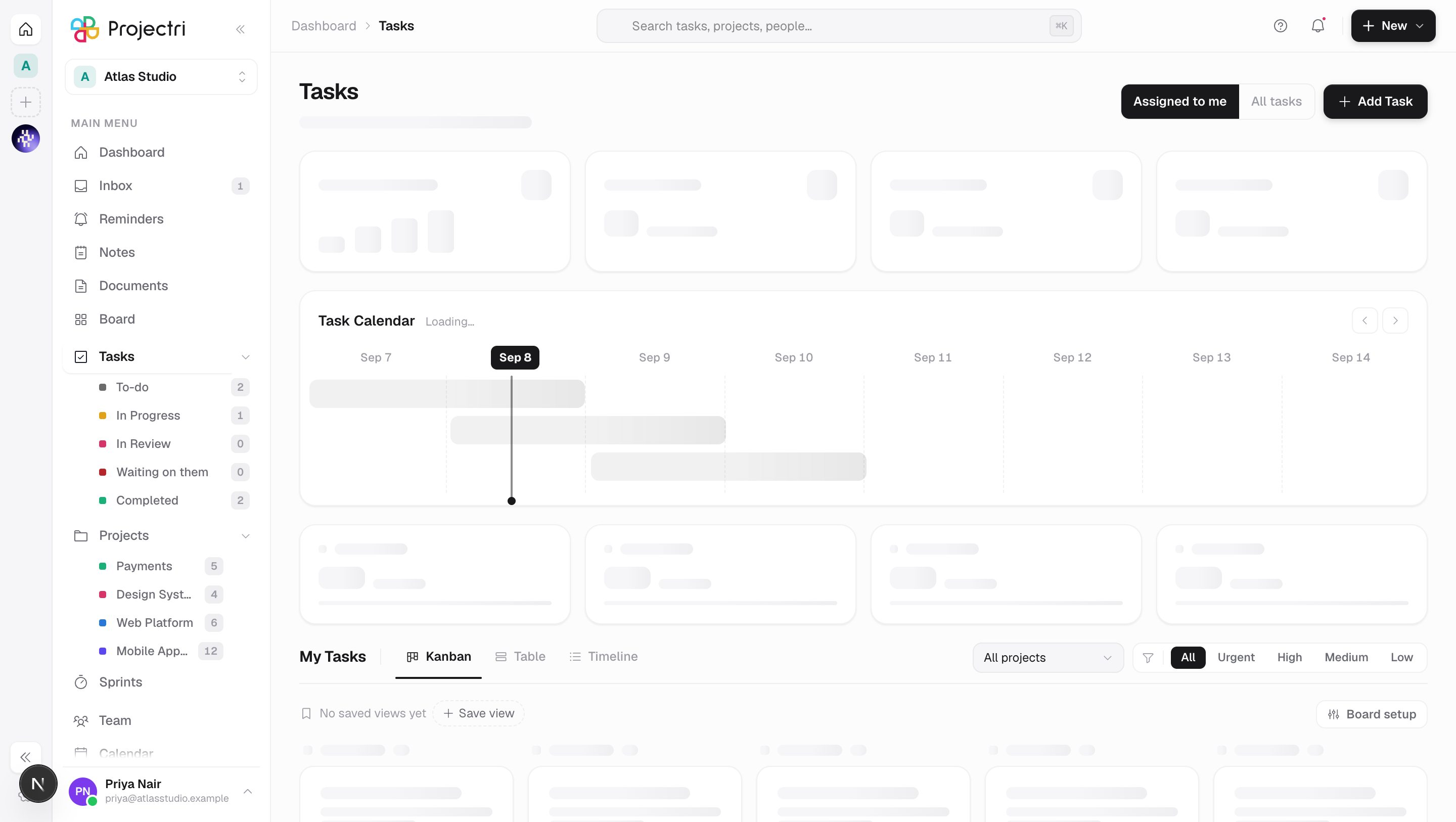
My Tasks is the task list for one person, with the workspace's whole list one toggle away. It opens on work assigned to you, counts it four ways, draws what is due in the next week, and then shows the tasks themselves as a board, a table or a timeline.
The filters run on the server, not in the browser, so the counts are true across the whole workspace rather than across whatever page happened to load.
How to get there
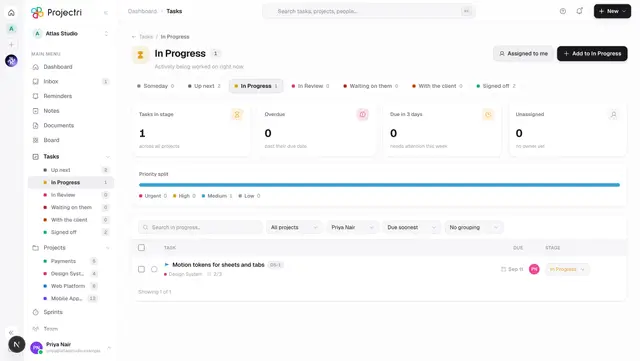
Tasks in the main navigation, which expands into the stages under it. Ctrl/Cmd + 2 opens it from anywhere.
The whole screen needs task.view. Add task and the Duplicate row on a card need task.create; Move to… needs task.update; Delete needs task.delete. Each is hidden rather than disabled when you do not hold it. Board setup — swimlanes and work-in-progress limits — needs task.board_config. There is no plan gate.
How to use it
Switch between your work and everyone's
- The pair of buttons in the header is Assigned to me and All tasks. The screen opens on the first.
- The line under the title says which it is, so the same four numbers under two scopes cannot be mistaken for a wrong count.
Narrow the list
- All projects filters to one project.
- The priority strip filters to Urgent, High, Medium or Low.
- The four cards under the due-date strip — To-do, In Progress, In Review, Completed — are also filters. Click one to narrow to it, click it again to clear.
- The header's search box narrows by text; it is debounced, so the list settles a moment after you stop typing.
- Clear appears whenever anything is set.
Choose a view
- Kanban draws one column per active stage, with per-column counts, drag between columns, and a + on each column header that opens the create dialog already set to that stage.
- Table is a flat grid: task, project, assignee, priority, stage, due, subtasks.
- Timeline groups by when work is due — Overdue, Due today, Next 7 days, Later, No due date.
Read the due-date strip
- Task Calendar shows an eight-day window with a bar per task due in it, laid out so nothing overlaps.
- The arrows page the window; Today returns to now.
- It queries its own window rather than reading the loaded rows, so a task due tomorrow appears whether or not it is on the page below. At most twelve bars are drawn and the caption says how many more are in range.
Save a view
- Set the scope, project, priority and status you want, then use the saved-view strip under the filters.
- A view remembers those four controls and the layout — never the person, so a colleague opening your view sees their own list rather than yours.
- Visibility is Only me, the project team, or the whole workspace. You can pin it, and — on a view filtered to a single project — make it the project's default.
- Making a private view a project default shares it with the team; the dialog says so before you save.
Set up the board
- On the Kanban tab, Board setup sits beside the saved views.
- Swimlanes groups the board by assignee, priority, epic, label, client, work-item type or a custom field.
- Work in progress limits set a ceiling per column. **Show it in red, let the card move warns; Refuse the move** blocks it.
Act on one task
- Click a card to open the task panel.
- The … menu on a card offers Open task, Move to…, Duplicate and Delete, subject to the permissions above.
What it affects
- The counts are SQL, not the page. Creating, deleting or re-staging a task re-reads them, so the tiles and the four breakdown cards move with the board.
- A drag writes the task's stage. Everywhere else that task appears — the project board, the panel, the dashboard's sprint ring — follows.
- Deleting is a soft archive. The task leaves every list, its comments and attachments go with it, and it stops being counted. It is not destroyed in the database.
- Someone else's write corrects your screen. A colleague creating, moving, archiving or dragging a task re-pulls the slice you are reading, without blinking the columns into skeletons and without losing your place.
- A saved view marked as a project default changes where everyone on that project lands, unless they have pinned one of their own.
On mobile
The My Tasks tab is the same list with the same ordering. Status is a chip strip rather than a row of tabs, grouping opens in a sheet, and per-row actions are swipes rather than hover buttons. Ticking a task off writes optimistically, so the checkbox does not wait on the network.
Limits and gotchas
- The board loads twenty cards per column and the flat views fifty, with **Load more** for the rest. A column's header count is the true total; the cards under it are the page.
- A single request will not return more than five hundred tasks, which caps how deep a live refresh re-reads.
- Custom stages a workspace has invented get their own columns. A stage an administrator has disabled gets no column and is not fetched.
- The timeline and the due-date strip both need a due date. A task without one appears only under No due date.
- Grouping and the strip work on what is loaded; the header count works on everything. They can legitimately disagree.
Related
- A single stage — the deeper screen behind each column, with bulk actions.
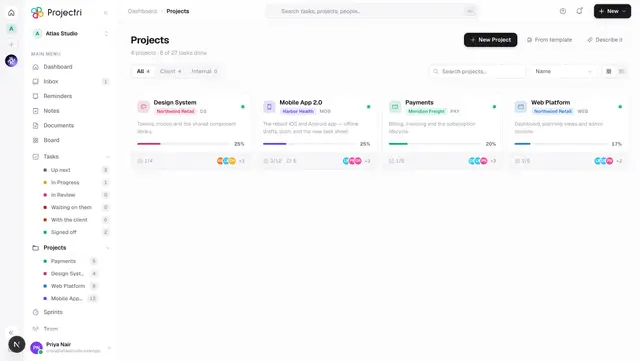
- Projects — the same tasks inside the project they belong to.
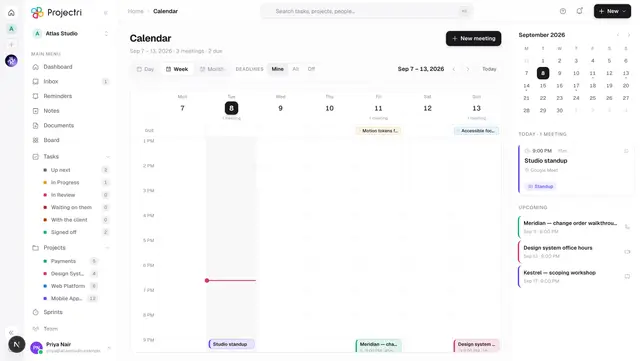
- Calendar — due dates and meetings on one grid.
- Keyboard shortcuts — the task keys, including creating and editing one.