Discussions
Channel chat for the workspace, with threads, reactions, pinned messages, files and voice notes, and optional end-to-end encryption per channel.
What it is
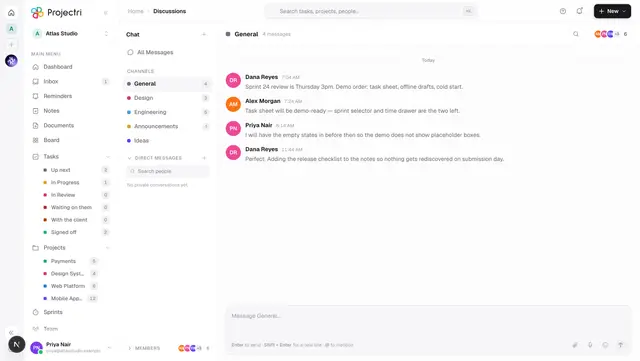
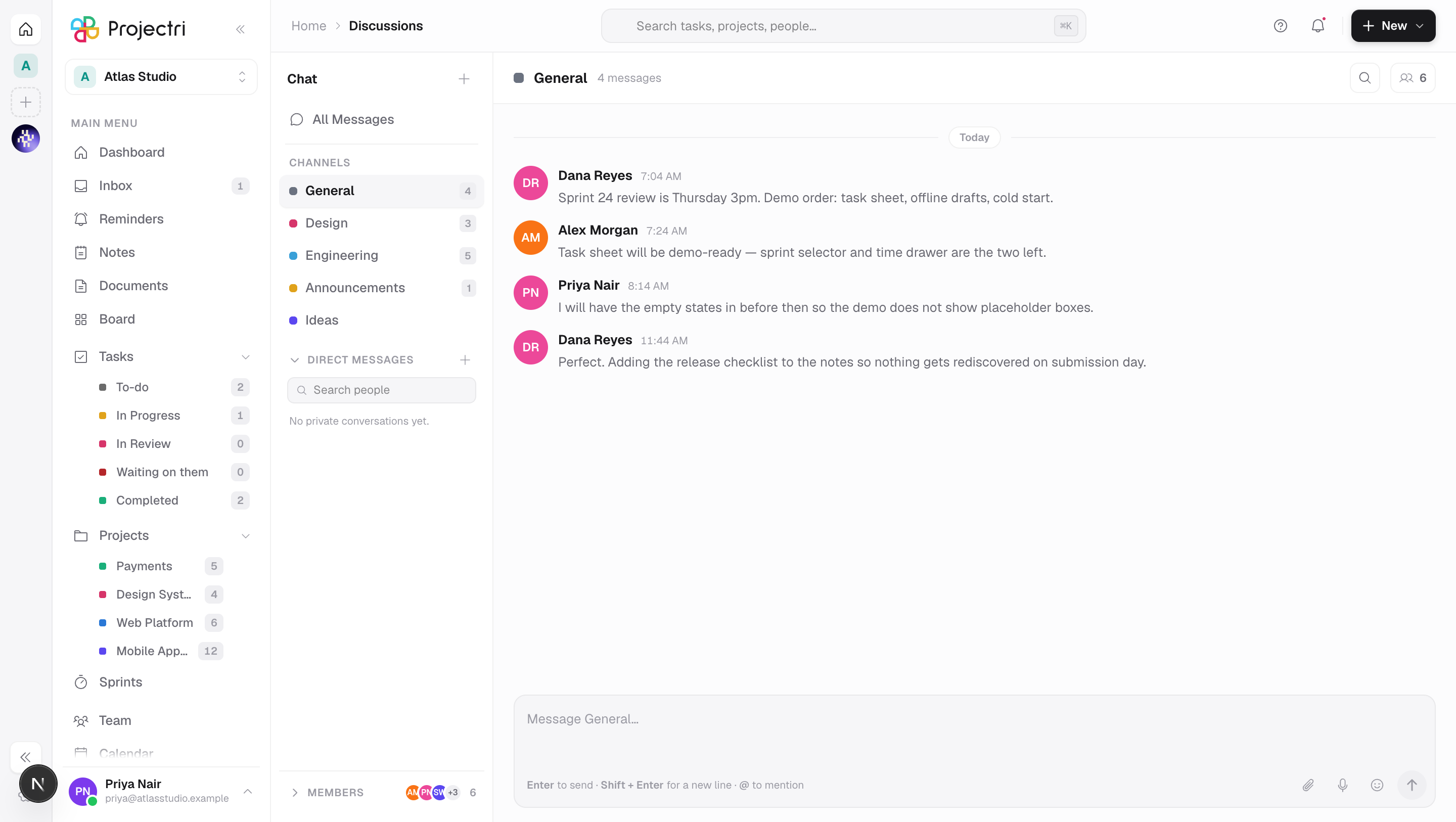
Discussions is the workspace's chat: a channel per topic, with replies in threads, reactions, pinned messages, file and voice attachments, and @ mentions that ring the person named. Private conversations live on the same screen, in a section under the channel list, so there is one place to look for anything anyone said to you.
How to get there
Discussions is in the main navigation. Everything on the page needs the discussion.view permission — without it the channel list and the feed return nothing. Sending a message, replying, reacting and attaching a file all need discussion.post. Creating, editing and deleting channels needs discussion.channel. There is no plan gate; discussions are available on every tier.
Direct messages are governed separately by dm.view — see Direct messages.
How to use it
Read a channel
- Pick a channel in the left rail, or All Messages at the top for every channel at once.
- The address bar becomes
/discussions/@<key>— that link is safe to paste and will open the same channel for anyone who can see it. - The channel is marked read while you are looking at it. Unread counts for the other channels refresh in the background.
Send a message
- Type in the box at the bottom.
@opens the people picker; the emoji button inserts one. - Attach files with the paperclip. A message carries at most 10 files, each at most 100 MB, and only document, image, audio and video types are accepted.
- Hold the microphone button to record a voice note. You can play it back and discard it before sending.
Reply in a thread
- Hover a message and choose Reply in thread, or open the message's menu.
- The thread opens in a panel on the right. Replies have their own reactions and do not appear in the main feed.
Pin, resolve, edit and delete
- Hover a message for the toolbar, or open its … menu.
- Pin puts it in the strip under the channel header. When more than one is pinned, clicking the strip walks through them one at a time; Unpin removes the one currently shown.
- Edit and Delete appear on your own messages. Deleting takes effect immediately with an Undo strip; the request is only sent after about six seconds, or as soon as you leave the channel.
- Copy link produces a permalink that scrolls the reader to that exact message rather than to the newest one.
Create a channel
- Press + at the top of the channel rail.
- Give it a name — the key is derived from it — plus an optional description and a colour.
- Choose Public channel (everyone in the workspace can join) or **Private channel** (only invited people can find and read it). A private channel asks you to invite people as you create it.
- Optionally turn on End-to-end encrypted. Read the warning below before you do; this cannot be turned off afterwards.
- Deleting a channel deletes every message in it, and asks first.
Search a channel
- Press the magnifying glass in the channel header.
- The box filters the messages on screen by their text, title, author name and attachment names.
What it affects
- Notifications and the bell. Posting notifies everyone who follows the channel, not only the people you named.
@mentions notify the person directly and deep-link to the exact message; a mention of yourself notifies you too, on purpose. The unread badge on the nav counts channels and private conversations together. - Push notifications. A channel message reaches the phone app, including when its whole content is a voice note or a file — the notification says what kind of attachment it was.
- Attachments count against storage. Every file uploaded to a message adds to the workspace's
storagemeter, the same one the billing page reports. An upload that would take the workspace over its plan's storage ceiling is refused. - Nia, search and exports. Ordinary channels are stored so that Nia can read and summarise them, search can index them, and exports include them. Encrypted channels are not. Nia cannot summarise an encrypted channel, it is absent from search and from exports, and no admin can recover it.
- Live updates. Channels are polled every four seconds, and every fifth pass re-reads the whole feed — which is what makes someone else's delete or unpin disappear from your screen without a refresh.
On mobile
The Chat tab in the Expo app lists channels and private conversations together, the same merge the web made. Tapping a channel opens its feed, and threads have their own screen. Search on the tab covers channel names, conversation titles and people — never message text, because an encrypted message body is unreadable on the device until that thread's key is loaded.
Limits and gotchas
- Search inside a channel only reads what your device has already been able to decrypt. There is no server-side message search, because the server holds ciphertext for encrypted channels.
- In an encrypted channel a message has no title — the composer does not offer one, and a title sent anyway is dropped rather than stored in the clear.
- A message you cannot open reads as *"Encrypted — this device does not have the key for this message."* That is an ordinary state for anyone who joined the channel late or is signed in on a new machine, not a fault.
- Two other encryption states appear as a strip above the composer. Waiting for a key means somebody else in the channel has to open Projectri before your device can be given one — the server holds no keys and cannot hand one over itself. This device is not approved will never resolve on its own; approve the device from one you are already signed in on.
- Deleting a channel deletes its messages with it. There is no undo for that, only for a single message inside the undo window.
Related
- A single channel — how
/@keylinks behave. - Direct messages — private conversations, and what encryption costs.
- Messaging and encryption — how keys and device approval work.
- Notifications — what a mention rings, and where.