Settings
Your own settings — profile, language and region, appearance, skills, notifications, work items, integrations, import, security, shortcuts and your data.
What it is
Settings is where you set up Projectri for yourself: who you are, what language and timezone you work in, how the app looks, what you are told about and how, and the security of your own account. A few tabs also hold workspace configuration, and those are gated.
How to get there
Your avatar at the bottom of the navigation opens a menu with My Profile, Preferences and Notifications, each landing on the matching tab. Ctrl/Cmd + , opens Settings from anywhere.
The tab lives in the address as ?tab=…, so a link to a specific tab works. The page itself needs no permission; individual tabs check their own:
- Work items needs
task.type_manageand says so rather than showing an empty editor. - Client portal needs
settings.domain.manage. - Import needs
import.viewto read jobs andimport.runto start one. - Workspace shows the roster to anyone; Invite member needs
user.invite, and renaming the workspace needssettings.manageand is done in the admin console. - Integrations shows the workspace's connected services to everybody; the link into the console appears only for administrators.
- Security links to the Security Centre only if you hold
security.policy.
How to use it
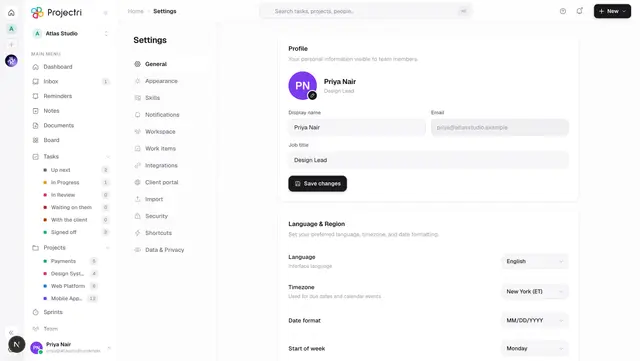
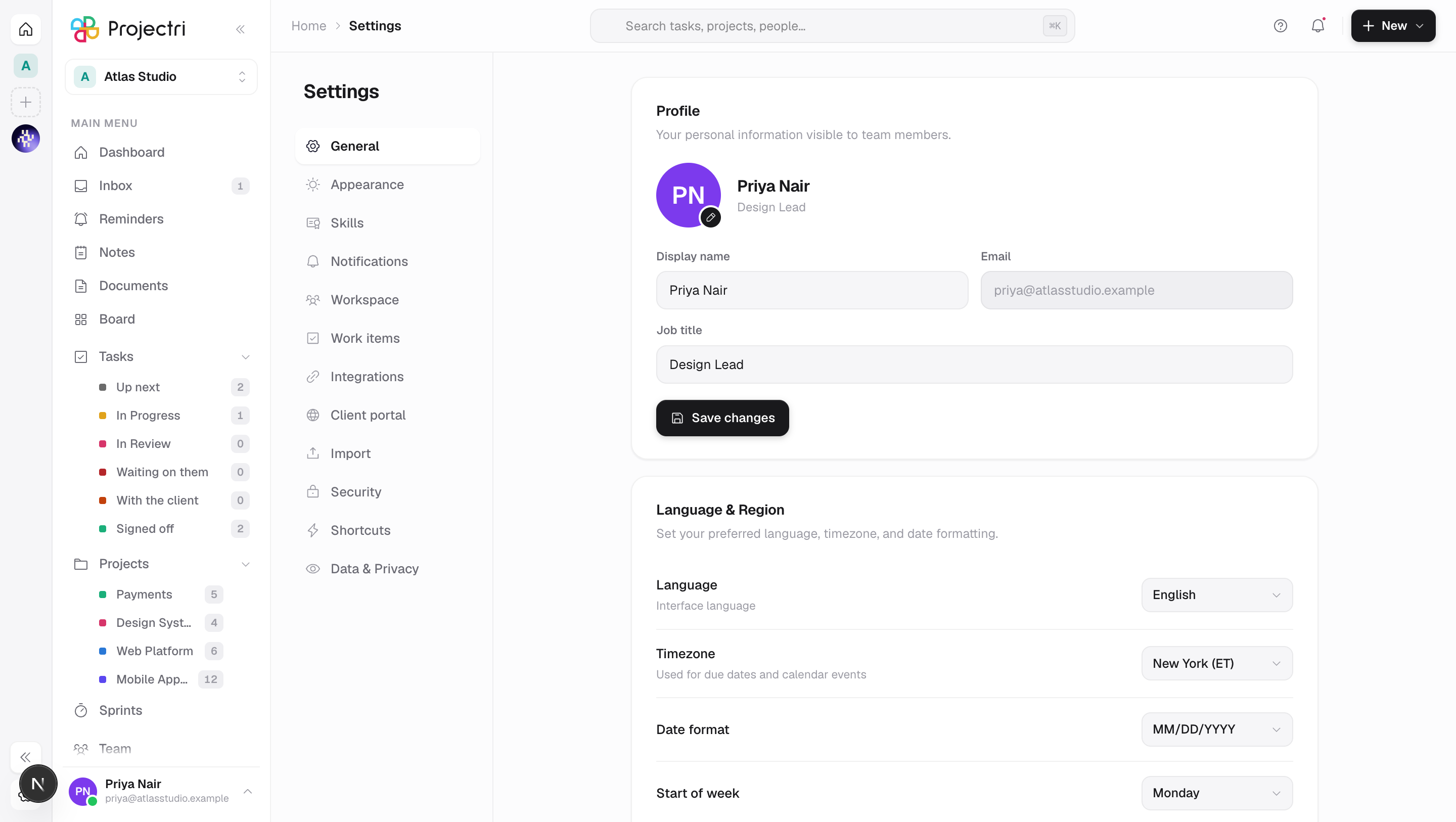
General — who you are, and where
- Profile holds your display name, job title and avatar. Your email address is shown and cannot be edited here.
- The pencil on the avatar opens the picker; a photo and a generated character are saved together.
- Language & Region sets the interface language, your timezone, the date format (
MM/DD/YYYY,DD/MM/YYYYorYYYY-MM-DD) and the first day of the week. - Both cards save under one Save changes button. Changing the language reloads the page in it, because the language is resolved on the server.
Appearance
- Theme is Light, Dark or System.
- Accent colour offers ten, starting at Charcoal.
- Display sets font size, which side the navigation sits on, compact mode and whether animations run.
- Pinned projects keeps chosen projects at the top of the navigation rail, in an order you set with the arrows. Up to twenty.
Skills
Your own skill sheet — what you can do, at what level. It feeds the resourcing screens. You can rate yourself; you cannot validate your own rating, so that control is not shown.
Notifications
- Delivery channels: email, push to your devices, and desktop notifications. Desktop needs the browser's own permission, which the toggle asks for; if the browser has blocked it, or cannot show notifications at all, the row says which.
- Activity triggers: mentions, task assignments, task completions, due-date reminders, the weekly digest and meeting reminders — each on or off.
- Sound & vibration: a sound for new notifications, and Read aloud, where Nia speaks them.
Workspace
The workspace name and URL, both read-only here, and the member roster. Renaming is done in the admin console; the URL cannot be changed from this screen at all.
Work items, Client portal, Import
Work items defines the task types this workspace uses. Client portal points your own hostname at the portal. Import brings work across from another tool. All three are workspace configuration reached from a personal screen, and each says so when you cannot use it.
Integrations
Calendar connects your own calendar accounts. Connected services lists what the workspace has connected once for everybody — those are an administrator's to change.
Security
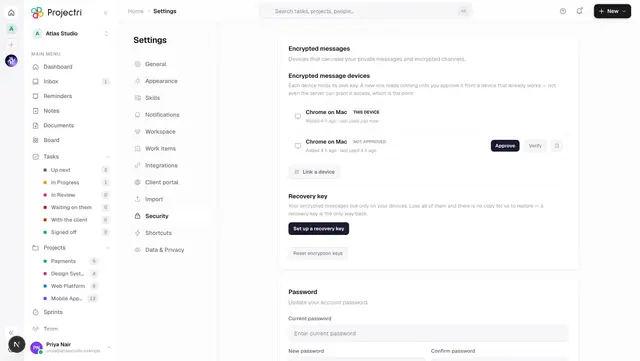
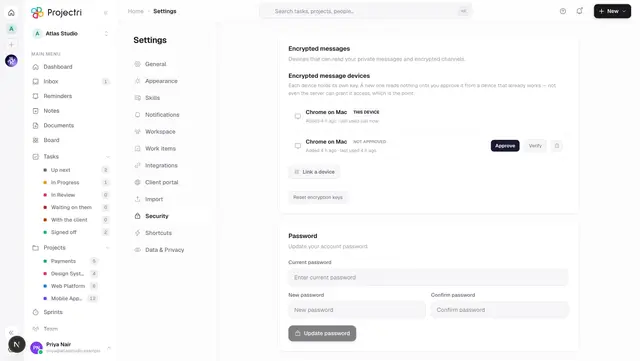
- Encrypted messages lists the devices allowed to read your encrypted conversations, and is where a new one is approved or removed.
- Password changes your password.
- Two-factor authentication enrols or removes a second factor.
- Sessions states that session length is a workspace policy, not your setting. Active sessions lists where you are signed in and lets you end one you do not recognise.
Shortcuts
Every keyboard shortcut, by category, with the modifier written for the platform you are on.
Data & Privacy
- Your data files a request for a copy of everything held about you, and later downloads it. It is a data-subject request with a statutory clock, not a file export.
- Privacy has two switches with real effects: Analytics, which controls whether your identity is attached to error reports, and Activity status, which controls whether colleagues see when you were last online.
- Legal re-opens the terms and privacy policy you agreed to.
- Request account closure starts the closure process, with an optional reason.
What it affects
- Timezone and date format reach everything. Due dates, meeting times, reminders and every timestamp in the product are rendered in them.
- Start of week changes how calendars, timesheets and weekly figures are cut.
- Activity status off stops your
lastSeenAtbeing shown — the presence dot on Team and in the phone app. - Turning a trigger off stops that kind of notification in the inbox, the bell, email and push together.
- Approving a device lets it decrypt your conversations from that point on. Removing one revokes it.
- Ending a session signs that browser or device out.
- Pinned projects change the order of the navigation rail for you only.
On mobile
The phone's Settings screen covers profile, appearance, notifications and signing out. Theme lives here rather than in a header toggle, with the same three modes as the web, including System.
Limits and gotchas
- The timezone list is a shortlist of named zones. Named zones carry their own daylight saving; a fixed offset would stop being true half the year.
- Language changes only take effect after the save round-trips — the page refreshes against what the server actually stored, which may not be what was picked if it was rejected.
- The workspace URL can only be changed while you are the only member of it.
- Twenty pinned projects is the ceiling; anything beyond it is dropped on save.
- Request account closure and the data-erasure request under Your data are separate things. Closing an account does not erase the data held about you.
Related
- Your profile — the name, title and avatar other people see.
- Two-factor authentication — enrolling and recovering a second factor.
- Linked devices — approving a device for encrypted messages.
- Notifications — what each trigger actually sends.
- Languages and locale — which languages exist and how dates are formatted.