Calendar
Day, week and month views of your meetings, with task deadlines and the busy time from any calendar you have connected drawn alongside them.
What it is
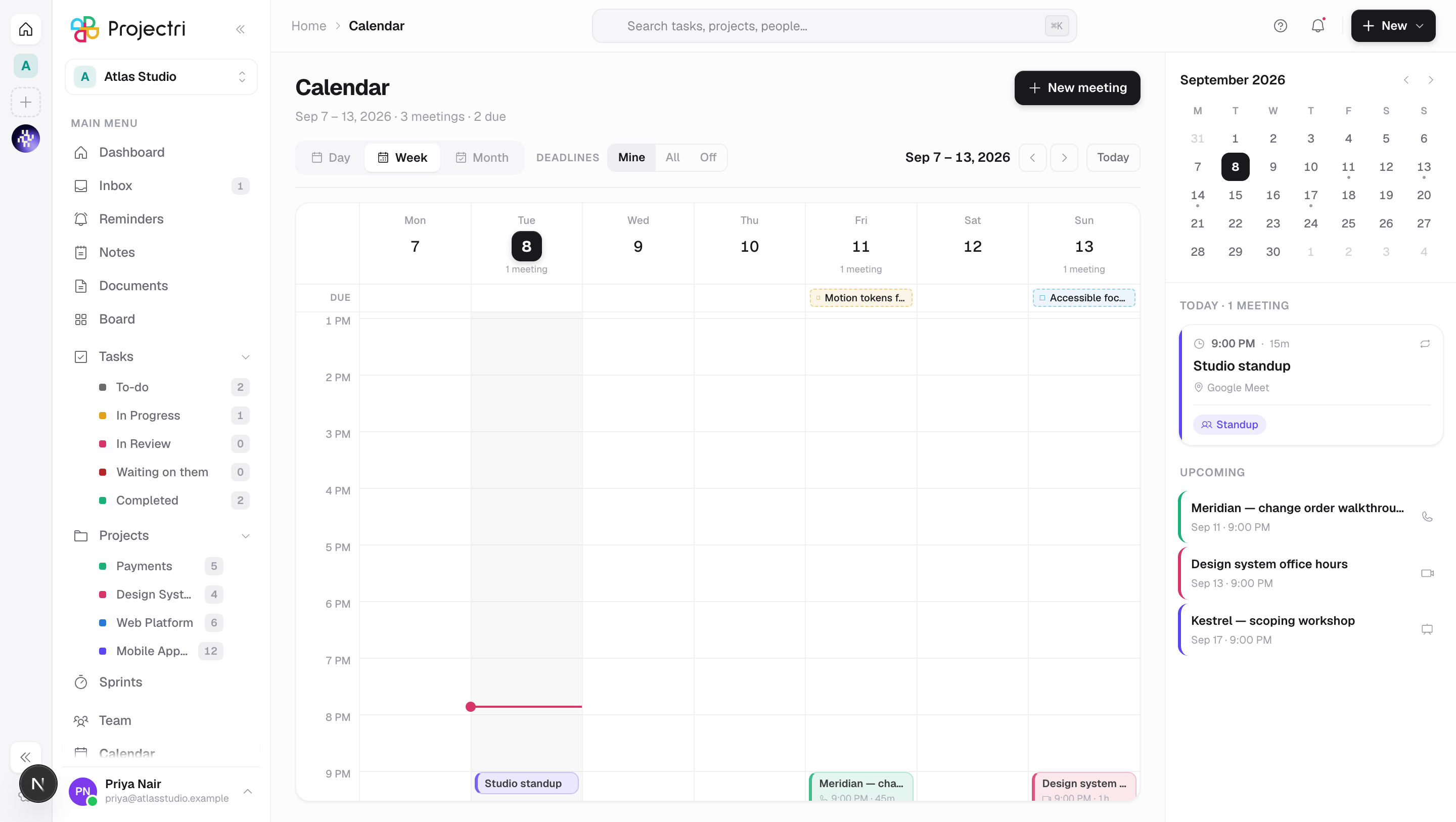
The calendar shows three things at once: the meetings scheduled in Projectri, the task deadlines that fall on each day, and the time already taken on an external calendar you have connected. It is where meetings are created, moved and joined, and where a meeting's notetaker is started.
How to get there
Calendar is in the main navigation. Reading it needs calendar.view; creating, editing, moving and deleting a meeting needs calendar.manage. The controls are drawn for everybody and the server is what refuses, so a member without calendar.manage will see the create dialog fail rather than not see the button. Task deadlines need task.view. There is no plan gate on the calendar itself.
How to use it
Move around
- Switch with the Day, Week and Month tabs. Your choice is remembered; the default is Week.
- Today returns to now; the arrows step by one day, one week or one month depending on the view.
- Day view has a second pair of buttons: Timeline (an hour grid you can drag on) and Agenda (a grouped list with full meeting detail, under Morning, Afternoon and Evening).
Schedule a meeting
- Press New meeting, or click an empty slot in the day or week grid — the dialog opens on the time you clicked.
- Fill in Title, then pick a Type — Video, Call, Room, Standup or Workshop.
- Set Date, Start and Duration. Durations are fixed choices from 15 minutes to 4 hours.
- Pick a Project, or leave it on No project.
- For an in-person meeting you get a Location field. For anything else you get Meeting link, with Nia Meet to have a room created for you or Paste a link for one you already have.
- Add Attendees — search the workspace roster and click to add; the count appears in the field label.
- Add a Description, tick Repeats regularly if it does, and press Schedule meeting.
If you choose Nia Meet and have no Nia Meet account yet, the dialog says so and one is created when you save; Nia Meet emails you a link to set a password. The room works before you claim it.
Move, shorten and cancel
- Drag a meeting block to move it. It snaps to 15 minutes, and in Week view you can drag it onto another day. A preview pill shows the new times.
- Drag the grip at the bottom edge to change the duration. The start stays put. The grip only appears when the block is tall enough to hold it.
- Open a meeting and press the trash button to delete it. There is no dialog — the button turns into a red Confirm you have to press a second time.
- The Cancel button is different: it marks the meeting cancelled rather than removing it. A cancelled meeting stays on the grid, struck through and faded, with a Cancelled pill.
Control which deadlines you see
The Deadlines group in the toolbar has three settings: Mine (only tasks assigned to you, the default), All (everyone's) and Off (meetings only). Deadlines are drawn in the all-day band labelled Due, never in an hour row — a task has a date, not a time, and putting it at 9am would invent one.
Record a meeting
Open the meeting and use the Meeting notes panel inside it. See Meeting notes for what recording does and what the room is told.
What it affects
- Meetings are workspace rows, not calendar entries. Editing a meeting replaces its whole attendee list, so anyone left out of a save loses their invitation.
- Attendees are notified, and a meeting with a Nia Meet room invites them into it. If Nia Meet has no account for somebody, the save still succeeds and tells you who was not invited — send them the join link yourself, and anyone holding it can walk in.
- Task deadlines are read, not written. Dragging a meeting never moves a task; the deadline layer is display only.
- Connected calendars. Busy blocks come from calendars you connected yourself, and the sidebar's Also showing list names each one. The connection is your own grant to your own calendar — it is not governed by a workspace permission, and nobody else can see or change it. What flows the other way, if you turned it on, is your meetings, task deadlines and milestone dates.
- The notetaker. Starting a recording from a meeting creates a meeting-notes session against that occurrence, and counts against the workspace's recorded meetings allowance.
On mobile
The phone app has a calendar screen, and it is an agenda rather than a grid: a month strip for orientation and a scrolling list for reading. It carries the same three layers — meetings, deadlines with the same Mine / All / Off switch, and external busy time — and the same notetaker panel. There is no drag-to-reschedule. Connecting an external calendar has its own screen on the phone; on the web that lives in settings rather than here.
Limits and gotchas
- Recurrence is a flag, not a rule. Repeats regularly stores a boolean and draws a repeat icon. There is no frequency, interval or end date, and no "this event or all events" choice — a drag or a delete affects the one row.
- Reminders are not set here. Nothing on this screen schedules a reminder.
- The meetings query returns at most 200 meetings for the window it loads, with no warning when it truncates. Task deadlines cap at 300 and external busy blocks at 500.
- A month cell shows three items and then
+N more; the all-day band shows three per day. - The first column of the week follows your personal start-of-week setting. It is display only — it does not change which days the workspace treats as working days, and capacity and utilisation are unaffected. Weekend shading is Saturday and Sunday regardless, so a Friday–Saturday working week is not reflected here.
- Times are drawn in your browser's local timezone, in 12-hour form, whatever your language is set to.
- An external calendar that failed to load fails silently. Only the meetings query shows an error panel, with a Retry button.
- Where an external event's title was not imported, the block reads Busy. That is what the other calendar sent, not something hidden from you here.
- There is no ICS import, export or subscription feed anywhere in the product.
- Holidays and leave are not shown on this screen, despite the
calendar.managepermission's description mentioning them.
Related
- Meeting notes — recording a meeting and reviewing what it proposed.
- My tasks — where the deadlines drawn here come from.
- Reminders — the thing that does nudge you.
- Integrations — connecting Google, Outlook or Nia Calendar.