Clients
The account record for every client and prospect — contacts, projects, contracts, meetings, portal logins and an activity trail, one client at a time.
What it is
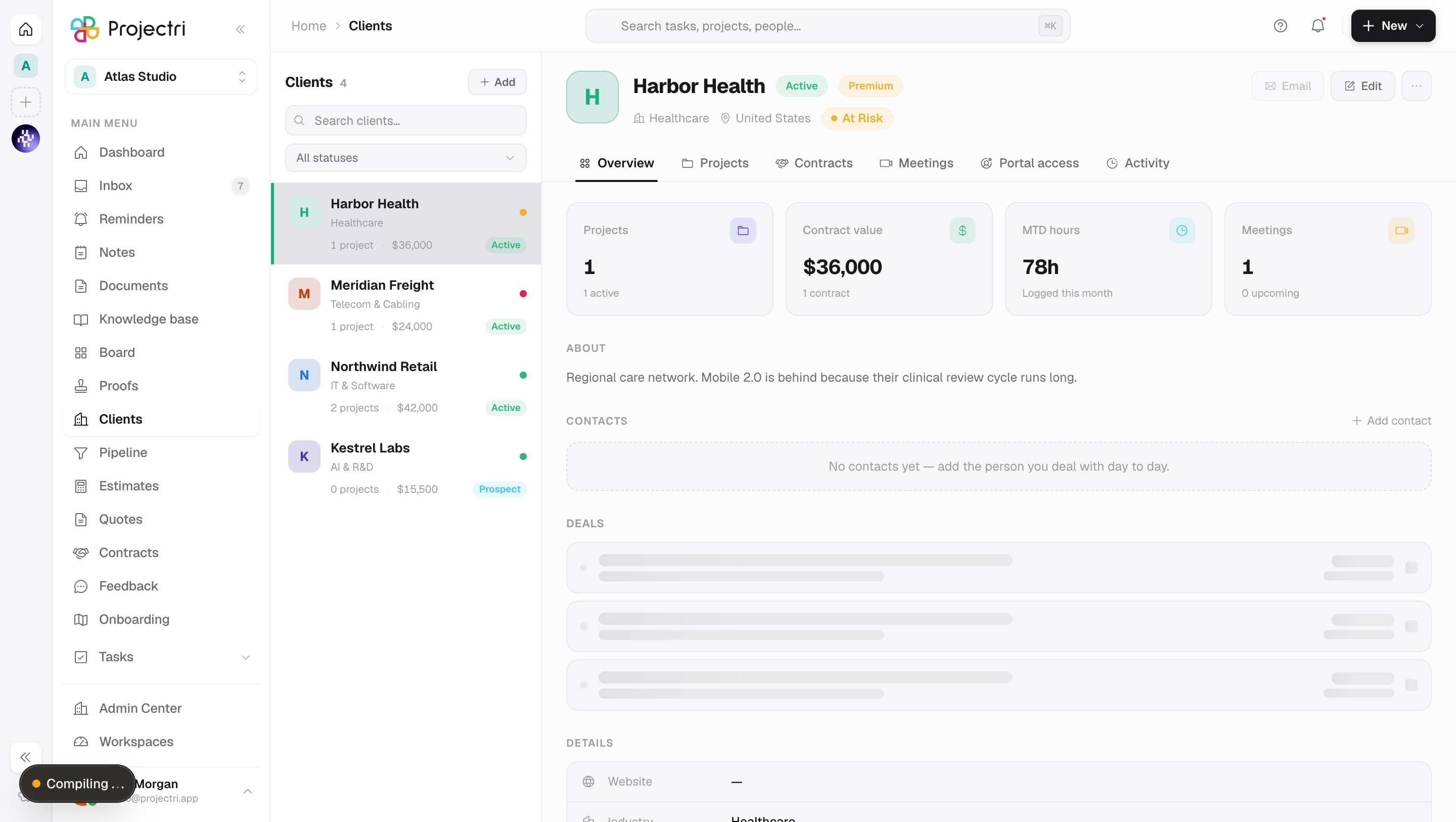
Clients is the account book. The left rail lists every client and prospect in the workspace; picking one opens a panel with six tabs covering who they are, what work is running for them, what they are contracted for, what meetings are booked, who at their end can sign in to the portal, and everything that has happened on the account.
How to get there
Clients is in the main navigation, and every read on the screen needs the client.view permission. That key is not granted to members by default — it is one of the optional view keys an administrator turns on per role at Admin → Permissions. Without it the page returns nothing.
Creating, editing, marking churned and deleting all need client.manage. Scheduling a meeting from the client needs calendar.manage. The Deals section on Overview needs opportunity.view and disappears entirely without it — a section header over an empty body would read as "this client has no deals", which is a different and wrong statement. There is no plan gate on the screen.
How to use it
Find a client
- Type in Search clients… at the top of the rail, or filter by status.
- Click a row. The address bar picks up
?client=<id>&clientTab=<tab>, so the link you copy reopens the same client on the same tab for anyone who can see it.
Add a client
- Press New client under the rail, or use the New menu in the app header and choose Client.
- Fill in Company name — it is the only required field. Description, Industry, Country, Region and Website describe them; Status, Tier and Health are how you file them.
- Currency and Credit terms are the commercial defaults an estimate picks up when this client is chosen.
- Account owner is the person the account belongs to.
- Tax number is checked against the country's expected format. A number that does not match is saved as typed with a warning beside it — the screen flags it, it never refuses it.
- Registered for tax in their own country is the switch reverse charge reads. A tax number on file is evidence of registration, not the same thing as the switch. When it is off, say why in Why they are not registered.
Keep the contact list
- On Overview, press Add contact.
- A contact carries a name, role, email address and phone number, and one of them can be marked Primary — the address the client header's Email button opens.
- These are people you deal with. They are not logins. Giving somebody access to the portal is a separate act on the Portal access tab.
Give someone at the client a portal login
- Open the Portal access tab.
- Invite the person by address and role. What is listed here is logins, kept deliberately far from the Overview address book so nobody grants access to a name they only meant to write down.
- Suspend is the reversible control and is offered first. Remove is a hard delete — their tickets survive it, but their name comes off their own words.
Read the account
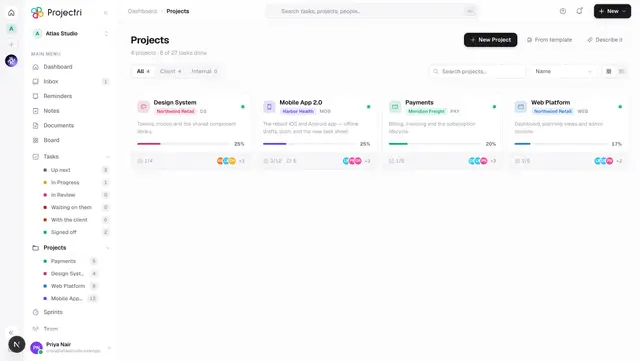
- Projects lists the client's projects with task progress and the next milestone.
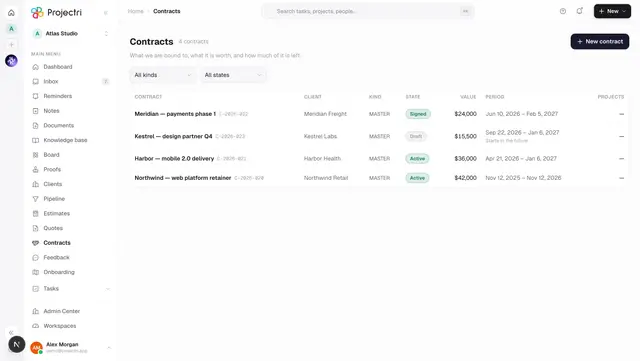
- Contracts lists each contract with its value, billing type, period and AMC terms, and prints "X active · Y total" above them.
- Meetings lists what is booked; Schedule meeting in the … menu adds one.
- Activity is the account timeline — projects, contracts, milestones, meetings, completed work and contact changes, newest first.
Close an account
- Open the … menu beside the client name.
- Mark as churned sets the status and leaves everything else intact. It is the reversible one.
- Delete client removes the record permanently and asks first. It is refused with a conflict while any project or contract is still linked to the client — unlink or delete those first.
What it affects
- Estimates and quotes. The client's Currency is what a new estimate is denominated in; the estimate dialog offers no currency picker precisely so that a firm in one country does not quote another's currency by accident. The client also becomes the quote's recipient and the contract's counterparty.
- The contract value figure. The Contract value card and the Contracts tab subtotal are in the workspace's reporting currency, not the client's. A client holding contracts in two currencies was otherwise reported as a sum of both wearing one symbol. A signed contract contributes its frozen base value; an unsigned one is converted at today's rate.
- Tax treatment. The registration switch and the tax number feed the tax rules that decide reverse charge on this client's invoices.
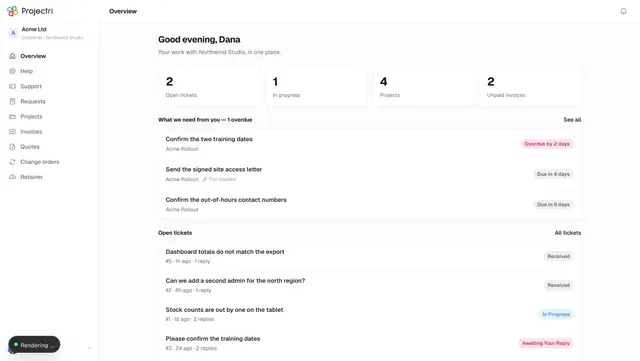
- The client portal. Every login on the Portal access tab is a person who can sign in at the portal and see this client's projects, tickets, quotes and invoices.
- The pipeline. Open and closed deals for the account appear on Overview, and a deal can name an existing client or a prospect that is not one yet.
- MTD hours. The month-to-date figure counts logged time across every project belonging to this client.
On mobile
The Clients tab in the Expo app carries the reading half — who they are, how healthy the relationship is, and how much work is live. Contracts, credit terms, the contact matrix and portal access stay on the web, where there is room to edit them.
Limits and gotchas
- The contract-value total silently omits any currency with no exchange rate on file, and says so: *"No exchange rate for GBP, EUR — the total leaves them out."* That is a missing rate in Admin → Finance, not a client with no contracts.
- A tax number in the wrong format is stored anyway. The warning names the expected shape; check it against the client's certificate rather than trusting the absence of an error.
- Portal access and the Overview contact list are two different records. Editing a contact's email address does not change the address that person signs in with.
client.viewis off by default for members. A colleague who says the Clients row is missing from their navigation needs the key granted, not a bug report.
Related
- Contracts — the register of what each client agreed to.
- Pipeline — the open deals that appear on the account.
- Projects — the delivery side of the same accounts.
- Client portal — what the logins on the Portal access tab reach.