Client portal
A request
One thing the team needs from you — the instructions, the files you send, a place to ask a question, and the button that marks it done.
What it is
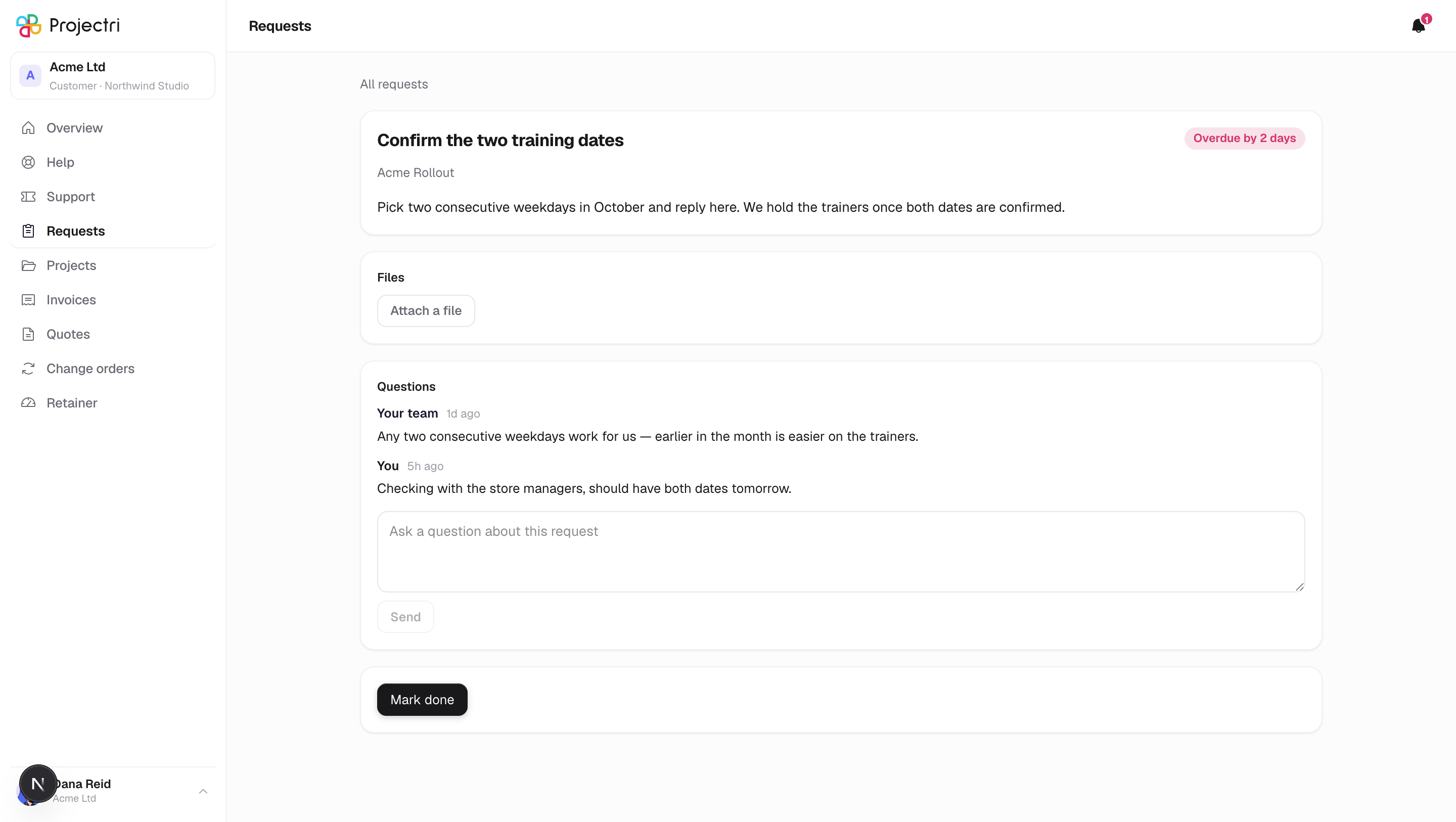
One request, opened. It has the instructions written for you, a due-date pill, a files area, a short question-and-answer thread, and — last on the page — the button that marks it done.
There is no status, no priority and no assignee here. It is a request, not a project management tool.
How to get there
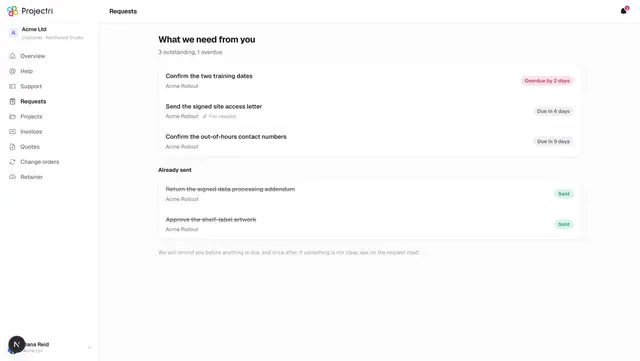
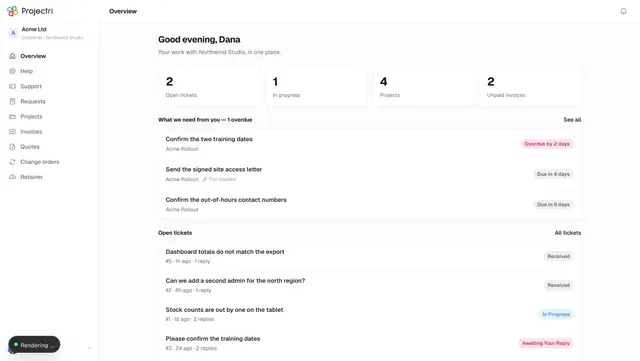
Requests in the sidebar, then the row. The Overview screen and any reminder about the request link here directly.
How to use it
Send us a file
- Press Attach a file.
- Pick one or more. Each is uploaded as you choose it; they appear as chips above the button.
- At most 10 files per request, each up to 100 MB. Documents, images, audio and video are accepted; anything else is refused by name with the reason.
- Click a chip to open what you sent.
Ask a question
- Type in the box under Questions.
- Press Send. Your name appears on it; replies from the other side are attributed to the person who wrote them.
- This is a short exchange about the request, not a support ticket. If the thing you need is bigger than a question, raise a ticket instead.
Mark it done
- Press Mark done at the bottom.
- If the request needs a file and you have not attached one, the button is disabled and says why, next to it. Attach the file and it becomes available.
- Pressing it twice is safe — the second press does not restate the completion date.
- Afterwards the request says when you sent it and moves to Already sent on the list.
What it affects
- The delivery team is notified when you complete a request, when you upload a file, and when you ask a question.
- Reminders stop. A completed request drops out of the nudge schedule and out of the outstanding count on Overview.
- Your name goes on the record. A request is assigned to one contact, so completing it is attributable — a colleague cannot complete it on your behalf.
On mobile
The phone app has the same screen, opened from the requests card on the Overview tab.
Limits and gotchas
- A view-only contact sees the request and its files, and gets no upload box, no comment box and no Mark done button, each with the reason stated rather than the control quietly missing.
- Once a request is complete you cannot add files to it. Reopening is not something the portal can do.
- Files are uploaded one at a time, so a large batch takes a moment; the ten-file ceiling is checked on every upload.
- File storage has to be configured on your supplier's side. If it is not, an upload fails rather than silently doing nothing.
Related
- Requests — the list and its reminder schedule.
- Support tickets — for anything that needs a conversation.