One task stage
Everything sitting in a single stage — Backlog, To-do, In Progress, In Review, Completed or one your workspace invented — with grouping, sorting and bulk edits.
What it is
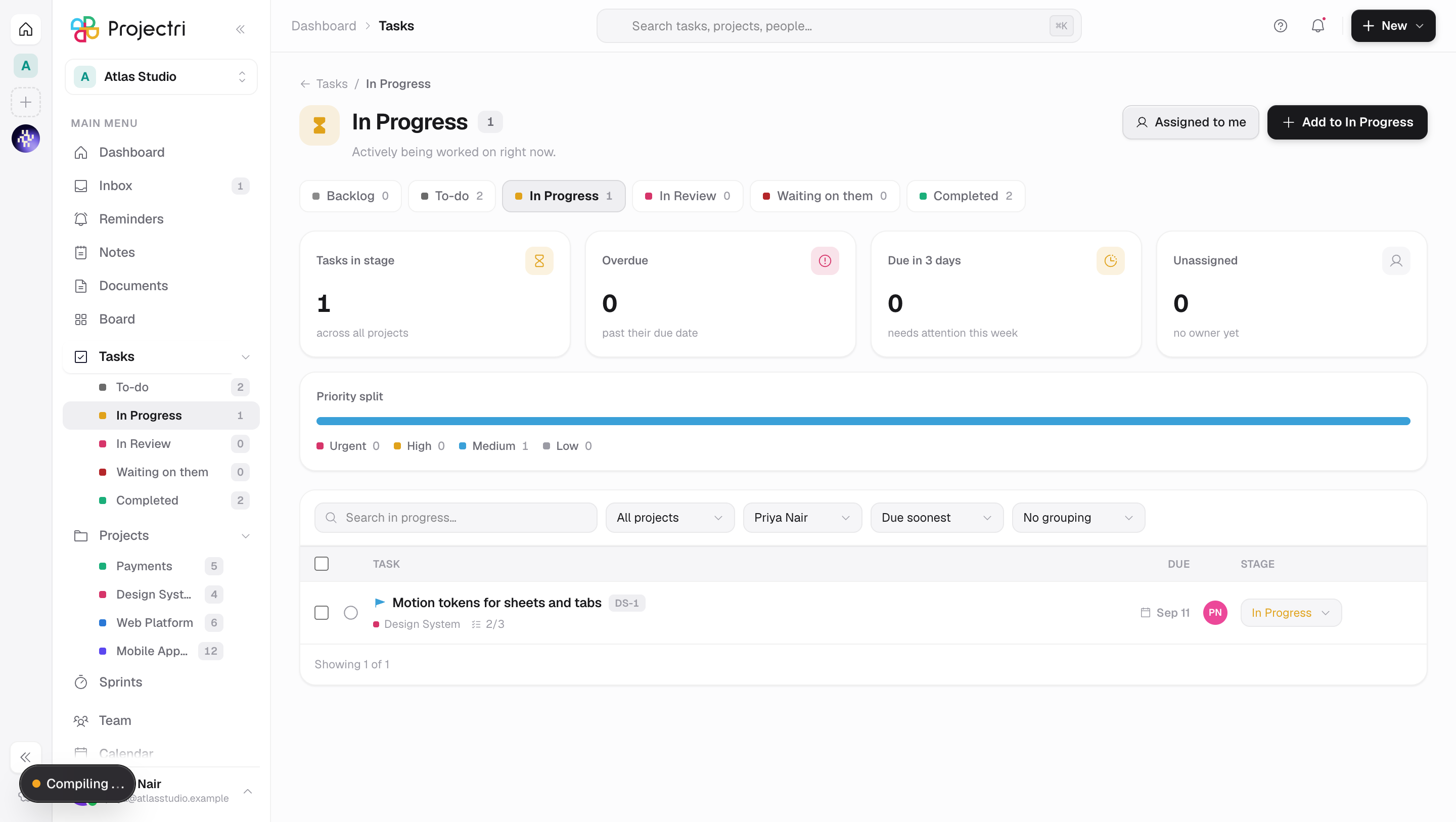
A stage page is one column of the board, given a whole screen. It shows how much is in that stage, how much of it is overdue, unassigned or high-stakes, and then the rows themselves — sortable, groupable, and editable in bulk.
How to get there
Expand Tasks in the main navigation and pick a stage, or click through from the board. The address reads like the stage: /my-tasks/in-progress, /my-tasks/in-review, /my-tasks/completed.
The built-in stages are Backlog, To-do, In Progress, In Review and Completed. A stage your workspace has created of its own has a page here too, under its own slug. The screen needs task.view.
The page opens filtered to you. A stage slug that does not exist says so and offers a way back rather than rendering an empty stage.
How to use it
Read the numbers
- The badge beside the title is the total in this stage under the current filters.
- The tiles are Tasks in stage, Overdue, Due in 3 days and Unassigned. On Completed the middle two become Unassigned — closed without an owner — and Urgent + high, since nothing closed can be overdue.
- Unassigned is also a filter: click the tile to show only those, click again to clear.
- The Priority split bar underneath is a filter too — each band narrows to that priority.
Move between stages
- The chips under the header switch stage and carry that stage's count under the same filters, so the chip you are on agrees with the badge above.
- A stage an administrator has disabled drops out of the strip — except the one you are standing on, which stays visible if you arrived by URL.
Narrow, sort and group
- The toolbar holds a search box, a project filter, an assignee filter (Anyone, Unassigned, or a person), a sort and a grouping.
- Sort by due soonest, due latest, priority, recently updated, newest or A–Z.
- Group by priority, assignee, project or due date. Grouping runs over the rows already loaded, and the footer says so.
- Assigned to me in the header toggles between you and everyone. "Assigned to me" is the resting state, so it does not light up Clear.
Edit several at once
- Tick rows, or the box in the column header to take everything loaded. Shift-clicking extends the selection from the last row you picked, like a file list.
- The bar that appears at the bottom offers Move to…, Assign to… — including Unassign — and Delete.
- Delete asks once, by turning into "Delete n?", and arms against that exact selection size: changing the selection disarms it.
- Only the rows the server actually changed are deselected. Anything refused stays lit, and a line in the bar says what happened.
- A bulk delete raises one undo offer for the whole batch, not one per task.
What it affects
- A bulk move is the same write as dragging each card. Every count, board and panel that reads status follows it.
- A bulk delete is a soft archive, the same as deleting one task: the rows leave every list and their comments and attachments go with them.
- A bulk assignment notifies the new assignee for each task that moved, the same as assigning one by hand.
- Reassignment is a separate permission from editing. A seat that may fix its own tasks is not thereby allowed to push them onto a colleague.
- A task moved out of the stage stays on screen, marked moved, until the next reload. Yanking a row out from under a click is worse than the staleness.
On mobile
There is no separate stage screen on the phone. The My Tasks tab covers the same ground with a chip strip for stage, a sheet for grouping and swipes for row actions.
Limits and gotchas
- Rows load thirty at a time. Load at the bottom fetches the next page, and the footer says how many of the total are on screen.
- Grouping and the group counts describe the loaded rows only; the badge beside the title describes the whole stage.
- A live correction from a colleague re-reads the list without clearing a bulk selection you are halfway through building.
- Several columns can share one underlying status — a workspace's "Client review" and the built-in "In Review" are both in review — so a task can move between two stages that look the same in a report and different here.
Related
- My Tasks — all stages at once, as a board, table or timeline.
- Projects — the same tasks grouped by the work they belong to.
- Core concepts — what a stage is and how it relates to status.