Workspaces
The containers projects live in, and what kind of place each one is — the type sets what a new project inherits and whether customers may be let in at all.

What it is
A workspace is the container projects sit in. Each one has a type, and the type is the whole point of this screen: until it existed, a support desk and a scrum team were the same object with a different name.
There are seven types: Agile development, Customer implementation, Product support, AMC support, Consulting, Internal operations and Client collaboration.
How to get there
Admin → Work → Workspaces. The console needs the ADMIN role. Reading the list is project.view; creating, renaming, re-typing and deleting are all settings.manage.
How to use it
Create a workspace
- Type a name in the New row, e.g. AMC Desk.
- Pick a type. The sentence under the row describes the one you have selected.
- Press Create.
- The URL slug is derived from the name, and a collision is resolved by appending a number rather than refused — two workspaces called "Support" is a reasonable thing to want.
Rename one
- Press Rename on the row, edit in place, then Save (or press Enter).
Change a type
- Use the type picker on the row. The change saves immediately.
- The row then redescribes itself: the project count, the view it opens on, and the badges it carries.
Delete one
- Delete is only enabled on a workspace with no projects. The tooltip on a disabled button says how many are in the way.
- It asks for confirmation before deleting.
Read a row
Each row carries its project count, the layout its projects open on (board, list, table, calendar or timeline), and up to three badges:
- Support — the ticket queue and SLAs belong to this kind of workspace.
- Billable — hours logged against a new project here are billed by default.
- Internal only — this workspace is not customer-facing. Only this one is badged, because most workspaces can be shown to a client and marking those would be a badge on nearly every row saying nothing.
What it affects
- What the next project inherits. The type sets the view a new project opens on and whether its hours are billable by default. Both are applied when the project is created and are then the project's own — editing either later is a project setting, not a workspace one.
- One hard line. A workspace that is not customer-facing cannot have a customer granted access to its projects. That is a refusal, not a default — the reason the flag exists is the HR workspace that must never be one careless grant away from an external login.
- The support desk. Whether tickets and SLAs are offered at all follows the type's support flag.
- Nothing existing is rewritten. Changing the type re-labels the workspace and changes what the next project inherits. It does not migrate stages, move tickets, rewrite a board a team has been running for a year, or revoke a customer grant that is already live.
On mobile
The Workspaces screen in the app's Admin hub lists the same rows, grouped by kind rather than flat — a phone reading nine rows down a column benefits from the grouping a wide table gets for free from its type column. The same picker, the same badges, and the same note about what a type change does not do.
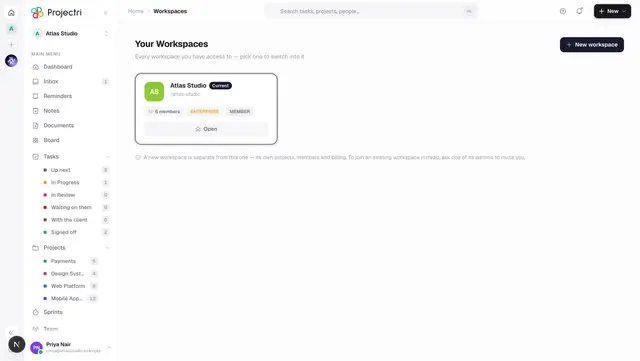
It is deliberately not the workspace switcher: the switcher answers "where may I go", this answers "what exists here and how big is it". A member of one workspace may still need to know the organisation runs nine.
Limits and gotchas
- A workspace with projects in it cannot be deleted. Cascading would take every project, task, worklog and invoice line with it — a destructive act disguised as tidying up a list. Move or delete the projects first.
- Project stages are configured per company under Workflow, not per workspace type. The type does not carry its own stage list.
- Workspaces are also created implicitly by the first project that needs one, so the list may contain rows nobody made here on purpose.
- A workspace whose type is no longer in the catalogue still appears in the list; it is not hidden behind a data-migration detail.
Related
- Admin console — where this sits in the console.
- Projects — what a workspace contains.
- Switching workspaces — the member-facing switcher.
- Client portal — the surface the customer-facing flag governs.