Your dashboard
The home screen — your own task counts, a briefing Nia writes from your work, today's meetings, the priority queue, the month, your sprint, team load and recent activity.
What it is
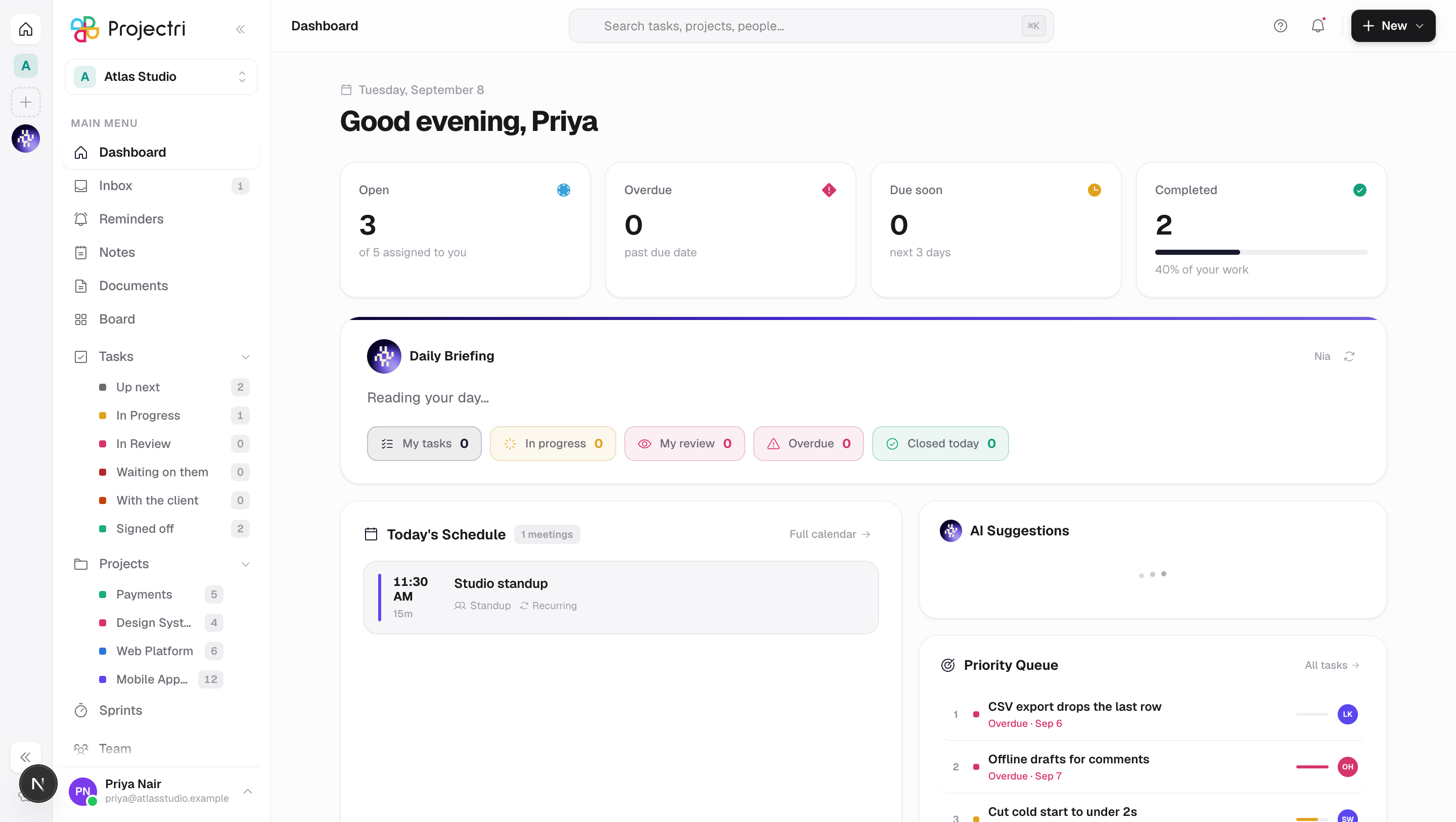
The dashboard is what Projectri opens on. It answers one question — what is on you today — with your own numbers, a short written briefing, your meetings, the four things most worth doing next, and what your colleagues have just changed.
Almost everything on it is personal. The tiles at the top count work assigned to you, not the workspace, and the briefing under them is written from your rows rather than the company's.
How to get there
Dashboard is the first row in the main navigation, and the workspace's own address (/<workspace>/<you>) lands here. The row and the data behind it need the dashboard.view permission; without it the row is absent and /api/dashboard returns nothing. There is no plan gate.
Anything on the page that names a specific piece of work — the priority queue, the sprint checklist — is narrowed to projects you are a member of. Holding project.view_all widens that to the whole workspace.
How to use it
Read the briefing
- The card under the tiles is written server-side from your tasks, reviews, calendar and inbox.
- The label on its right says where the sentence came from: Written by Nia when the model wrote it, From your workspace when it was assembled from the same facts without one.
- The rows beneath the sentence are real records. Clicking one opens that task, the calendar, the inbox or the demand forecast, depending on what it is about.
- The pills at the bottom are counts: My tasks, In progress, **My review, Overdue and Closed today**.
- The circular arrow rewrites it. A briefing is otherwise kept for about ten minutes before it is written again; the facts under it are re-read on every load either way.
Work the priority queue
- Priority Queue lists up to four items, each overdue or due soon, numbered in the order to take them.
- Clicking one opens the task panel over My Tasks.
- All tasks goes to My Tasks for the rest.
Tick off sprint work
- The Sprint panel shows the ring for the active cycle and a checklist under it.
- Ticking an item marks that task done straight away. Un-ticking returns it to the stage it was in before, not to To-do.
Read today's schedule
- Today's Schedule lists your meetings with their time, length, type and attendees. A meeting in progress is marked Live.
- A block from a calendar you connected — Nia Calendar, Google or Outlook — is drawn with a dashed border and does not open: there is nothing of ours behind it. Hovering names the calendar and the account it came from.
- Tomorrow's first two appear under a dashed rule beneath.
Read the month
- The mini calendar draws the current month, Monday first.
- A solid dot marks a day with a meeting on it. A hollow ring marks a day something of yours is due. Both can appear on the same day.
- The arrow opens the full Calendar.
What it affects
- Ticking a sprint item writes to the task. It is the same change as moving the task to Completed from anywhere else — the board, the panel and every count that reads status move with it.
- The tiles and the briefing pills can disagree with a colleague's. They are both scoped to the reader. Two people on the same project see different numbers on purpose.
- Overdue counts from the start of today, not from this instant. Due dates are stored at local midnight, so a task due today is due, not late.
- Due soon means the next three days.
- The activity rail is live. It re-reads itself when someone — or an agent, or Nia acting for someone — changes a task or leaves a comment, so it moves while you are looking at it. An agent's row carries its full name and mark; a person's shows their first name. A row Nia wrote names the person who asked underneath.
On mobile
The Home tab in the phone app is the same page in reading order: the same four tiles as a strip, the briefing, today's schedule with tomorrow's preview, the suggestions, the priority queue, the month, the sprint, team load and the activity timeline. The + opens a shortcut sheet — a task, a reminder, or asking Nia for one in words.
Limits and gotchas
- The priority queue holds four rows and the activity rail five. Neither is a complete list; both are a window onto a longer one.
- The briefing's numbers come from their own queries, not from the rows on screen, so a count can legitimately be larger than the list under it.
- If the briefing cannot be assembled the card says so and the rest of the dashboard still loads.
- The tiles read your work. On a workspace where you are assigned nothing they are correctly all zero, however busy the workspace is.
Related
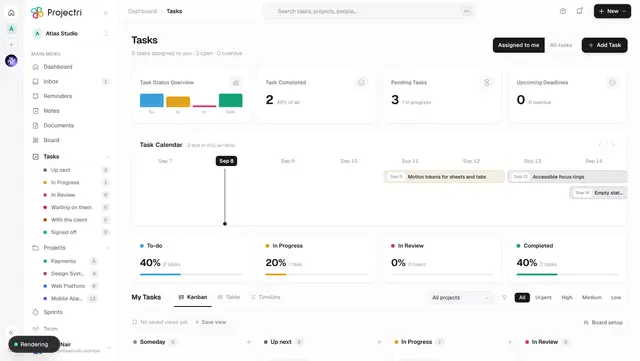
- My Tasks — the full list behind the priority queue.
- Inbox — what was sent to you, rather than what is due.
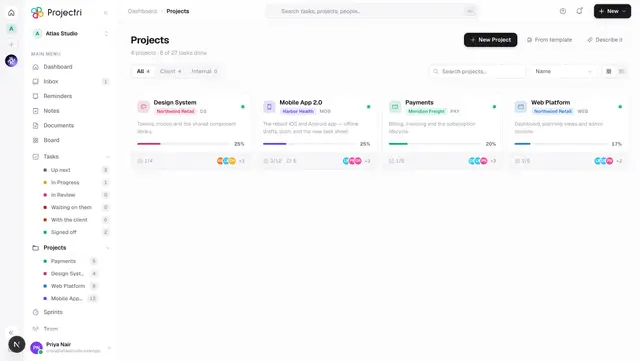
- Projects — the work the dashboard is summarising.
- Nia, the assistant — who writes the briefing and what she can see.