Client portal
Forgotten password
Ask for a reset link. The confirmation is always the same, the link lasts an hour, and requesting one ends every session you have open.
What it is
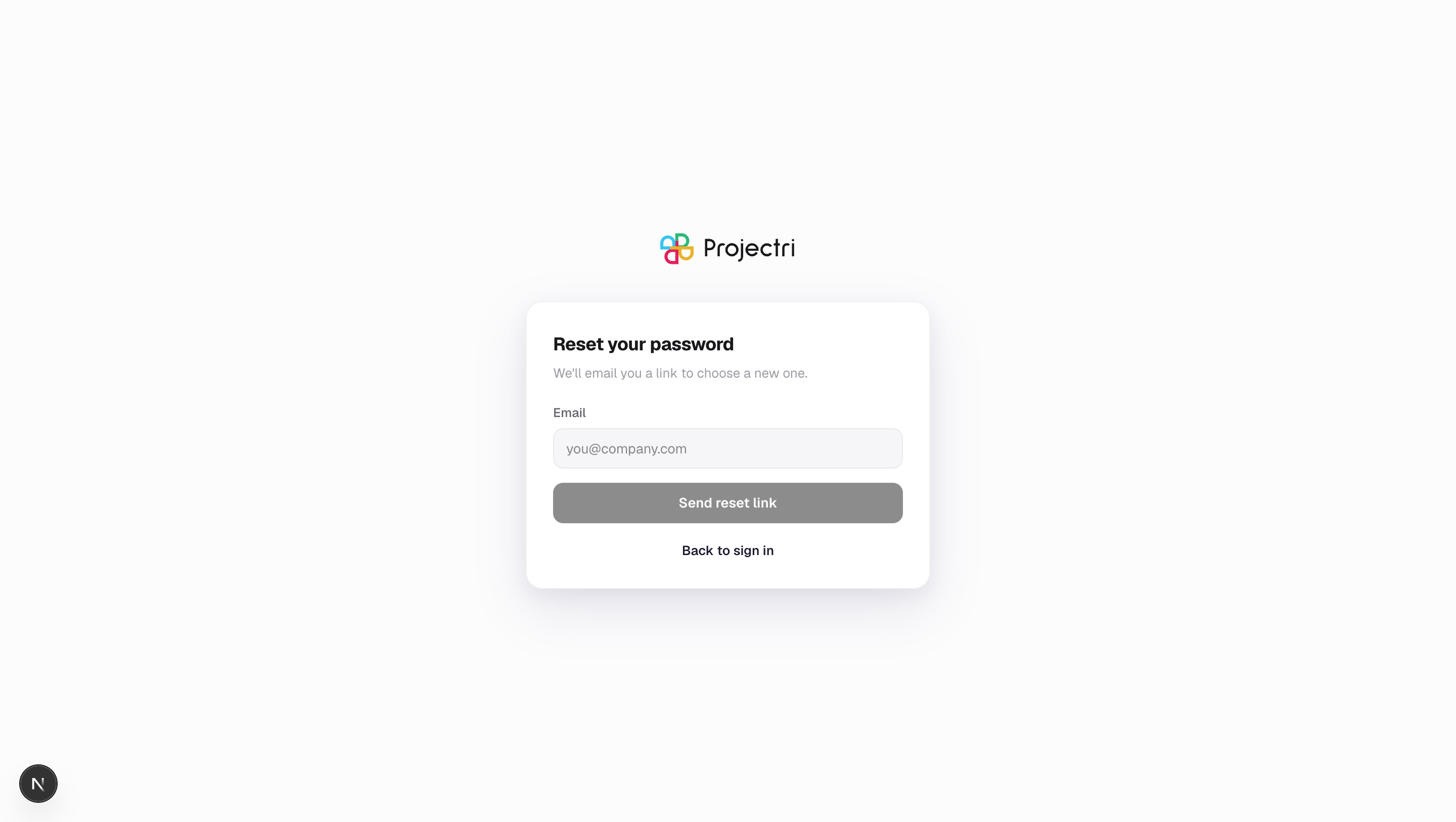
A single field that asks for your email address and sends a link to choose a new password.
How to get there
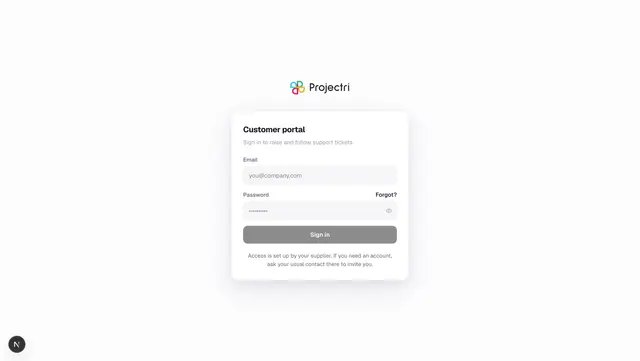
Forgot? next to the password field on the portal sign-in screen, or /portal/forgot-password directly.
How to use it
Ask for a link
- Enter your address.
- Press Send reset link.
- You are shown a confirmation naming the address and how long the link lasts.
Use the link
- Open the email and follow the link. It takes you to the password screen.
- The link lasts one hour and works once.
- Choose a password of at least 10 characters, confirm it, and you are signed in.
What it affects
- Every session you have open ends the moment the reset is requested — not when the link is used. If you asked for a reset because you think somebody else is in the account, they are signed out immediately rather than an hour later.
- Your old password stops working once you set a new one.
- A reset link is the same mechanism as an invitation link, with a shorter life.
On mobile
The phone app has the same screen, reached from its sign-in page.
Limits and gotchas
- A suspended contact receives nothing, and sees the same confirmation.
- The request is throttled on the same budget as sign-in, so hammering it does not produce more mail.
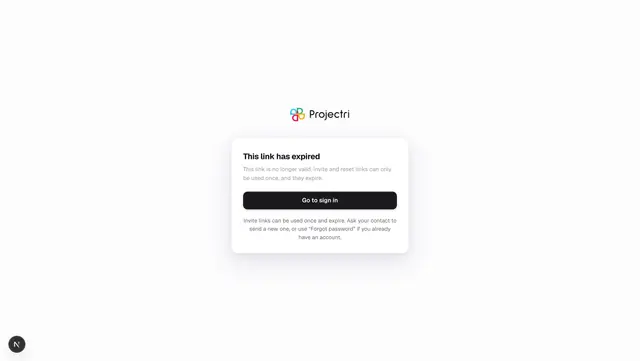
- The link is single-use. Following it twice fails.
Related
- Signing in — the login screen and its messages.
- Setting your password — the screen the link opens.