Accepting an invitation
What the join link does, why it insists on the address it was sent to, and what happens the moment you accept.
What it is
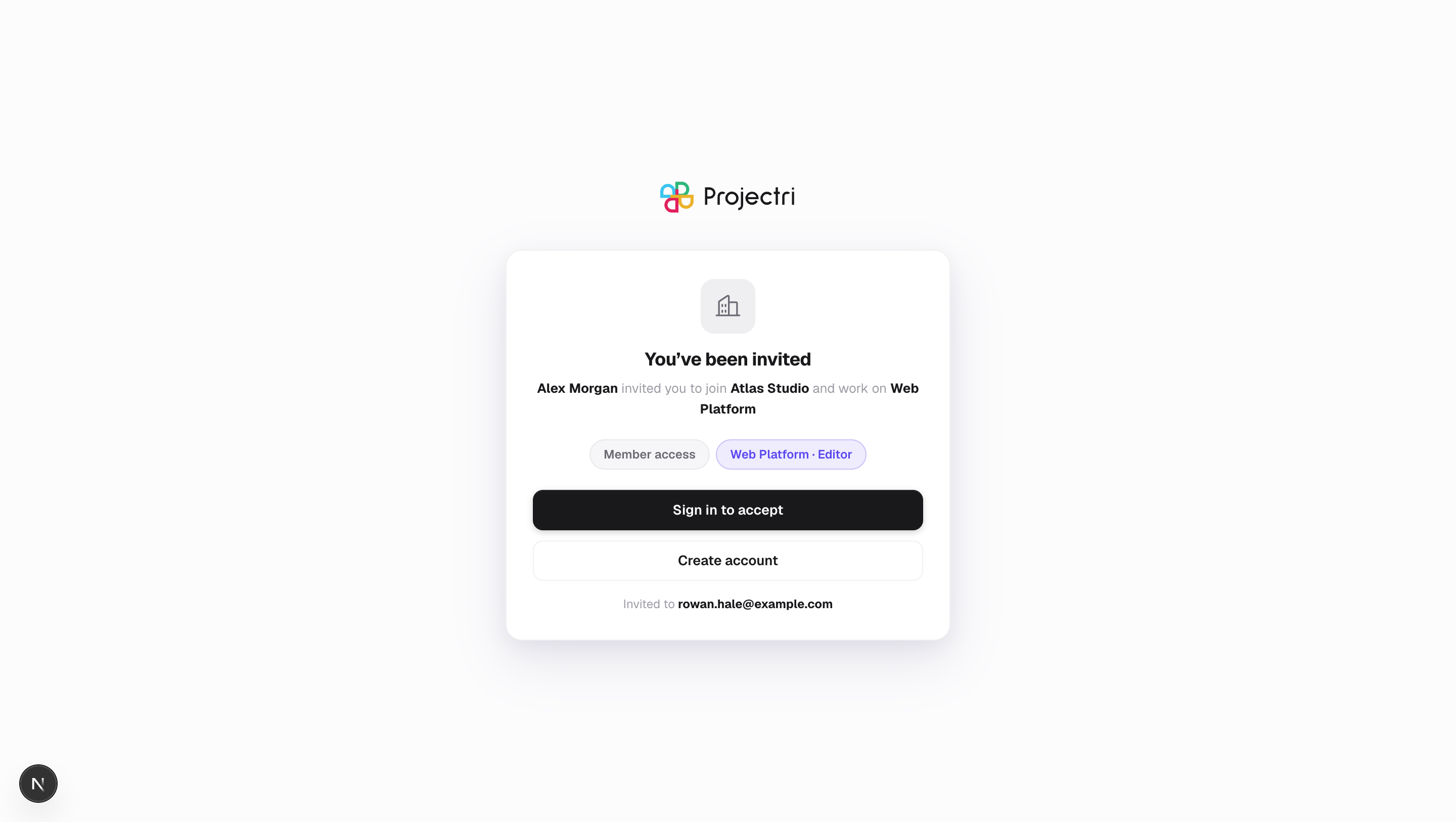
An invitation email carries a link to /join/<token>. The page shows which workspace is asking, who asked, what role you would get, and — if the invitation also puts you on a project — which project and with what project role. One button accepts it.
How to get there
Open the link in the invitation email. The page itself is public: it renders before anyone has signed in, because you need to see which workspace is asking before deciding whether to create an account. It shows nothing the invitation email did not already tell you.
How to use it
Accept when you already have an account
- Open the link. If you are signed in as the invited address, the page shows your account in a strip with Accept invite beneath it.
- Press Accept invite. You become a member, your session is switched to the new workspace, and you land in it.
Accept when you do not have an account yet
- Open the link. You are offered Sign in to accept and Create account.
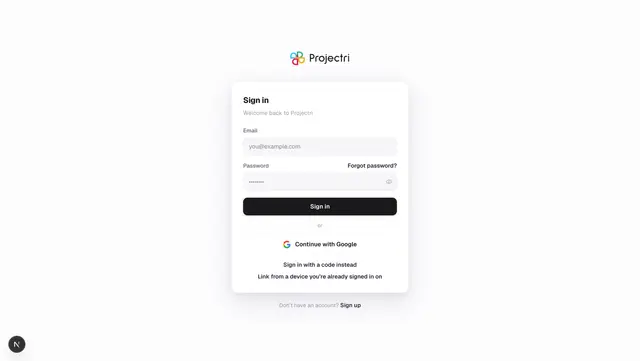
- Either takes you to
/loginwith the invited address already filled in and the join link remembered, so you come straight back here afterwards. - Press Accept invite.
When you are signed in as somebody else
The page says which address the invitation was sent to and which one you are currently using, and the accept button is not offered — the server would refuse it anyway. Press Sign in as the invited address to switch.
What it affects
- Your role in that workspace is the one on the badge — Admin, Member, Viewer or Guest — and it applies only there. Your role in any other workspace is untouched. See Roles and permissions.
- A project role, if the invitation carried one. That is a second, separate grant, shown as its own badge, and the project's existing members are notified that you joined exactly as if an administrator had added you.
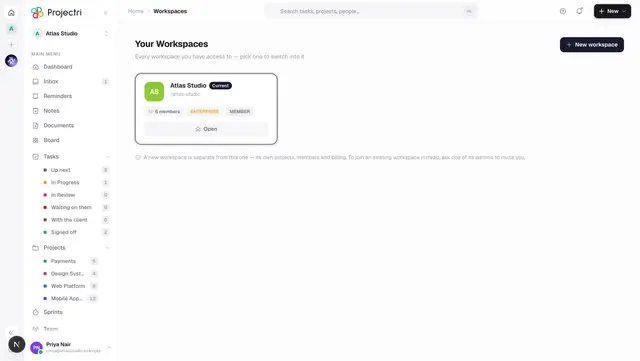
- Your active workspace changes. Accepting switches the session to the new workspace before navigating, so the app you land in is the one in the address bar. If you already belonged to another workspace, the Workspaces row in the rail is how you go back.
- A seat is consumed. This is the only place in the product where somebody who is not yet a member takes a seat, so the plan's seat cap is enforced here. A full workspace refuses the acceptance and says so.
- The acceptance is audited against the workspace being joined.
On mobile
This screen is web only. Open the invitation link in a browser; once you are a member, sign in to the workspace normally in the phone app.
Limits and gotchas
- An invitation lasts seven days. After that the page says *"Invite expired"* and the only way forward is a fresh one from an administrator.
- An invitation belongs to an address, not to whoever holds the link. A forwarded invitation cannot be used by the person it was forwarded to. This is deliberate — the token travels by email, and email gets forwarded.
- An invitation can only be used once. A link that has already been accepted or cancelled reads "This invite has already been used or cancelled".
- **The workspace's allowed-domain list is checked again at the moment you accept**, not only when the invitation was sent. An administrator who narrowed the list after sending it has said something about your invitation, and this is where it is honoured.
- If the invitation named a project that has since been deleted, the project half quietly drops off and the workspace half still stands.
- Cancelling an invitation is an administrator action from Members — holding the token does not let you cancel it.
Related
- Signing in — creating the account the invitation is for.
- Members — sending, resending and cancelling invitations.
- Roles and permissions — what the role on the badge actually grants.
- Workspaces — moving between workspaces once you are in more than one.