Search
Ranked search across tasks, projects, documents, notes, comments, tickets, clients and knowledge-base articles, with operators, type tabs and paging.
What it is
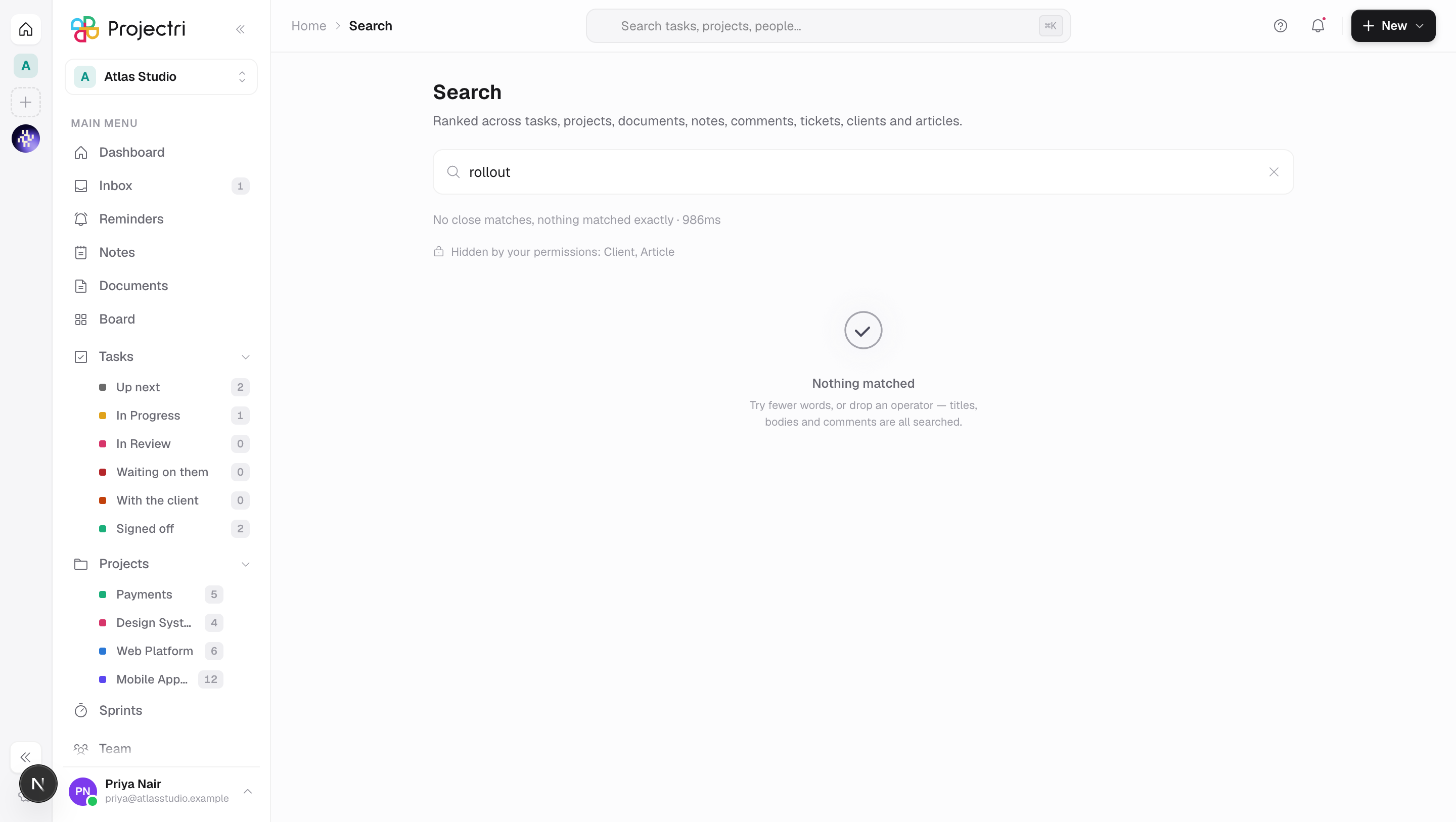
The search page is the long form of the box in the header. The box gives you six quick answers as you type; this page ranks the whole workspace, understands operators, tells you what kind of thing each hit is, and pages.
Eight kinds of thing are indexed: tasks, projects, documents, notes, comments, tickets, clients and knowledge-base articles.
How to get there
Type in the header search box and press Enter, or open /search directly. The query lives in the address — ?q=… — so a search can be shared, bookmarked and reached again with the back button.
The page itself needs no permission beyond being signed in. What it will show you does: each type is gated by its own key — task.view for tasks and comments, project.view for projects, document.view for documents and notes, support.view for tickets, client.view for clients, kb.view for articles. A type you cannot see is named under the results as hidden by your permissions rather than silently dropped, because "no tickets matched" and "you cannot see tickets" are different answers.
How to use it
Run a search
- Type and press
Enter. Results arrive ranked, with the matched words highlighted in the title and in a line of context. - The line under the box says how many results and how long it took.
- Each row shows the type on the right. Clicking one opens the thing itself — a task opens its panel, a comment opens the task it hangs off.
Narrow by type
- The tabs above the results — All and one per type present — filter what is on screen. Each carries its own count.
- The tabs are a view of the answer already fetched, not a new search. To narrow the search itself, use
type:in the box.
Use operators
Operators can be combined, and a query made only of operators is legitimate.
| Operator | What it does |
|---|---|
type:task | Restrict to one kind. issue, doc, kb, customer and the plurals all work. |
in:project or project:acme | One project, by key or name. |
assignee:me, assignee:sam | One person. |
client:acme | One client. |
is:open, is:done, is:mine, is:unassigned, is:overdue, is:archived | State. |
from:me | Your own. |
created:>2026-01-01, updated:<2026-06-01 | Date bounds. |
"exact phrase" | Adjacent words. |
-word | Must not appear. |
An operator the search does not recognise is echoed back rather than swallowed, so a typo in one shows up as a typo rather than as an empty result.
Page through
- Load more at the bottom fetches the next twenty-five and appends them.
- It only appears on All: the type tabs hide rows, they do not shorten the result set.
What it affects
- Nothing. Search reads; it writes no state anywhere. Opening a hit does whatever opening that thing normally does.
- Permissions are part of the query, not a filter afterwards. A row you may not read is never fetched, so counts and paging are honest and a title cannot leak.
- Ranking prefers your own work. Relevance is weighted by recency, by whether the project is one of yours, and by type, so a project outranks a comment that merely mentions it.
On mobile
The phone's Search screen asks the same ranked search and shows the same type tabs and the same destinations. It adds people above the ranked list — colleagues are deliberately not in the index, so they come from the directory instead.
Limits and gotchas
- A query of one character is not run. Either type two, or use an operator.
- The index is refreshed by a pass that runs every minute, so something created seconds ago may not be findable yet. It is not lost.
- People are not results here. Use the header box or Team to find a colleague.
- When nothing matches literally, a looser search runs and the summary says so — "n close matches, nothing matched exactly". When results were matched by meaning rather than by word, it says that too. Both lines mean the rows are not what you literally typed.
- The context line under a hit is plain text taken from the start of the body, not the passage that matched.
Related
- How search works — indexing, ranking and what is not indexed.
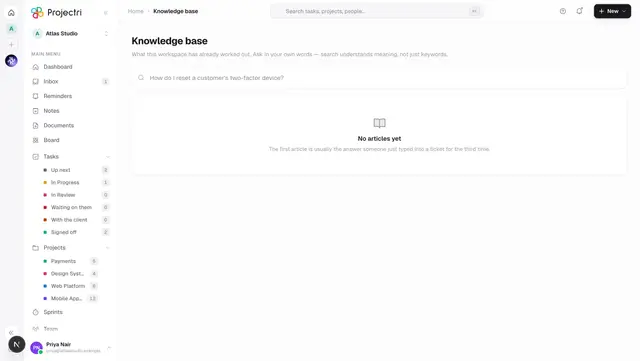
- Knowledge base — articles, which are one of the indexed types.
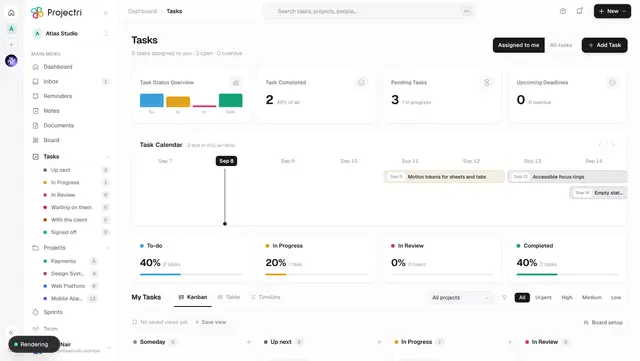
- My Tasks — where a task hit lands.
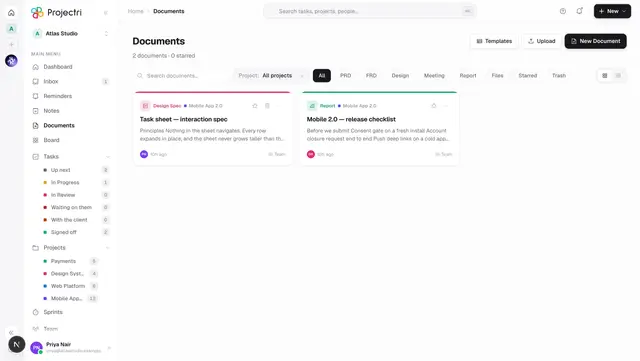
- Documents — where a document hit lands.