Projects
The project list and the project itself — its people, milestones and progress, its tasks as a table, board, timeline or roadmap, and its documents, boards and meetings.
What it is
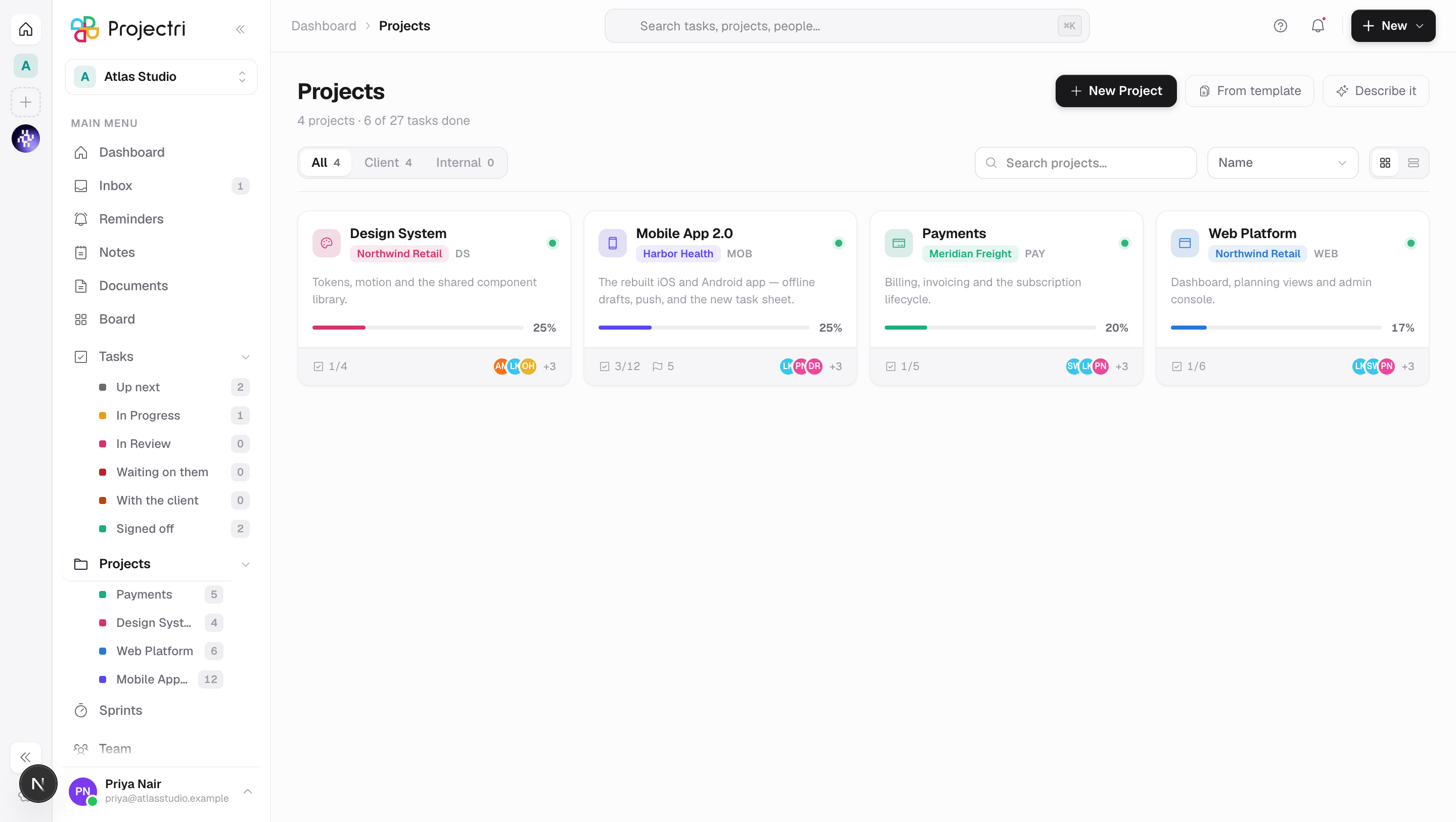
A project is the container the work lives in: a name, a client or none, the people on it, its milestones, and every task, document, whiteboard and meeting that belongs to it. This screen is both the list of them and the project itself — opening one keeps you on the same page with ?project=<id> in the address.
How to get there
Projects in the main navigation, which expands into the projects you can open. Ctrl/Cmd + 3 opens the list.
Everything here needs project.view. Which projects you see is a second question: by default you list the projects you are on — as a member, as a lead, or through a team — and project.view_all widens that to every project in the workspace. The empty state says which of the two you are reading.
The rest is per-action:
| Action | Permission |
|---|---|
| New project, From template, From brief | project.create |
| Edit details | project.update |
| Members, Invite | project.member_manage |
| Labels, Custom fields | settings.workflow |
| Components | project.plan |
| Save as template | project.template |
| Integrations | integration.manage |
| Archive / Restore | project.archive |
| Delete | project.delete |
Each is hidden rather than shown and refused, and each is checked twice — the key you hold in the workspace, and your role on that particular project. The whole Settings button disappears when none of its rows are reachable.
How to use it
Find a project
- The tabs are All, Client and Internal, each with a count.
- The search box matches the project name, the client name and the project key.
- Sort by name, most tasks, progress or recently updated.
- The two icons on the right switch between cards and a dense table.
Start a project
- New project opens a blank form: name (required), type — client or internal — the workspace it lives in, a client, a billing type, status (Active or On hold), a description, an icon and an accent colour. Choosing a client for a client project lets you create one inline if it does not exist.
- From template applies a saved project structure and drops you straight into what it built.
- From brief describes the project in words and lets Nia propose a plan; accepting it creates the project and opens it.
The billing type follows the chosen workspace's default until you set it yourself — including setting it to none, after which the workspace stops moving it.
Read the project header
- The title row carries the icon, the name, the client (or Internal) and the billing type.
- Hide details collapses the metadata card to a single line — status, progress, tasks done, dates, milestones — and remembers that choice across projects and sessions. The line itself opens it again.
- The card holds status, description, the people on it, progress, the timeline and the milestones. Milestones are clickable; the timeline is derived from the milestone dates, or from the day the project started when there are none.
- Share copies a link to this project. The link is not public — it resolves only for people who can already open the project — and the menu says so.
- Above the tabs, two strips appear when they have something to say: what the project is waiting on the client for, and what has been sitting unsigned.
Work the tasks
- The tabs are Table, Kanban, Timeline, Roadmap, Documents, Boards and Meetings.
- Table is a grid whose column headers carry the filters. Kanban, Timeline and Roadmap get a shared filter bar instead — two controls for one filter is how they start disagreeing.
- Above them sits a search box, the priority strip, a due-date filter and Add task. When a date filter empties the view, the toolbar says whether nothing fell in the range or nothing carries that date at all.
- Full view lifts the current view over the whole window, keeping the tabs and the toolbar.
Escleaves it.
Follow a task through its life
- Add task asks for a title, description, project, assignee, stage, priority and due date, and — under the same dialog — a start date, a reviewer, an estimate in hours, story points, other people on it, labels, attachments and links.
- Clicking a task opens the panel on the right. The title and summary are edited in place; the assignee, due date, priority, stage and labels are pickers.
- Watch subscribes you to it, so you hear about changes you were not named in. The arrows icon moves it to another project; the bin deletes it.
- Below the fields the panel carries, in order: components, the people on it and its reviewer, an agent assignee if one is set, what the client owes on it, subtasks, checklists, attachments, proofs, links, approvals, reminders, recurrence, related tasks, custom fields, and tracking — cycle, start date, estimate, story points and time spent.
- Comments take
@mentions and ring the person named. Under them, the activity list is everything that has happened to the task, including work Nia or an agent did and who asked for it. - Moving the task between stages — by dragging on the board, by the picker in the panel, or by ticking it off elsewhere — is the same write everywhere.
Plan the dates
- Timeline draws the plan from the project's own plan endpoint: task bars, dependency arrows and milestones.
- Freeze saves a baseline. From then on the chart can show drift against it, and the panel under the chart lists what has been added, dropped or moved since — including tasks that have no bar because they did not exist at the freeze.
- Roadmap is the milestones on their real dates. A filter narrows it to milestones that still hold at least one matching task, so a milestone with no tasks drops out while a filter is on.
The other tabs
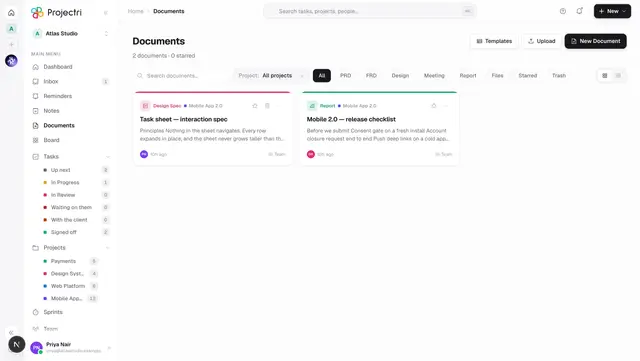
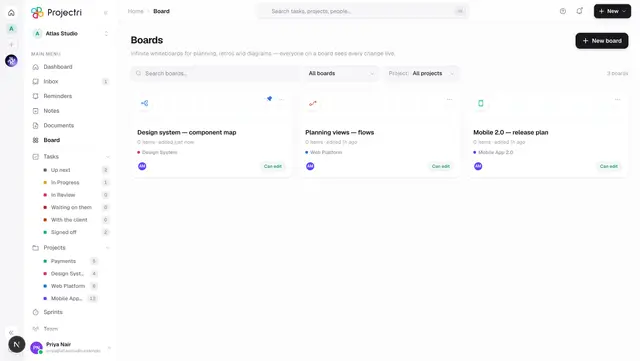
- Documents and Boards are this project's slice of Documents and Whiteboards.
- Meetings lists the project's meetings on the left and the selected one on the right.
What it affects
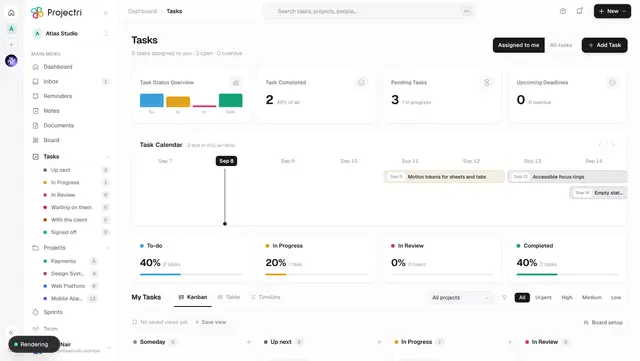
- Everything a task carries is shared. A stage change, an assignment, a due date or a comment written here is the same record My Tasks, the dashboard, the calendar, reports and the client portal read.
- Assigning or reviewing notifies. So does an
@mention in a comment, and so does adding somebody to the project. - Archiving takes the project out of the list but leaves its tasks and history intact. Delete in the settings menu archives as well — the confirm says so — and there is no button here that destroys a project.
- Archived projects still count against your plan's project ceiling. A limit you can dodge by archiving is a limit that teaches people to archive rather than upgrade.
- Members decide visibility. Adding somebody to a project is what lets them list it, open its tasks, and be found by search inside it.
- Save as template captures the structure for the next project of the same shape, and it appears in From template.
- A board someone else is looking at corrects itself when you move, create or archive a task on it — without blinking their columns.
On mobile
The Projects screen in the phone app is the same list as cards: name, progress, counts and the member stack. The dense table does not survive the trip to a phone. Opening a project and working its tasks is done from there and from the My Tasks tab.
Limits and gotchas
- A project view loads up to five hundred of that project's tasks. On a very large project the filters, not the scroll, are how you reach the rest.
- Renaming, adding, reordering or removing a column on the project's Kanban tab is a local rearrangement of your own screen. It is not saved and nobody else sees it. Stages that everyone shares are configured in the admin console.
- The Kanban tab does not draw a Backlog column.
- The project list excludes archived projects and there is no filter to bring them back. An archived project is reached by its link, where **Restore project** is in the settings menu.
- Start and end dates are not fields on a project. The timeline shown in the header is derived from its milestones.
- The Share link opens nothing for someone who is not on the project. Adding them is a separate act, under Invite.
- Project icons must be an image under 2 MB.
Related
- My Tasks — the same tasks across every project at once.
- Documents — what the Documents tab is a slice of.
- Whiteboards — what the Boards tab is a slice of.
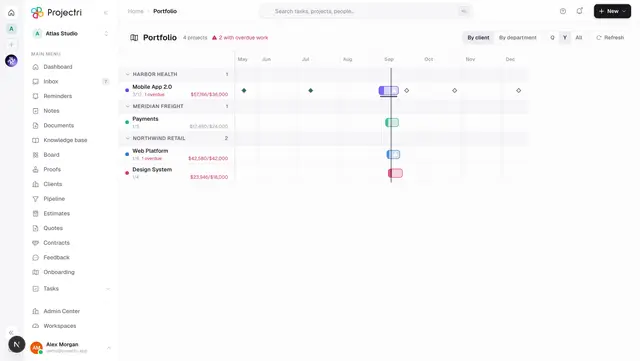
- Portfolio — every project on one timeline.
- Sprints — the cycles a project's tasks are scoped into.