Boards
Every whiteboard you can reach, with filters, a trash tab, card actions and a template-first create dialog.
What it is
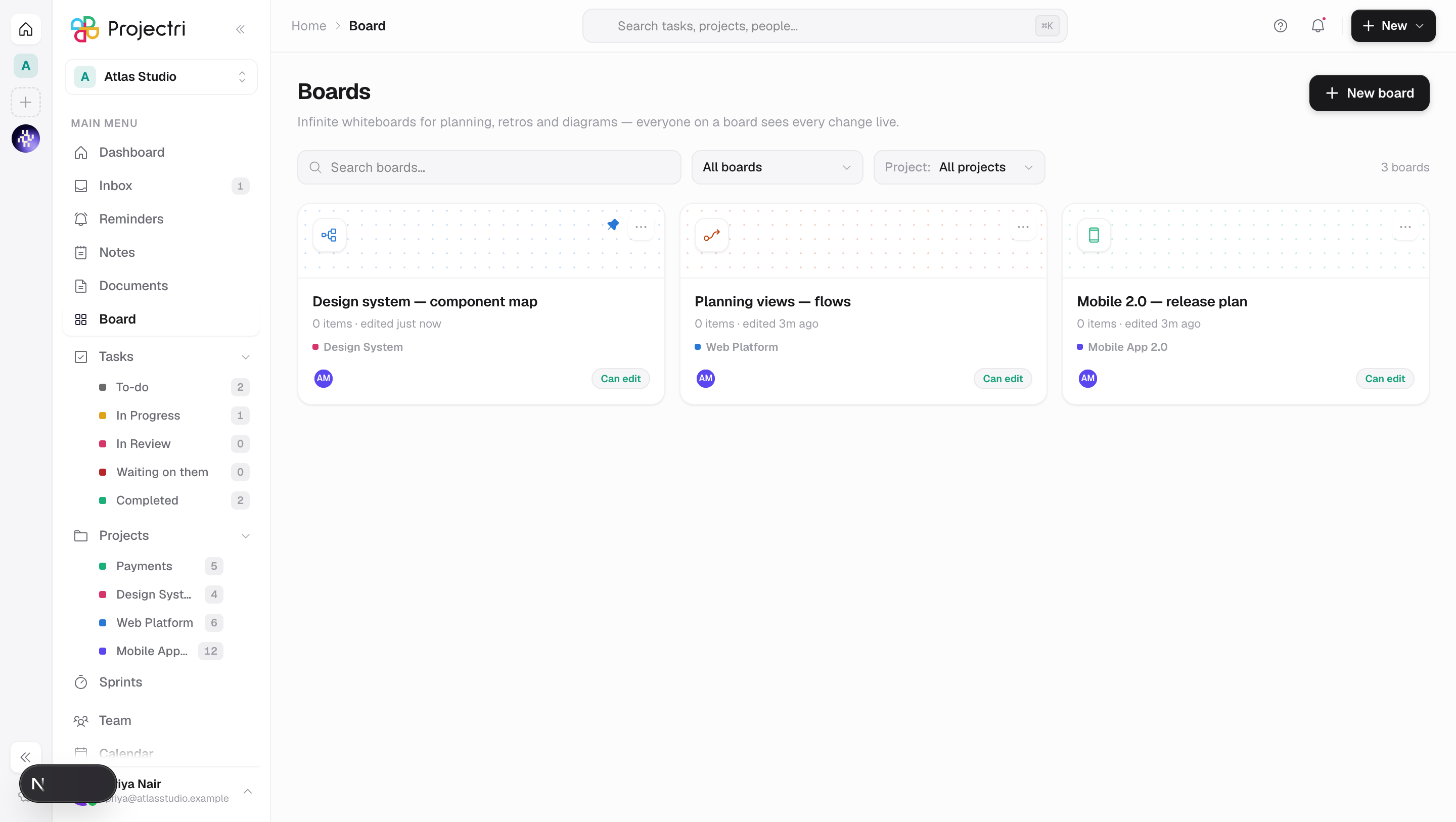
Boards are infinite whiteboards for planning, retros and diagrams — and everyone on a board sees every change live. This screen lists every board you can reach: your own, anything shared with you, and anything the workspace publishes.
How to get there
Boards is in the main navigation. The list needs board.view. New board appears only if you hold board.create. Editing a board needs board.update, trashing and deleting need board.delete, and sharing needs board.share. Boards are part of the core tier — there is no plan gate and no cap on how many you can make.
How to use it
Find a board
- Search boards… filters on title and description.
- The dropdown filters between All boards, Created by me, **Shared with me, Pinned and Trash. Only Trash** reloads from the server.
- Project narrows the list to boards filed under one project.
- Pointing at a card starts loading it before you click, so opening feels instant.
Create a board
- Press New board.
- Name it — left blank it saves as Untitled board.
- Pick a Template. Six are offered inline (Blank board, Brainstorm, Flowchart, Sprint retrospective, KPI dashboard, **Impact / effort matrix) and Browse all** opens the full gallery.
- Choose an Icon and a Colour for the card.
- Pick Projects. The board shows up in every project you pick, and the first one is the primary.
- Set Who can reach it — Workspace (anyone in the workspace can edit) or Private (only you, until you share it).
- Create board opens the new board straight away.
If a project was selected in the list filter, the dialog pre-fills it.
Act on a card
The … menu offers:
- Pin to top / Unpin
- Rename — only if you can edit the board
- Duplicate — the copy is titled "… (copy)" and shows a placeholder card while it is being made
- Move to trash — owner only, and asks *"You can restore it from the trash tab."*
In the trash view: Restore, and Delete forever which asks "This cannot be undone."
Each card shows the item count, when it was last edited, its project, and a pill saying whether you are Owner, Can edit or View only. A globe means the public link is live; a lock means the board is private.
What it affects
- Filing under projects. A board appears on the boards tab of every project you file it under. The first project is the primary and is what the card names, with
+Nfor the rest. Filing changes nothing about who can open it. - Duplicating carries the content, not the access. The copy has no shares and no public link, even if the original had both.
- Trash hides a board everywhere. A trashed board disappears from the list, from its projects, from its public link and from its live session, not just from this screen.
- Nothing purges the trash. A trashed board stays restorable until somebody deletes it forever.
- A private board is private from administrators too. Being an admin of the workspace does not open a board nobody shared with you.
On mobile
The phone has a Boards list. Opening one lands in a read-only viewer with pinch-to-zoom and pan; creating and editing stay on the web, which the empty state says plainly rather than letting you find out by tapping a shape.
Limits and gotchas
- The list returns at most 200 boards.
- Created by me and Shared with me split the list by who owns the row.
- Switching filters cancels a slower in-flight request, so a fast tab change cannot leave you looking at the previous filter's results.
- The card's role pill is the board's access, not your workspace role — an admin can hold View only on someone else's board.
Related
- Using a board — the canvas itself.
- Projects — where a filed board also appears.
- Exports — a board exports as PDF only.