Sprints
Fixed windows of committed work inside a project, with a board, a backlog you pull from, and burndown, velocity and cumulative-flow charts.
What it is
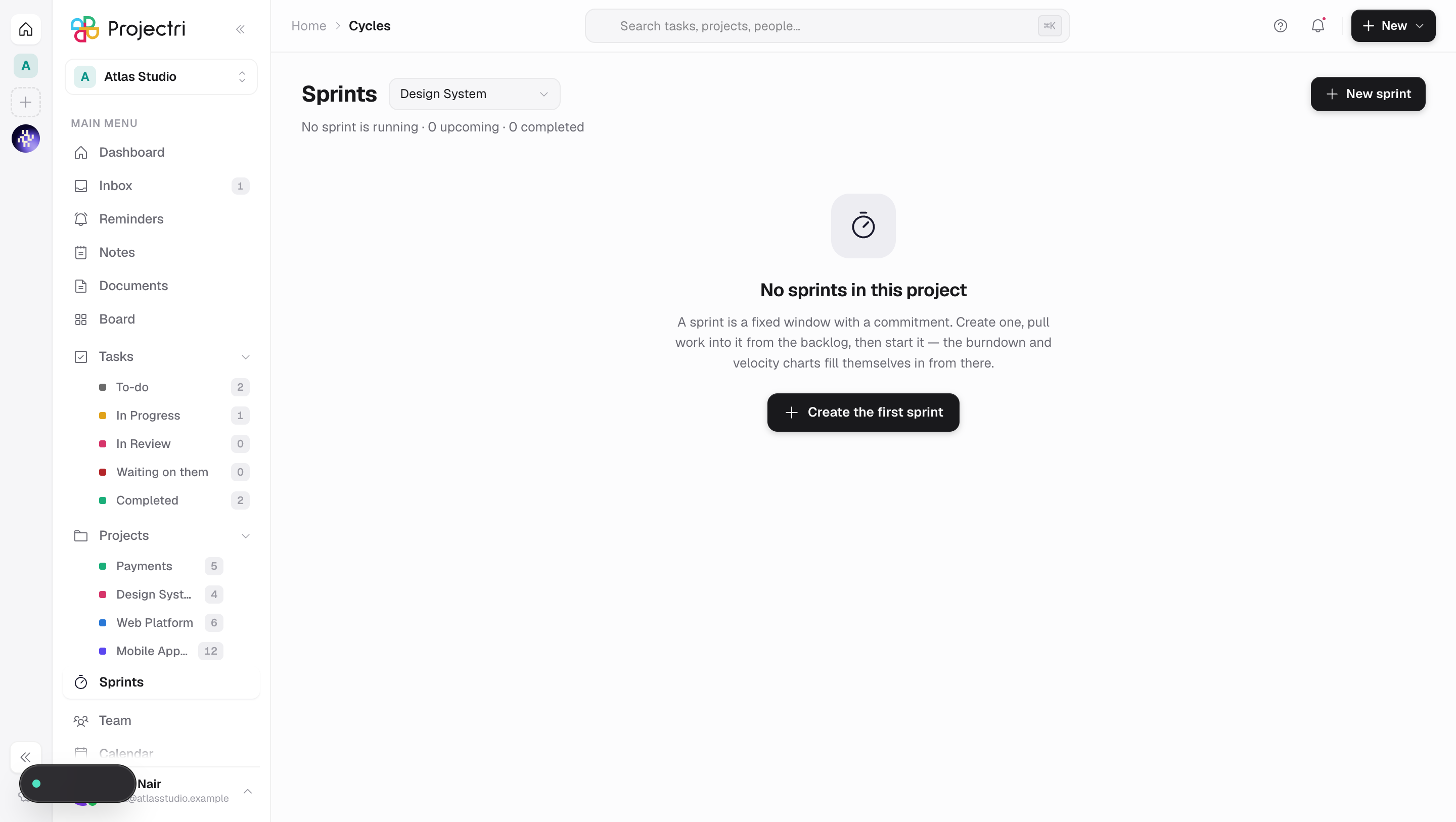
A sprint is a fixed window in one project with a commitment attached: the work that was in it when it started. This screen lists a project's sprints, shows the board for the one you pick, lets you pull work in from the backlog, and draws the burndown, velocity and cumulative flow behind it.
How to get there
Sprints sits directly under Projects in the main navigation, and in the ⌘K page search. The New menu in the header has a Sprint row that brings you here with the create dialog open.
The page needs sprint.view. The rest is split:
sprint.create— create a sprint. Without it there is no New sprint button.sprint.update— edit a sprint's name, goal and dates.sprint.run— start and complete a sprint.sprint.scope— move tasks in and out of a sprint and reorder the backlog.sprint.delete— delete a sprint. This one is not a member default: deleting a sprint detaches every task on it at once.
Members hold view, create, update, run and scope by default.
How to use it
Pick a project and a sprint
- The project picker is beside the title. Sprints live inside a project; the page picks your first one and remembers your choice in the URL.
- The rail on the left groups sprints as Active, Upcoming and Completed. The page selects the running one, failing that the next one, failing that the most recent.
- The URL carries the project, the sprint and the tab, so the link you paste into a channel opens this sprint rather than the sprints page.
Create a sprint
- Press New sprint.
- Give it a Name — "Sprint 14" — and a Goal: what this sprint is for, in one sentence.
- Set Starts and Ends. A new sprint defaults to a two-week window from today.
- Save. It appears under Upcoming.
Pull work in from the backlog
- Open the Backlog tab. It lists everything in the project not committed to a sprint, in a hand-set order.
- Tick the rows you want — sprint planning moves twenty items, not one — and the bar at the bottom shows how many and how many points.
- Choose Move to sprint… and pick the sprint.
- Drag rows to reorder the backlog. Story points are editable inline.
Start it
- Select an upcoming sprint and press Start sprint.
- The dialog shows the Tasks and Story points about to be committed, and says plainly that everything added after today counts as scope change rather than commitment.
- A sprint with no work can still be started — it will commit to nothing, and the dialog says so.
- Press Start sprint. Day one is recorded and the first snapshot is taken immediately, so the burndown starts on the day the sprint actually began.
Complete it
- Press Complete sprint on the running one.
- The dialog shows what was Delivered and what is Not finished, with points.
- Choose what happens to the unfinished work: back to the backlog, **carry into another sprint — you then pick which — or keep** it in this sprint as a record.
- Press Complete sprint. A toast names how many items carried over.
The final snapshot is taken before anything moves, so the chart records what the sprint actually ended with.
Read the charts
Open the Charts tab on a selected sprint.
- Burndown — remaining work against the ideal line, in points if anything is estimated and in tasks otherwise.
- Velocity — delivered points per completed sprint, with an average, and a predictability figure: what share of commitments were delivered. It needs at least one completed sprint.
- Cumulative flow — where work is piling up by status. It needs at least two days of history.
What it affects
- Tasks. Moving work into a sprint sets the task's sprint; completing one either clears it, points it at the next sprint, or leaves it. Every task in scope when a sprint starts gets an activity entry naming the sprint.
- The commitment, once. Starting a sprint snapshots the committed task count and point total. That is what Scope change is measured against afterwards, and it is why starting and completing have their own actions rather than being a status field somebody could set directly.
- Daily snapshots. A snapshot row is written per sprint per day — by the cron, and again whenever the charts are opened, so a chart is never a day stale on a workspace whose cron has not fired. Running it twice in a day overwrites the day rather than drawing two points.
- Progress arithmetic. Progress is by points once anything is pointed, and by task count otherwise, so a team that does not estimate gets a real figure instead of a permanent 0%. Cancelled work counts as closed — not done, but no longer remaining, and a burndown that keeps drawing cancelled work never reaches zero.
- The "behind" warning. The amber marker on a running sprint means it has burnt more of its calendar than of its work, by more than 15 points. It only appears while a sprint is running.
On mobile
The Sprints screen in the Expo app is the list — active, then upcoming, then completed — and tapping one pushes its board. Every number on a card is computed by the same server-side transform the web uses, so the two cannot disagree. Planning a sprint and moving a backlog selection stay on the web.
Limits and gotchas
- One running sprint per project. Starting a second is refused, and the refusal names the sprint that is still running rather than saying "a sprint is already running" and sending you hunting.
- A completed sprint cannot be restarted.
- Editing dates does not start or complete anything. The status is not writable through the edit dialog on purpose — starting and completing have side effects (the commitment snapshot, the carry-over) that a field write would skip, leaving a sprint marked finished with no record of what it committed to.
- Sprints are per project. There is no cross-project sprint view here; switch projects with the picker.
- A workspace with no projects shows an empty state rather than a picker — and it offers a Create a project button only if you may create one.